Scheduled Task for Automatic Posting: Set it once, and AI will "Search Hot Topics → Match Images → Publish" for you every day

Scheduled Automatic Publishing

In the previous tutorials, you learned how to let AI help you post content on a certain platform—but each post still requires you to click "Publish" yourself.

In this article, we will fully automate it. Set it once, and then it will search, write, match images, and publish by itself every day/week while you sleep.

This relies on the Scheduled Tasks feature in Studio, combined with the publishing skills you have connected earlier. This is the most crucial step in turning "content marketing" into a "sleeping productivity engine," and it is the feature I most want you to utilize in the entire affiliate network.


1. What is a Scheduled Task and Where to Find It

It is a feature in Studio that allows for scheduled, background, unattended automatic AI tasks. The access path is:

https://studio.acedata.cloud/chatgpt/scheduled

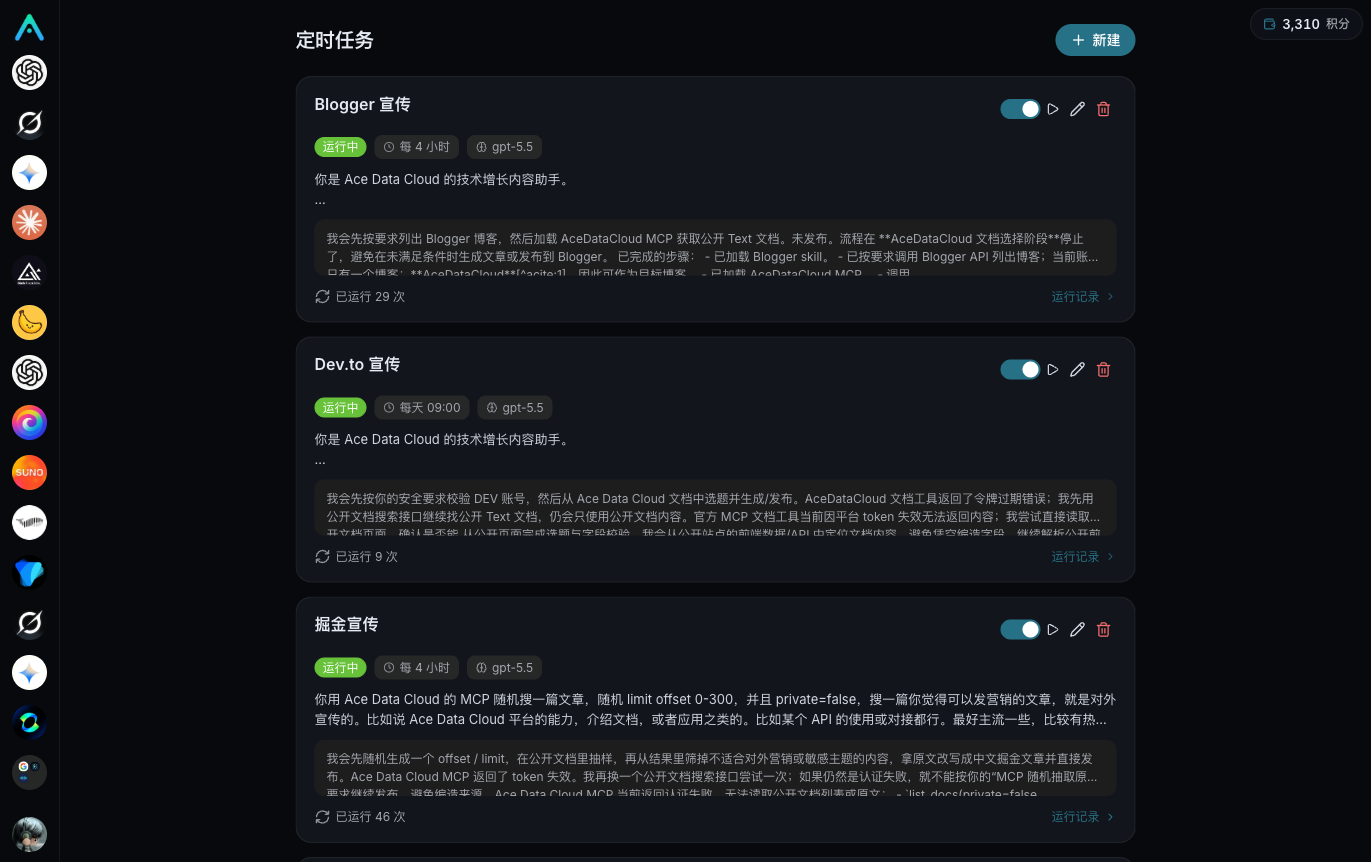
Once opened, you will see a list of all your scheduled tasks—each task comes with an enable switch, schedule label, fixed model, and running history:

Scheduled Task List

In summary: It is a cloud-based scheduled robot that executes the AI tasks you set at specified times and records the results (such as "Published") in history.


2. What Composes a Task (Understand this to Configure)

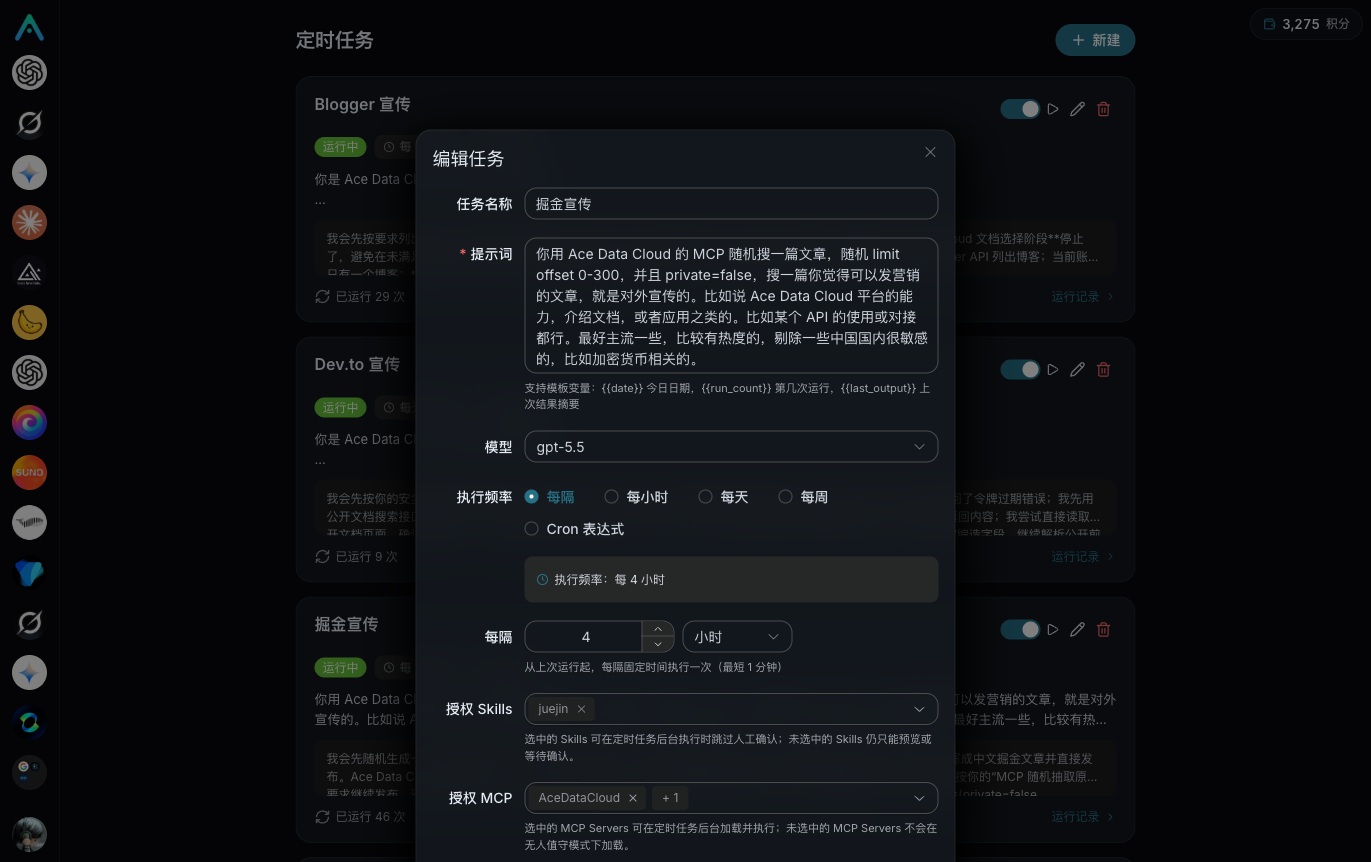
When creating/editing a task, the fields in the pop-up correspond to the structure below:

Scheduled Task Edit

{
  "name": "Daily Zhihu AI Hot Topic Article", // Task name, can be anything
  "schedule": {                               // When to run
    "type": "cron",                           //   cron / interval (every N seconds) / once (only once)
    "value": "0 9 * * *"                      //   Example: every day at 9 AM
  },
  "template": {                               // What to do when running
    "model": "gpt-5.5",                       //   Which model to use
    "question": "……your prompt……",           //   Instructions for AI (the core)
    "skills": ["zhihu"],                       //   Which skills can be used this time
    "mcp_servers": ["openai"]                 //   Which MCP can be used this time (image matching relies on this)
  },
  "unattended_policy": {                      // 【Most crucial】 Unattended whitelist
    "allowed_skills": ["zhihu"],              //   Skills allowed for automatic background calls ← missing this will fail
    "allowed_mcp_servers": ["openai"]         //   MCPs allowed for automatic background calls
  }
}
  • name: Task name.
  • schedule: Schedule. cron expression (most flexible), interval every N seconds, once runs only once. Includes time zone.
  • template: The actual content to be executed. model fixes a model, question is the prompt for AI, skills / mcp_servers declare which capabilities AI can use for this run.
  • unattended_policy: Unattended policy. This is the most important part of the entire article, which will be discussed separately in the next section.

3. ⚠️ The Most Crucial Point: The Publishing Skill Must Be Added to the allowed_skills Whitelist

This step is the easiest to overlook; if missed, it will definitely not run. I will emphasize it separately:

When the scheduled task runs unattended (when you are not present), for security reasons, it will not load skills randomly by default. Which skills are allowed to run automatically in the background is determined by the whitelist unattended_policy.allowed_skills.

Therefore, for automatic publishing to work, two conditions must be met:

  1. You have already connected the corresponding platform's publishing skills (for example, connected Zhihu and Juejin);
  2. This skill is explicitly allowed in the allowed_skills whitelist of the scheduled task.

If you only completed step 1 and forgot step 2, the background run will fail due to " Skill not activated (skill_not_active)"—you will see this error in the running history of this task. If you see skill_not_active, go back and add the skill name to allowed_skills.

Similarly, if you let AI use gpt-image-2 for image matching (using OpenAI MCP), you also need to add openai to allowed_mcp_servers.


4. Practical Application: A Fully Automated Pipeline of "Search Hot Topics → gpt-image-2 Image Matching → Publish to Zhihu/Juejin"

This is the most typical and effective approach. I will provide you with a configuration that you can directly copy.

Step 1: Run Manually First (Do Not Skip)

First, in the Studio's regular chat, manually let AI run through "Search a hot topic → Write an article → Match an image → Publish to Zhihu" completely to confirm it can succeed. First succeed manually, then set it to scheduled—otherwise, if automation has issues, you won't know where the error is.

Prerequisite: You have already connected Zhihu and Juejin according to the "Connector Overview," and the platform can call OpenAI (gpt-image-2 for image matching).

Step 2: Create a Scheduled Task

Go to https://studio.acedata.cloud/chatgpt/scheduled, click to create a new task, and fill in according to the following.

Task Name: Daily AI Hot Topic Article - Zhihu Juejin

Schedule: cron0 9 * * * (every day at 9 AM). It is recommended to start with a gentle pace of "one article per day."

Model: gpt-5.5 (or your preferred flagship model).

Prompt (question)—directly copy this section, replacing <yourID> with your user ID:

You are my technical content operator. Please complete today's task:

1. Use Zhihu's skill search to find today's hot topics in the AI field (hot list / internal search is fine), select 1 topic with the most discussion that is related to "AI image generation / AI API."
2. Write an 800-1200 word Zhihu article around this topic: authentic, informative, and include a small example that can be followed (for instance, the complete steps to generate an image using gpt-image-2). Avoid exaggeration and clickbait titles.
3. Use OpenAI's gpt-image-2 to generate a deep blue technology-themed article cover image (openai_generate_image, size 1536x1024).
4. Naturally add a guiding sentence at the end: If you want to try it yourself, you can use this free quota entry
   https://platform.acedata.cloud/?inviter=<yourID>
5. Publish the article (including the cover image) on my Zhihu; rewrite the same content into a more "practical + code" version and publish it on my Juejin.
6. After publishing, return the links and titles from both platforms to me.

Skills: Check zhihu, juejin.

MCP: Check openai.

Unattended Whitelist:

  • allowed_skills: must include zhihu, juejin
  • allowed_mcp_servers: must include openai

Step 3: First "Run Immediately" Verification

Don't just wait until tomorrow. Use "Run Immediately" to run it once, then check the run history for results:

  • Success, both articles have been published → Done, let it run automatically every day via cron.
  • Failure, showing skill_not_active → Go back and check if allowed_skills has all the skills included.
  • Failure, showing insufficient balance → Recharge your account (the background automatic run also consumes your quota).

Step 4: Regular Review

Unattended does not mean no monitoring. Check the run history every few days: Are there any failures? Has the Zhihu cookie expired? Is the content quality still up to standard? Address any issues promptly.


Five, More Ways to Play (Just Change the Prompt)

The same mechanism, just change the prompt and skill whitelist, creates different automated pipelines:

  • Juejin Technical Daily Update: Search for a new tool/model every day, write "first-hand testing + code," and publish on Juejin. allowed_skills: [juejin].
  • Xiaohongshu Cover Factory: Note—Xiaohongshu is a local browser-driven platform, requiring your presence for cooperation, not suitable for pure unattended operation. It is more suitable for manual triggering, do not include it in the daily cron.
  • English Overseas Matrix: Search for English topics → Write → Publish on Dev.to + Medium. allowed_skills: [devto, medium].
  • Pure Image Generation Task: Use gpt-image-2 every day to generate a batch of marketing material images to store, allowed_mcp_servers: [openai], do not publish, just store images.

Six, Honest Reminders (Avoid Pitfalls)

  • Manual First, Then Automatic. Don't set a schedule until you've run it manually; troubleshooting issues can be painful.
  • Control Frequency, Ensure Quality. Don't set "one article per hour" to spam—each platform will limit traffic or even ban accounts. Automation amplifies your good content, not low-quality articles. Better to have one genuinely useful article per day.
  • Platforms like Xiaohongshu that are local browser-driven are not suitable for unattended operation—they require you to handle login/captcha. For full automation, prioritize platforms like Zhihu, Juejin, Dev.to, WordPress that are cookie/API-based.
  • Ensure Sufficient Balance. The background automatic run still deducts from your quota; insufficient balance will cause tasks to fail.
  • Publishing may default to saving drafts first: Some platforms have a publishing flow of "draft → confirmation," so pay attention to the status in the run history during unattended operation, and confirm on the platform if necessary.

This is the Difference Between "System" and "Freelancing"

Most people do content marketing by "posting an article when they think of it," with inconsistent effort, and the results depend on their mood.

Now you can build a system: AI automatically searches for hot topics, writes, generates images, and publishes, all while carrying your invitation link, continuously accumulating organic traffic under your name. You free your energy from "manually posting every day" to optimize content strategy and expand to new platforms.

Set it once, run it for a long time. Go to https://studio.acedata.cloud/chatgpt/scheduled now to create your first scheduled task.