

¶ When Running an AI API Business, the Most Troublesome Part Is Often Not the API Itself
When many teams first plan to build an AI API platform, they instinctively think: “Let’s connect the models first and fill in the rest later.”
Only after getting started do they realize that the API is just one part of it.
You also need to build an official website, organize the service catalog, write developer documentation, design pricing, handle registration and login, provide customers with API Keys, and solve issues related to branding, domains, customer support, and privacy terms.
For development teams, these tasks may not necessarily be difficult, but they are very fragmented. Every module needs to be built, and they also need to connect with one another. By the time the website, account system, and documentation center are finally usable, a long time may have already passed.
For enterprise customers, the experience is also straightforward. They usually will not cooperate immediately just because you “have integrated many models.” Instead, they will first look at several questions: Can they quickly find the services they need? Is the pricing clear? Is there developer documentation they can read directly? Can they obtain their own API Key after registering? Can they find the service provider when problems arise?
This is also the core problem that White Label API Platform solves: the underlying AI services are provided by the platform, while you focus your efforts on branding, product presentation, pricing, documentation, and customer operations, rather than redeveloping an entire portal.
¶ What Problems Does White Label API Platform Actually Solve?
Simply put, it provides developers and enterprise customers with a developer portal that can be accessed directly.
After entering the website, customers can view the AI services you provide, understand the pricing, read the documentation, and then decide how to integrate them into their own applications, websites, or workflows. At the stage of creating the portal, there is temporarily no need to write API code; the key is to first build the website that customers can see and use.
This type of platform is especially suitable for teams that already have developers or enterprise customers, operate technical communities or SaaS products, want to offer multiple AI APIs, but do not want to first invest a large amount of time developing an official website and account system.
It should be noted that White Label does not mean buying out a completely independent piece of software, nor does it turn the underlying platform into an independent user database. You can set the website name, icon, service catalog, channel pricing, and customer service information, but you still need to introduce your products, answer customer questions, maintain content, and manage customer relationships yourself.
¶ Prepare the Brand Name and Subdomain Prefix First
Before formally creating it, there is no need to prepare a complex branding plan. Simply determine the brand name that customers will see, as well as the subdomain prefix used to generate the system access address.
For example, you can first prepare a concise business introduction:
Providing conversation, image, and video APIs for application developers.
When creating the website, use the webmaster account to log in to Ace Data Cloud Platform. Do not use an account intended for customer testing to create the site, so that management permissions and customer identities do not get mixed together later.
¶ Create a Website in Site Management
After entering the Platform console, find Site Management and click Create in the upper-right corner.
If there are already sites on the page, you can enter management from the corresponding card. After creation is complete, first verify the site name and domain on the card, then click Manage to continue configuration. Be careful not to click the delete button by mistake.
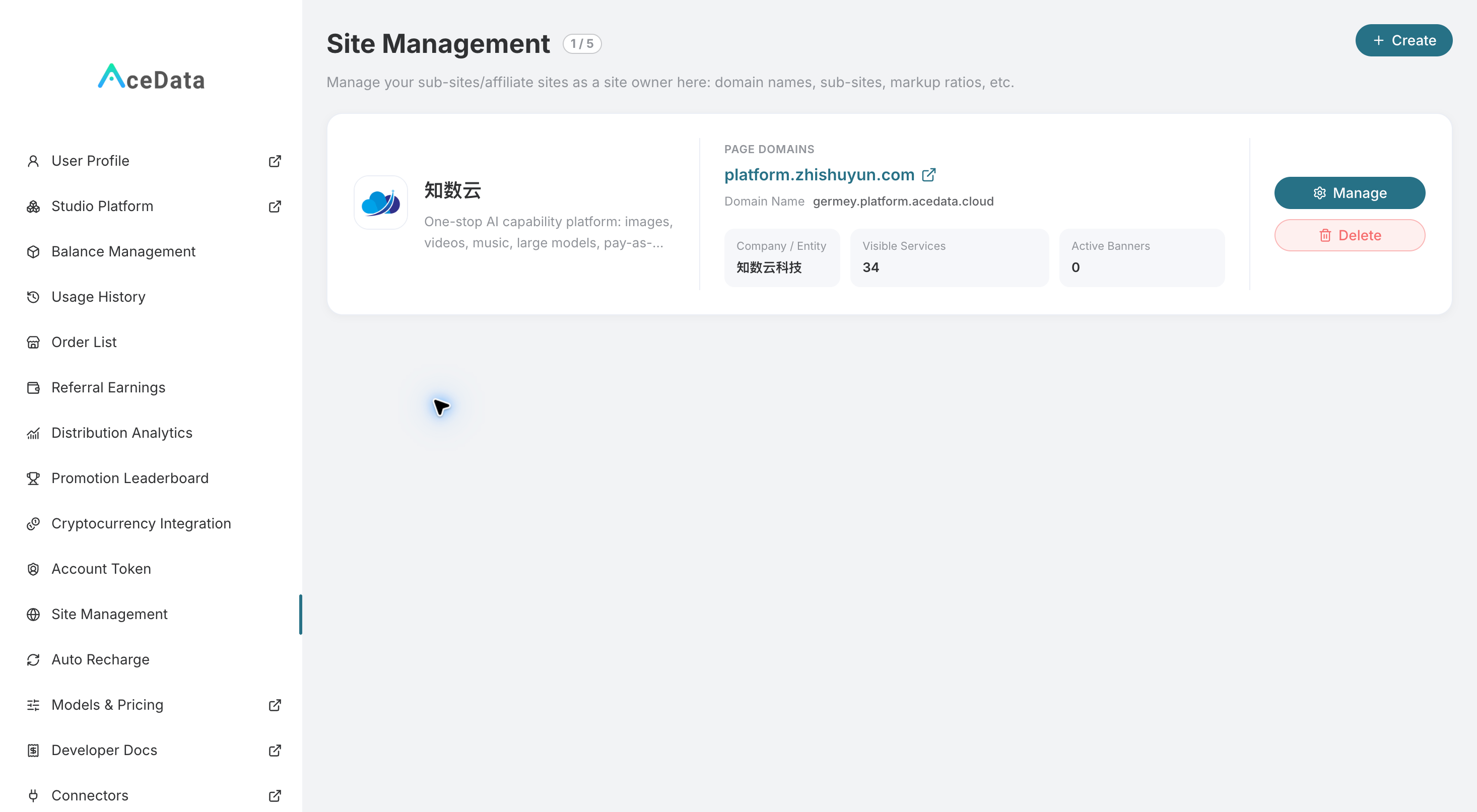
If the card shows both a system domain and an official domain, it does not mean that two websites have been created. They are simply different access points for the same site.
¶ When Filling in the Prefix, Do Not Enter the Full Domain Name Again
The creation form will require you to enter a site prefix and site name.
The prefix must consist of 3 to 32 lowercase letters, numbers, or hyphens. It cannot begin or end with a hyphen, and hyphens cannot be used consecutively. The .platform.acedata.cloud on the right has already been automatically completed by the system, so there is no need to enter it again.
For the name field, enter the brand name prepared for external use. After confirming that everything is correct, click Confirm.
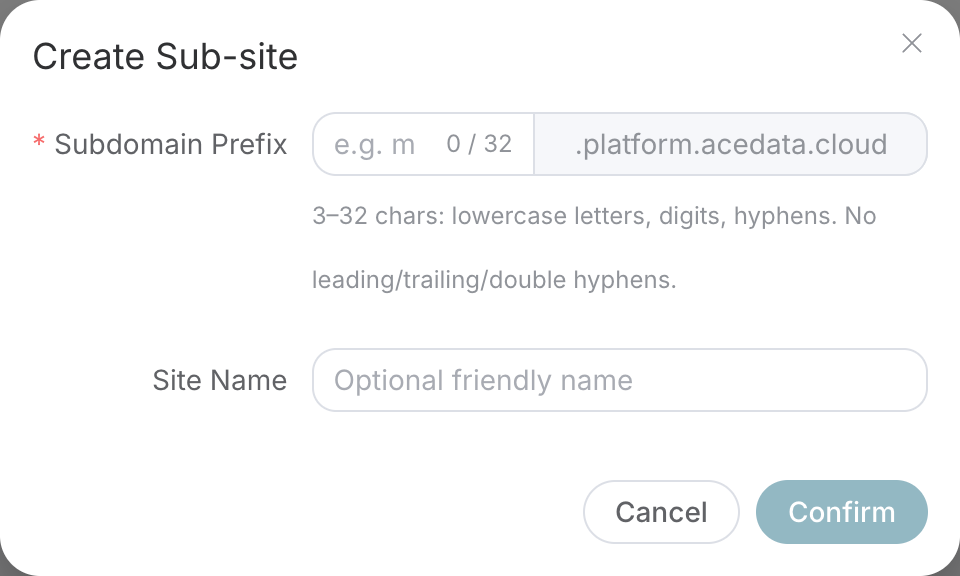
It is recommended not to make the prefix too long. Customers may use this address later in testing, demonstrations, or communication. A short and easily recognizable prefix will be more convenient.
¶ Make the Website Look Like Your Brand First
After the site is created, go to Manage → Site Settings.
First, fill in the most basic branding information:
| Configuration Item | Recommended Content |
|---|---|
| Site Name | The brand name used externally |
| Description | A one-sentence explanation of the main customers and services |
| Logo | The brand image displayed on website pages |
| Favicon | The square icon used in browser tabs |
| Studio Address | The HTTPS root address of the Studio under the same brand; leave blank temporarily if unavailable |
The Description can be written as: “Providing conversation, image, and video APIs for application developers.”
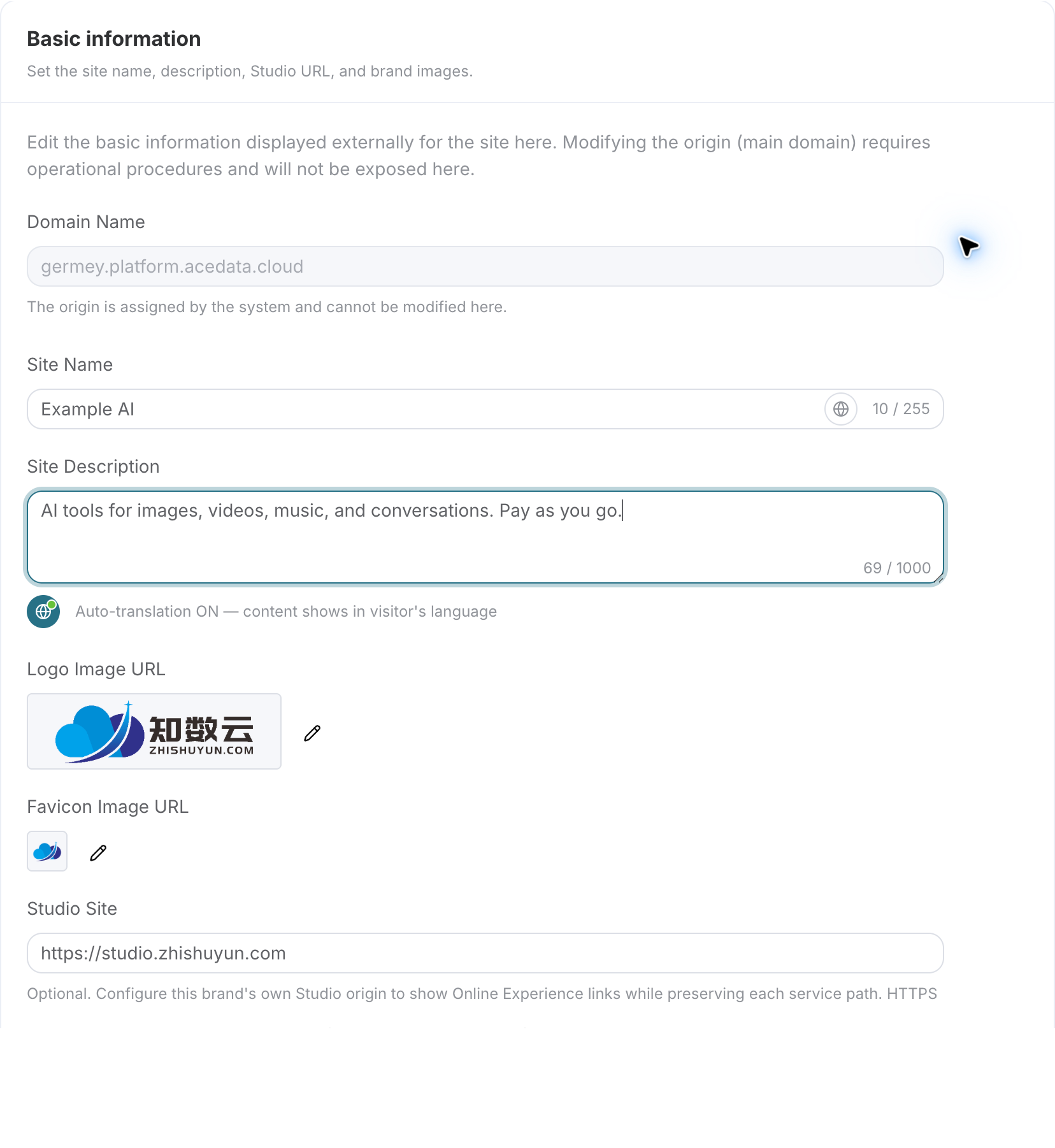
The Origin address assigned by the system is read-only. If you want to change it to your own official domain later, you need to go to Custom Domain, rather than modifying the Origin field here.
¶ There Are Many Backend Entries, So You Do Not Need to Configure Everything at Once
After entering the management backend, you will see multiple workspaces. When using it for the first time, it is easy to feel unsure where to start because there are too many entries. In fact, you can directly look based on your business goal:
| What You Need to Do Now | Corresponding Workspace |
|---|---|
| Modify the brand and enable customer login | Site Settings、Authentication Settings |
| Set up the homepage and navigation | Navigation Menu、Homepage Banner |
| Decide which services and prices to display | Services and Pricing、Documentation Management |
| Set new customer ownership | Distribution Settings |
| Switch to your own domain | Custom Domain |
| View operational information and add agreements | Site Statistics、Terms and Privacy |
Some entries on mobile may be located in the Settings Directory drawer. If the page differs from older tutorials, there is no need to repeatedly look for the original top tabs. Simply locate them according to the workspace names in the current interface.
¶ After Creation, Do Not Rush to Bind an Official Domain
After saving the basic information, click Visit Site in the upper-right corner of the details page, copy the system-assigned access address, and open it in a browser incognito window. An incognito window is closer to what a new customer sees when visiting the website for the first time. It is recommended to check whether the homepage, service catalog, documentation entry, and login entry are working properly, and whether the brand name and Logo are correct.
If no Banner has been configured yet, the homepage may display an empty state. This does not mean that the website creation has failed.
A more reliable approach is to first confirm that the system domain can be used normally, and then bind the official domain. This way, if the website cannot be opened later, you can more quickly determine whether the issue lies in the site configuration or domain resolution.
¶ A website that can be opened is only the beginning
After completing the above configuration, you already have a basic API developer portal.
If you want to truly operate for customers, you still need to continue completing the homepage and navigation, service catalog, channel pricing, developer documentation, customer login, API Key acquisition and delivery, official domain, customer service entry, as well as terms of service and privacy policy.
At the beginning, there is no need to make all AI services available at once. A more practical approach is to first select a small number of services that you are familiar with, can explain clearly, and can provide support for. Once customer feedback and operational processes become stable, then expand the catalog.
For developers and enterprise customers, having more services does not necessarily mean a better experience. Being able to find them, understand them, see clear pricing, and receive help during integration are often more important.
¶ Final thoughts
The value of building a White Label API Platform is not merely to save the work of developing a webpage, but to first organize the previously scattered brand, service presentation, pricing, documentation, and customer entry points.
In this way, the team does not need to wait until all systems are developed from scratch before allowing customers to see the product, understand the services, and begin validating real needs.
If your customers want to integrate AI into applications, websites, or business workflows, you can start with the API Platform. If you mainly serve general users who do not write code and want to create content directly, then White Label Studio may be more suitable.