

This tutorial will introduce how to integrate Ace Data Cloud Google SERP MCP with WorkBuddy, enabling the AI assistant with real-time search capabilities for web pages, images, news, and videos, and directly using search results for technical research, competitor analysis, trend tracking, and content creation.
Large language models excel at understanding, reasoning, and content generation, but model knowledge usually has a time boundary. When tasks involve the latest industry developments, real-time news, product pricing, technical versions, or competitor information, relying solely on the model's existing knowledge can easily result in outdated information, incomplete materials, or even inaccurate content.
Traditional research also requires users to repeatedly switch between search engines, web pages, and documents, manually completing keyword searches, result filtering, information verification, and content organization. The entire process is time-consuming and difficult to directly integrate into the automated workflow of an AI assistant.
After integrating Ace Data Cloud's Google SERP MCP with WorkBuddy, real-time internet search capabilities can be added to WorkBuddy. Users only need to describe tasks in natural language, and WorkBuddy can call the search service to obtain the latest information, then continue with summarization, comparison, analysis, and content generation, allowing “search—understand—organize—output” to be completed within the same task.
Ace Data Cloud Google SERP MCP supports multiple search scenarios, including web pages, images, news, and videos, and can be used for technical research, competitor analysis, trend tracking, content topic selection, material discovery, and research report writing.
¶ 1. Integrating Google SERP MCP with WorkBuddy
¶ 2. Testing
After the configuration is complete, create a new task in WorkBuddy, and explicitly request the use of the Ace Data Cloud Google SERP service for searching in the dialog box.
It is recommended to use the following prompt for testing:
Use the Ace Data Cloud Google SERP service to search for important news in the AI Agent field from the past week.

Please list the news titles, publication times, sources, and main content, and summarize three industry trends worth paying attention to.
You can also enter the following instructions based on actual work scenarios:
- Search for the latest version, official documentation, and practical cases of a certain technology;
- Search for current mainstream products and generate a competitor comparison table;
- Search for recent industry news and extract trending content topics;
- Search for related images or videos to provide material references for content creation;
- Search for academic materials and organize them by research direction;
- Search for location, business, or regional information to assist with local market research.
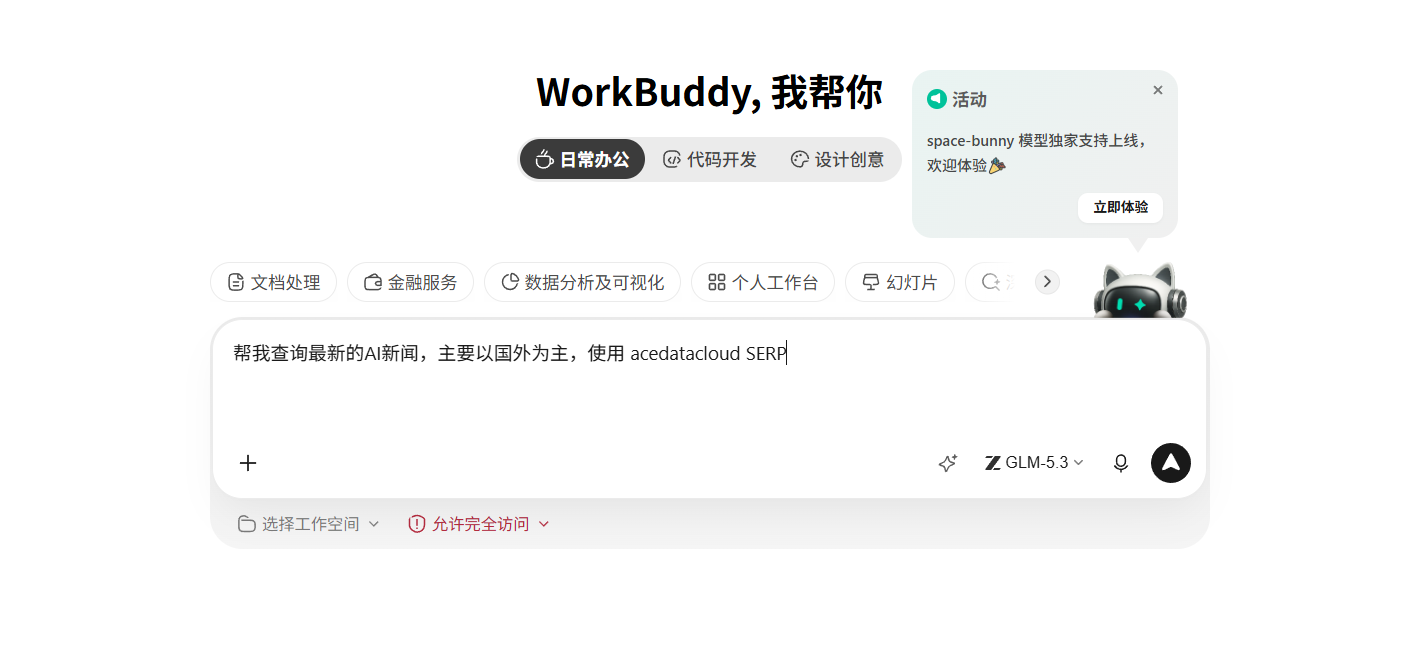
After submitting the task, wait for WorkBuddy to call Google SERP MCP to complete information retrieval and result organization.
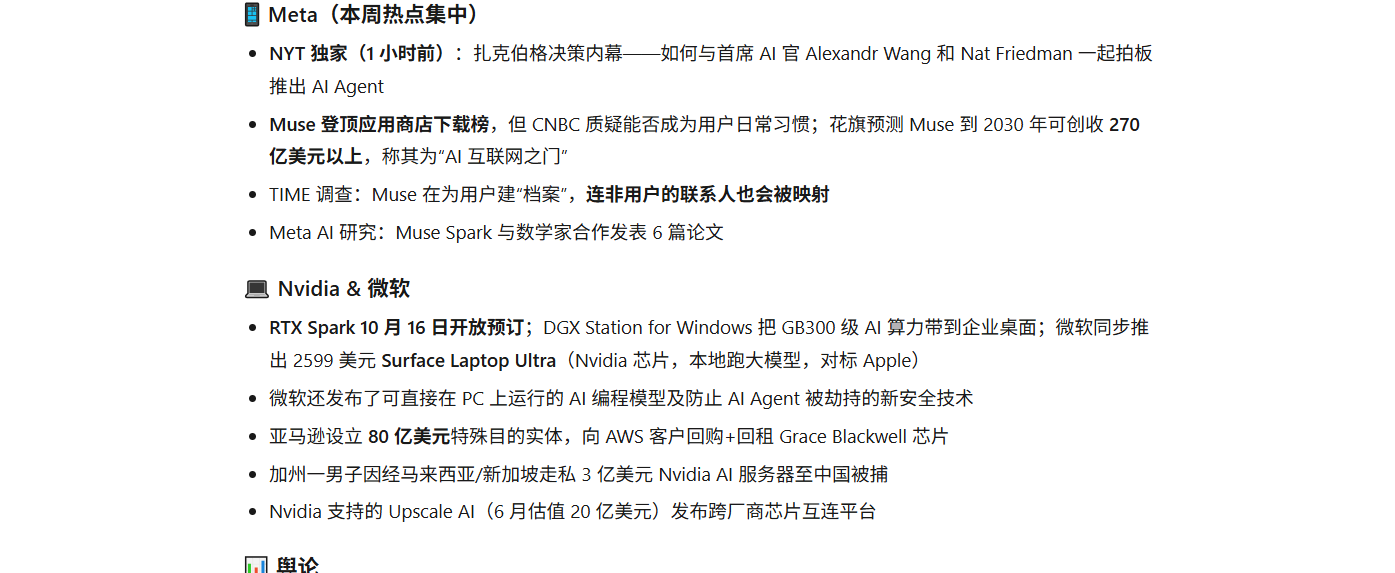
If the returned results contain real-time information related to the question, source links, and structured summaries, it indicates that Ace Data Cloud Google SERP MCP has been successfully integrated with WorkBuddy.
¶ 3. Usage Summary
By integrating the Ace Data Cloud Google SERP service through MCP (Model Context Protocol), WorkBuddy can be upgraded from an AI assistant that relies on the model's static knowledge to an intelligent work partner capable of actively searching the internet, obtaining real-time information, and completing comprehensive analysis.
This capability mainly addresses the following pain points.
¶ 3.1 Model knowledge is not real-time enough
For highly time-sensitive issues such as news, market changes, product updates, technical versions, and price changes, WorkBuddy can supplement the latest information through real-time search, reducing the probability of errors caused by untimely knowledge updates.
¶ 3.2 Manual search processes are cumbersome
Users no longer need to frequently switch between browsers, search engines, and document tools. WorkBuddy can call search services based on natural language instructions, and continue with result filtering, content organization, and report generation.
¶ 3.3 Information from multiple sources is difficult to summarize
When faced with information from different websites and media outlets, WorkBuddy can further extract, categorize, and compare it, and organize the results into summaries, lists, tables, or complete reports.
¶ 3.4 A single search type cannot meet complex task requirements
In addition to conventional web searches, news, images, videos, and other content can also be searched according to task requirements, meeting different needs such as research, operations, creation, and material collection.
¶ 3.5 Search results are disconnected from subsequent work
Search results can directly enter WorkBuddy's task workflow and continue to be used for content creation, market analysis, technology selection, proposal writing, and decision support, without the need to repeatedly copy and organize information.
¶ 4. Featured Services After WorkBuddy Integration
¶ 4.1 Real-time Web Search
Search for technical documentation, product official websites, industry reports, and public materials to help users quickly find information relevant to their tasks.
Example prompt:
Use Google SERP to search for the main changes in the latest version of React, prioritize official documentation, and organize the compatibility issues that need attention during upgrades.
¶ 4.2 News and Trend Tracking
Retrieve recent industry news, company updates, funding information, product launches, and policy changes, suitable for operations, marketing, and management personnel to stay informed about external trends.
Example prompt:
Search for important news in the generative AI field from the past seven days, and categorize and summarize it by company updates, model releases, investment and financing, and policy regulation.
¶ 4.3 Competitor Research and Market Analysis
Search for competitor official websites, feature introductions, pricing plans, media coverage, and user reviews, and then have WorkBuddy organize them into a structured competitor analysis report.
Example prompt:
Search for current mainstream AI video generation products, and create a comparison table based on core features, pricing, generation quality, ease of use, and target users.
¶ 4.4 Content Topic Selection and Material Collection
Search for the latest trends, industry data, and related cases, and further generate article topics, content outlines, social media copy, or research material lists.
Example prompt:
Search for popular topics in the AI Agent field from the past month, provide five topics suitable for a technical blog, and generate a content outline for each topic.
¶ 4.5 Image and Video Material Retrieval
Search for images, video tutorials, product demonstrations, or launch event content based on specified topics, providing material leads for design references, content creation, and learning and training.
¶ 4.6 Technical Research and Troubleshooting
Search the latest official documentation, release notes, technical articles, and public discussions to help R&D personnel understand technical changes, troubleshoot issues, and compare different implementation approaches.
¶ 4.7 Research Materials and Trend Analysis
Retrieve papers, research findings, and academic materials, and let WorkBuddy extract research questions, core methods, main contributions, and future development directions.
¶ 5. Target Users
| User Group | Typical Use Cases |
|---|---|
| Developers | Technical documentation retrieval, version inquiries, troubleshooting, technology selection |
| Product Managers | Competitor analysis, market research, feature comparison, user needs research |
| Marketing Personnel | Industry trend tracking, brand monitoring, marketing material collection |
| Operations Personnel | Trending topic tracking, event planning, topic discovery, material retrieval |
| Content Creators | Material search, article outlines, case collection, content verification |
| Researchers | Academic material retrieval, research trend organization, literature classification |
| Business Managers | Market update summaries, decision-making material organization, industry intelligence analysis |
¶ 6. Related Links
- Ace Data Cloud Google SERP MCP Integration Documentation
- Ace Data Cloud API Key Management Page
- Ace Data Cloud Platform Homepage
- Google SERP MCP Service Address
¶ Conclusion
After integrating Ace Data Cloud Google SERP MCP, WorkBuddy can not only answer questions based on existing knowledge, but can also actively search the internet and obtain the latest materials, then transform search results into reports, tables, plans, and content drafts.
This integration method upgrades the traditional process of “manual searching, item-by-item filtering, and manual organization” into an AI-driven integrated information workflow, helping improve information acquisition efficiency, reduce the cost of material filtering and organization, and enable WorkBuddy to truly become an intelligent work companion with real-time information processing capabilities.
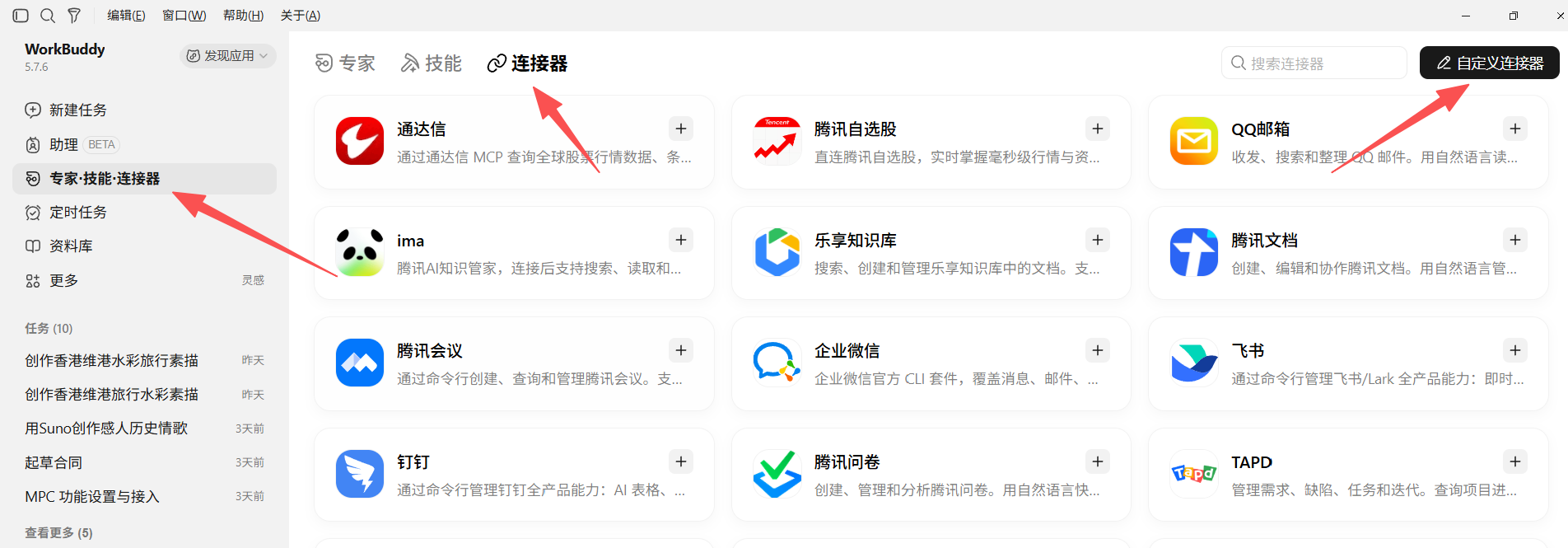
¶ 1. Click the Expert—Skills—Connectors tab, then click Connectors
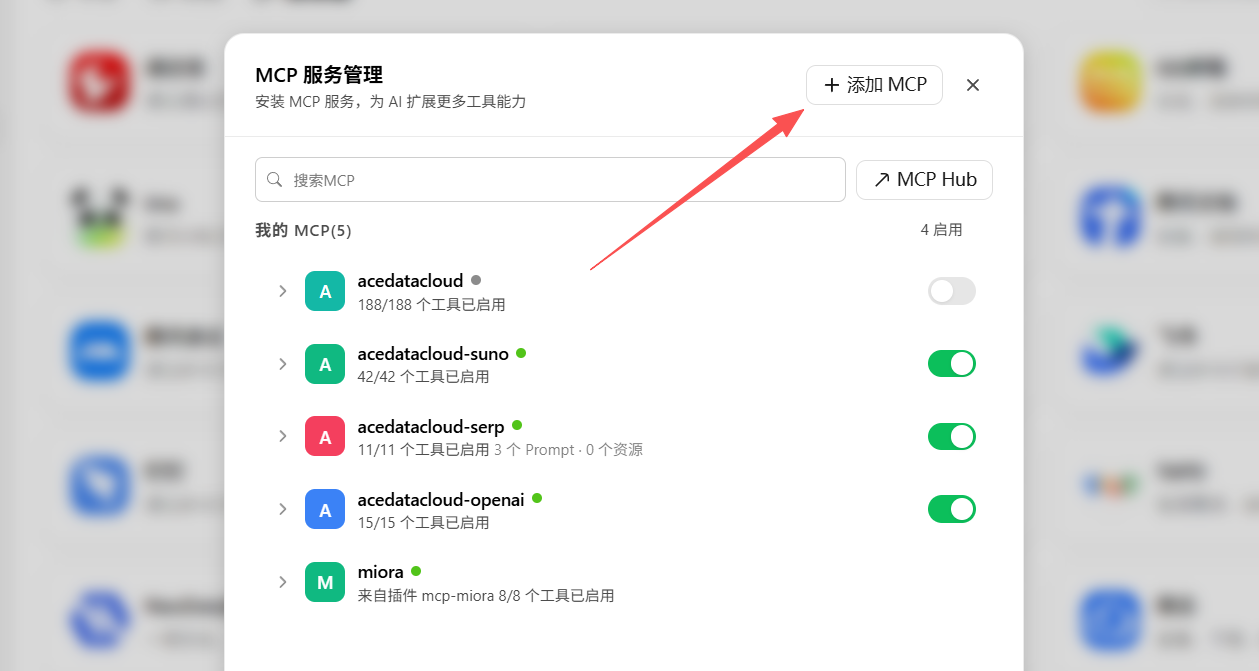
¶ 2. Open Add MCP in the connector management interface
¶ 3. Add the Ace Data Cloud MCP service code
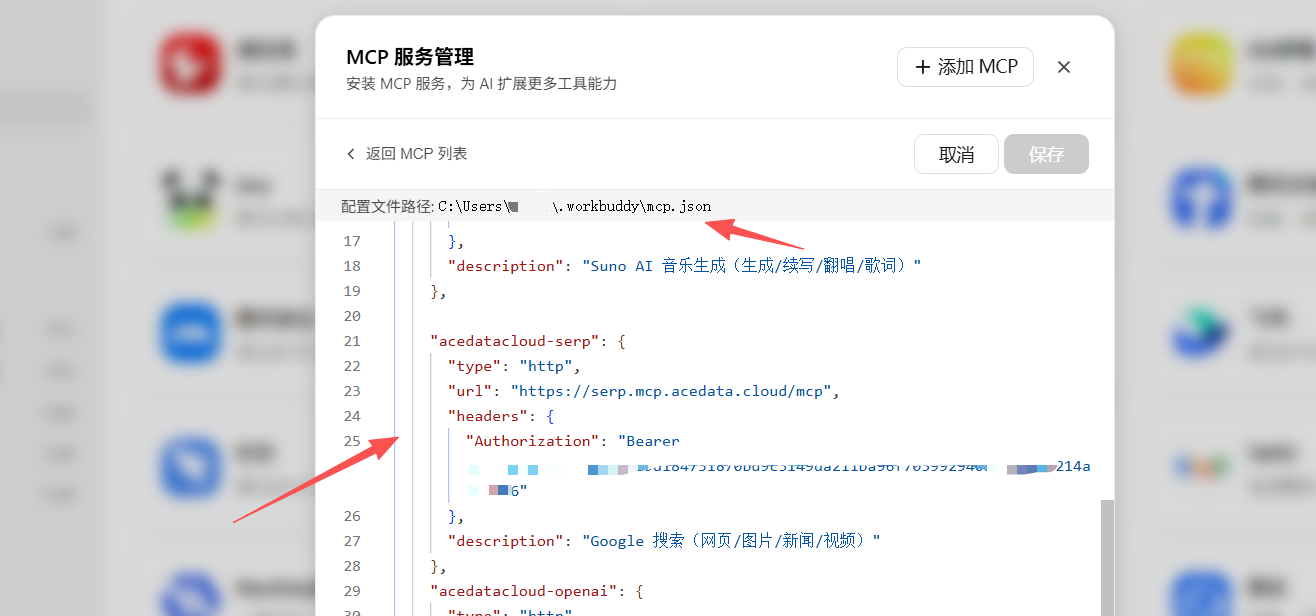
The configuration code is as follows:
"acedatacloud-serp": {
  "type": "http",
  "url": "https://serp.mcp.acedata.cloud/mcp",
  "headers": {
    "Authorization": "Bearer YOUR_API_KEY"
  },
  "description": "Google Search (web pages, images, news, videos)"
}
Please replace YOUR_API_KEY in the configuration with a valid API Key obtained from the Ace Data Cloud console.
¶ 4. Obtain an API Key
Click to access the Ace Data Cloud API Key management page
If the current account does not yet have an available API Key, please click the Create button in the upper-right corner of the page and follow the page instructions to create a new API Key.
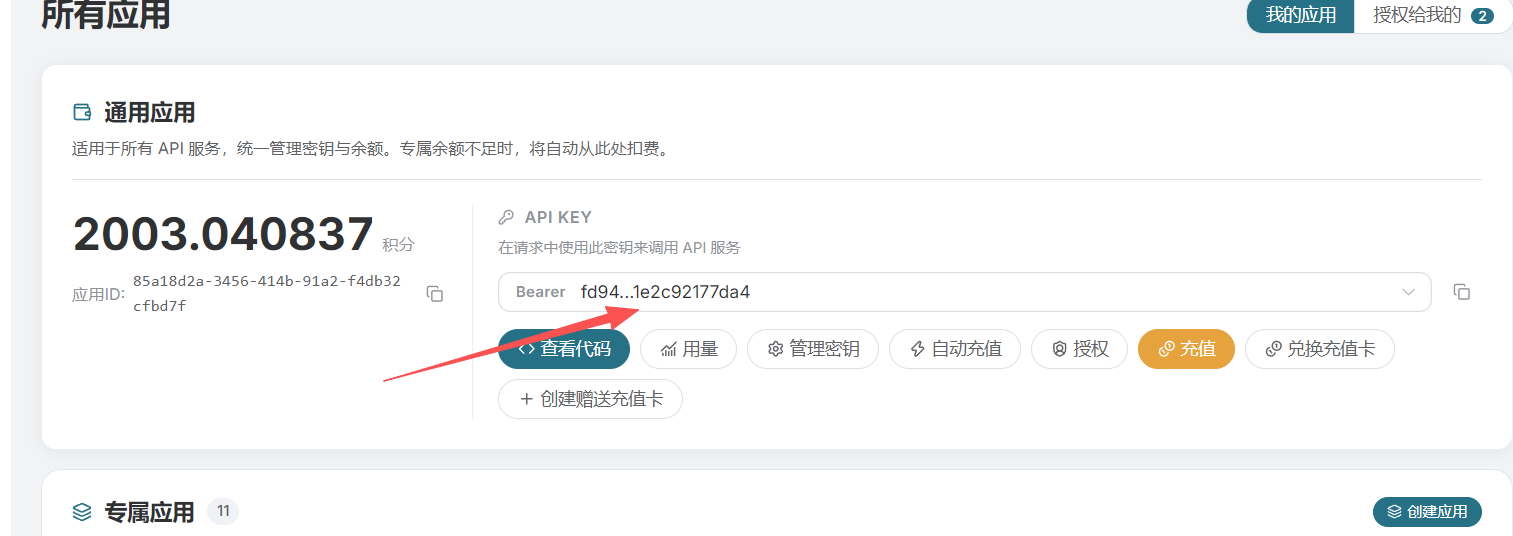
API Key Security Notice An API Key is an important identity credential for accessing Ace Data Cloud services. Do not publish it in public articles, chat logs, screenshots, or public code repositories. It is recommended to use the API Key only in WorkBuddy's connector configuration and regularly check the usage of the key. If you discover that an API Key has been accidentally exposed, immediately delete or disable the old key in the Ace Data Cloud console, then create a new API Key.
After filling in and checking the configuration, click the Save button.
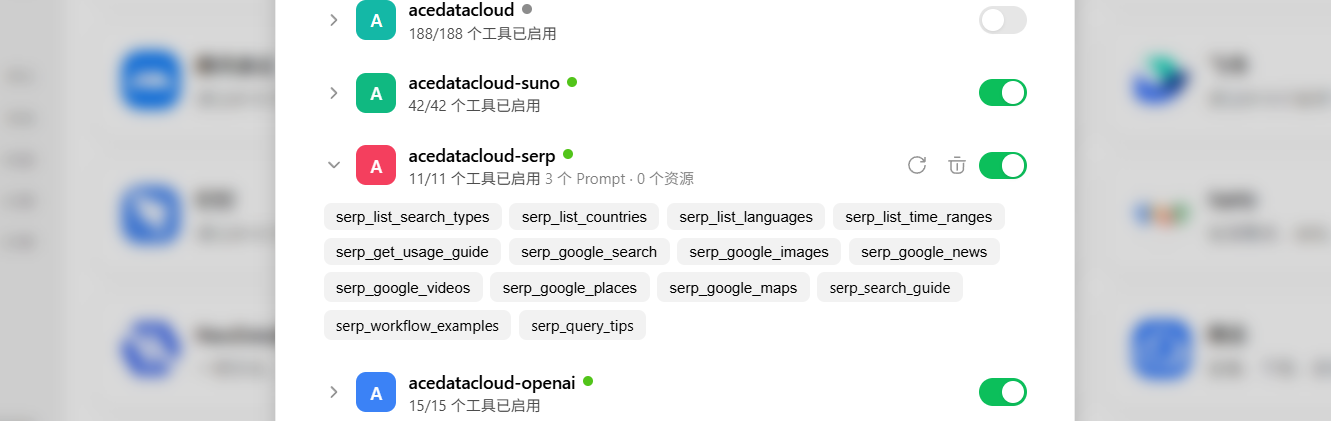
Authorization Configuration Notice The
Authorizationrequest header must retain theBearerprefix, followed by the actual API Key:Authorization: Bearer YOUR_API_KEYA half-width space must be retained between
Bearerand the API Key. Do not add extra quotation marks, line breaks, or Chinese spaces, otherwise authentication may fail. If the service cannot be called properly after connection, you can first check the following:
- Whether the API Key has been entered correctly;
- Whether the API Key is still valid;
- Whether there is a half-width space between
Bearerand the API Key;- Whether the MCP service address is complete;
- Whether the Ace Data Cloud account has available quota.