

Many people want to build their own AI tool website, but when they actually start, it is easy to get stuck.
Where should the site be created? Where can the Logo be changed? Which tools should be enabled? How should prices be added? And how should a custom domain be configured?
None of these things are difficult when viewed separately. The difficulty is that there are many backend entry points, and when operating for the first time, you do not know what to do first. The most hassle-free order is actually to create the subsite first, confirm that it can be accessed normally, and then handle branding, login, features, pricing, and domains.
This article will go through it in this order. After completing it, you will have a Studio site that can be opened normally, has your own branding, and allows customers to log in and use tools.
¶ First, take a look at what Studio looks like when it is built
Studio is an AI creation platform used directly in the browser. The homepage usually displays tools for chat, images, videos, music, and more. After users click a category, they can view tool introductions and then enter the corresponding creation page.
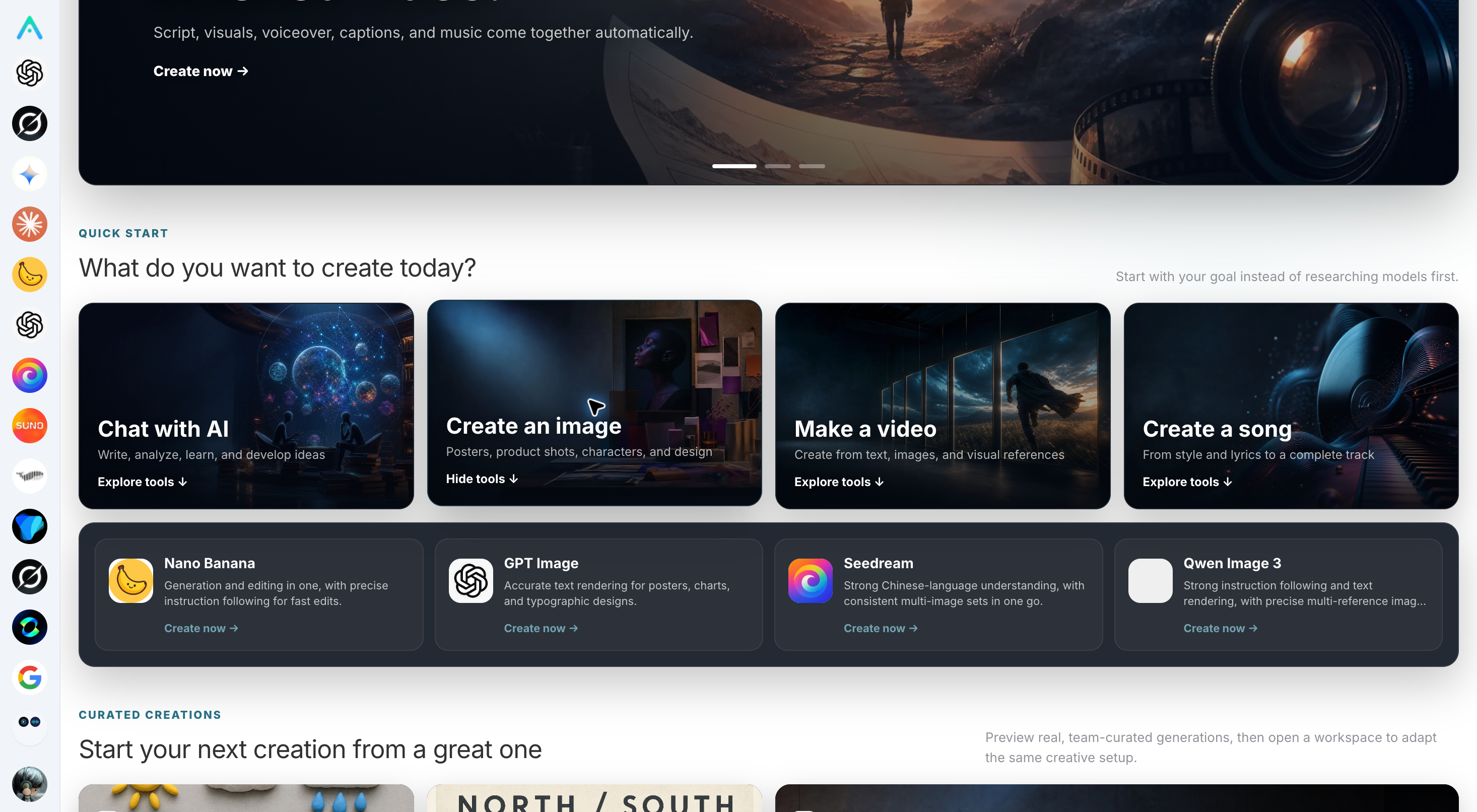
The homepage is not just a list of tools; it can also display some featured works. After users see an effect they like, they can click “Create the Same” to enter the corresponding tool, and then adjust materials and parameters according to their own needs.
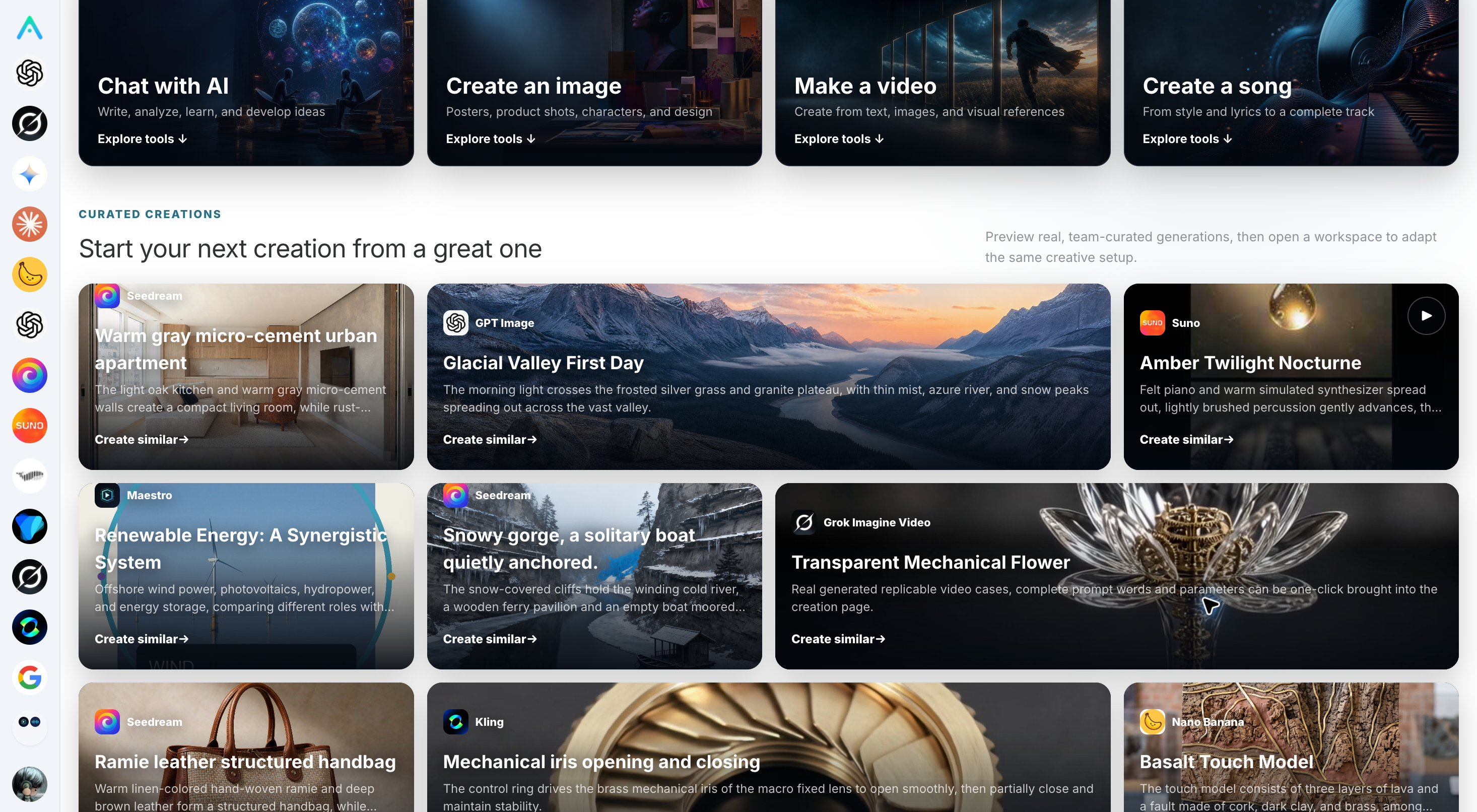
There is one point that needs to be clarified in advance: creating the same only takes users to the corresponding workspace; it does not generate directly with one click. Users still need to check the materials, prompts, and generation parameters.
¶ Create the subsite first
Open the Studio web version, click the avatar in the upper-right corner after logging in, enter “Settings,” find “My Subsites,” and then click “Create Subsite.”
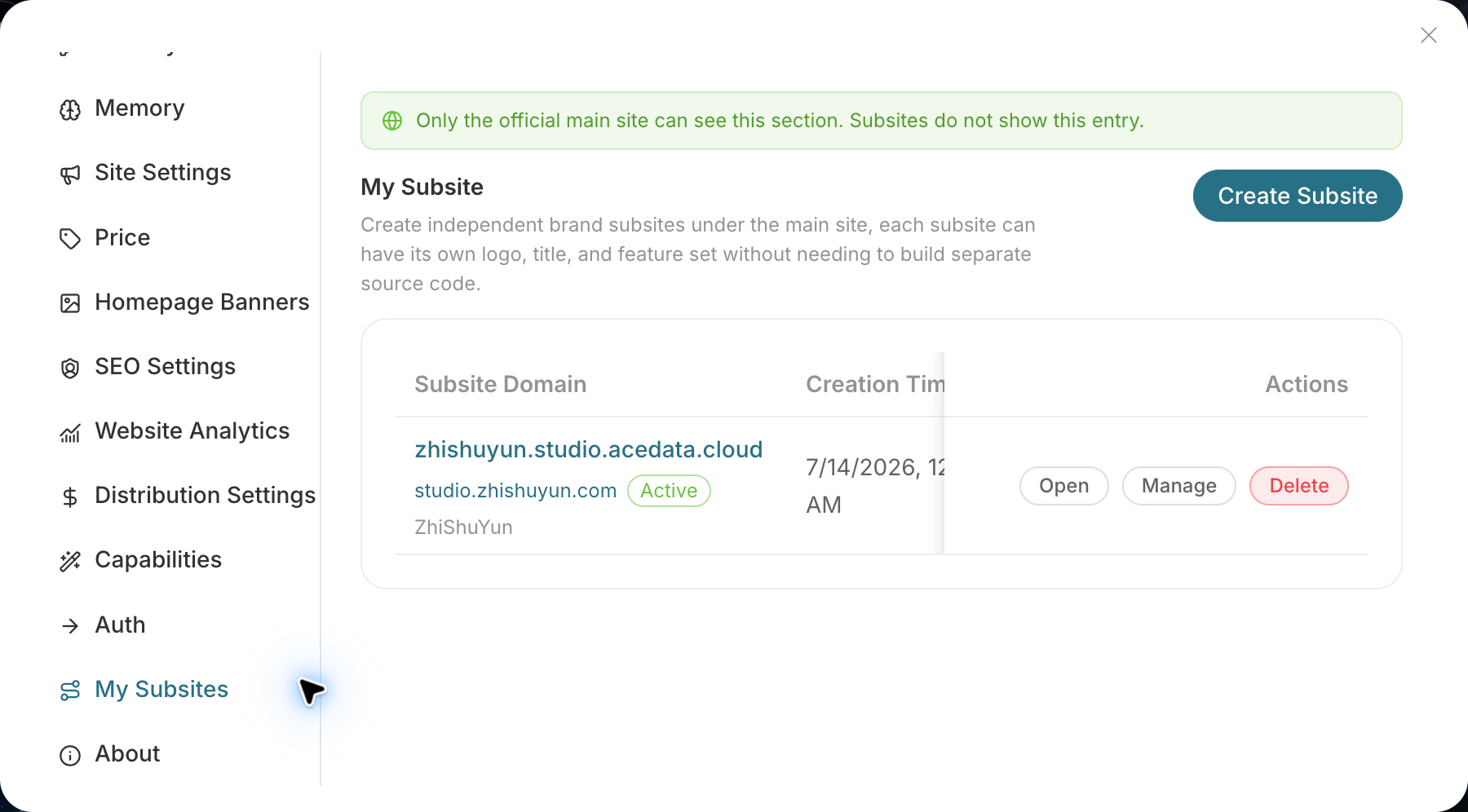
“My Subsites” is in the web version of the official Studio main site. If you are using the App, or have already entered a white-label subsite, you may not be able to see this entry.
Before creating it, it is best to prepare two things: a site name for customers to see, and a short English prefix.
For example, if the site is called “Galaxy Creation,” the prefix can be xinghe. After creation is complete, the system will assign an address similar to xinghe.studio.acedata.cloud.
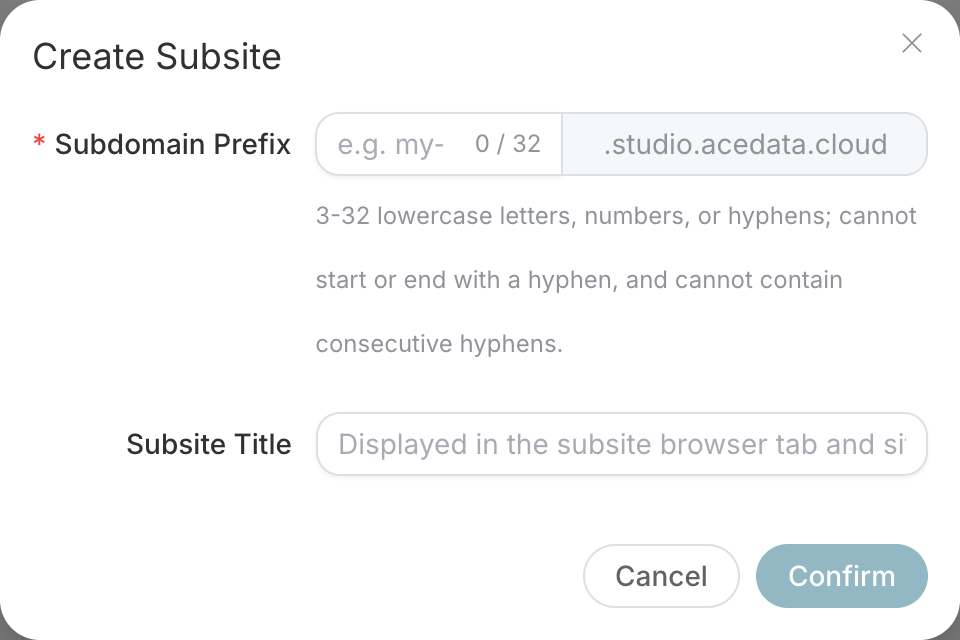
Only fill in the short part at the beginning for the prefix; do not write .studio.acedata.cloud again. It supports lowercase letters, numbers, and hyphens, with a length of 3 to 32 characters. The beginning and end must be letters or numbers, and do not use consecutive hyphens.
The site title is the brand name that customers actually see. It can still be changed later, so there is no need to spend too much time worrying about it here the first time.
If the prefix is already taken, just change it. After creation succeeds, the new subsite will appear in the list.
“Open” and “Manage” in the list have different purposes.
“Open” enters the website customers see. You can use it to check whether the homepage, login entry, and mobile display work properly. “Manage” enters the site backend. Changing the Logo, adjusting prices, selecting tools, and binding domains are all completed here later.
Right after creating it, do not rush to change a bunch of settings. Copy the address assigned by the system and open it once in a browser incognito window. Confirm that the homepage displays, the login button can be clicked, and “Manage” also enters the correct subsite. Once this step is stable, you are good to go.
¶ Replace the default page with your own branding
After the subsite can be opened, you can start handling the branding.
Enter “My Subsites,” find the site you just created, click “Manage,” and then open “Site Settings.” Here, you can modify the site name, upload the Logo and Favicon, and also set the theme color, website language, and customer service information.
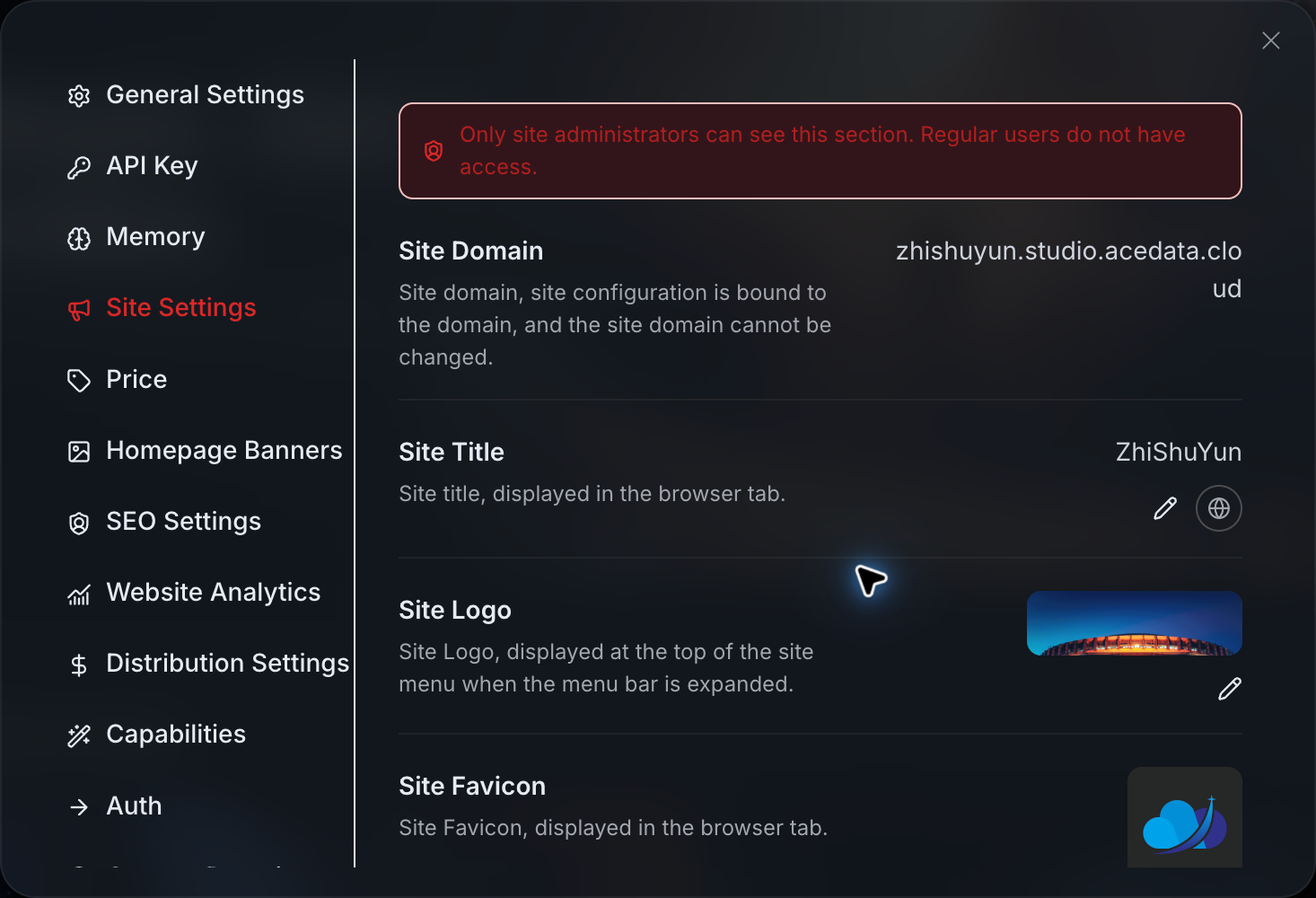
The Logo is the brand image displayed on the page, while the Favicon is the small icon on the browser tab. They need to be uploaded separately; you cannot assume that the browser icon will also change just by replacing the Logo.
If you still see the old icon after saving, try checking again in an incognito window or on another device. Browser cache sometimes does not update immediately.
Continue scrolling down to see the primary color and language settings.
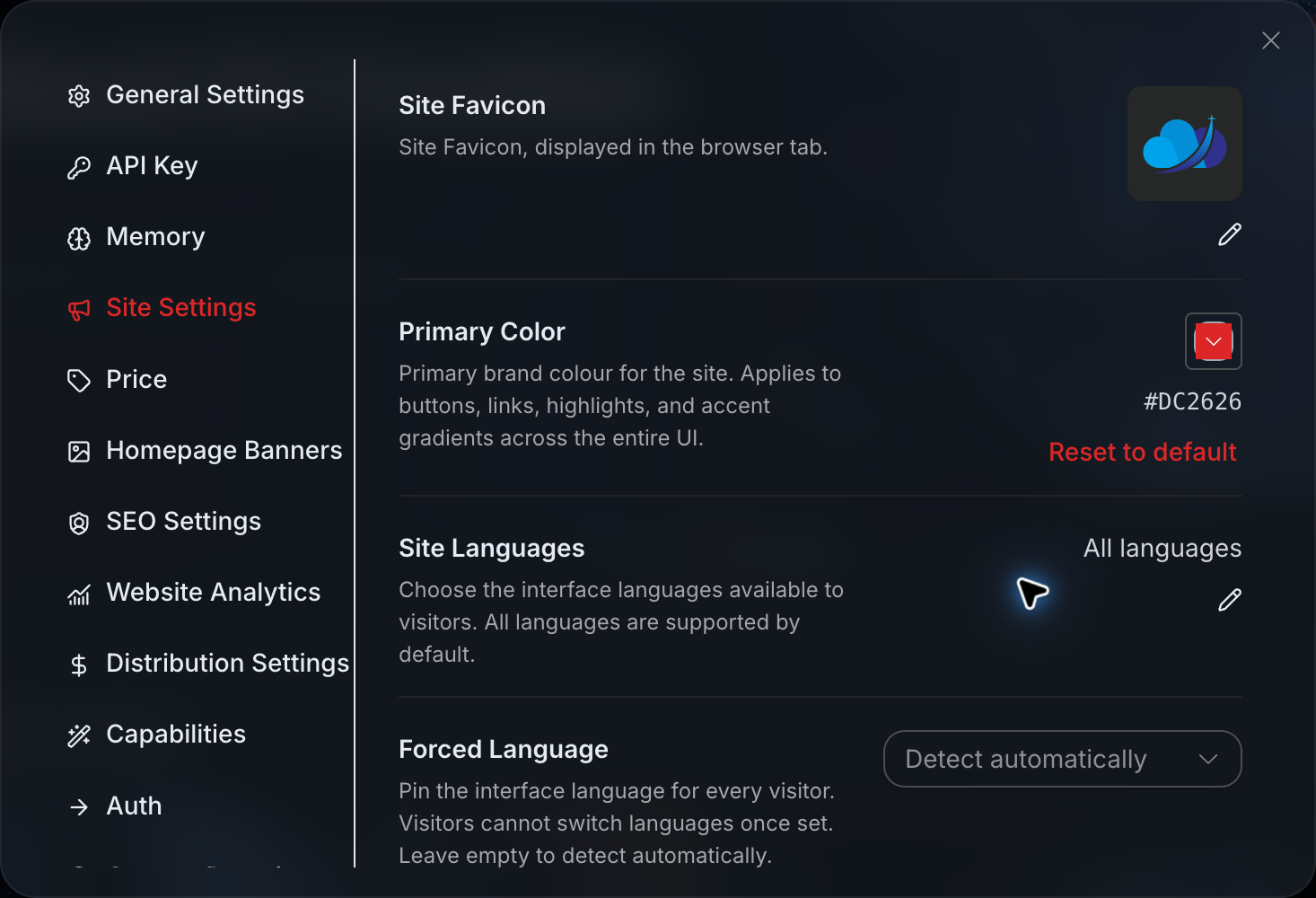
The primary color affects the colors of buttons, links, and highlights on the page. Try to choose a color that matches the Logo.
“Website Language” determines which languages visitors can switch between. “Force Language” makes all visitors use one unified language. If you want the website to automatically select a language based on the visitor's browser, keeping “Auto Detect” is more suitable.
It is also recommended to complete the customer service information here, and fill in contact details where someone will actually reply. After saving, open it once while logged out to confirm that regular visitors can also find the customer service entry.
¶ Write an introduction that people can understand at a glance
After adjusting the branding appearance, enter “SEO Settings.”
There is no need to pile up a long list of model names here. What really matters is making it clear at a glance who this website is for and what it can help them do.
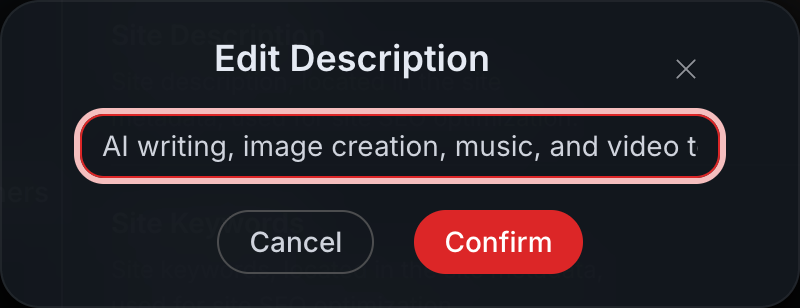
If your customers are mainly self-media creators, you can write it like this:
Provide AI writing, article illustration, and short video production tools for self-media creators, completing daily content preparation within one website.
Keywords only need to be filled in around the actual business, such as “AI writing,” “article illustration,” and “short video production.” Do not stuff in the names of dozens of models. That may look like a lot of information, but it does not actually make it easy for customers to understand.
¶ Set up the login methods
Being able to view the website is only the beginning; customers also need to be able to log in normally.
Enter “Authentication” or “Authentication Settings,” enable the login methods you plan to support, and then select one default option from the enabled methods. At least one login method must be retained; they cannot all be disabled.
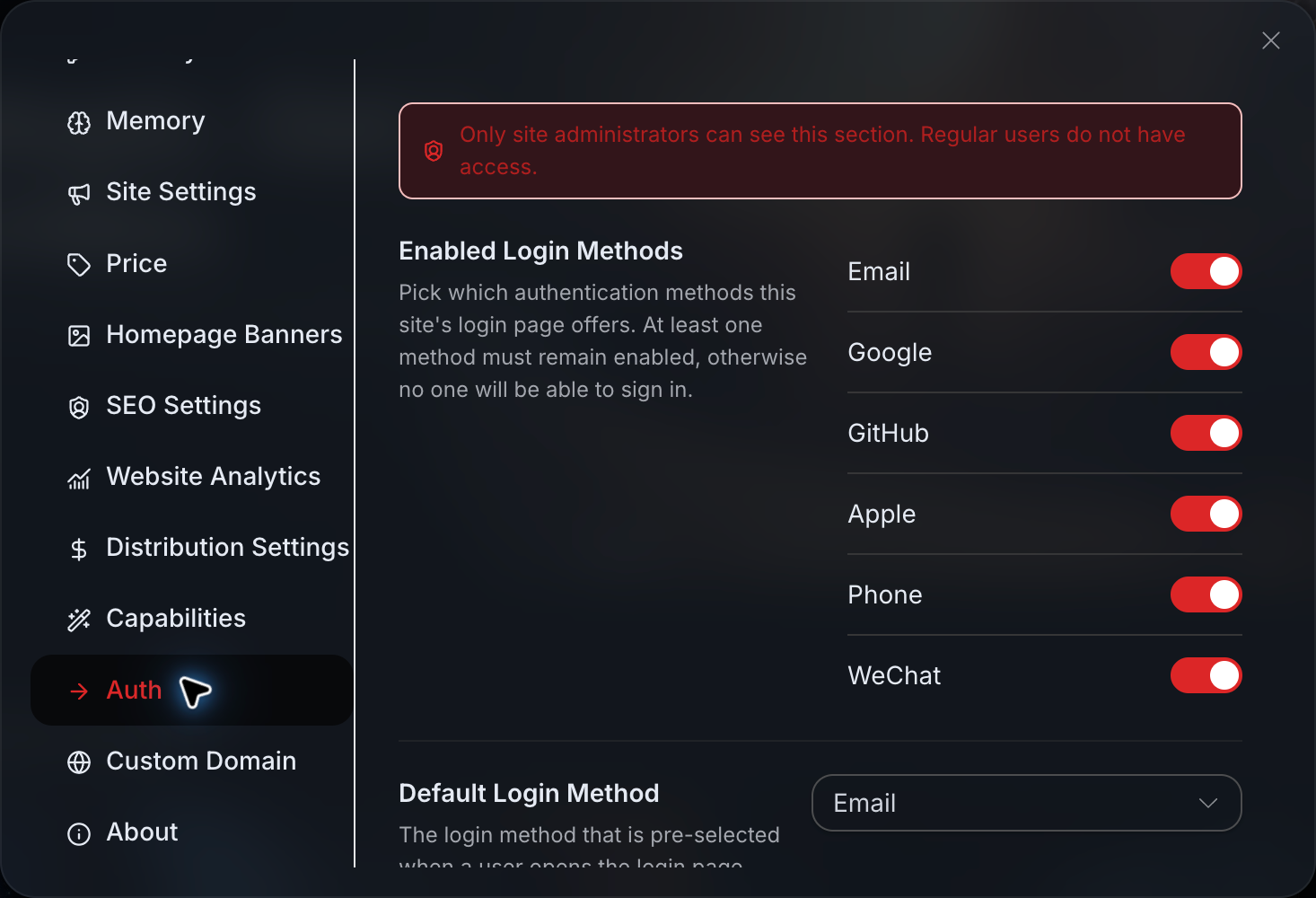
Below, you can also adjust the login mode. For example, “Embedded Popup” will directly display the login page within the current website, while the default login method determines whether email, mobile number, or another option is displayed first after the popup opens.
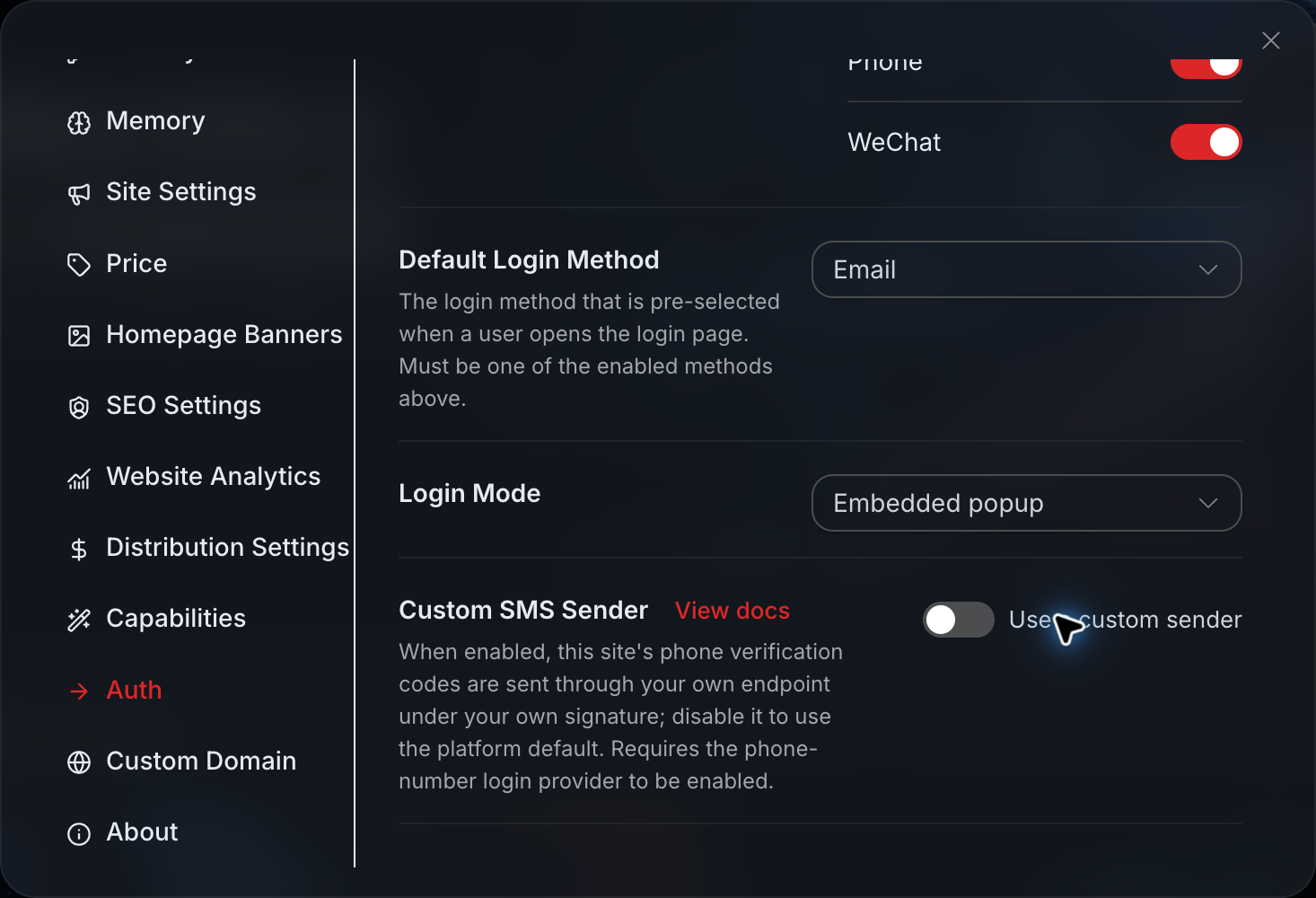
After saving, make sure to complete a full login once using an incognito window. Check whether the login is successful and whether you return to your own subsite after completion.
Temporarily redirecting to the unified authentication domain during login is not necessarily a failure. What really needs to be confirmed is whether you can return to the subsite after login is completed and whether the account status is normal.
¶ Do Not Put Out All the Tools at the Beginning
Next, enter “Capabilities,” which is the capability settings.
This determines which AI tools customers can see on the website. A more practical approach is to first make tools available around one clear scenario.
If your customers mainly create text and image content, you can first enable writing and image generation; if customers genuinely have video and music needs, then add them gradually. With fewer tool entries, customers can more easily know where to click.
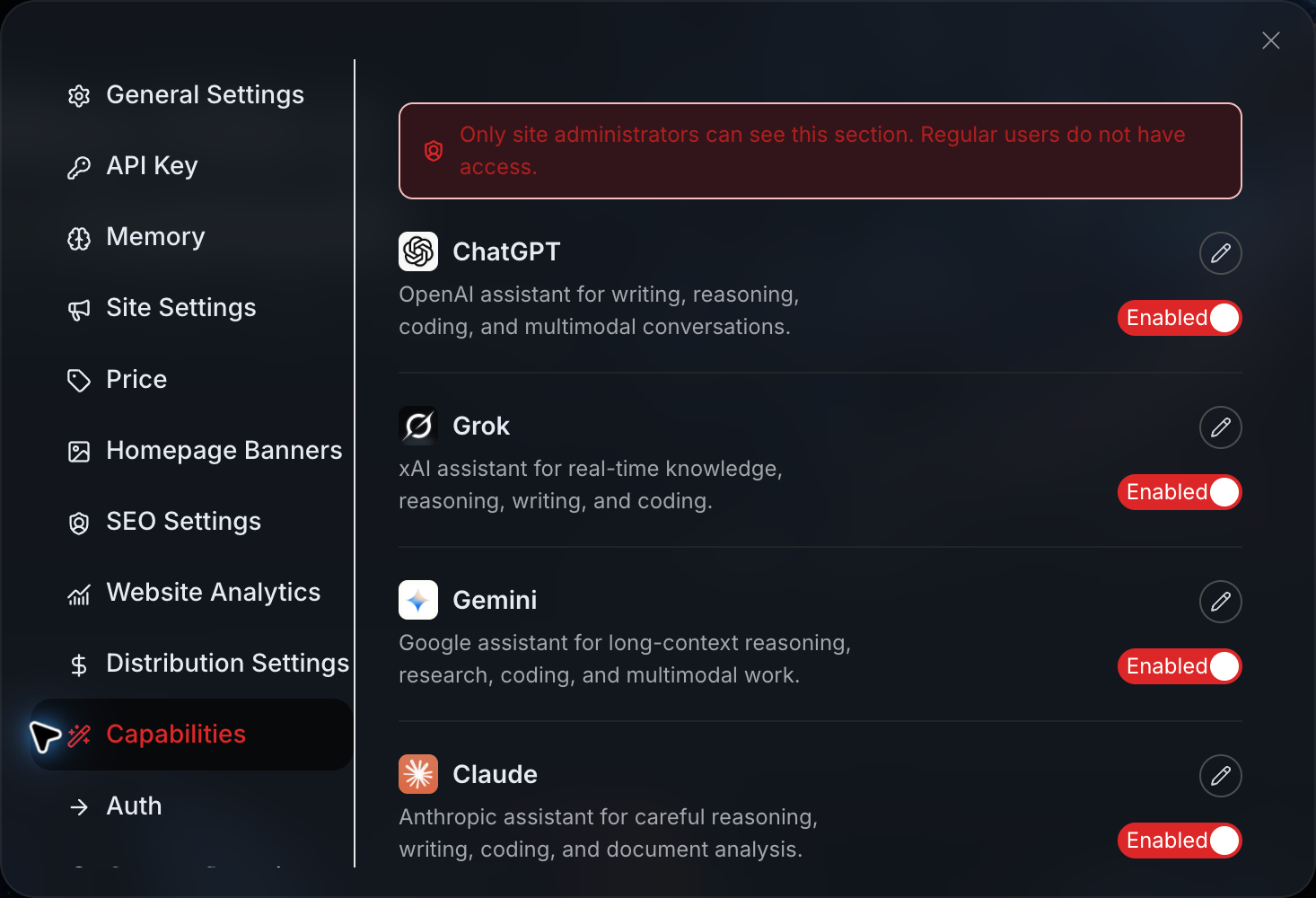
The editing entry on the right can modify the display name and icon of a tool in the current subsite.
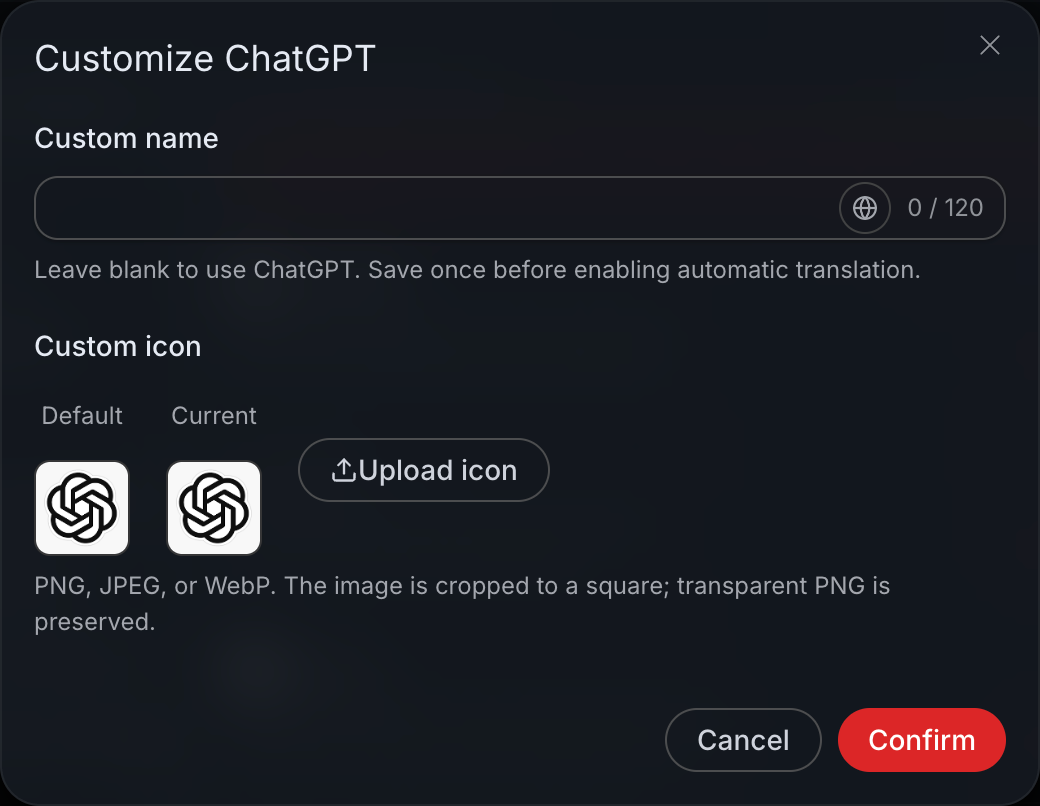
Names can be changed to make them easier to understand, such as changing an internal model name to “Copywriting Assistant” or “Image Generation.” However, note that modifying the name only changes the page display; it does not turn the underlying model into another model, nor does it change the actual invocation method or billing.
Icons support PNG, JPEG, and WebP, and they will be cropped into a square after uploading. If a transparent background is needed, you can prioritize using transparent PNG files.
After saving, open the homepage again from the customer’s perspective to see whether commonly used tools are easy to find and whether entries you do not plan to provide have been hidden.
The switches here mainly control page display. Hiding an entry does not mean modifying the customer’s API permissions, so do not confuse the two.
¶ Homepage Scenarios Do Not Need to Copy the Default Content
In “Creation Scenarios” under “Homepage Settings,” you can modify the name, introduction, cover image, and display order of default scenarios, and you can also reselect recommended tools for each scenario.
For example, if you are preparing to create a self-media tool site, you can organize the homepage into “Write Articles,” “Create Images,” “Edit Short Videos,” and “Create Background Music.” What customers see is work they are familiar with, rather than a pile of unfamiliar model names.
After creating a new scenario, save it first, then enable automatic translation. For the cover image, simply use the upload or replace button; there is no need to paste an image link yourself.
Do not put tools that are not currently available into recommended scenarios. Otherwise, users will only discover that they cannot use them after clicking in, which will be more confusing than not seeing them from the start.
¶ Set a Unified Pricing Rule First
Enter “Price” or “Pricing Settings,” and first set a unified markup percentage for the entire site.
Most services can directly inherit this percentage. If a certain tool has different costs, after-sales pressure, or market prices, then set an override rule for it separately.
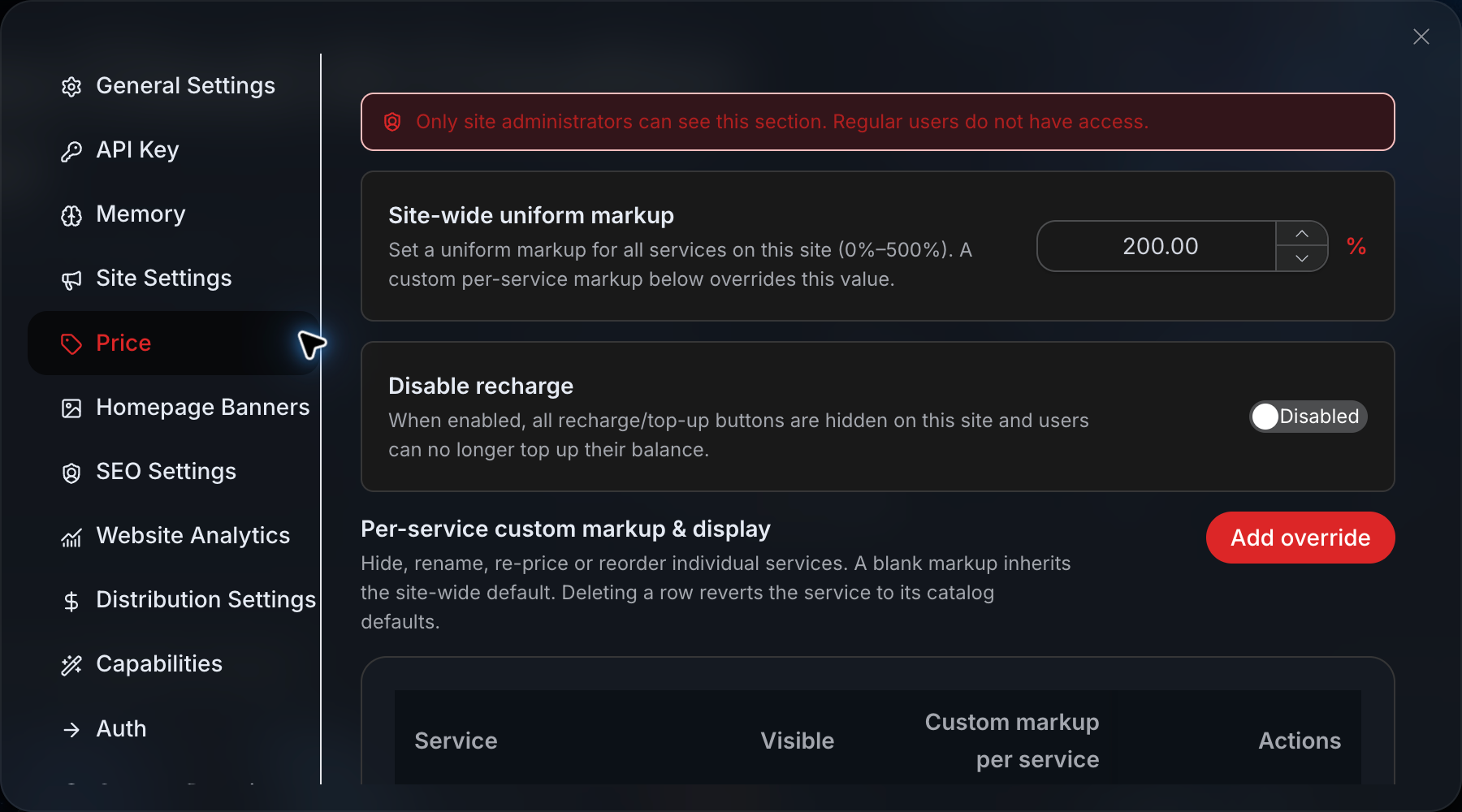
Assuming the platform price of a service is 100 and the site-wide markup is 10%, the price customers see is 110.
If this service is also separately set to 5%, the final applied rate is the individual service’s 5%, and the price is 105, rather than adding 10% first and then adding 5%.
When a separate setting is needed, click Add in the service customization area, select the service, and then enter the markup percentage.
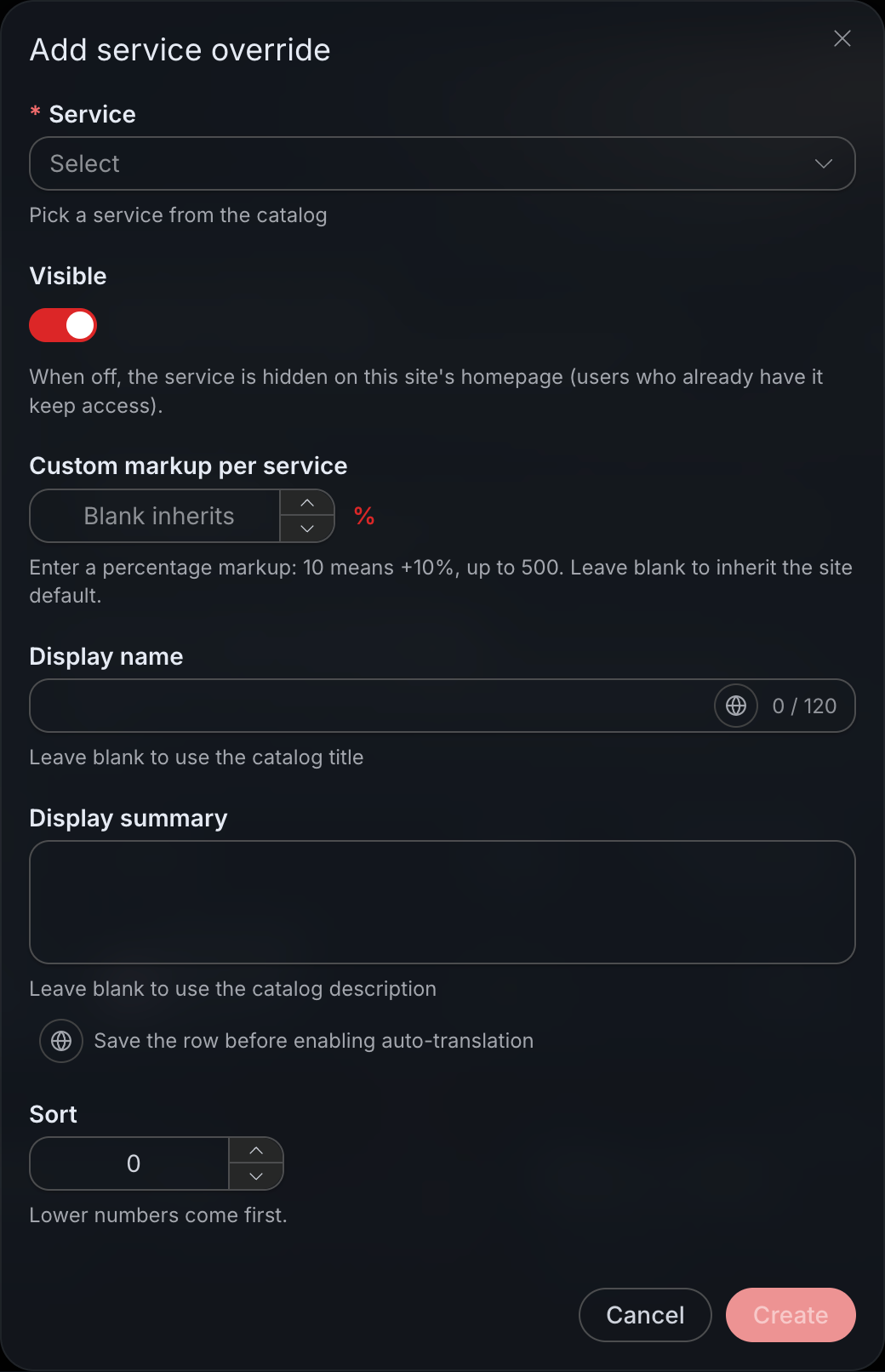
Leaving the individual service markup blank means continuing to use the site-wide percentage; entering 0 means no markup, but it does not mean free.
Here, you can also adjust the service name, introduction, order, and visibility status. After making changes, do not only check in the admin panel. It is best to open the customer page and find one service that inherits the site-wide price and one service with separately configured pricing, then check whether the final checkout page meets expectations.
“Disable Top-up” only hides the top-up entry in the subsite. It does not clear existing balances, nor is it a spending limit. You only need to enable this option if you clearly do not want customers to purchase from the subsite.
Actually generating images, music, or videos will incur costs. During launch acceptance, check the pricing first, then perform a small task test; there is no need to generate in batches right from the start.
¶ Only Add a Homepage Banner When There Is Clear Content
A homepage Banner is not required.
If there is no campaign, featured service, or clear landing page for the time being, it is better to leave it empty first than to casually place an image just to fill the space.
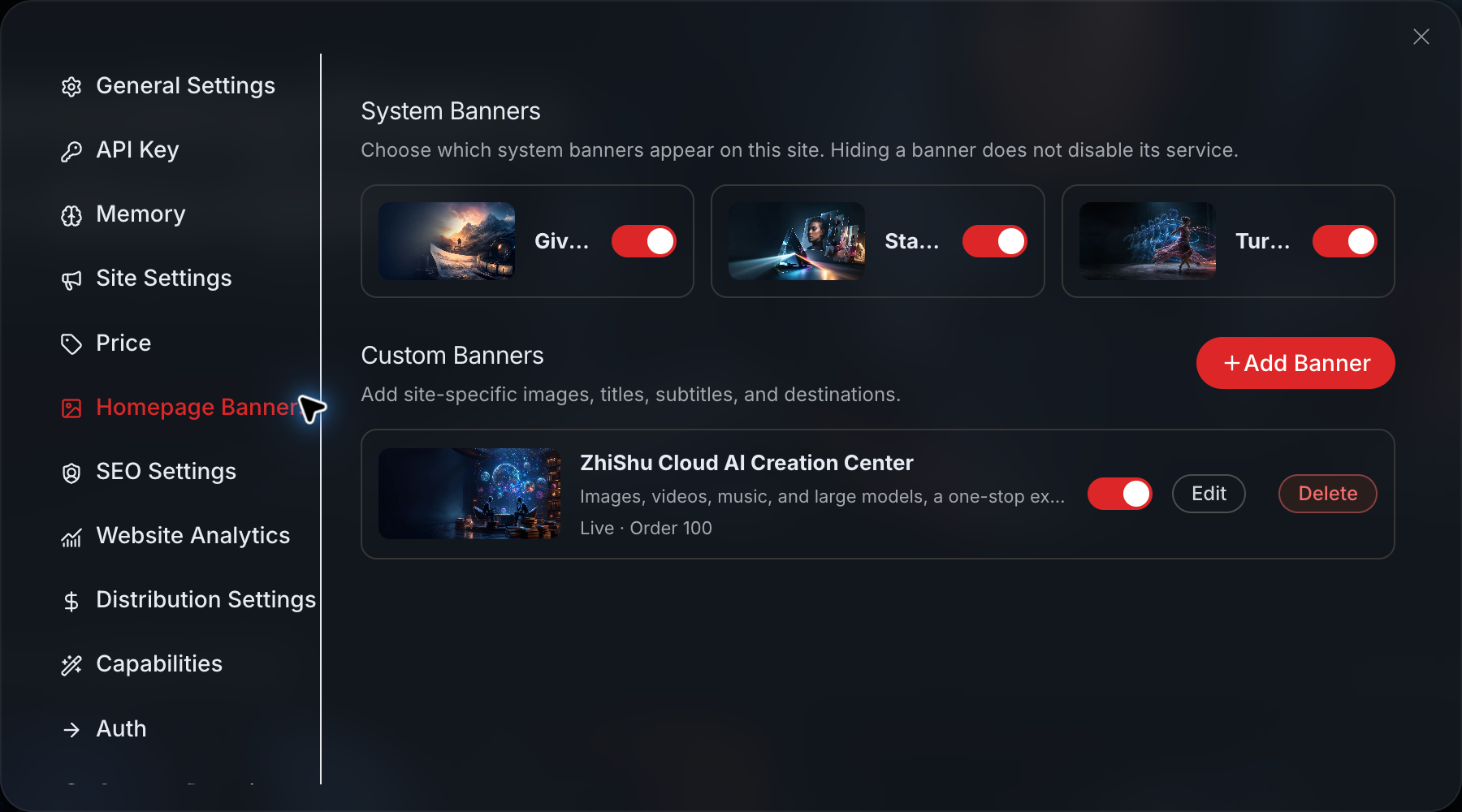
When you need to add one, you can fill in the image, title, subtitle, redirect URL, and display time.
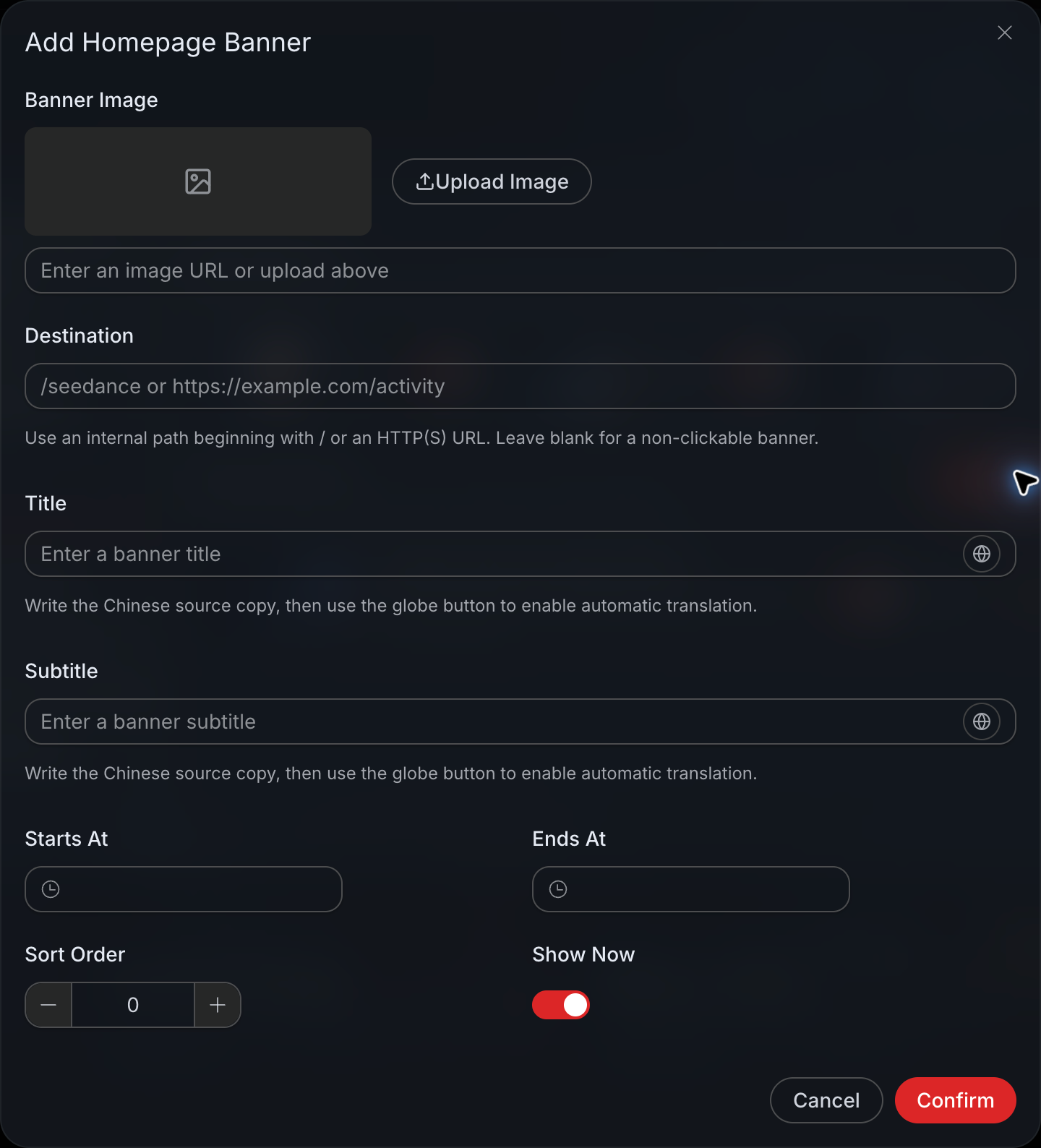
If the Banner promotes article illustrations, it should directly link to the corresponding tool instead of bringing users back to the homepage again.
For internal URLs, you can usually enter a path beginning with /, or enter a complete HTTP or HTTPS link. If left blank, the Banner is displayed only and cannot be clicked.
After saving, click it yourself once to confirm that the destination page has been entered correctly.
¶ Bind Your Own Domain Last
After the system-assigned address can be opened normally, then handle the custom domain.
Go to “My Subsites,” click “Manage,” and find “Custom Domain.” Enter the full domain name, for example, studio.example.com. Do not add https://, do not enter a page path, and do not add a trailing slash.
After submitting the binding, the page will provide a CNAME target address. Copy it.
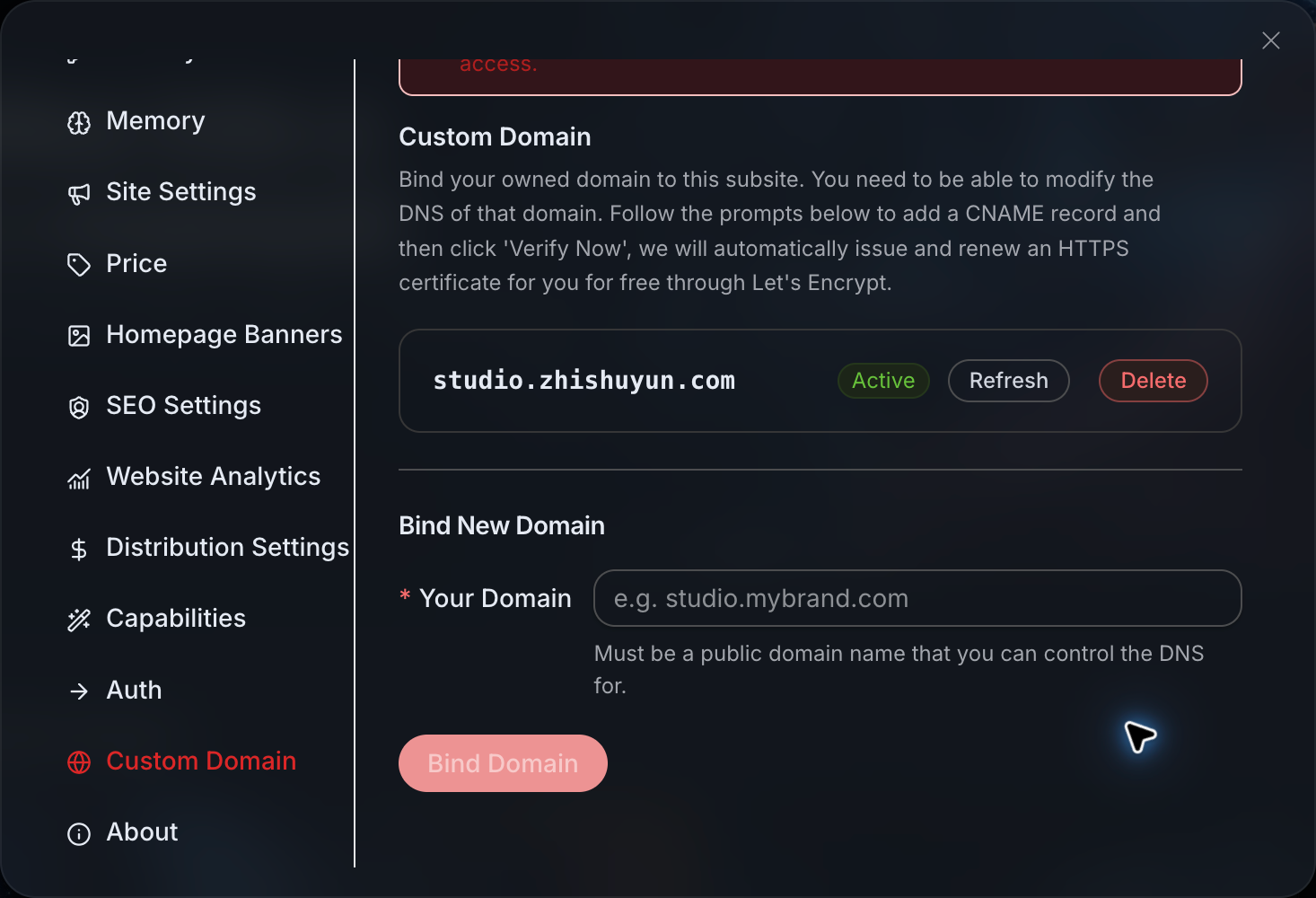
Next, go to the platform where you purchased the domain and open DNS record management.
If you are binding studio.example.com, select CNAME as the record type, enter studio for the host record in most cases, enter the CNAME target just provided in the Studio admin panel as the record value, and keep the default TTL value.
Interfaces of different domain service providers may vary. Some require you to enter a prefix, while others will prompt you to enter the full domain name. Just follow the instructions on the page.
If the name studio already has A, AAAA, or other CNAME records, first confirm whether it is being used by another website. Do not directly delete DNS records that are currently in use just to bind a new site. If you are unsure, it is safer to use a subdomain that has not been used before.
After saving the DNS settings, return to Studio's custom domain page and refresh or verify the status.
DNS updates and HTTPS certificate issuance are two separate processes. They may not be completed at the same time, and there is no absolutely fixed waiting time. After the dashboard shows that it is live, you should also personally open the website using https:// and confirm that the browser does not show any certificate warnings.
¶ Do not only check the homepage before going live
Being able to open the website does not mean there are no issues everywhere.
Visit it once on both a computer and a mobile phone to see whether the site name, Logo, icons, and navigation are misaligned. Open any internal page and refresh it to confirm that it does not redirect to a 404 page. Log out and log in again, and check whether you can return to your own domain after completing the process.
You should also go through commonly used tools, customer service entry points, and pricing pages. If you plan to test payments or generate tasks, confirm the pricing first, then perform a small test.
Finally, check the mobile version again.
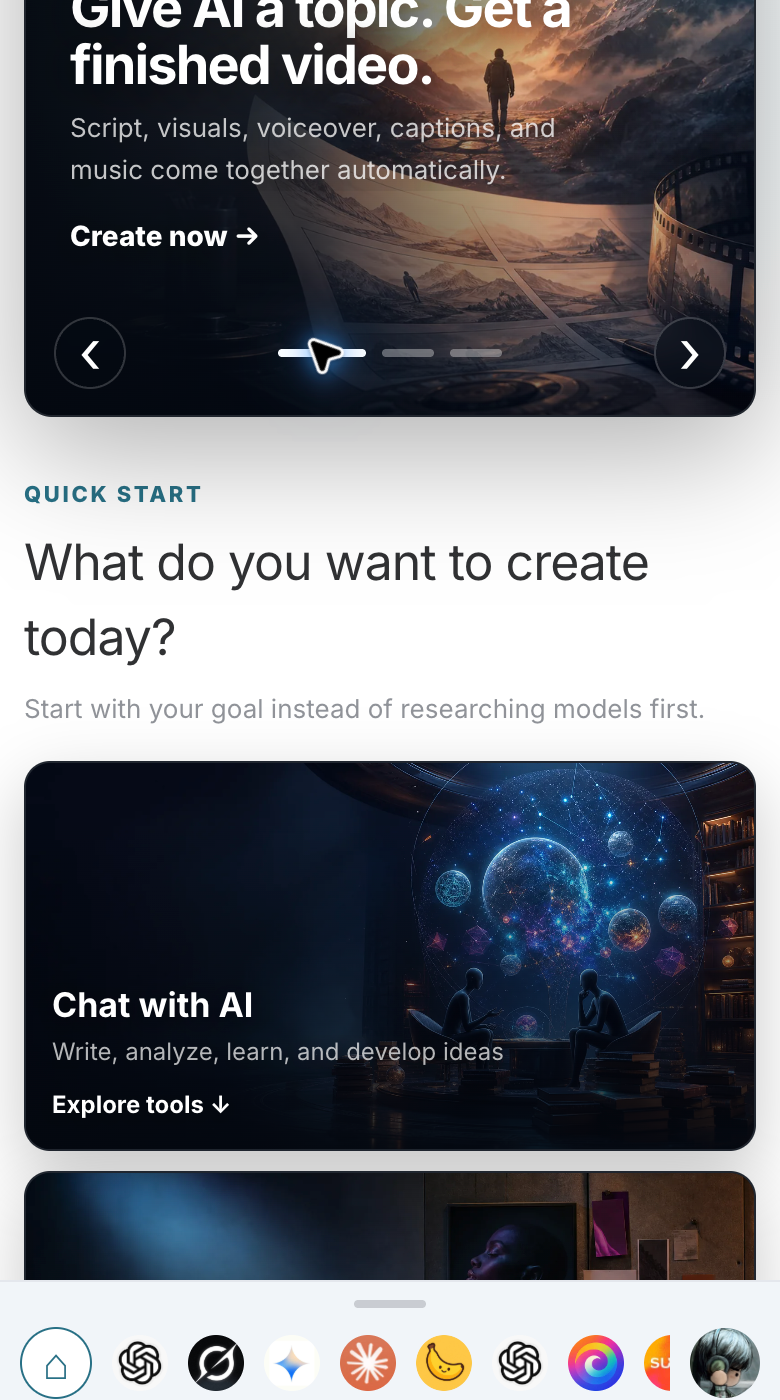
On mobile, focus on whether the site title is complete, whether buttons can be clicked normally, and whether the bottom navigation is clear. Many sites have no problems on desktop, but only on mobile do you discover that the name is too long or that entry points are hard to find.
If the system domain cannot be opened either, check the subsite itself first, and do not rush to troubleshoot DNS.
If only your own domain cannot be opened, check whether the domain name was entered completely, whether there are conflicts in the DNS records, and whether public DNS has already updated.
If the browser indicates that the connection is insecure, first confirm that the DNS resolution is correct, then check the certificate status. Do not let customers ignore the warning and continue visiting.
As for platform default names still appearing when sharing links, it may be that the sharing tool does not execute webpage scripts. This is not the same as a failed domain binding and needs to be investigated separately.
¶ At this point, the website can start being used
A Studio that can officially be used externally is not finished just by changing the Logo.
Customers need to be able to open the website, understand what it does, find suitable tools, log in smoothly, see reasonable pricing, and still be able to contact you when they encounter problems. An independent domain is the final layer of presentation that makes the entire website truly feel like your own product.
The safest approach is to switch back to the customer perspective and review it every time you finish changing one part. A successful save in the dashboard does not mean the frontend will necessarily meet expectations. Personally go through it using an incognito window, a mobile phone, and the independent domain, and you can usually discover most issues before going live.