

Getting a subsite up and running, with pages accessible and normal functionality available, only counts as a start. When it is really ready for users, you still need to sort out things like the site name, Logo, login methods, and domain name. You also need to think in advance about which features to put on the homepage, how to price the services, and where users can find the instructions.
Today, we will continue talking about the detailed settings for AceDataCloud subsites. Follow the backend pages step by step, make the necessary changes, so that users know what this site is and what it can do after entering, and can also start using it smoothly.
¶ First, update the site's basic information
Open Backend Site Management, find the site that needs to be modified, and you can start configuring it.
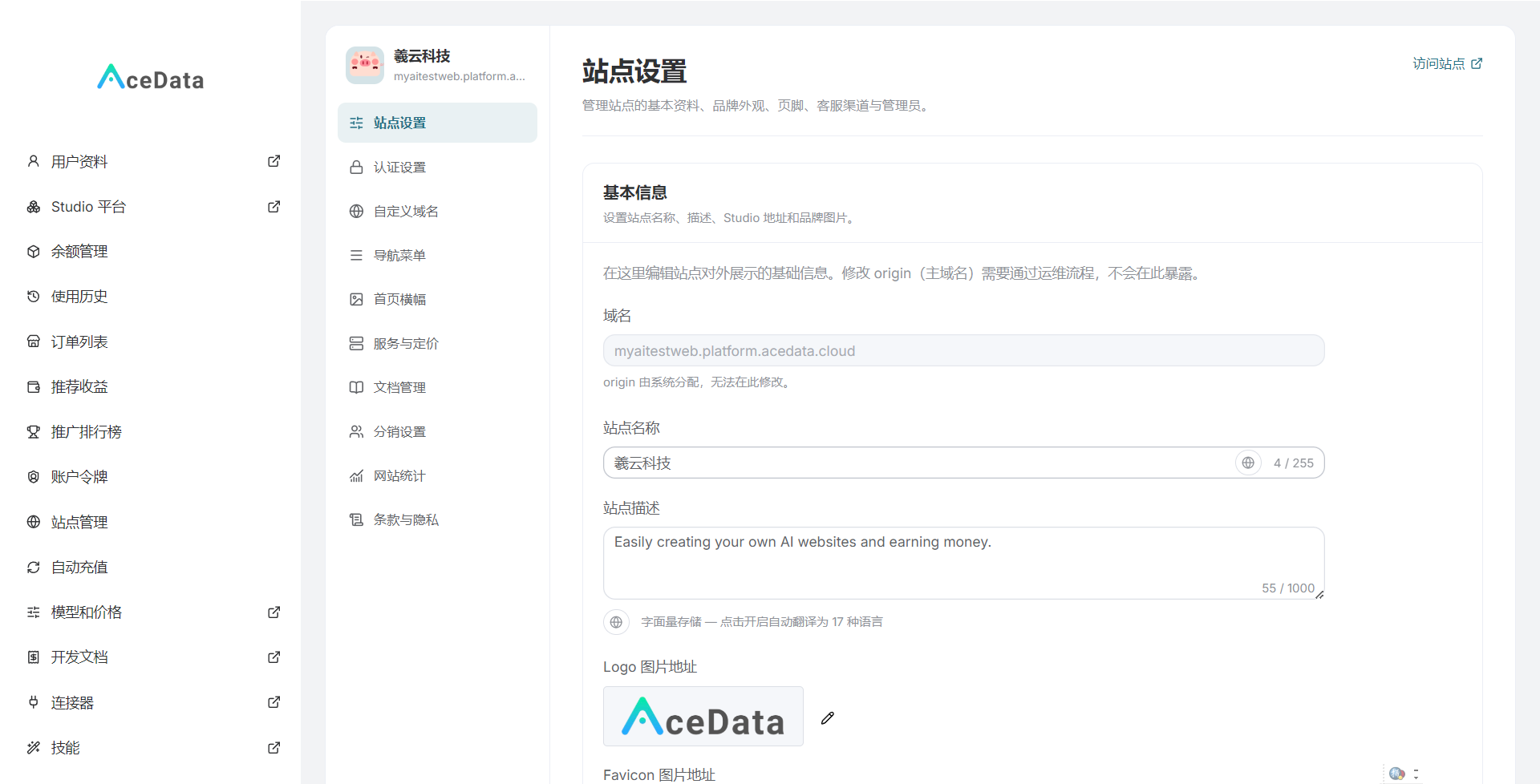
For the basic information section, first handle the site name, Logo, and the domain name of the Studio site. Although these may seem like small details, they are often the first things users notice when opening the website.
Try to make the site name easy to remember, and convenient for others to search and share. It does not necessarily need to be a grand name; as long as people can understand what services you mainly provide here, that is already quite good. The introduction does not need to be overly packed either. Rather than piling up a string of terms like “intelligent” and “one-stop,” it is better to state clearly: which AI tools can be used here, and what they are suitable for.
For the Logo, it is recommended to use a clear and simple version. Overly complex patterns can easily become blurred when scaled down, and images containing lots of small text are not very suitable either. After uploading, remember to check the actual page to confirm that it displays completely and remains clear against the page background.
Also verify the Studio site's domain name here. The address entered here should remain consistent with the Studio address you actually plan to use. Do not confuse the management backend address with the address used by users.
¶ For login methods, choose what users are most accustomed to
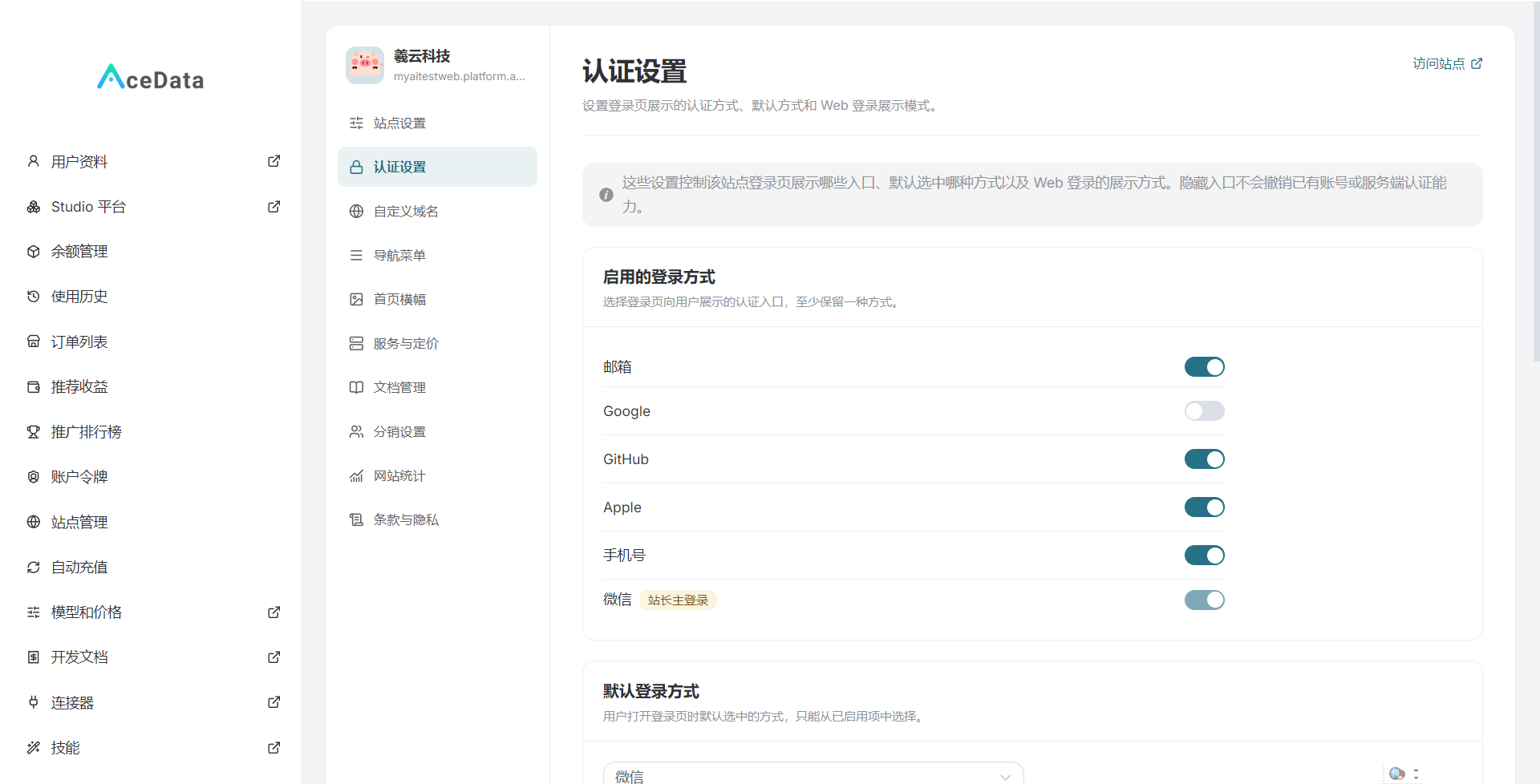
Authentication settings are mainly for adjusting how users log in and which login method is used by default.
There is no need to dwell on which method looks more advanced in this section. The key is whether it is convenient for your users. If you mainly target domestic users, you can consider using WeChat login as the default method. People use it often in daily life, and it is also relatively easy to operate.
However, after choosing the default method, you should still test it once in practice. Whether all required configuration items have been completed, whether it can redirect normally during login, and whether it can return to the site after login are all worth checking. Do not simply see that the settings are complete in the backend and immediately let users start using it.
It is best to log out of your own account, then go through the login process once from the perspective of an ordinary user. Administrators are always in a logged-in state, which can actually make some issues harder to discover.
¶ Bind your own domain name for convenient access and sharing
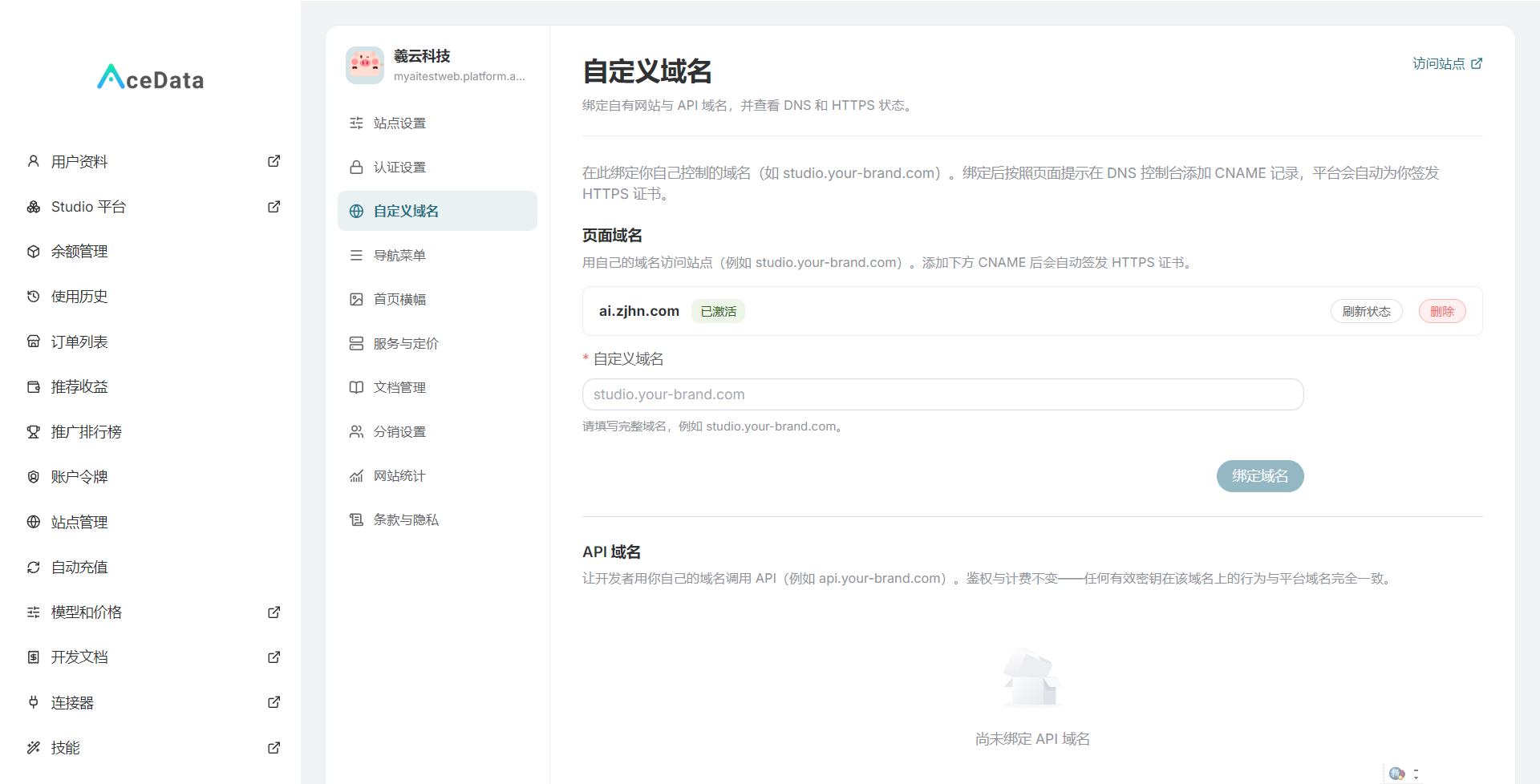
If you plan to operate this subsite for the long term, you can bind it to a domain name of your own. When sharing it with users later, or posting it in official accounts and communities, a fixed and memorable address will be much more convenient.
Enter the custom domain name you plan to use in Domain Settings. Note that binding a domain name in the backend and configuring domain name resolution are two separate things. You cannot just finish entering the address and consider it done.
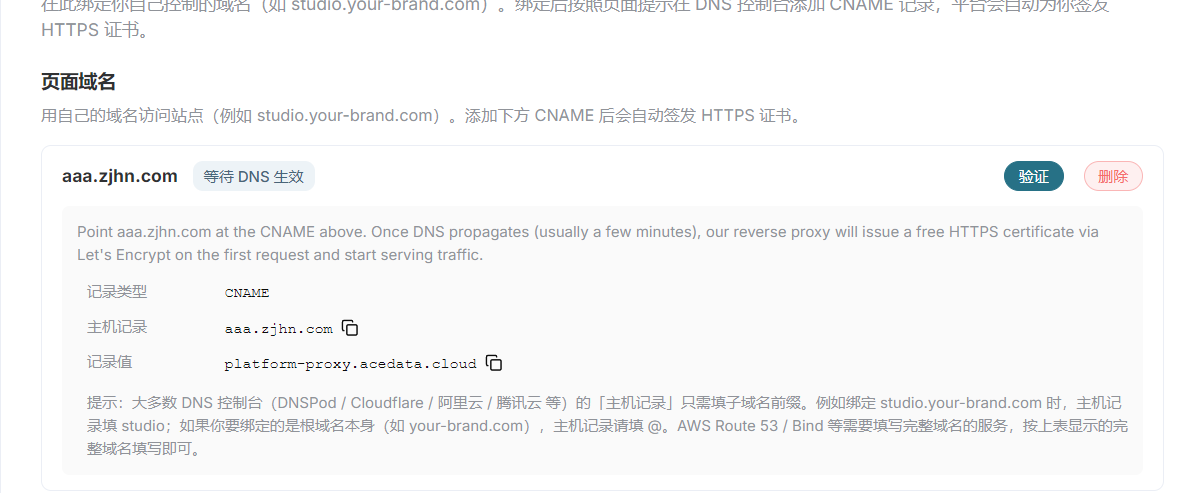
Next, open your domain resolution control panel and add a CNAME record for the corresponding domain name, with the record value set to:
platform-proxy.acedata.cloud
For example, if you plan to use ai.example.com, you would usually go to the DNS management for example.com, set the host record to ai, select CNAME as the record type, and enter the address above as the record value. The interfaces of different domain service providers may vary, so just fill it in according to the actual page.
Before adding it, also check whether there are any conflicting old resolution records under the same host record, to avoid mixing old and new configurations together.
The resolution may not take effect immediately after being saved, so you can wait a while before accessing it. Once the domain can be opened, confirm that it enters the correct site and that there are no issues with HTTPS access. Only when it can be opened, the page is correct, and the browser shows no security warnings can this step be considered thoroughly checked.
¶ For homepage features, do not pile everything on at once
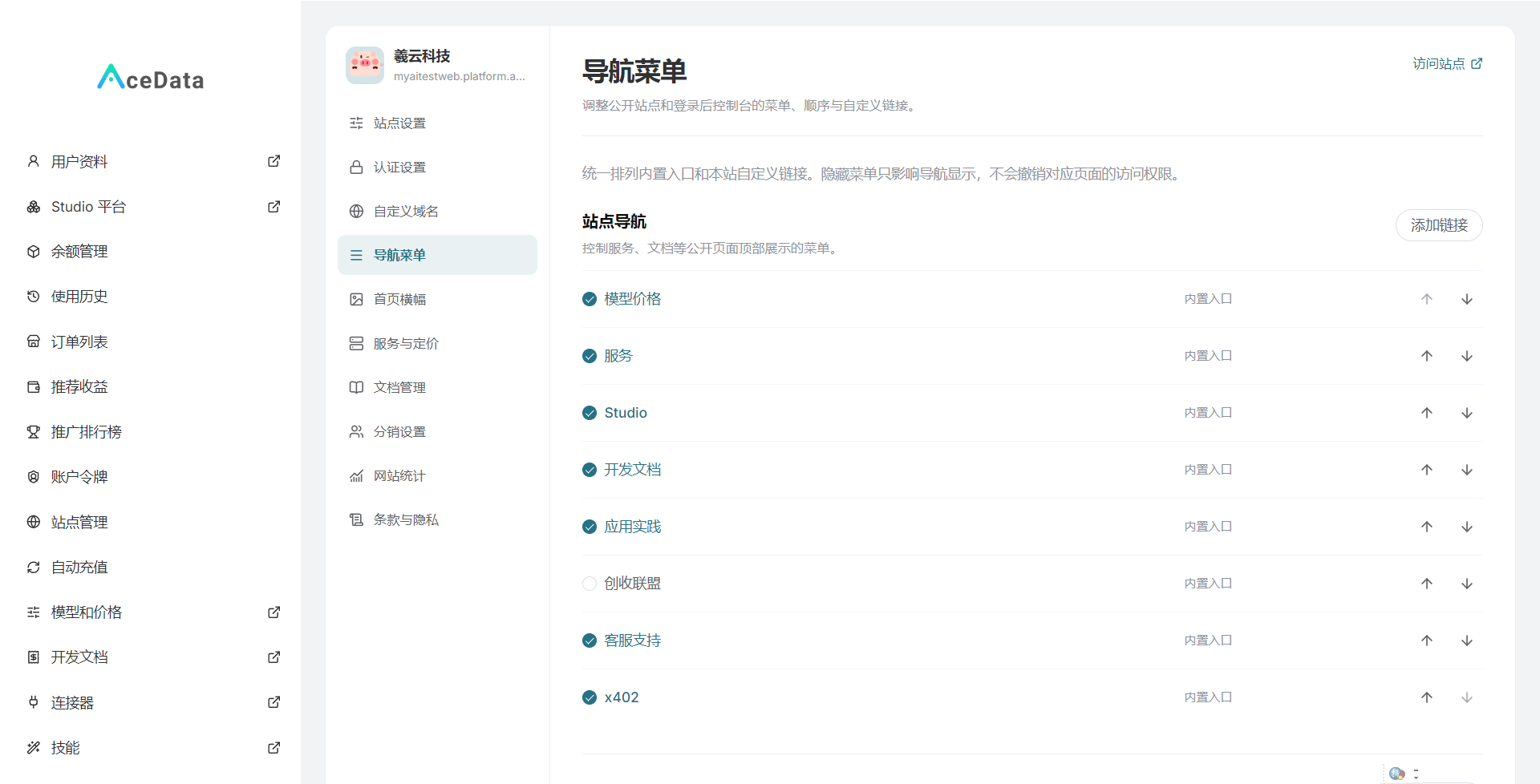
Navigation settings can adjust which features are displayed on the homepage, as well as their order.
For this section, it is recommended to arrange them based on users' habits. If you mainly provide AI image generation, place image-generation-related entries near the front; if you mainly target writing users, prioritize displaying features related to conversations and content creation.
Having many features does not mean you must put all of them on the homepage. When users first enter the site, what they need most is to quickly find what they want to use, rather than first study every entry.
At the beginning, you can first display the features you plan to focus on operating, put commonly used ones toward the front, and place less frequently used ones later. Once you have user feedback, adjust gradually. This is more worry-free than cramming the page full from the beginning.
¶ For the homepage Banner, clearly explaining one thing is enough
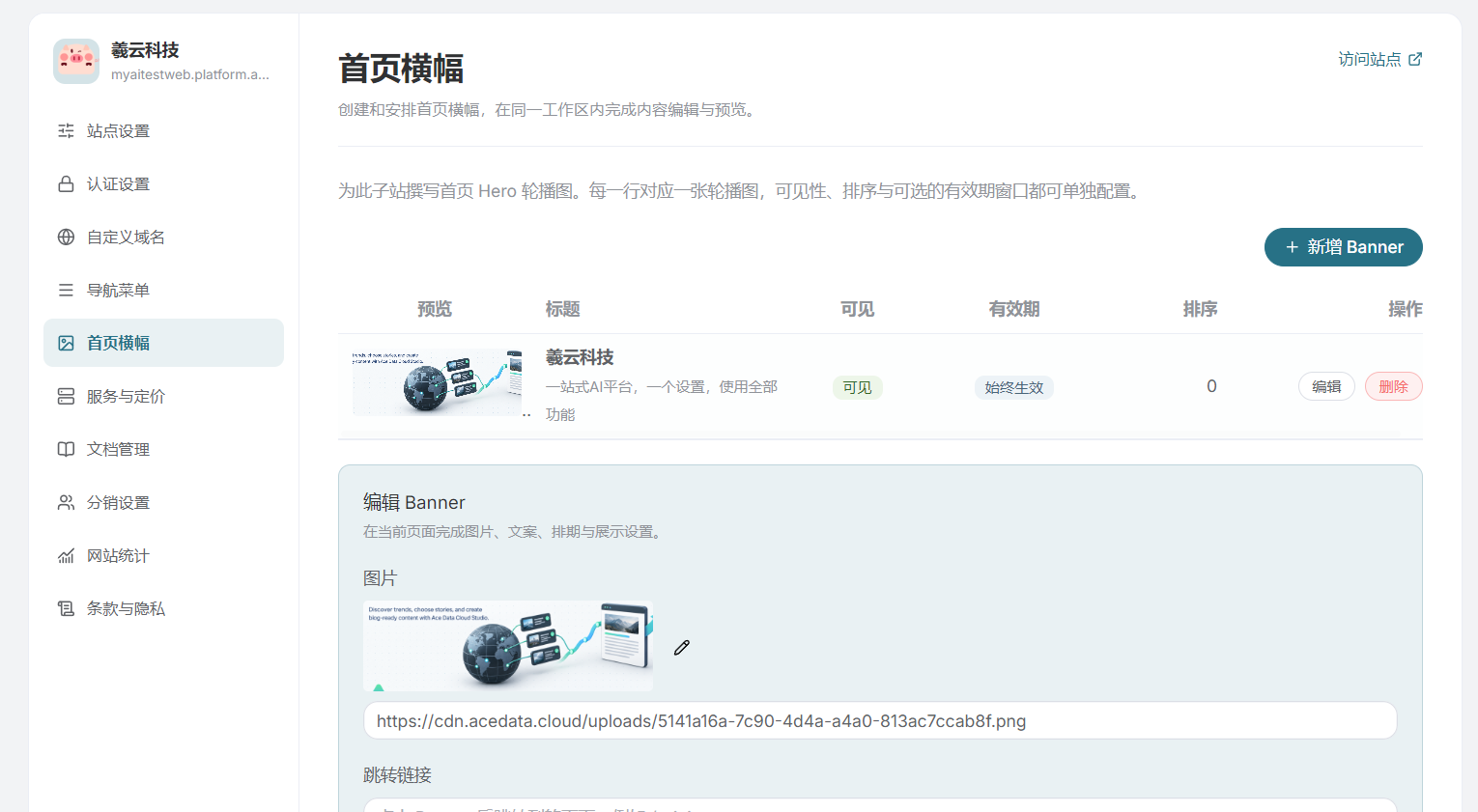
The homepage Banner can upload images and can also set descriptive content. Users can easily see this area when opening the homepage, so it is best to think in advance about what content to place there.
If there are no campaigns for the time being, use it to introduce the site's main service. If you are promoting a particular feature, you can also create the display around that feature. Do not simultaneously cram site introductions, feature lists, top-up campaigns, and usage tutorials into one image. With too much information, users will instead not know where to look.
Try to make the copy more straightforward. For example, if you mainly provide AI image generation, clearly explain whether users can use it for illustrations, posters, or other content. This is more useful than simply writing a sentence like “Begin a new era of intelligent creation.”
After uploading the image, remember to open it separately on a computer and a mobile phone to take a look. Especially for images containing text, pay attention to whether any content is cropped and whether it can be seen clearly on mobile devices. Having no problems in the backend preview does not mean the actual display will necessarily be suitable.
¶ Service prices: calculate clearly before filling them in
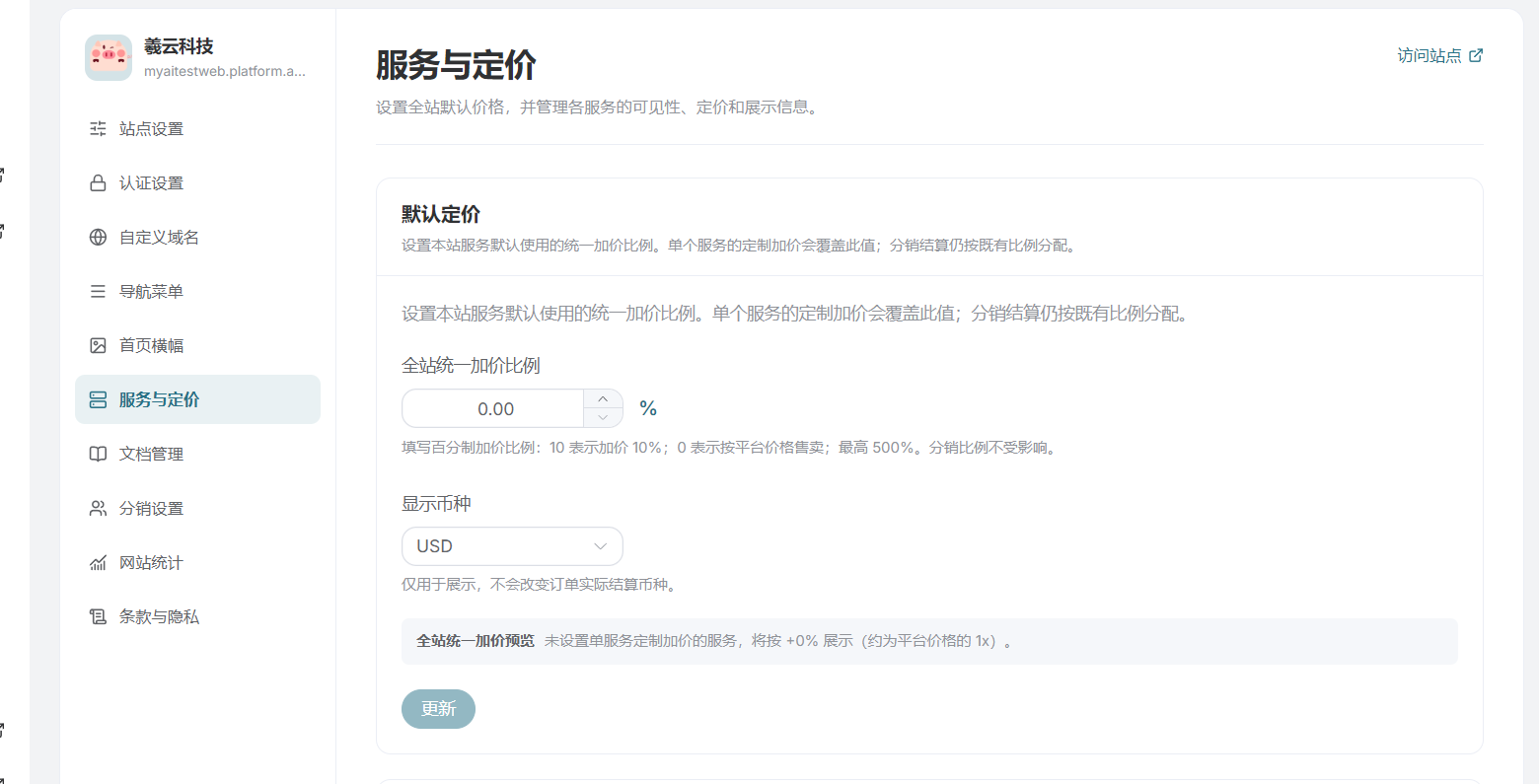
Service and pricing settings allow you to adjust the services provided by the site and their corresponding prices.
It is recommended to proceed more slowly with this part. First confirm the billing method and cost corresponding to each service, then decide what price to show users. Different services may use different billing standards, so you cannot just look at one number and directly use it to compare whether something is expensive or not.
If the price is too low, it may be difficult to sustain later; if the price is too high, users need to understand what paid service you are providing. Thinking clearly about the costs and the services you plan to provide is more important than casually entering a number that looks pleasing.
After completing the settings, check again from the user page to see whether the service name, price, and billing description are easy to understand. In particular, avoid entering one unit in the backend while interpreting it yourself according to another unit.
If prices will be adjusted later, try to explain the changes clearly as well. Do not let users discover that things are different from before only after they have used the service.
¶ Documentation does not need to be very lengthy; it just needs to solve problems
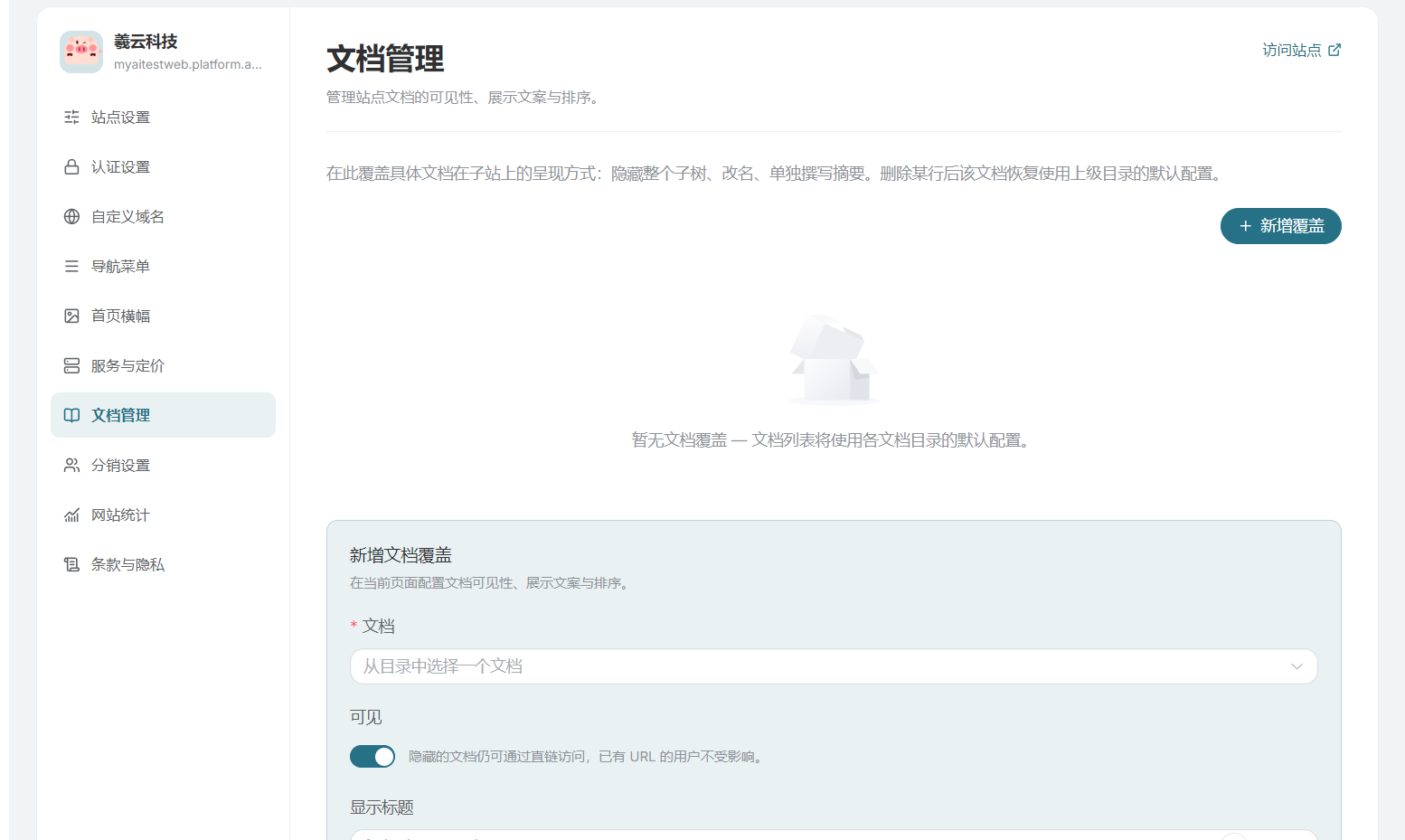
The documentation settings section is easily overlooked when building a site. You may feel that all the functions are already displayed on the page and users should know how to use them, but once people actually start coming in, you may find that the questions they ask are often repetitive.
How to log in, how to get started, how fees are calculated, and what to do when encountering an error are all suitable to include in the user guide.
At the beginning, there is no need to pursue a complete and highly complex set of tutorials. First explain the most common questions clearly, write according to the order of users' actual operations, and add screenshots wherever possible. This is easier to understand than long sections introducing feature characteristics.
You can also leave a clear feedback method in the documentation. When users encounter problems they cannot solve, they will at least know where to find you instead of searching back and forth through the website.
Later, if a question is asked frequently, add it in. Gradually improving the documentation according to actual usage is more useful than writing it all at once and never updating it again.
¶ Remember to check distribution, website analytics, and privacy terms as well
After the main page settings are complete, there are still things such as distribution, website analytics, and privacy terms that need to be handled.
If you plan to do distribution promotion, first think through the participation method, reward rules, and settlement conditions, then configure them according to the settings supported by the backend. It is best to write the rules more clearly. Do not leave things such as what counts as a valid promotion and how rewards are calculated for later verbal explanations.
Website analytics can be configured according to actual needs. After configuration, you should also confirm whether the data is being recorded properly. Later, when you want to know whether anyone has visited or whether traffic has changed after promotion, you will at least have something to refer to instead of relying entirely on intuition.
Privacy terms should match the actual situation of the site. What information is collected, what it is used for, and how users can contact you if they have questions should all be clearly stated. Do not copy one from another website without even changing the company name, contact information, and business description. If third-party analytics tools or other services are involved, you should also check whether the relevant descriptions are accurate.
These areas may not be very noticeable, but since you are preparing to officially make the site available to users, they are worth taking the time to review.
¶ Finally, be an ordinary user once yourself
After all settings have been saved, do not rush to share the link for promotion.
Log out of the administrator account, start from the homepage, and try logging in, finding features, viewing prices, and then opening the user documentation. Go through it once on a computer and take a look on a mobile phone as well.
Many small issues can only be discovered when actually using it: the Logo is too small, the text on the Banner is unclear, commonly used features are hidden too far back, or an address has been entered incorrectly. Before officially promoting it, smooth out these areas, and you can save a lot of time on explanations and troubleshooting later.
Subsite settings do not need to be perfect in one go. First make sure basic content such as the name, domain, login, and pricing is accurate, then organize the homepage and documentation clearly. Only when users can understand it, find what they need, and use it normally after entering can this site be considered truly ready.