
Organizing API Services and Documentation
Customers do not need to look through all interfaces first. They are more interested in: Are there services I need, how much do they cost, and how to connect? This article connects these three points.
First, select a few services you are familiar with and can provide support for. Go to Site Management → Management, mainly using "Services and Pricing" and "Document Management."
¶ Determine Prices in "Services and Pricing"
First, fill in the overall site markup ratio, select the display currency, preview the page, and then save.
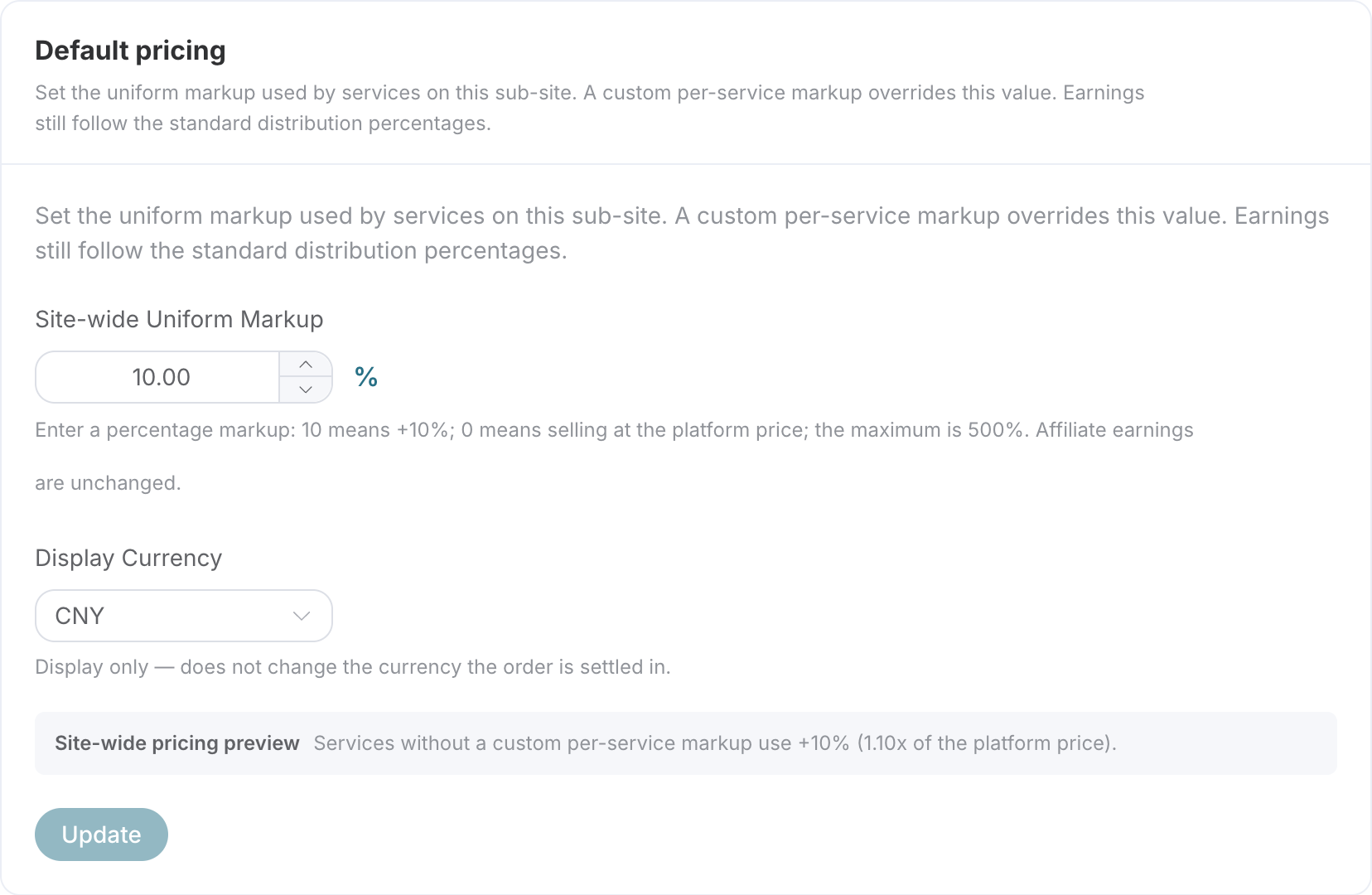
This is the settings page for site owners, not the service directory seen by customers. After saving, you also need to click "Access Site" to check the service details and checkout page.
If a specific service requires special handling, add coverage in the same workspace:
Click Add Coverage, first select the target service from the service directory, then decide which fields below need to be changed.
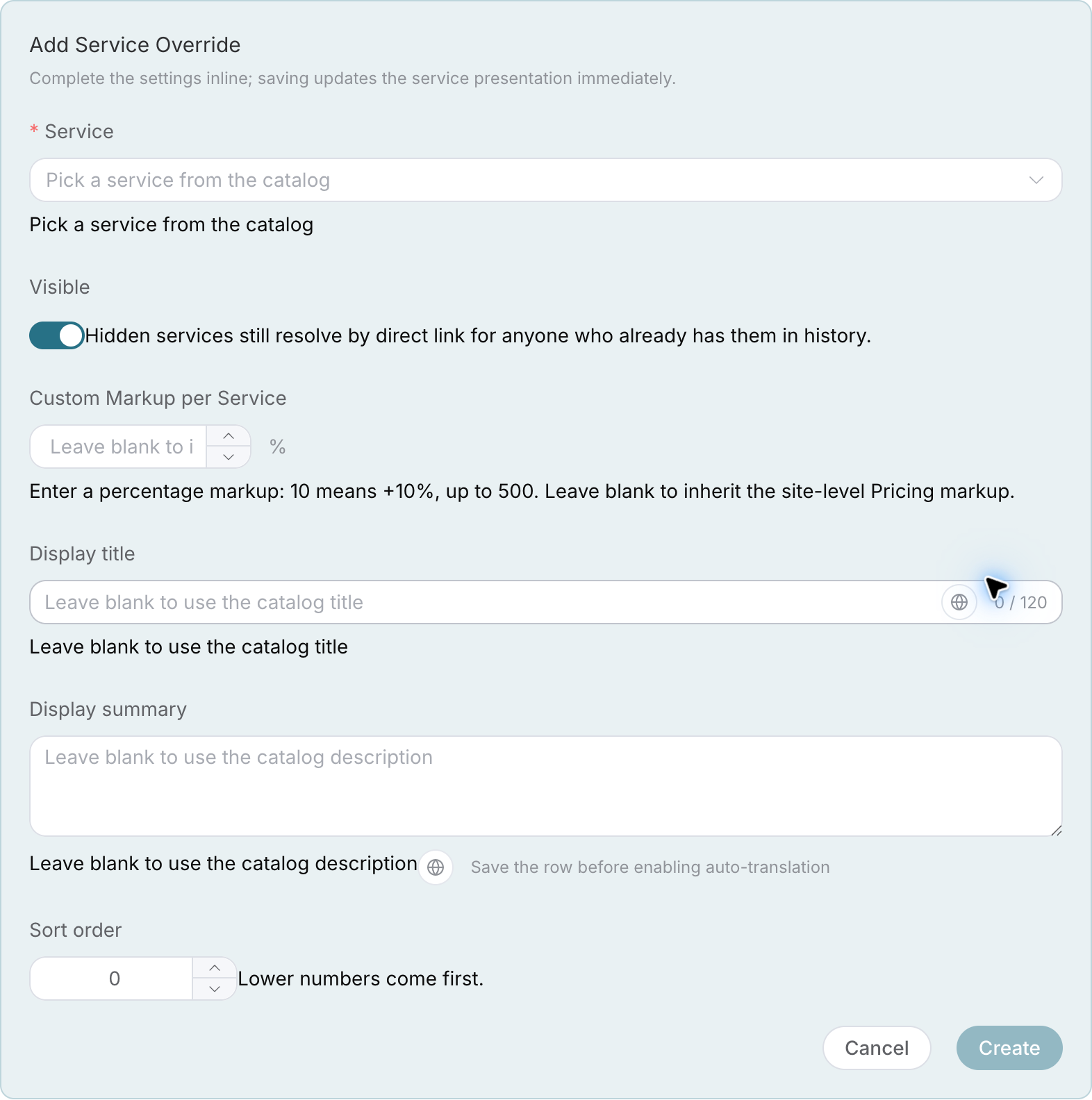
| You Want to Adjust | Set What |
|---|---|
| Temporarily not selling a service | Hide from directory |
| Make the name easier to understand | Display title and summary |
| Make the main promoted service easy to find | Sorting |
| Use different markup ratios | Single service markup |
Single service markup takes precedence over the overall site ratio; it is not a double addition. Deleting coverage will restore the default display and inherit the overall site ratio. The display currency only affects the display; actual payment depends on the checkout page and order.
Do not confuse "leave blank" with "0": Leaving single service markup blank means inheriting the overall site ratio; filling in 0 means that the service has no markup. Leaving the display title and summary blank will use the directory content. After saving, if automatic translation is needed, click the globe button next to the text.
¶ Document Directory Needs to be Organized Separately
Open Document Management and add coverage for the documents that need adjustment. You can modify the title, summary, sorting, or hide the document and its subtree.
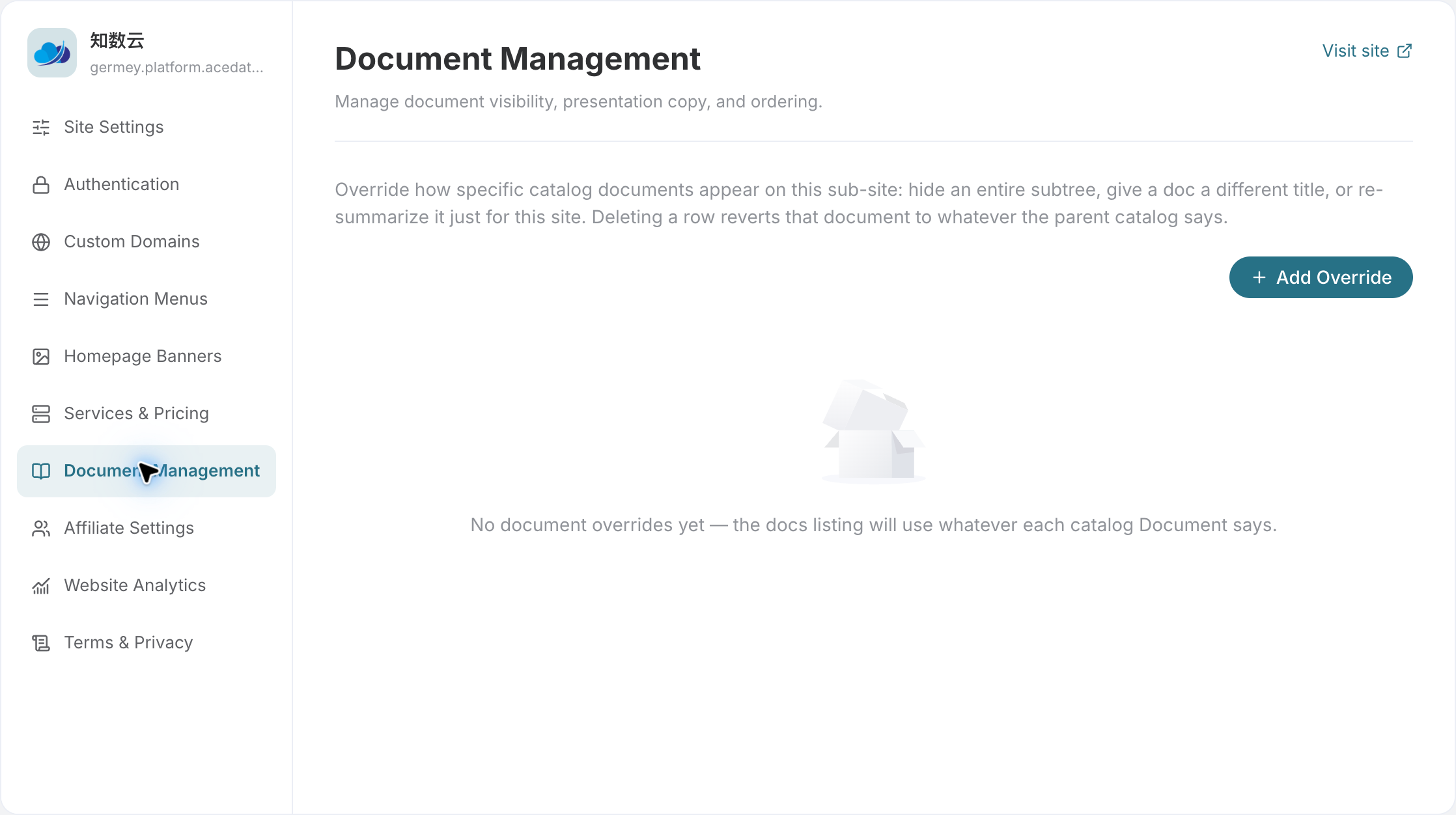
The empty state indicates "not customized yet," not "the customer has no documents." After adding coverage from here, check the public document directory again.
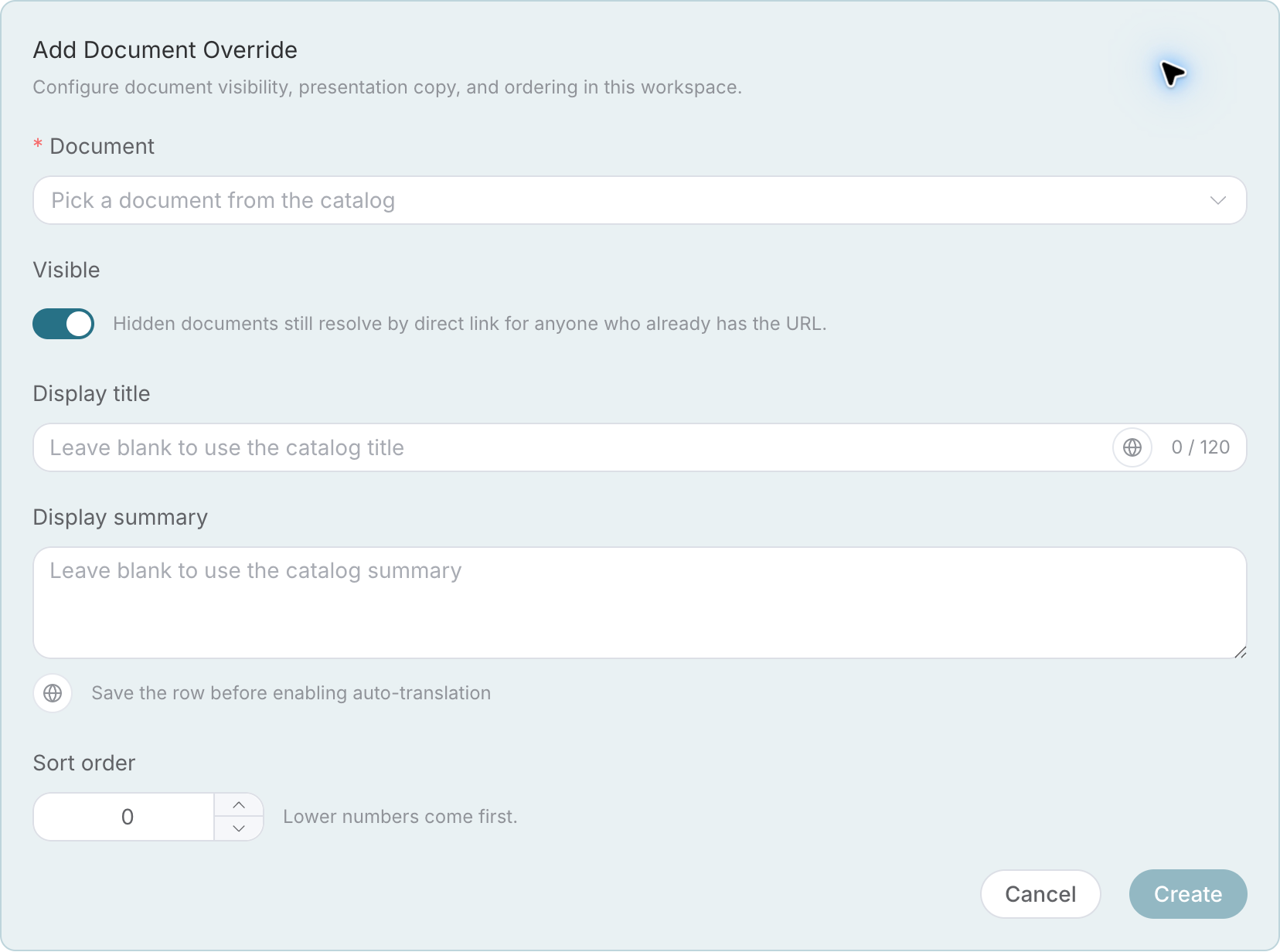
Here, the adjustment is for the directory presentation, not rewriting the entire interface text. First select a specific document; otherwise, you cannot create it; after saving, return to the public directory to check the title and order.
The directory for beginners can be organized in the following reading order:
| Place at the Front | Place at the Back |
|---|---|
| What this service can do | Complete parameters and return fields |
| How to obtain your own Key | Error codes and limitations |
| A minimal calling example | Asynchronous task queries and advanced usage |
Authentication, billing, error handling, and asynchronous task descriptions cannot be deleted for "conciseness." Hiding services will not automatically hide documents; they need to be configured separately; hiding directories is not an API authorization or confidentiality measure, and old links may still access details.
¶ Go Through the Customer's Route
Open the public service directory from Access Site, and choose a main promoted service:
- Click into the service details, check the title, purpose, and price.
- Click on the developer documentation to see if customers can find the authentication method, required parameters, and minimal example.
- If it is an asynchronous task like video or music, confirm there are two parts: "Submit Task" and "Query Result."
- Check the API address in the example. It is normal to display the public domain when a custom API domain has not been bound yet; this will be handled in the next article.
For multilingual customers, switch languages to check the title, summary, and navigation. Do not change public model names, SDK class names, package names, environment variables, and code into brand marketing terms, nor translate them away.
After completing this article: Customers can find the main promoted services from the service directory, see the prices, and start connecting through the documentation.
¶ Common Bottlenecks
Services are hidden, but documents are still there? The two directories need to be set separately.
Pricing overview and service checkout page are different? Different pages may use different pricing scenarios; check the specific service details and the final checkout page, not just look at /pricing.
Document address is still the public API domain? First bind and activate your own API domain, then refresh the documents. Do not manually change the default examples section by section, covering up the issue that the domain name has not been configured.
Next article: Binding Page and API Domain Name · Return to Route Table