
Claude Integration with Veo MCP
📘 Overview Guide: Use All 11 AceData Cloud MCPs in Claude →
Google's Veo is currently one of the most stable in visual quality and most natural in camera movement among text-to-video models. With AceData Cloud's Veo MCP connected, Claude can generate a video from a single prompt in the chat box and return a 1080p video in just over 90 seconds — viewable and downloadable directly in the Claude.ai web app.
This article is a hands-on test record completed in the Claude.ai web app: from adding the Connector and OAuth authorization to generating a 1080p sunrise lake video with a small boat using veo2-fast from a single prompt. The entire process is documented with screenshots and can be reproduced by simply copying the steps.
¶ What is MCP?
MCP (Model Context Protocol) is an open protocol introduced by Anthropic that allows models like Claude to call external tools through a standardized interface. In simple terms: it gives Claude plugin capabilities.
AceData Cloud has packaged the full Veo functionality into a remote MCP Server. Once connected, Claude can directly:
- Text-to-video (
veo_text_to_video) - Image-to-video (
veo_image_to_video) - Video extension / continuation (
veo_extend_video) - Video reshoot (
veo_reshoot) - 1080P upscaling (
veo_get_1080p,veo_upsample) - Video object recognition (
veo_video_objects) - Single / batch task queries (
veo_get_task,veo_get_tasks_batch) - List actions / models (
veo_list_actions,veo_list_models) - View prompt writing guides (
veo_get_prompt_guide)
The entire integration requires only a single URL; Claude handles the rest.
¶ Add Veo MCP in the Claude.ai Web App
💡 The Claude.ai web app integration uses direct OAuth connection, with no need to copy API tokens. You only need an AceData Cloud account (GitHub / Google / WeChat login supported).
¶ 1. Open Connector Settings
Log in to https://claude.ai, click your avatar in the lower-left corner → Settings → Customize → Connectors, or directly visit https://claude.ai/customize/connectors.
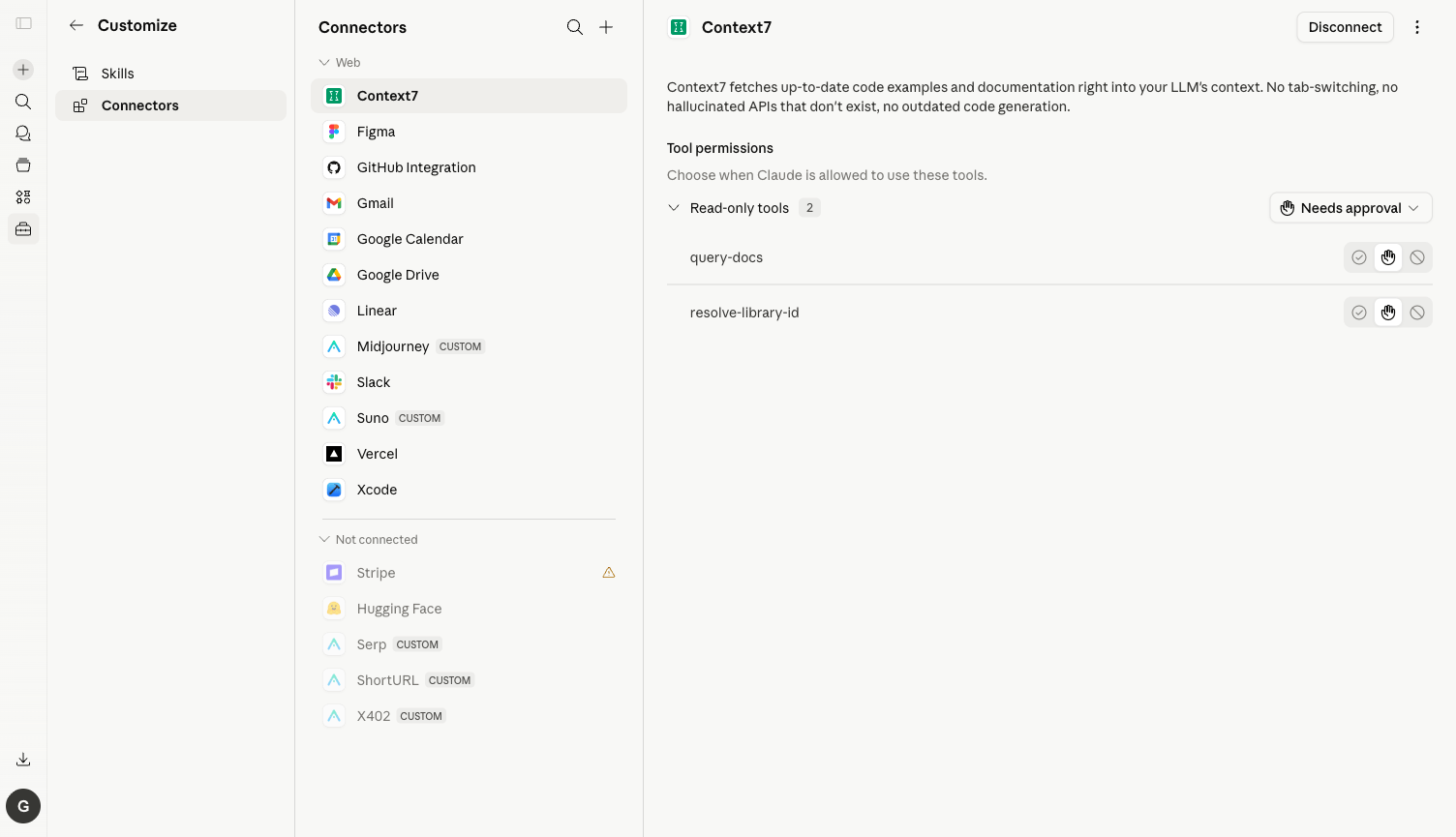
⚠️ The old route
/settings/connectorshas been moved to/customize/connectors. Visiting the old address will show a message saying "Connectors have moved to Customize".
¶ 2. Add the Veo MCP Server
Click the plus icon in the upper-right corner → Add custom connector, then fill in:
| Field | Value |
|---|---|
| Name | Veo (any name is fine) |
| URL | https://veo.mcp.acedata.cloud/mcp |
Click Add, and Claude will automatically discover all tools exposed by the Server.
¶ 3. OAuth Authorization
Click Connect → you will be redirected to the AceData Cloud OAuth authorization page → log in and click Allow. If you do not have an account yet, register at https://platform.acedata.cloud. Registration includes free credits, which are enough to complete the demo in this article.
¶ 4. Verify the Tool List & Switch Tools to Always Allow
After authorization, return to Claude.ai and open the Veo Connector. You should see 12 tools: veo_text_to_video, veo_image_to_video, veo_extend_video, veo_reshoot, veo_get_1080p, veo_upsample, veo_video_objects, veo_get_task, veo_get_tasks_batch, veo_list_actions, veo_list_models, and veo_get_prompt_guide.
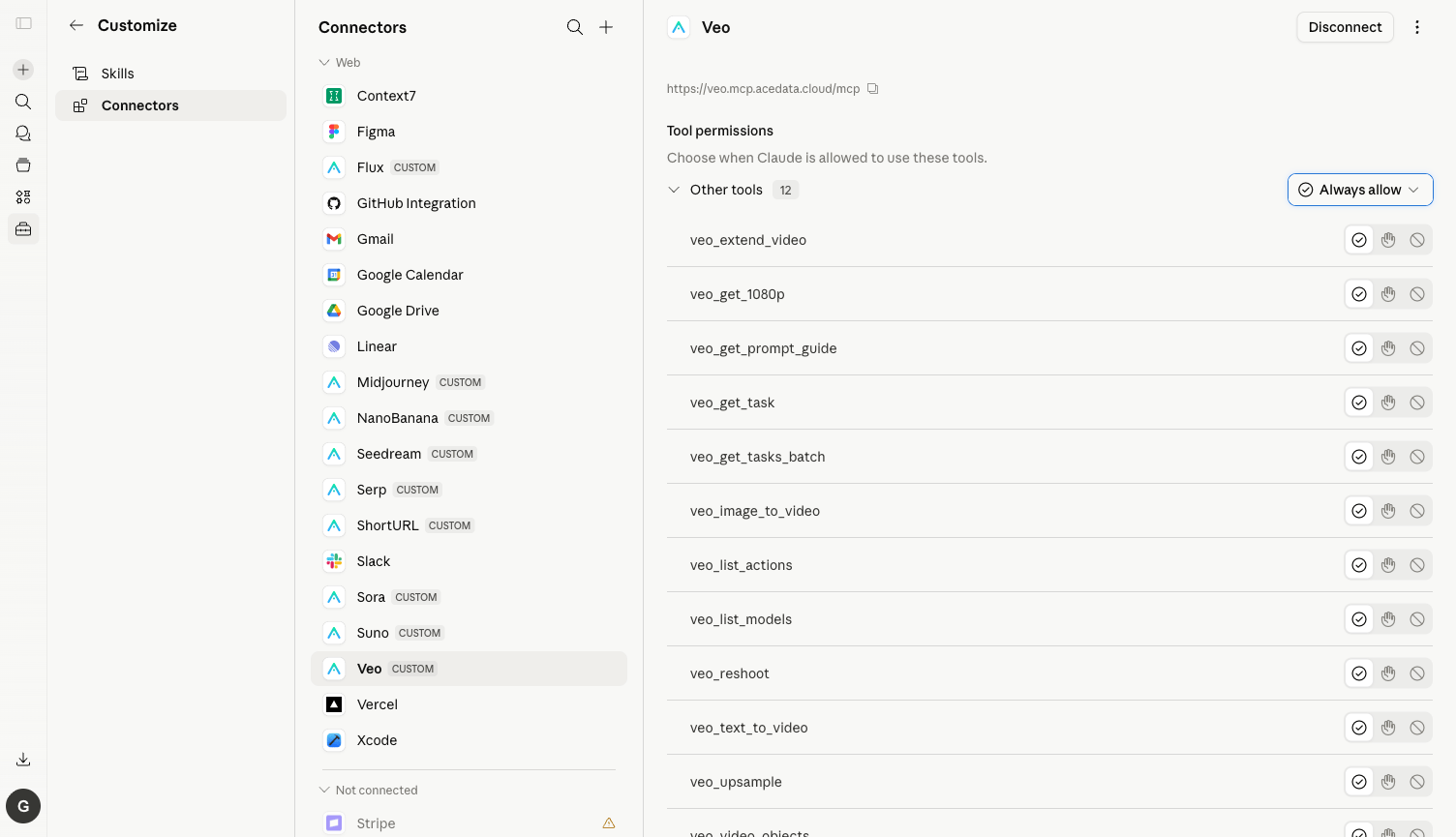
⚙️ It is strongly recommended to switch the Needs approval dropdown in the upper-right corner to Always allow. Otherwise, every tool invocation will require confirmation. Generating a single video usually triggers 3–6 calls (list_models for model selection + text_to_video submission + multiple get_task polling requests), and repeatedly clicking confirmations quickly becomes frustrating.
¶ Test: Generate a 1080p Video with a Single English Prompt
The following is the actual conversation I ran:
Prompt: Use Veo text-to-video to generate one short video. First list available models and pick the FASTEST/CHEAPEST variant (e.g. veo-2 fast / veo-3 fast). Use the LOWEST resolution (480p/720p), the SHORTEST duration available (5s if possible). Subject: a small wooden boat drifting on a calm blue lake at sunrise, simple background.
After receiving the prompt, Claude performed the following:
- Called
veo_list_modelsto retrieve the available model list and selectedveo2-faston its own (fastest / cheapest). - Automatically detected that the Veo API does not support 480p/720p (valid values are
4k / 1080p / gif) and fell back to 1080p. - Called
veo_text_to_videoto submit the task. - Polled
veo_get_taskautomatically and obtained the final video after approximately 92 seconds. - Posted a playable/downloadable video link in the chat along with a list of the parameters used.
Below is the screenshot of the final result in the chat:
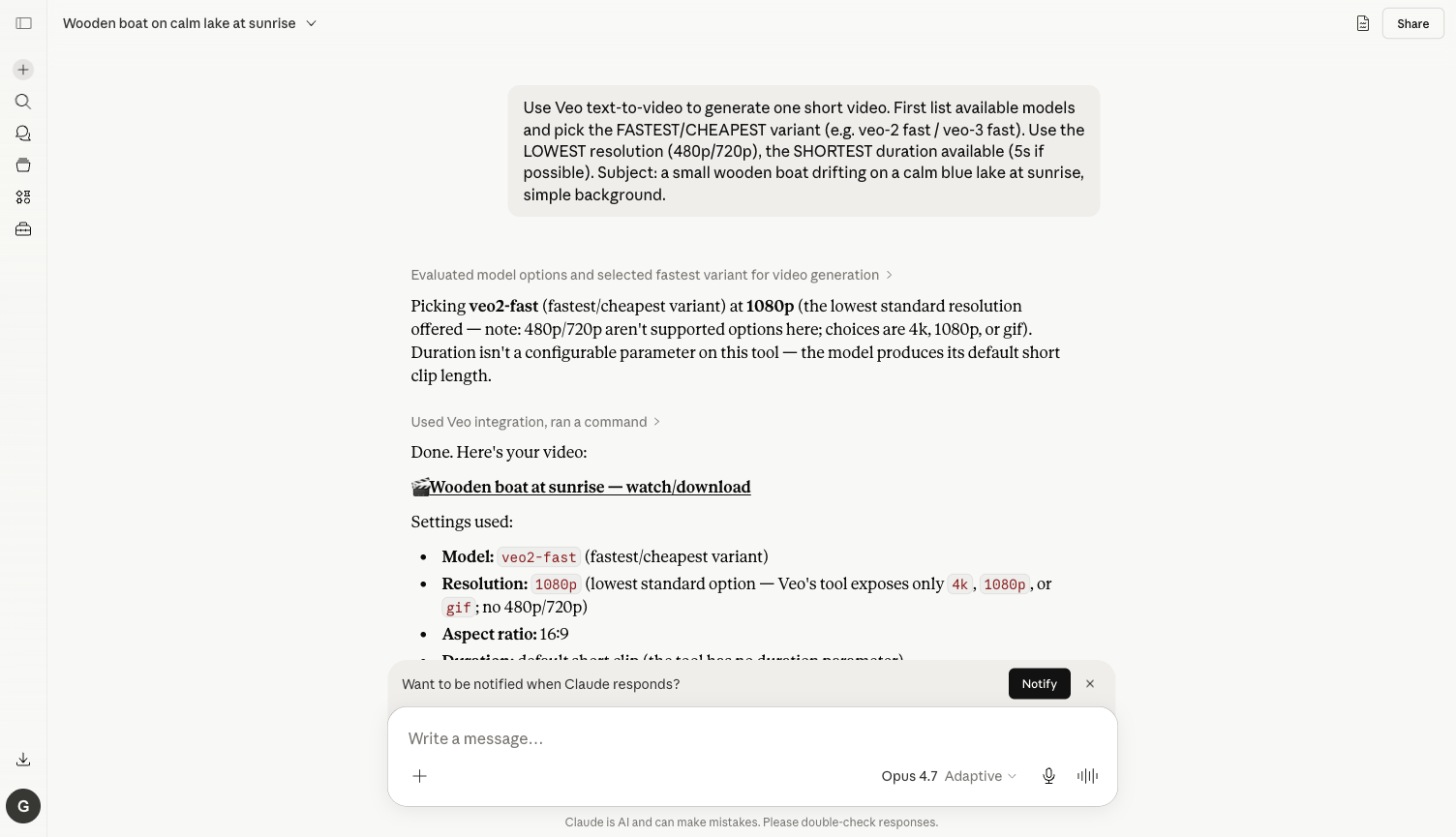
The actual generated video (1080p, approximately 1.6 MB, hosted directly on platform.cdn.acedata.cloud with long-term availability):
📹 https://cdn.acedata.cloud/e7637f15a7.mp4
💡 The link is stable: AceData Cloud transfers Veo-generated videos directly to its own CDN, so they do not expire. The link returned by Claude can be embedded directly into blogs, PPT presentations, or advertising landing pages.
¶ More Use Cases (With the Same Connector)
Replace the prompt with any of the following, and Claude will automatically choose the appropriate tool:
Image-to-Video
Take this image (https://cdn.acedata.cloud/foo.png) and use Veo image_to_video to animate it: slow camera push-in, soft wind effect.
→ Claude calls veo_image_to_video and turns the static image into a 5-second video clip.
Extend / Continue a Video
Extend the last video by 5 more seconds — keep the same camera angle and lighting.
→ Claude calls veo_extend_video to continue the previous video.
Fetch the Prompt Template Before Generation
First fetch Veo's prompt writing guide, then write me a cinematic 5-second clip prompt for "a samurai walking in heavy rain at night, neon city background", and generate it.
→ Claude first calls veo_get_prompt_guide, applies the official recommended structure, and then submits the task, resulting in more consistent output quality.
Upscale Old Footage to 1080P
Take this 720p video (URL...) and use Veo upsample / get_1080p to make a 1080p version.
→ Claude calls veo_get_1080p / veo_upsample to upscale the old material.
¶ Frequently Asked Questions
Q: Why do I still need to confirm the new tool after clicking Always allow?
A: Always allow remembers at the tool level. list_models, text_to_video, get_task, extend_video, etc. are different tools, and each needs to be confirmed once the first time.
Q: What should I do if my balance is insufficient?
A: The error message will include insufficient balance. Go to https://platform.acedata.cloud/console/coin to recharge, supporting Alipay / WeChat / Stripe / USDC. Veo consumes a lot for single video segments (videos are inherently the most expensive tasks in LLM), so you can first use veo2-fast to get a feel for the prompt before switching to veo3 / high resolution.
Q: What advantages does it have compared to Sora / Luma / Seedance? A: Veo's physical consistency of images and stability of camera movement are among the strongest in text-to-video currently; the downside is that it does not support custom durations, and each model has a fixed output duration. If you want short durations + multiple variants, you can use it in conjunction with Luma / Seedance.
Q: Can Claude Desktop and Claude Code be used this way too? A: Yes. For details, see Claude Desktop + Veo MCP and Claude Code + Veo MCP.