
Claude Integrates Luma MCP
📘 Overview Guide: Using all 11 AceData Cloud MCPs in Claude →
Luma's Dream Machine has the most dreamlike visuals and meticulous composition in the text-to-video space, making it particularly suitable for artistic short films, music videos, and conceptual teasers. With AceData Cloud's Luma MCP, Claude can return a video in 100 seconds with just one prompt—view or download directly from the Claude.ai web version.
This article is a hands-on record of running it on the Claude.ai web version: from adding the Connector, OAuth authorization, to generating a 1080×1080 short film of a paper crane flying towards a sunny windowsill with one prompt, complete with screenshots for easy reproduction.
¶ What is MCP?
MCP (Model Context Protocol) is an open protocol launched by Anthropic that allows models like Claude to call external tools through standard interfaces. In simple terms: it gives Claude plugin capabilities.
AceData Cloud has encapsulated Luma's core capabilities into a remote MCP Server, allowing Claude to directly:
- Generate video from text (
luma_generate_video) - Generate video from images (
luma_generate_video_from_image) - Extend or continue videos (
luma_extend_video,luma_extend_video_from_url) - Query single or batch tasks (
luma_get_task,luma_get_tasks_batch) - List actions or aspect ratios (
luma_list_actions,luma_list_aspect_ratios)
The entire integration requires just one URL, and the rest is handled by Claude.
¶ Adding Luma MCP in Claude.ai Web Version
💡 The integration in Claude.ai web version is OAuth direct connection, no need to copy API Token. You only need an account that can log into AceData Cloud (GitHub / Google / WeChat are all acceptable).
¶ 1. Open Connectors Settings
Log in to https://claude.ai, click on the avatar in the lower left corner → Settings → Customize → Connectors, or directly visit https://claude.ai/customize/connectors.
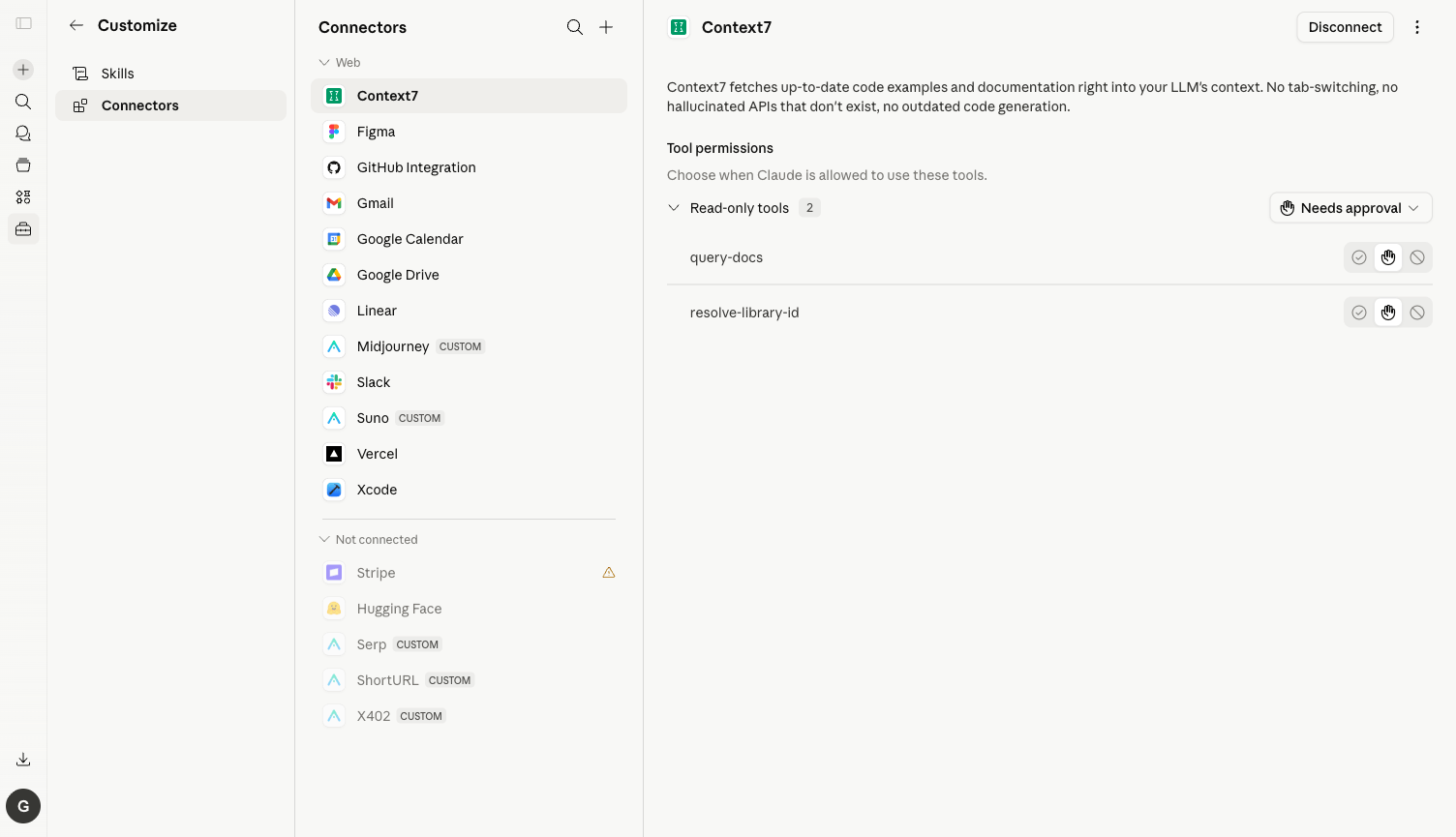
⚠️ The old entry
/settings/connectorshas been migrated to/customize/connectors. Accessing the old address will show a message "Connectors have moved to Customize".
¶ 2. Add Luma MCP Server
Click the plus sign in the upper right corner → Add custom connector, and fill in the pop-up dialog:
| Field | Value |
|---|---|
| Name | Luma (choose any name) |
| URL | https://luma.mcp.acedata.cloud/mcp |
Click Add, and Claude will automatically discover all the tools exposed by the Server.
¶ 3. OAuth Authorization
Click Connect → redirect to the AceData Cloud OAuth authorization page → log in with your account and click Allow. If you haven't registered yet, go to https://platform.acedata.cloud to register; you will receive free credits sufficient to run the demo in this article.
¶ 4. Check Tool List & Set Tools to Always Allow
After authorization, return to Claude.ai, open the Luma Connector, and you will see 8 tools: luma_generate_video, luma_generate_video_from_image, luma_extend_video, luma_extend_video_from_url, luma_get_task, luma_get_tasks_batch, luma_list_actions, luma_list_aspect_ratios.
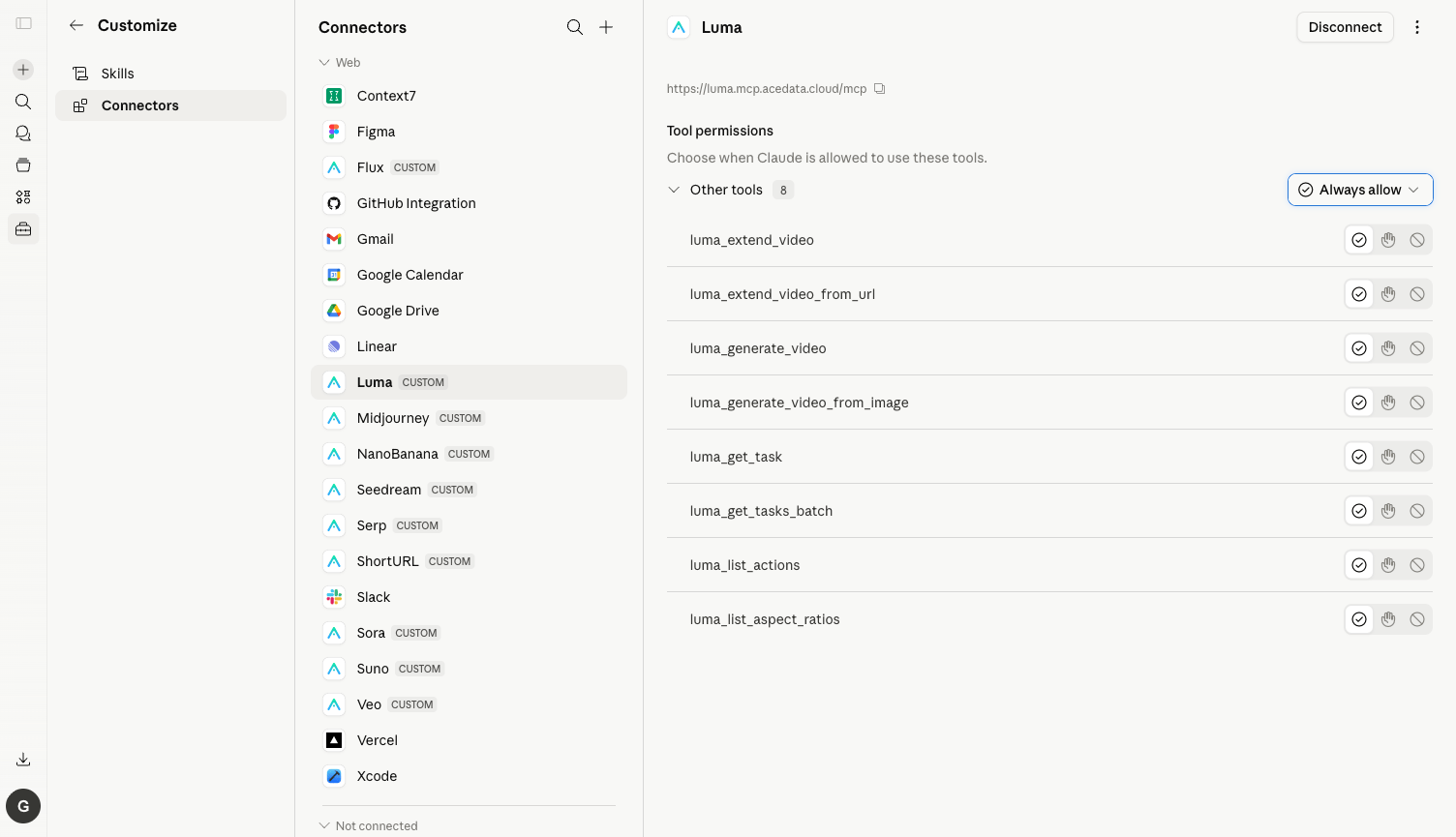
⚙️ It is highly recommended to switch the dropdown in the upper right corner from Needs approval to Always allow, otherwise, a confirmation box will pop up every time a tool is called. Generating a video usually triggers 3–5 calls (submission + multiple polling for task status), leading to existential doubts.
¶ Practical Test: One English Prompt Generates a Dreamlike Short Film
Here is the real conversation I ran:
Prompt: Use Luma to generate one short video with the FASTEST settings: shortest duration available, lowest resolution if configurable. Subject: a paper crane folding itself and slowly flying upward in a sunny window, minimal background.
What Claude did upon receiving it:
- Automatically called
luma_generate_video, usingaspect_ratio=1:1+enhancement=falseto take the most resource-efficient path - Automatically polled
luma_get_task - About 99 seconds later, received the final video (1080×1080, about 2.5 MB)
- Posted the video link + thumbnail link in the chat box, explaining that Luma MCP does not support custom duration/resolution
Here is the final result screenshot from the chat:
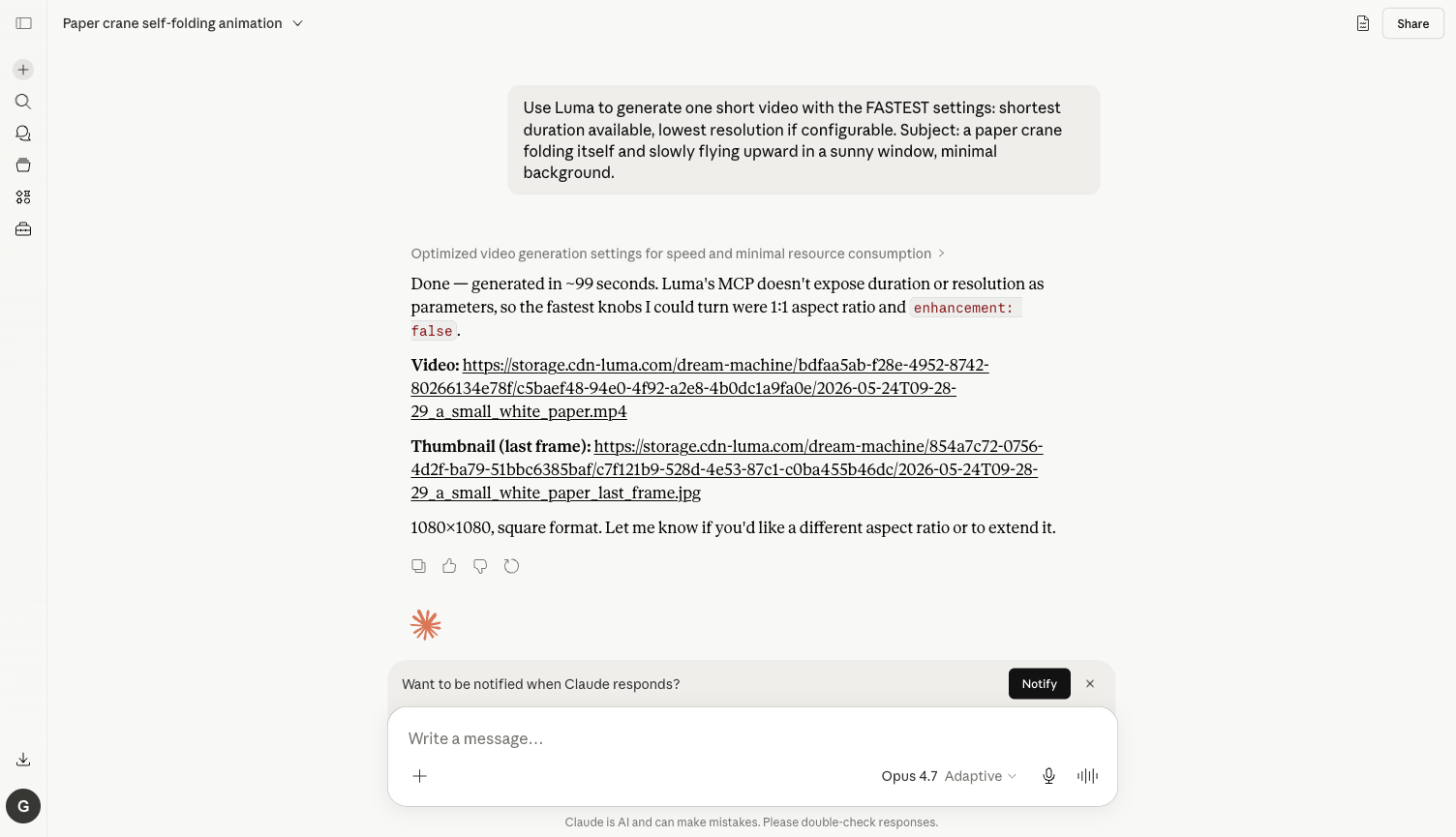
The actual generated video (directly hosted on cdn.acedata.cloud, available long-term):
📹 https://cdn.acedata.cloud/47d3c64bae.mp4
💡 Luma's visual atmosphere is truly excellent—lighting, camera movement, and color tone all carry a "cinematic feel." Combined with Suno MCP for music, you can produce a music video in just a few minutes.
¶ More Uses (Same Connector)
Change the prompt to the following, and Claude will automatically select the appropriate tools:
Image to Video
Take this image https://cdn.acedata.cloud/foo.png and animate it with Luma: slow zoom-in, soft wind through hair, cinematic.
→ Claude calls luma_generate_video_from_image, turning the static image into a dynamic short film.
Video Continuation
Extend the last video by another clip — keep the same camera move, but reveal a wider scene.
→ Claude calls luma_extend_video, allowing the short film to continue.
Aspect Ratio / Style Quick Testing
List Luma aspect ratios first, then generate a 9:16 vertical clip of "neon Tokyo street, walking POV, raining".
→ Claude first calls luma_list_aspect_ratios to get valid values, then luma_generate_video to produce a vertical short film.
Linking Midjourney → Luma
Generate a Midjourney image of "lone astronaut on red Mars dune", then animate it with Luma image_to_video, slow dolly forward.
→ Claude first generates an image with Midjourney, then uses Luma to create a video from the image, generating in a chain.
¶ Frequently Asked Questions
Q: Why do I still need to confirm new tools even after clicking Always allow?
A: Always allow remembers on a per-tool basis. generate_video, generate_video_from_image, extend_video, get_task are different tools, and you only need to confirm each once.
Q: What should I do if the balance is insufficient?
A: The error message will include insufficient balance. Go to https://platform.acedata.cloud/console/coin to recharge, supporting Alipay / WeChat / Stripe / USDC. Luma videos consume more (videos are inherently the most expensive tasks in LLM), you can first use enhancement=false to get a better understanding of the prompt before enabling enhancement.
Q: What advantages does it have compared to Sora / Veo / Seedance?
A: Luma's artistic / dreamy / cinematic qualities are the strongest among the few, suitable for artistic short films, MVs, and advertisement teasers; Veo is more stable, Seedance is cheaper, and Sora is more versatile.
Q: Can Claude Desktop and Claude Code be used this way too?
A: Yes. For details, see Claude Desktop + Luma MCP and Claude Code + Luma MCP.