

Building an online AI workspace may sound like it requires preparing servers, developing the frontend, integrating models, and handling accounts and domains. Once you actually get started, you often find that before even beginning the core features, time has already been spent on various configurations.
Ace Data Cloud Studio makes these preparations much simpler. You can directly create an online Studio, use different AI Agents through it, create and publish tasks, and adjust the site name, Logo, and bind your own domain according to your branding needs.
Whether sharing it with friends or using it as an internal AI tool entry point for a team, there is no need to build the entire system from scratch.

¶ One Studio Can Support More AI Capabilities
Ace Data Studio is not just a simple chat page; it is more like an online workspace for centrally using AI tools.
Within the same site, you can use different capabilities such as AI chat, image generation, video creation, and music creation, and you can also create Agents and publish tasks around actual needs. For users who want to build an independent entry point, they can also customize the site name, Logo, and domain, making the entire Studio look more aligned with their own brand image.
After the site is created, you can directly share the link without separately developing an access page, also avoiding the trouble of repeated deployment and maintenance.
¶ Quickly Create an Ace Data Cloud Studio with One Click
First, open Ace Data Studio.
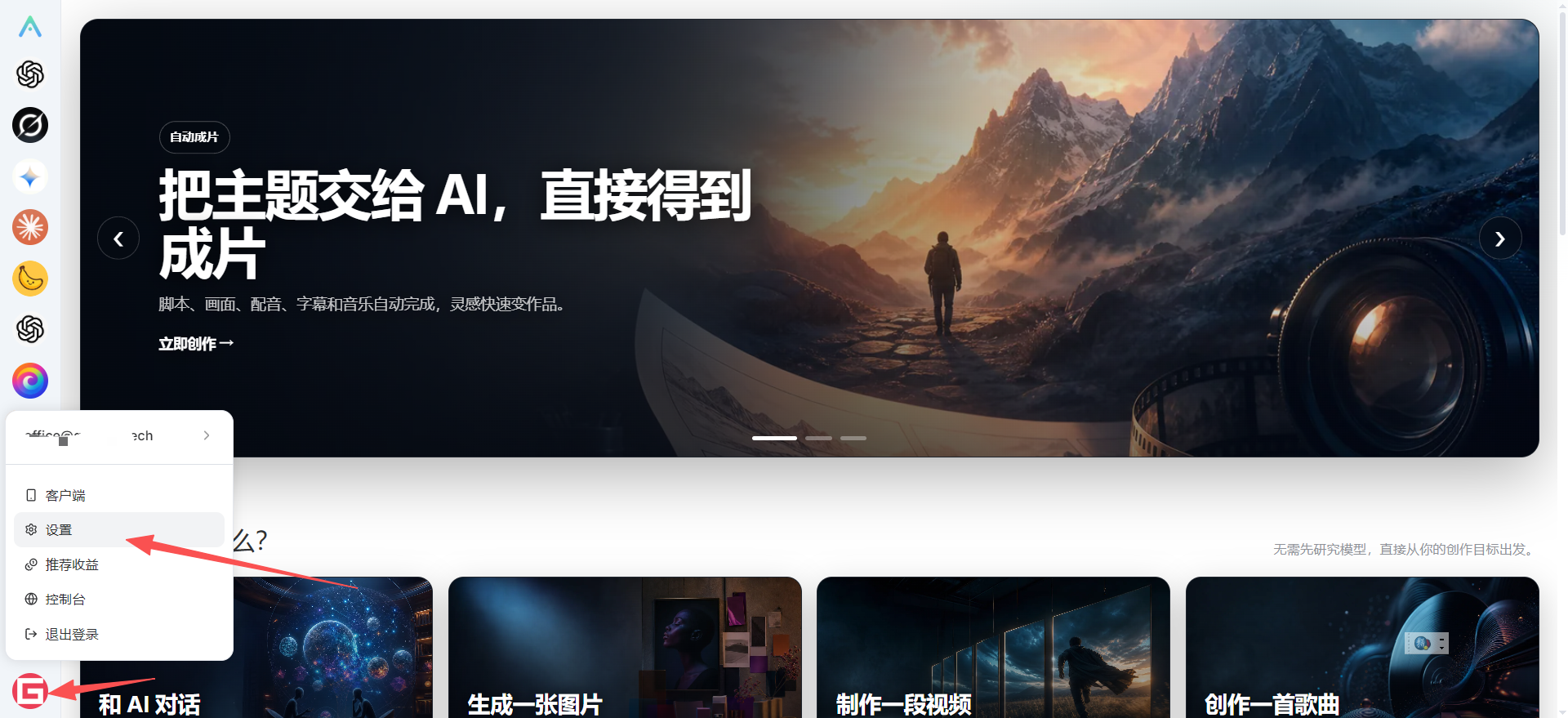
After entering Studio, click the account icon in the lower-left corner of the page, and select “Settings” from the pop-up menu. The entry points for creating and managing sub-sites are all here, and when you need to adjust site information later, you can also enter from the same location.
¶ Enter “My Sub-sites”
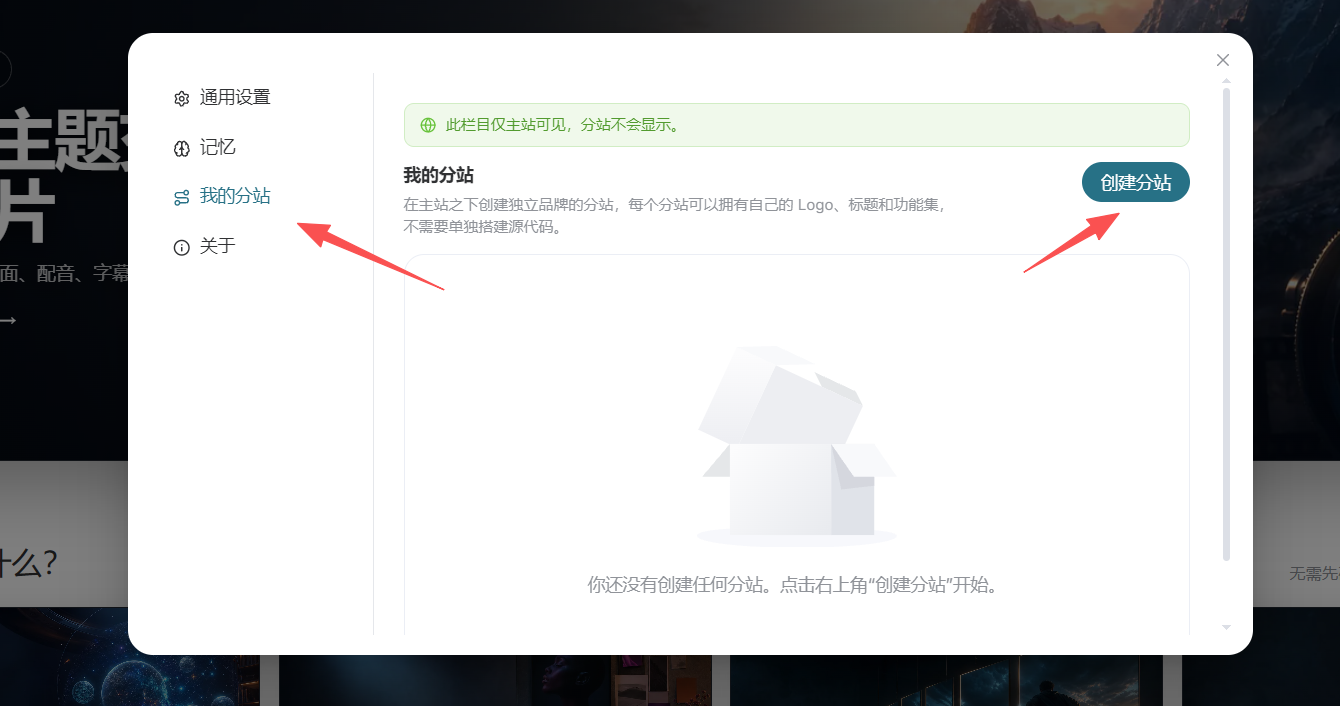
After opening the settings window, select “My Sub-sites” from the left-side menu.
This page displays the sub-sites already created under the current account. If this is your first time using it, there will temporarily be no site records on the page, so simply click “Create Sub-site” in the upper-right corner.
¶ Enter the Sub-site Domain and Name
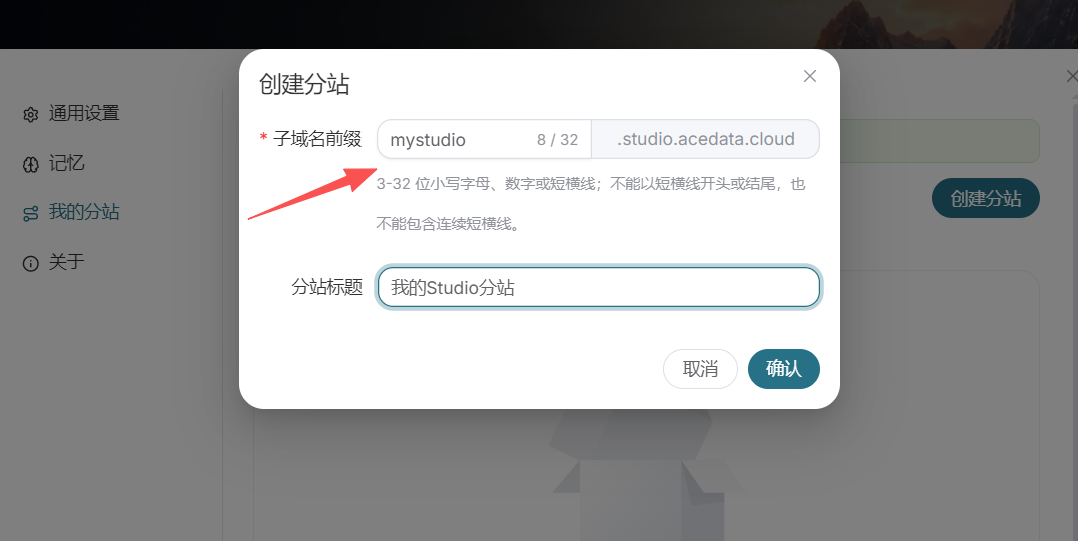
When creating a sub-site, you need to enter a subdomain prefix and a sub-site title.
The subdomain prefix will become part of the default access address for the sub-site, so it is recommended to use a short and easily recognizable English name. The sub-site title will be displayed in relevant locations on the site, and can be your brand name, team name, or the main purpose of this Studio.
After confirming that the information is correct, click “Confirm,” and the system will create the corresponding Studio sub-site.
¶ Open the Newly Created Sub-site
After the sub-site is created, you can access it through its independent address.
Here, an already created demo site is used as an example:
Each sub-site has its own access entry point. After creation, you can first open the page to confirm whether the name, feature entry points, and overall display meet expectations.
¶ Log In to the Sub-site
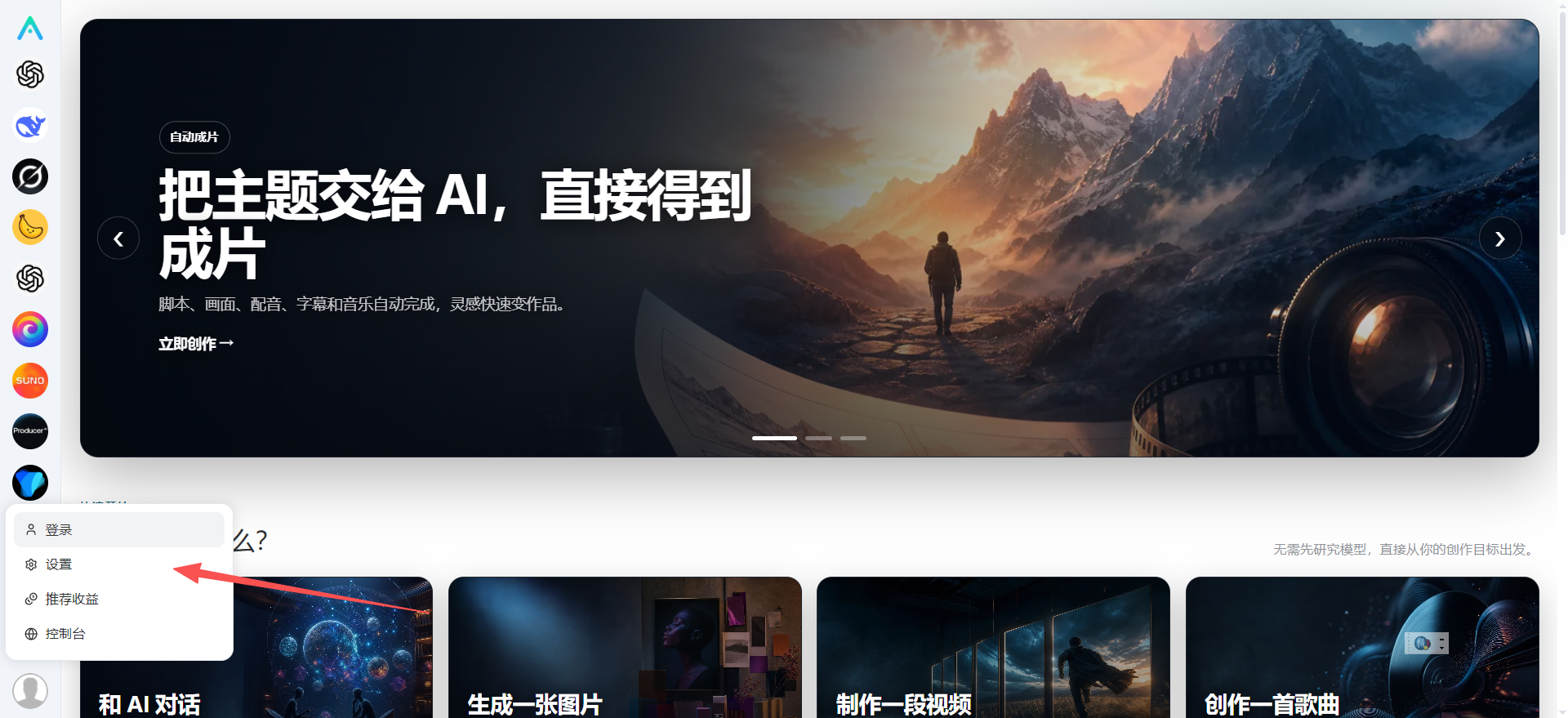
After entering the sub-site, click the account icon in the lower-left corner of the page to log in.
If you have already logged in to the Ace Data Cloud Studio account above in your browser, the system will continue using the current account to complete the login. If this is your first time using it, you will enter the corresponding registration or login process.
After successfully logging in, you can use the full features in the sub-site and continue adjusting the site settings.
¶ Enter Settings Again
After logging in, click the account icon in the lower-left corner again and select “Settings” from the menu.
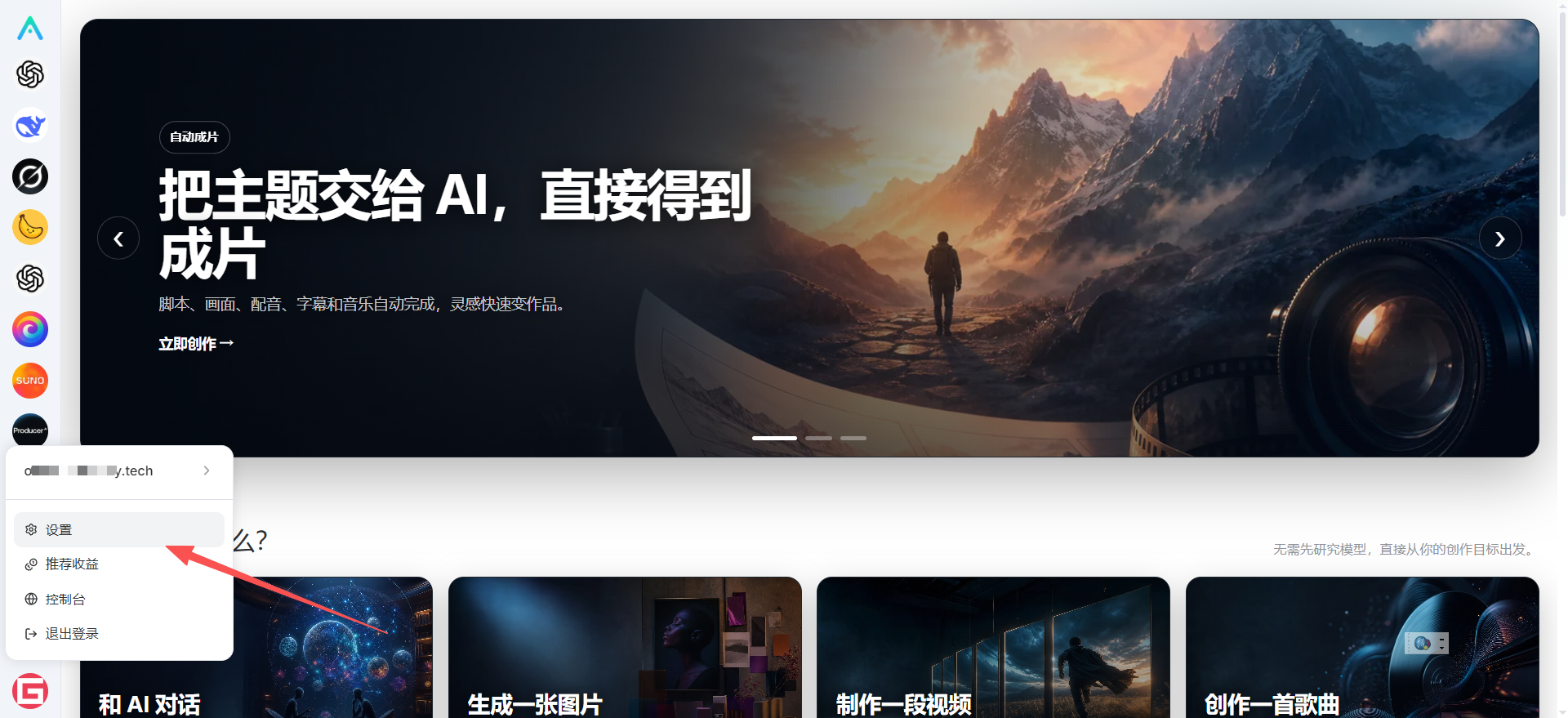
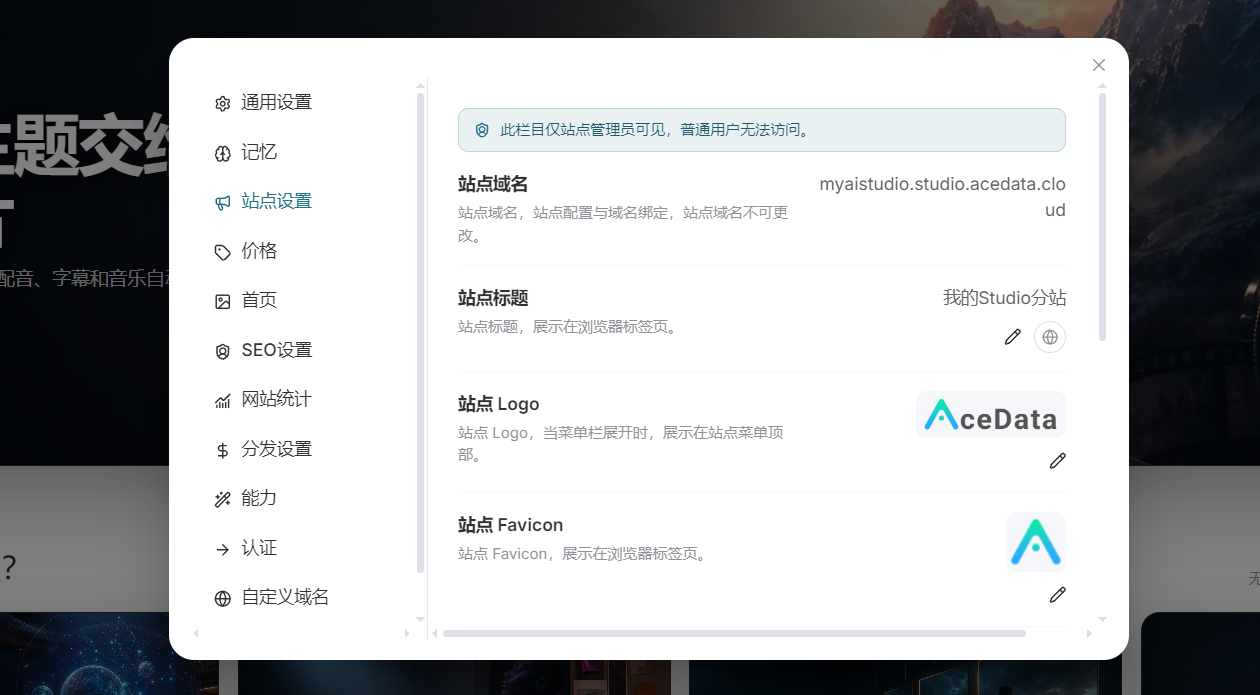
This time, the settings interface for the current Studio sub-site itself is opened. Content such as the site name, Logo, and custom domain can all be adjusted here.
¶ Set the Site Name and Logo
In the Studio settings interface, you can modify information such as the site name and Logo according to its actual purpose.
If you plan to share the sub-site with customers, team members, or community users, it is recommended to use an easily recognizable name and brand Logo. This way, users can quickly confirm the site identity after opening the page, and the entire Studio will also look more complete.
There is no need to modify code when configuring it; you can see the updated effect after saving. If brand information changes later, you can also return and adjust it at any time.
¶ Bind Your Own Domain
In addition to the default sub-site address provided by the system, Ace Data Cloud Studio also supports binding a custom domain.
Go to the custom domain settings area, enter the domain you want to bind, then go to the management dashboard of your domain DNS provider and add a CNAME record pointing the domain to:
studio-proxy.acedata.cloud
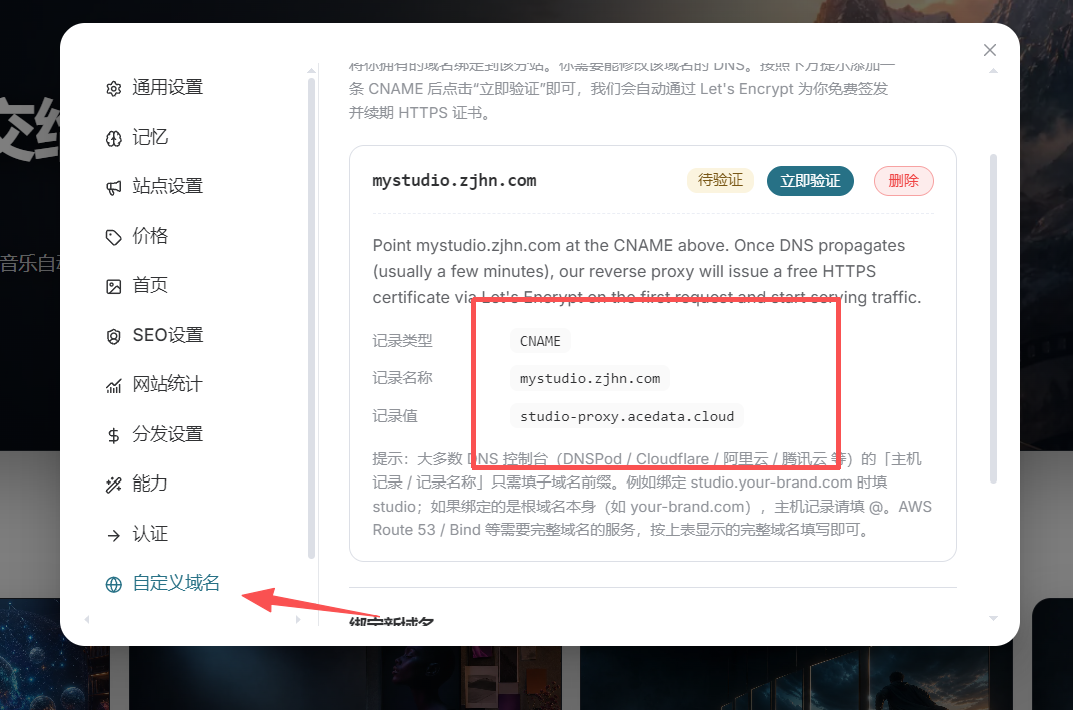
After submitting the DNS record, it usually takes some time before it fully takes effect across the network. The actual propagation speed depends on the domain service provider and local DNS cache.
If it is temporarily inaccessible, you can first check whether the CNAME record is entered correctly and confirm that there is no conflict with an A record of the same name or other DNS records.
¶ Creation Is Complete, Now You Can Share It
At this point, an Ace Data Studio with its own name, Logo, and access domain has been configured.
The entire process does not require preparing a server, nor do you need to develop the site yourself. From creating a sub-site and logging in to an account, to setting brand information and binding a domain, everything can be completed directly in Studio’s settings interface.
Next, you can share the Studio link with friends, team members, or users, allowing everyone to use different AI Agents and creative tools through a unified entry point. You can also create and publish tasks suited to your needs within the site.
If you want to further understand what work Studio can accomplish and how to use different AI capabilities, you can continue reading the related introductions on the official Ace Data Cloud blog.