

When chatting, a suitable sticker is often more useful than a large block of text.
In the past, creating a complete set of animated WeChat stickers usually required first drawing the character, breaking down the actions, and then producing the animation frame by frame. If you also wanted the character to remain consistent across more than a dozen stickers, the workload would be even greater.
Now, with the GIF generation feature of GPT Image 2.6, this has become much simpler. It can directly generate GIF animations based on text descriptions or character reference images, and keep the character as consistent as possible across different actions and scenes. Using it to create WeChat sticker packs is just a very practical direction.
This time, we will use Ace Data Cloud Studio to start with a capybara character and create a set of animated stickers that can be submitted to the WeChat Sticker Open Platform.

¶ Start Creating from the Chat Window
First, open Ace Data Cloud Studio and enter chat mode.
The entire creation process does not require preparing a complex workflow; just tell the Agent what you want to make. If you do not have a clear character concept for the moment, you can also first ask it to help come up with a few directions, such as animal type, personality, art style, color palette, and common chat scenarios.
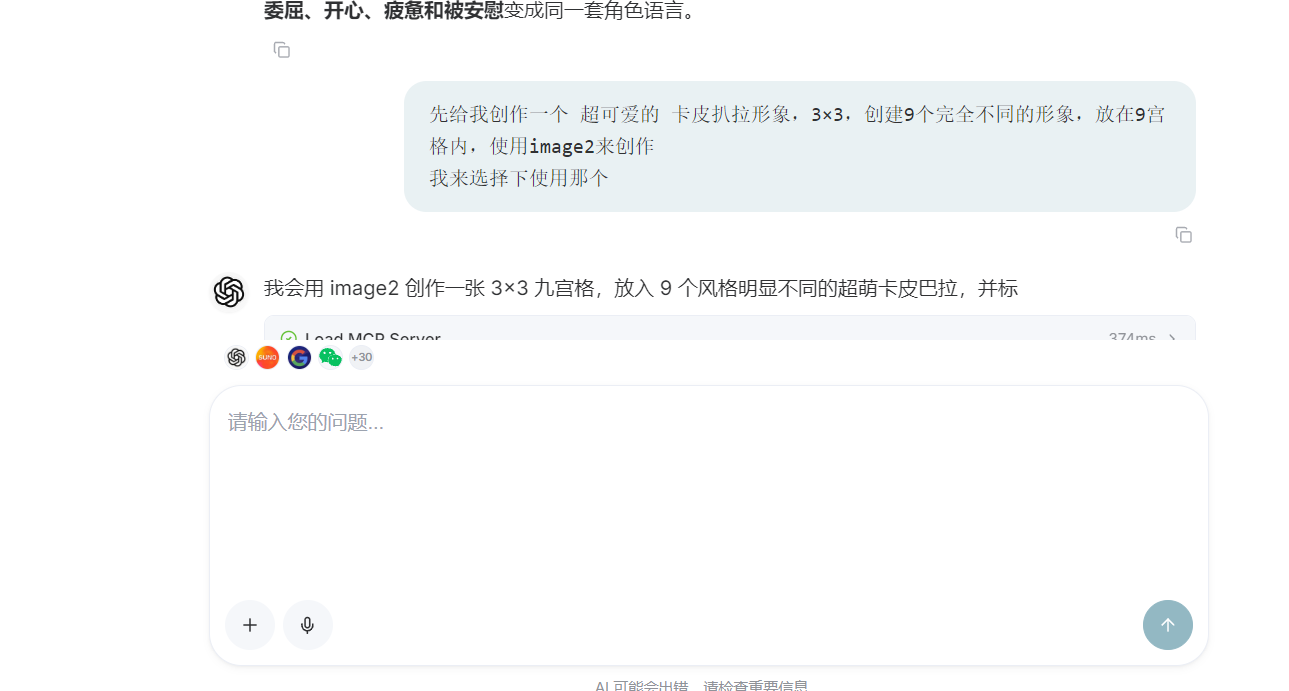
This time, I wanted to create a cute capybara character, so I directly described the general requirements in the chat box.
¶ First Use a Nine-Grid to Define the Character
At the beginning, I asked the Agent to generate nine capybara characters from different directions in one image and arrange them into a 3×3 nine-grid.
There is a very practical benefit to doing this: there is no need to generate an image for each style separately, and you can see nine options at once. It is convenient for comparison and can also reduce the cost of repeated experimentation in the early stage.
The nine characters can differ in material, proportions, and art style, but all should revolve around the same theme. After looking through them, simply choose the character most suitable for continuing to create the sticker pack.
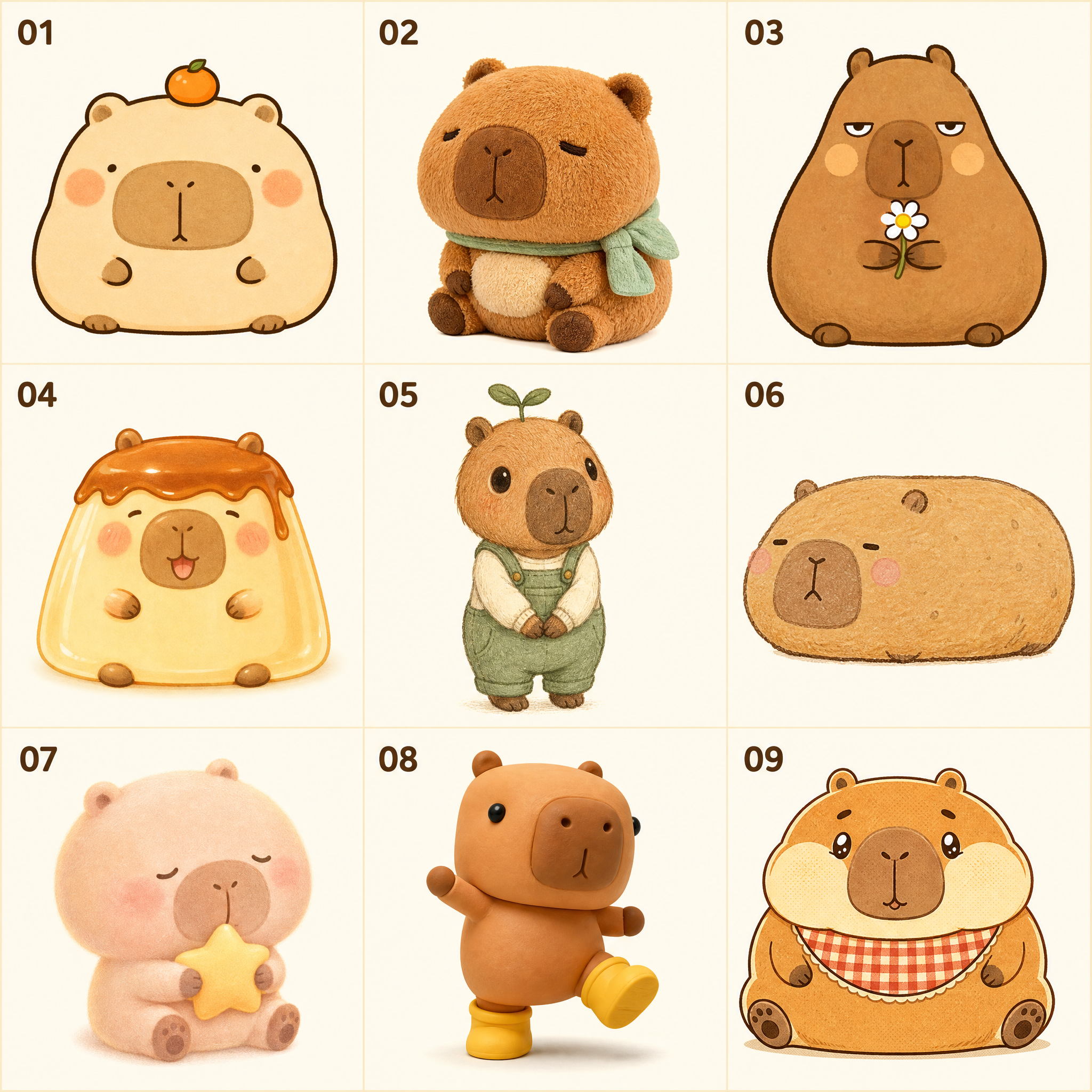
After the Agent called the GPT Image model, it quickly provided nine capybaras in different styles. There were hand-drawn styles, as well as plush toy, clay, and retro illustration styles, which were easy to compare when placed together.
To make selection easier, the Agent also provided a simple style description for each character.
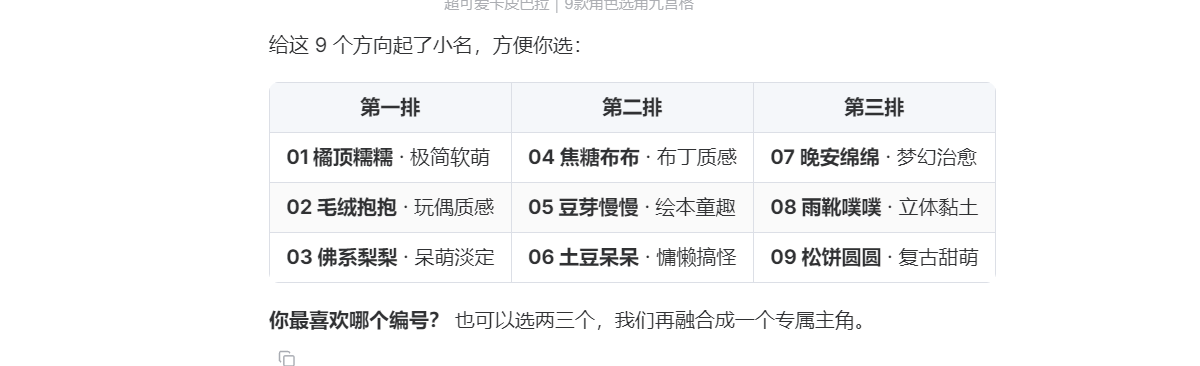
Finally, I chose the 8th character. This character has a three-dimensional clay-like design, a round body, and yellow rain boots. It is highly recognizable and also very suitable for chat stickers.
¶ First Test Four Common Scenarios
After the character is determined, it is not recommended to immediately generate the full sticker set. You can first make a few common scenarios to see whether the character performs stably in animation.
I asked the Agent to use the 8th character as the only reference and first create four scenarios: “Good Morning,” “Clapping,” “Can I Have a Hug?” and “Yay.” Apart from the different actions and text, the character’s head-to-body proportions, colors, facial features, and yellow rain boots all needed to remain consistent.
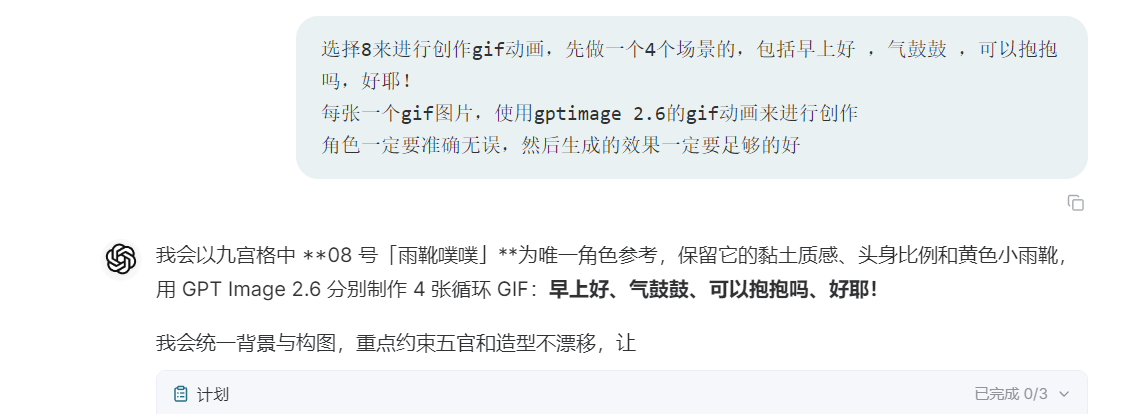
Very quickly, the four animated stickers were generated.
¶ Good Morning
The character gently moves its body, paired with the text “Good Morning,” making it very suitable for daily greetings.

¶ Clapping
This action can be used to express approval, celebration, or cheering on friends, and is a type of sticker used very frequently in chats.

¶ Can I Have a Hug?
The capybara opens its arms, and the overall movement is relatively gentle, making it suitable for comforting friends or casually expressing closeness.

¶ Yay
This one is more suitable for expressing happiness, agreement, or excitement after something has been successfully completed.

Judging from the results of these four, the character’s overall consistency is good. Key features such as the facial outline, body proportions, material, and rain boots were all retained, so the complete sticker set can now continue to be expanded.
¶ Let the Agent Complete the Remaining Stickers
After completing the first four, I prepared to complete the full set to ten stickers.
This time, instead of specifying the actions one by one, I let the Agent freely create based on common emotions in WeChat chats. Doing this is more convenient and also lets us see what interesting scenarios it will add.
During actual creation, you can also provide a general range in advance, such as gratitude, refusal, anticipation, grievance, confusion, apology, getting off work, or good night. The closer the descriptions are to everyday chats, the more practical the final stickers usually will be.
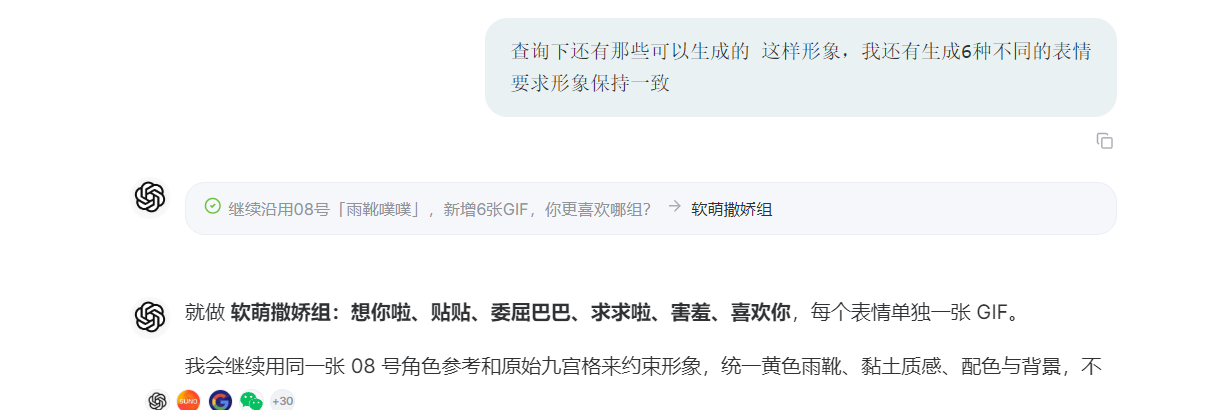
The remaining six stickers were quickly generated. Although the actions and emotions are different, the capybara’s appearance did not change noticeably, and the whole set of images looks relatively consistent when placed together.


When creating a full set of stickers, character consistency is very important. If the same character suddenly changes color, facial features, or body proportions across different images, it will look rather scattered when added to WeChat.
Therefore, in the prompt, it is best to clearly tell the Agent which image is the only character reference, and require it to keep the character’s material, color scheme, facial features, clothing, and body proportions fixed, changing only the actions, expressions, and scenes.
¶ Add the Avatar and Detail Page Banner
After the animated stickers are completed, you also need to prepare an avatar and a detail page banner for the sticker album.
These two images can also continue to be created by the Agent, using the capybara image that has already been established. This way, the avatar, banner, and animated stickers will look more like a complete set of work, avoiding a mismatch between the main image and the content.
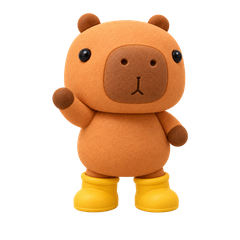
The banner needs to be prepared according to the requirements of the WeChat Sticker Open Platform:
Use JPG or PNG format, with dimensions of 750×400 pixels; when the image is larger than 500 KB, the platform will compress it.
Tell the Agent the dimensions, format, and character reference together, and it can generate the image directly according to the requirements.
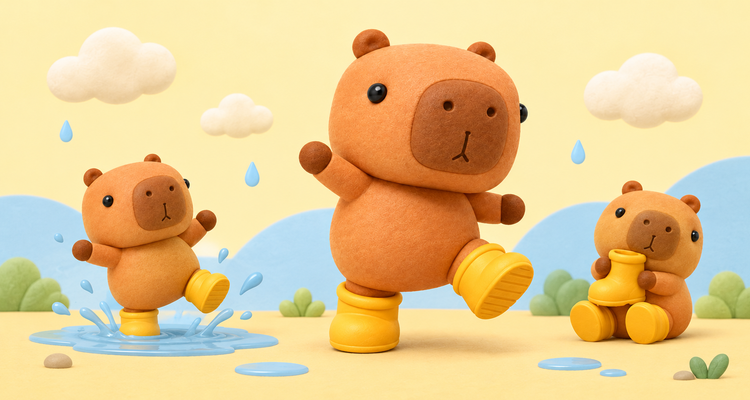
Judging from the result, the character in the banner remains highly consistent with the earlier animated stickers. The familiar round head, clay texture, and yellow rain boots are all still there, and when placed together, they do not feel like they were assembled temporarily.
¶ Submit to the WeChat Sticker Open Platform
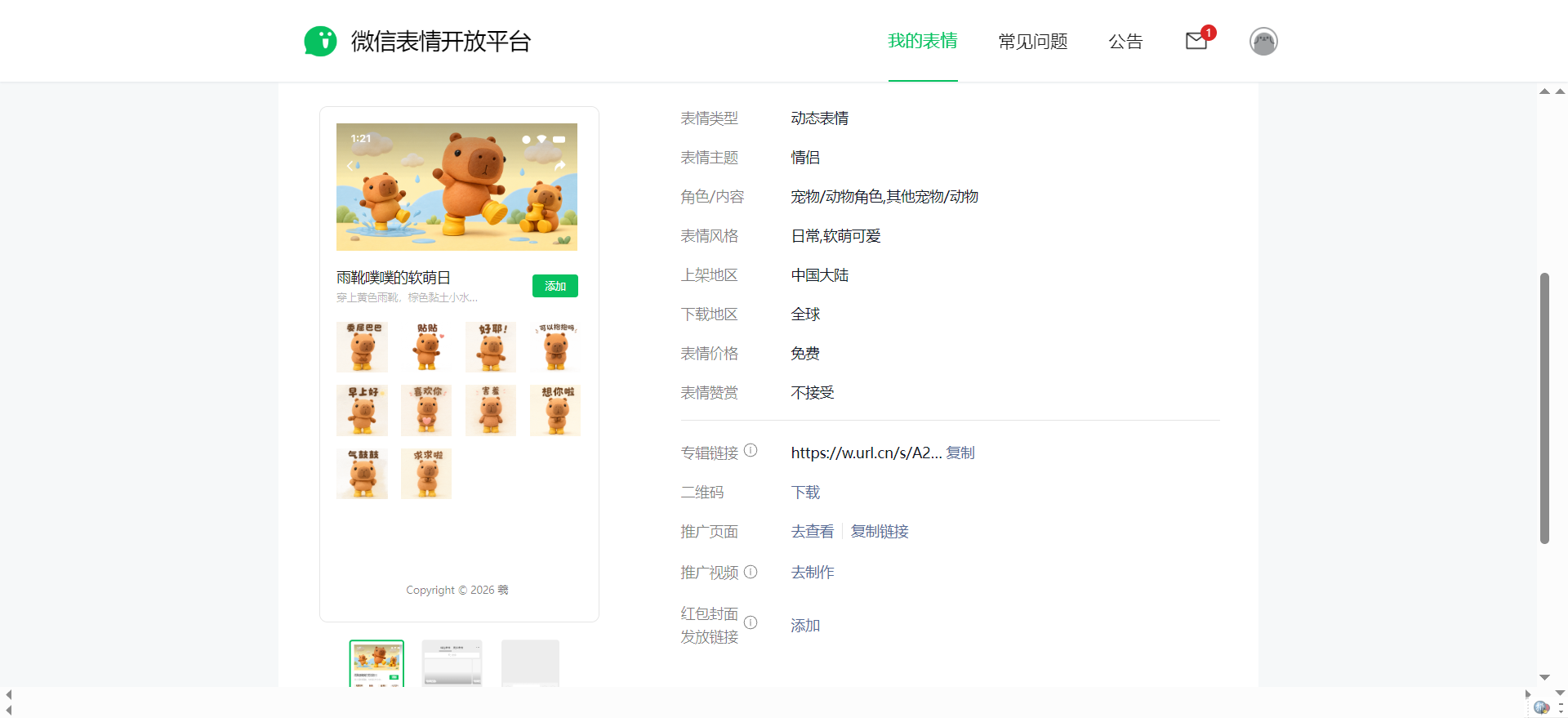
After the materials are ready, open the WeChat Sticker Open Platform, log in, and create a sticker album according to the page instructions.
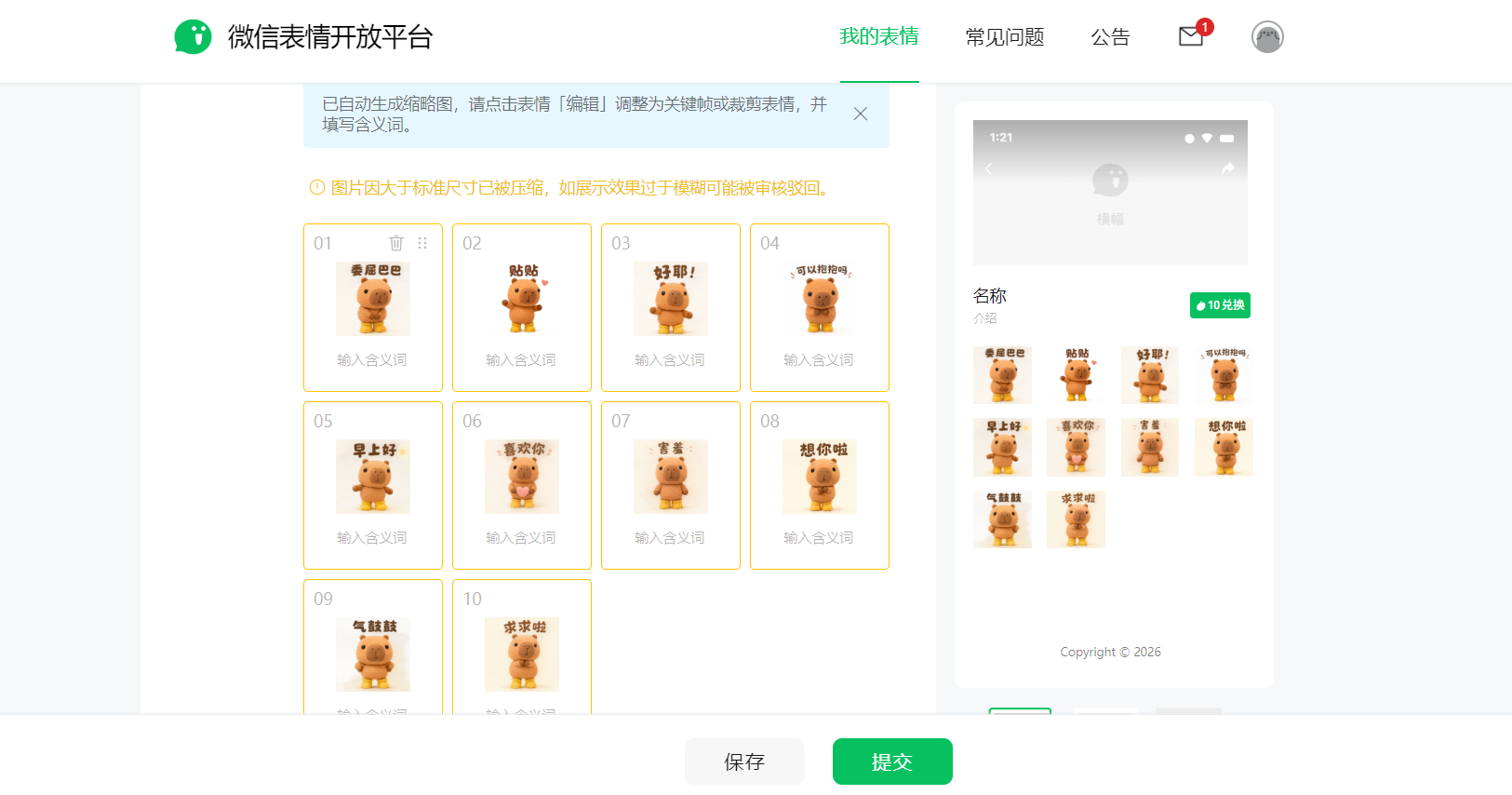
Next, upload the animated stickers, avatar, and detail page banner, then fill in basic information such as the album name and sticker introduction.
There is not much content to fill in. Before submitting, you can check once more that the image dimensions, file formats, animation playback effects, and text are clear. Once everything is confirmed to be correct, submit it for review.
¶ Final Thoughts
From character conception and nine-grid selection to GIF animations, album avatars, and banners, this set of WeChat stickers can basically all be completed in the chat window of Ace Data Cloud Studio.
Throughout the process, the most important thing is not how many images are generated at once, but rather establishing the character first and then gradually expanding its actions using the same reference image. This not only makes adjustments more convenient, but also makes it easier to keep the entire sticker set consistent.
If you also want to create your own set of WeChat stickers, you can start with a simple character and a few commonly used chat phrases. First make four stickers to see the result, and then continue completing the rest once you are satisfied. When the character truly appears in the WeChat chat box, it still feels quite rewarding.