

GIF has always been a very special presence on the internet.
It does not stay still like a static image, nor does it need to be clicked to play like a video. Whether it is an operation prompt on a product page, a meme on a social platform, or a character animation in a brand account, GIFs can add a little more emotion and memorability to an image in a very lightweight way.
It is just that, in the past, turning an image into a GIF was not as easy as it looked.
¶ Why was making a GIF so troublesome in the past?
Traditional GIF production methods often started with “breaking down the movements.”
If a character needed to blink, you had to consider how much the eyes should close; if a character needed to jump, you had to draw the takeoff, midair, and landing; if there were also coins, streamers, or light spots nearby, these elements also had to be adjusted separately. The image might look like only one or two short seconds, but there was quite a lot of frame-by-frame work behind it.
After the materials were ready, you also had to handle background removal, layer alignment, timing between frames, and loop transitions. If the motion was too fast, it would look like a sudden flicker; if the motion was too slow, it could easily feel sluggish. After finally connecting the beginning and end, you might still encounter issues such as color distortion, rough edges, or an excessively large file size during export.
This is also the most frustrating part of traditional GIF creation: what truly takes time is usually not the idea, but breaking the idea down frame by frame and then adjusting it repeatedly.
The illustration below is a true reflection of the traditional workflow: timelines, frame-by-frame images, cutout edges, and export settings are all squeezed together, and a seemingly simple little animation can easily turn into a long tug-of-war over details.

¶ GPT Image 2.6 turns “making animation” into “describing animation”
The change brought by GPT Image 2.6 is not simply the addition of a GIF export format, but the connection between image generation and lightweight animation creation.
Creators can directly describe what the character should do, which elements need to move, what emotion they want to convey, and how the animation should loop. The model will generate continuous frames around these requirements, and then output a GIF that can be previewed and used directly.
OpenAI’s positioning for Images 2.6 is not limited to memes either. Brand mascots, social media reaction images, product visuals, and animated storyboards are all application directions it is relatively well suited for. At the same time, Images 2.6 also provides two API models, Flare and Sunburst, focusing respectively on generation speed and higher-quality consistency performance.
This means that short animations that previously required back-and-forth debugging on a timeline can now start from a character image and a piece of natural language.

Of course, it is better suited for short, clear, highly loopable movements. For example, blinking, waving, gently jumping, objects falling, or changes in character expressions. If you want to complete complex camera movements, long performances, or multi-character stories, video models are still more suitable.
The advantage of GIFs is not their length, but their ability to clearly convey one action in a short amount of time.
¶ Let’s make a dancing sheep
This test uses an already designed sheep character image.
The character itself has relatively distinctive features: fluffy white wool, curved horns, a light plaid scarf, and coins, gold ingots, and bells surrounding it. Because the subject and decorative elements in the original image are all very clear, it is very suitable for testing continuous changes in character movements and surrounding objects.
The original character image is as follows:
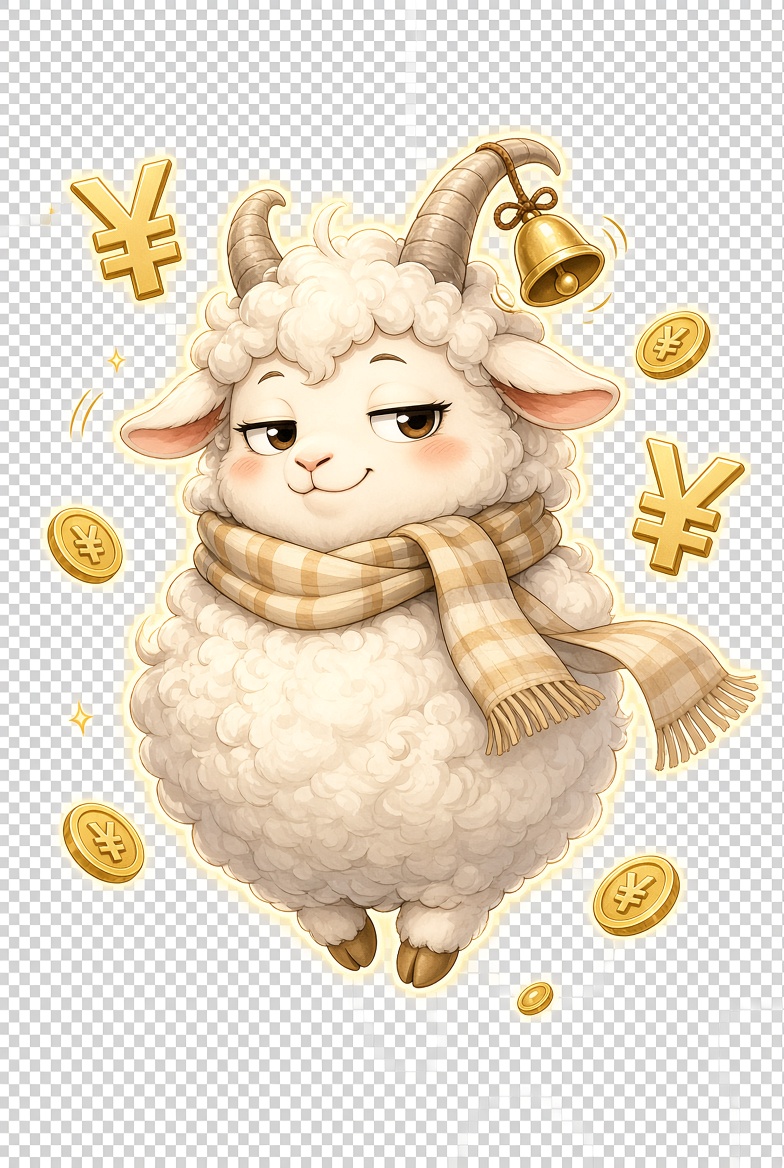
Our idea is very simple: let the sheep perform a cute dance while the coins and gold ingots around it fall naturally. The character’s appearance, color scheme, and overall temperament should remain as unchanged as possible, while the animation should be relaxed, fun, and able to loop smoothly.
¶ Start creating in Ace Data Studio
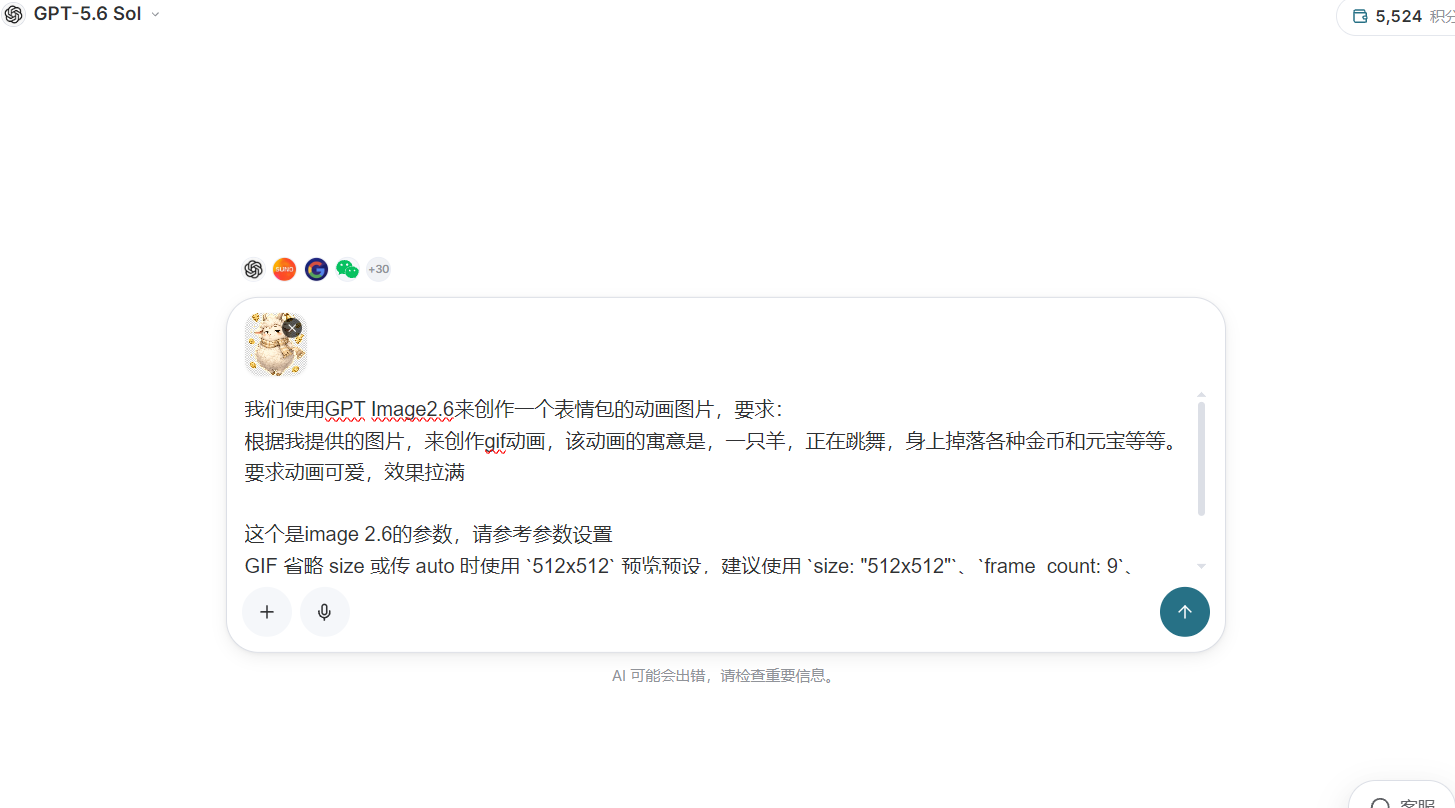
Open Ace Data Studio, enter the conversational creation page, select the GPT Image 2.6 model that supports GIF output, and then upload the prepared original image.
In actual operation, there is no need to write the prompt like a complex technical document. Just use normal language to clearly explain the subject, movements, environmental changes, and expected effect.
The prompt used this time was roughly:
Create a looping GIF animation based on the character image I provided. Keep the sheep’s appearance, horns, scarf, wool texture, and overall color scheme consistent. Let the sheep happily dance in place, gently swaying its body from side to side, with natural dancing movements in its limbs. The surrounding coins, gold ingots, and bells fall from above along with the movement, with slight rotation. The overall style should be cute and relaxed, the movements should be continuous, and the beginning and end should connect naturally. Do not add text or new characters.
There is no need to pile too many adjectives into the prompt; what really matters is clearly describing the relationship between the movements.
“The sheep is dancing” is only the main action; “the coins fall while rotating slightly” describes the surrounding objects; and “the beginning and end connect naturally” reminds the model that this is not a video that ends after playing once, but a GIF that needs to loop continuously.
Our actual creation interface is as follows:
¶ How should GIF parameters be set?
This creation uses a relatively safe set of preview parameters:
{
  "size": "512x512",
  "frame_count": 9,
  "frame_duration_ms": 200,
  "output_format": "gif"
}
size determines the dimensions of the GIF canvas. When generating a GIF, if this parameter is omitted or set to auto, the system will usually use the 512x512 preview specification. To avoid differences in how default values are handled across different calling environments, it is recommended to explicitly specify "size": "512x512".
frame_count indicates how many frames the animation contains. Nine frames are used here, which preserves motion changes without making the generation workload and file size too high. If there are too few frames, the motion may appear jumpy; after increasing the number of frames, the motion will usually become smoother, but the requirements for visual consistency and generation resources will also increase accordingly.
frame_duration_ms controls how long each frame remains on screen. Setting it to 200 means that each frame is displayed for 200 milliseconds. With nine frames connected together, one complete loop is approximately 1.8 seconds. This pace is more suitable for light movements such as dancing, waving, blinking, and facial expression changes.
It is particularly important to note that GIFs have their own size, frame count, and pixel budget, so the 2K or 4K parameters of static images cannot be applied directly. Increasing both the size and frame count will quickly raise the total number of pixels that need to be processed for the entire animation; some models may also adjust the actual output size according to the budget. A more reliable approach is to first use 512x512 and nine frames to validate the motion, and then consider increasing the specifications after confirming the result.
If the generated result looks too fast, you can appropriately increase frame_duration_ms; if the motion appears choppy, you can try increasing the number of frames, or reduce the movement amplitude in the prompt.
¶ Final generation result
After generation, the static sheep truly “came to life.”
The sheep's main design was preserved quite well, and the horns, curly wool, and plaid scarf still remain recognizable. The character no longer simply moves up and down, but now has slight body rotations and limb changes. The surrounding gold coins and sycees also participate in the movement, making the scene appear more lively.

Judging from the actual result, this generation does more than simply add basic up-and-down displacement to the original image. Instead, it reinterprets the body movements and the relationships between surrounding elements while preserving the character design.
In particular, the movement of the gold coins, sycees, and bells gives the scene a more obvious sense of rhythm. They do not remain completely in their original positions, but rotate and shift along with the character's movements, making the overall result look more like a fully designed short animation.
If used for a brand account, this type of animation can be directly used as a holiday greeting, event preview, or comment section emoji. For product teams, the product mascot can also be turned into a loading animation, guidance prompt, or feature launch notification.
¶ How can the generation result be made more stable?
Based on this test, the clearer the original image is, the easier it is for the model to capture the character's features.
If the character is connected to the background, or if many subjects of similar size exist in the image at the same time, the model may be unable to determine which one is the center of the animation. Images with transparent backgrounds, complete outlines, prominent subjects, and clear relationships between decorative elements are usually more suitable for continued animation generation.
There should also not be too many actions in the prompt.
For a one- or two-second GIF, if the character is simultaneously required to turn around, jump, wave, change expressions, and also make a large number of objects move in different directions, the image can easily lose its focus. First determining one core action and then adding a small number of environmental changes is often more stable than cramming in every idea.
The loop relationship is also worth writing separately. You can explicitly request “similar starting and ending poses,” “a seamless loop,” or “the final frame naturally returns to the starting action.” Although such descriptions cannot guarantee a completely seamless result every time, they can make the model consider returning to the starting point when designing the movement.
If the first version is already close to expectations, there is no need to immediately discard it and start over. You can retain the original image and subject description, changing only the rhythm, movement amplitude, or the movement style of a certain decorative element. Changing only one variable at a time makes it easier to determine which adjustment affected the result.
¶ From generating an image to generating a lifelike character
The GIF capability of GPT Image 2.6 lowers more than just the operational barrier of animation software.
More importantly, it shortens the distance between “having a movement in mind” and “actually seeing that movement.” Designers can quickly validate character performances, operations teams can temporarily create event GIFs, and product teams can also bring static mascots into more interactive scenarios.
If image capabilities are further integrated into an Agent workspace such as WorkBuddy, creation no longer has to remain within a single conversation. WorkBuddy supports connecting to OpenAI-compatible interfaces through custom models; Ace Data Cloud's configuration guide provides specific setup methods such as the interface address, API Key, and model name.
In desktop workflows that support custom connectors, MCP can also be used to give real-time tools to Agents, allowing image generation, video generation, and task processing to appear in the same workflow.
Static images will not become obsolete because of this, but moving images clearly gain another way of expression.
Previously, we needed to first learn timelines, keyframes, and export settings before we could make a character move. Now, a more natural starting point may be just one sentence:
Make it jump.
¶ Reference links
Ace Data Cloud Documentation: WorkBuddy Custom Model Configuration Guide
WorkBuddy MCP Test: How to Add a Custom Connector to Use GPT Image