Claude Code Integration with NanoBanana MCP
📘 Overview:Claude Code MCP Overview →
The biggest difference between NanoBanana and other AI drawing tools is that it truly understands the content of images. You can give it two images and ask it to place the items from image A into the scene of image B. It uses Google's Gemini model at its core, which has strong image comprehension capabilities. After receiving Claude Code, you can generate images, edit images, and compose multiple images with just one command in the terminal.
¶ Obtain API Token
Before using the NanoBanana MCP Server, you need to prepare an Ace Data Cloud API Token. The method to obtain it is consistent with the Claude Code VS Code configuration tutorial:
- Open the Ace Data Cloud Console - Application List to get your API Token for backup.
- If you are not logged in or registered, you will be automatically redirected to the login page; after logging in or registering, you will be automatically returned to the current page.
- The first application will come with a free quota, allowing you to experience the Claude Code MCP service for free.
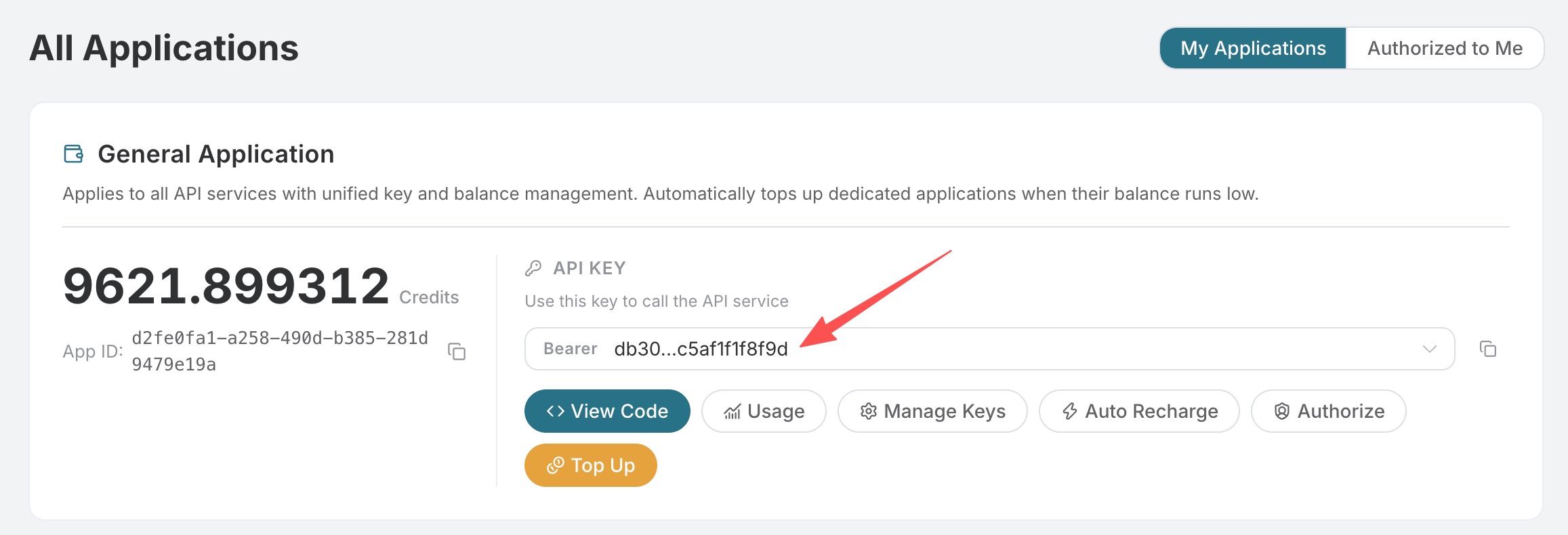
One token can be used for all MCP Servers provided by Ace Data Cloud, and there is no need to apply separately for NanoBanana. The documentation and screenshots suggest displaying only a masked format, such as YOUR_ACEDATACLOUD_API_KEY, and do not paste the complete token into public repositories, issues, screenshots, or chat records.
Using the web version of claude.ai or Claude Desktop? They support OAuth one-click authorization, eliminating the need to manually fill in the token. For details, see the Claude.ai / Desktop tutorial for NanoBanana MCP.
¶ Configure Claude Code
You can choose one from the following three options. -H must be uppercase; the lowercase -h is --help; please replace the token after Authorization with the actual value you copied from the console.
¶ For current project only: local
Suitable for trial use, the configuration is bound only to the project directory where you run the command. Claude Code will write the record into the local ~/.claude.json, along with the current project path.
claude mcp add nanobanana --transport http https://nanobanana.mcp.acedata.cloud/mcp \
  -H "Authorization: Bearer YOUR_ACEDATACLOUD_API_KEY" \
  -s local
¶ Usable for all projects: user
Suitable for frequent use of NanoBanana MCP across multiple projects. The configuration is written into the local ~/.claude.json user-level configuration, and any project opened with Claude Code afterward will be able to see it.
claude mcp add nanobanana --transport http https://nanobanana.mcp.acedata.cloud/mcp \
  -H "Authorization: Bearer YOUR_ACEDATACLOUD_API_KEY" \
  -s user
¶ Shared with project: project
Suitable for team projects. The configuration is written into the .mcp.json in the current project root directory, which can be submitted to a private repository for teammates to reuse; do not submit the real token to public repositories, and it is recommended to change it to an environment variable placeholder or have each person add it locally.
claude mcp add nanobanana --transport http https://nanobanana.mcp.acedata.cloud/mcp \
  -H "Authorization: Bearer YOUR_ACEDATACLOUD_API_KEY" \
  -s project
When the project-level configuration is read by Claude Code for the first time, it may display Pending approval, and you need to confirm trust in this project configuration within the Claude Code session. This is a normal security prompt.
¶ Verify Connection
After configuration, run:
claude mcp list
If you see nanobanana showing ✓ Connected, it indicates a successful handshake. If it fails, check the token, service URL, and configuration scope; do not judge the current status based on historical client versions or fixed tool counts.
¶ Practical Usage
After configuration is complete, return to the Claude Code session and directly use natural language to call NanoBanana:
Image Composition
nanobanana_edit_image supports passing multiple image URLs, and Gemini understands the relationships between images:
Place the phone from the first image onto the desk in the second image, adjusting the angle and lighting to make it look natural.
Remove Text from Images
For images with watermarks or screenshots with unwanted text:
Edit this image to remove the text watermark in the lower right corner, filling it with the background.
Generate Page Illustrations
Generate an illustration of a small dinosaur squatting next to a crack in the ground looking down, to be used for a 404 page.
¶ Tool List
| Tool | Description |
|---|---|
| nanobanana_generate_image | Text to image generation |
| nanobanana_edit_image | Image editing (supports multiple image input) |