
Claude Connects to Midjourney MCP
📘 Overview Guide: Using all 11 AceData Cloud MCP in Claude →
Want Claude to generate images directly? No need to switch to Discord, remember the /imagine command, or adjust any parameters. Just type an English prompt in the Claude.ai chat box, and Claude will call Midjourney by itself, returning a 2×2 grid image, upscale, and variations in just a few seconds.
This article is a hands-on record of running it on the Claude.ai web version: from adding the Connector, OAuth authorization, to generating a complete 16:9 grid image with a single prompt, with screenshots throughout for easy reproduction.
¶ What is MCP?
MCP (Model Context Protocol) is an open protocol launched by Anthropic that allows models like Claude to call external tools through standard interfaces. Simply put: adding plugin capabilities to Claude.
AceData Cloud has encapsulated the core capabilities of Midjourney into a remote MCP Server, allowing Claude to directly:
- Generate Midjourney 2×2 grid images from text descriptions
- Upscale (Upscale) any image to high resolution
- Generate variations on the same theme (Variations)
- Reroll (Reroll)
- Modify locally (Vary Region / Inpaint)
- Zoom out or pan (Zoom Out / Pan)
- Translate Chinese prompts and complete prompts
- Query task status and retrieve historical results
The entire integration requires just one URL, and the rest is handled by Claude.
¶ Adding Midjourney MCP in Claude.ai Web Version
💡 The integration in Claude.ai web version is OAuth direct connection, no need to copy API Token. You only need an account that can log in to AceData Cloud (GitHub / Google / WeChat are all acceptable).
¶ 1. Open Connectors Settings
Log in to https://claude.ai, click on the avatar in the lower left corner → Settings → Customize → Connectors, or directly visit https://claude.ai/customize/connectors.
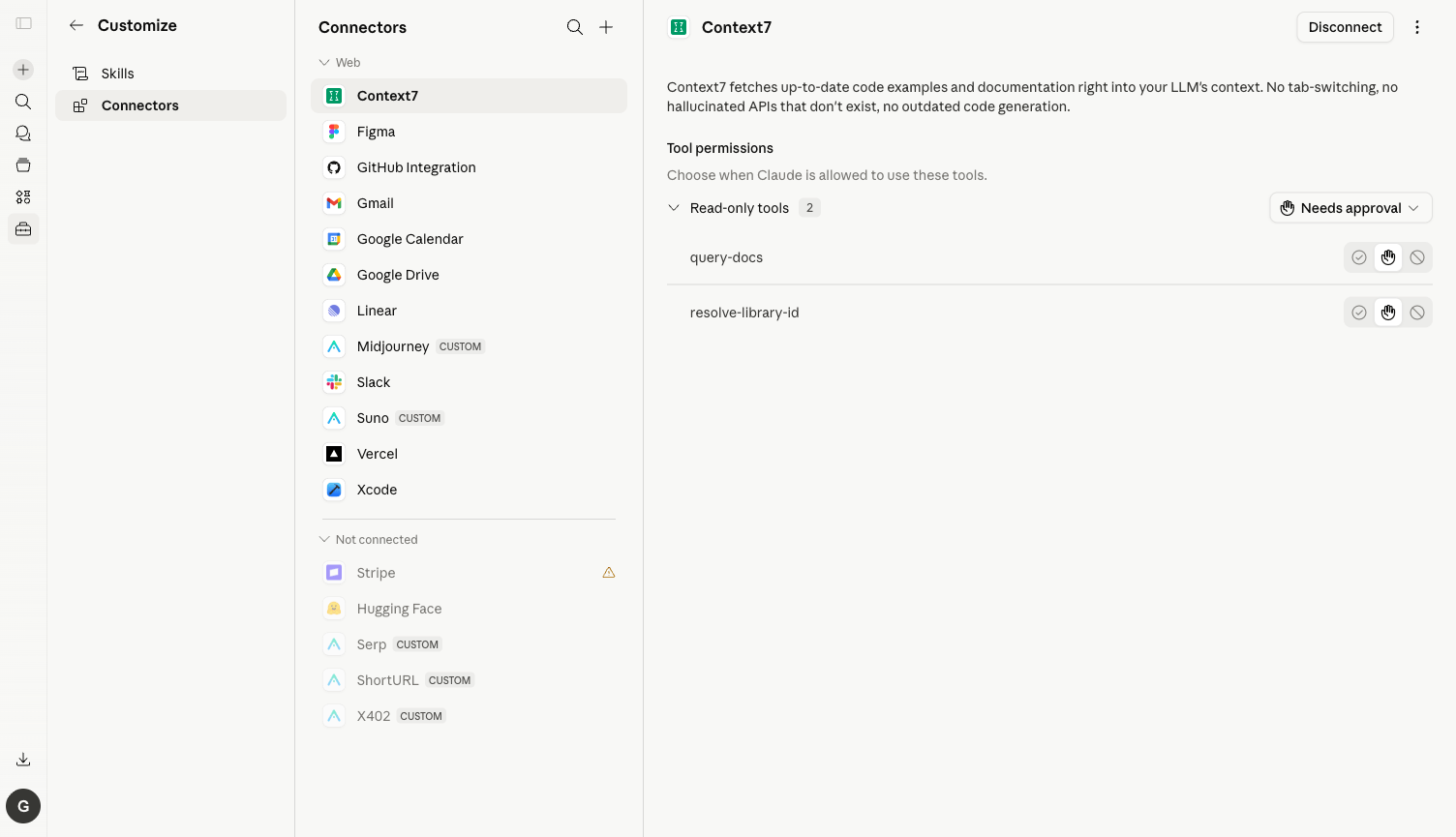
⚠️ The old entry
/settings/connectorshas been migrated to/customize/connectors. Visiting the old address will show a message "Connectors have moved to Customize."
¶ 2. Add Midjourney MCP Server
Click Add custom connector, and fill in the pop-up dialog:
| Field | Value |
|---|---|
| Name | Midjourney (choose any name) |
| URL | https://midjourney.mcp.acedata.cloud/mcp |
Click Add, and Claude will automatically discover all the tools exposed by the Server.
¶ 3. OAuth Authorization
The first connection will redirect to the AceData Cloud OAuth authorization page. Log in with your AceData Cloud account and click Authorize. If you haven't registered yet, go to https://platform.acedata.cloud to register; you will receive free credits sufficient to run the demo in this article.
¶ 4. Check Tool List & Set Tools to Always Allow
After authorization, return to Claude.ai, open the Midjourney Connector, and you will see over a dozen tools including Imagine / Upscale / Variation / Reroll / Pan / Zoom / Vary Region / Translate / Get Task:
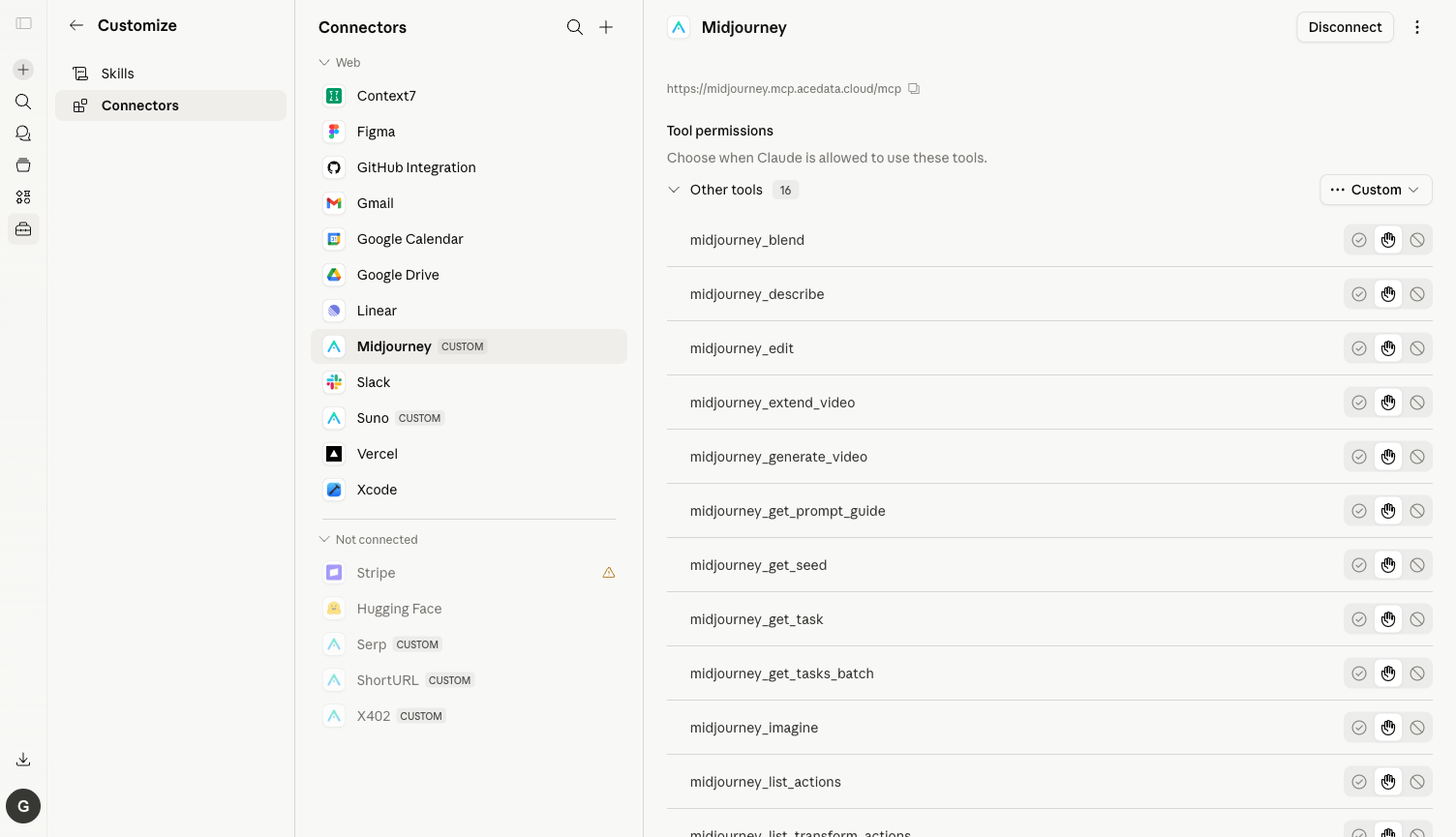
⚙️ It is highly recommended to switch each tool to Always allow, otherwise, a confirmation box will pop up every time a tool is called. Generating an image usually triggers 2–4 tool calls (submission + multiple status queries), leading to a frustrating experience.
¶ Practical Test: Generating an Image with One English Prompt
Below is my real conversation output, with the prompt in English (Midjourney understands English prompts more reliably):
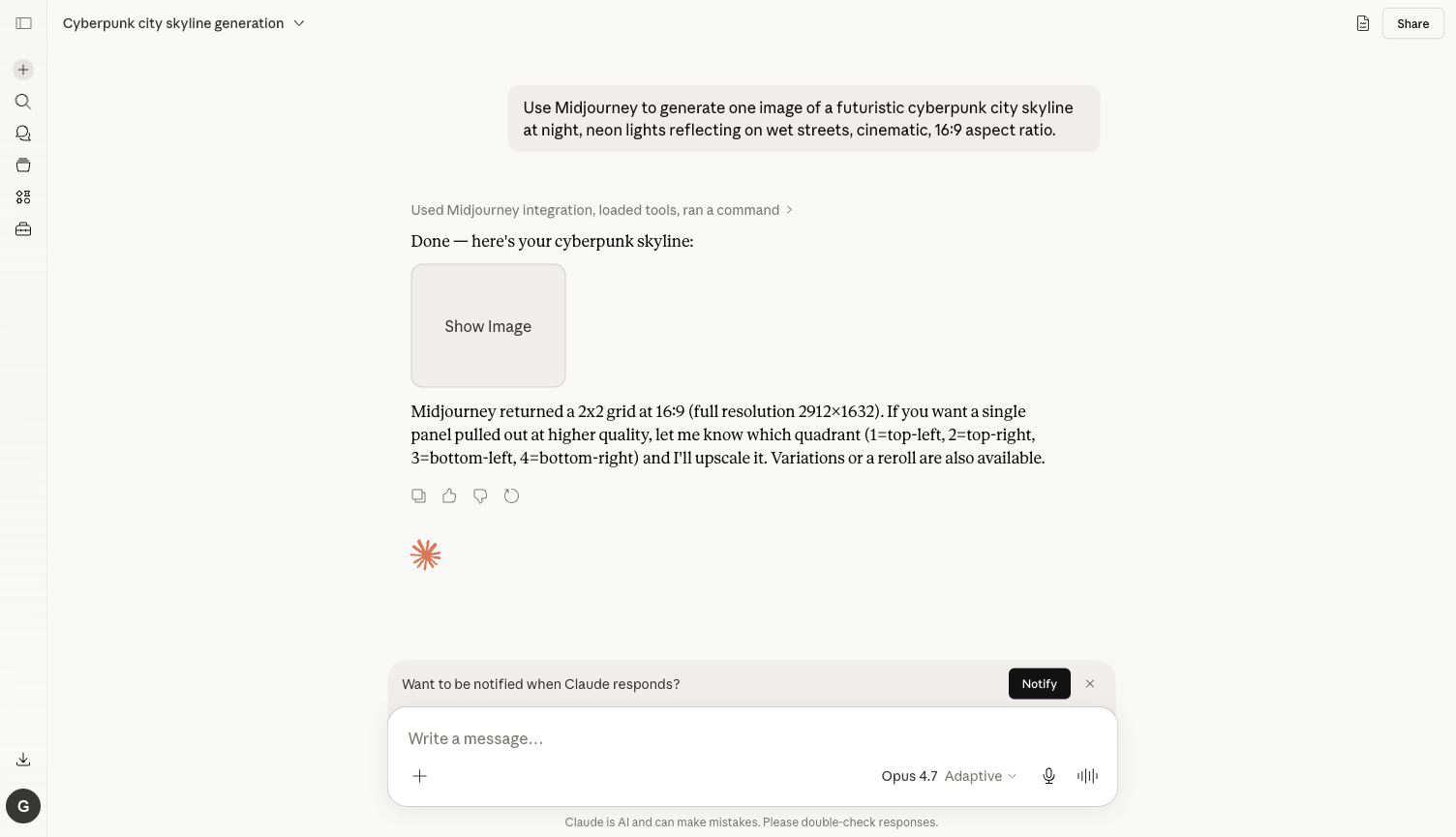
Prompt: Use Midjourney to generate one image of a futuristic cyberpunk city skyline at night, neon lights reflecting on wet streets, cinematic, 16:9 aspect ratio.
What Claude does upon receiving it:
- Automatically calls
imagine_midjourney, with the prompt and--ar 16:9 - Retrieves the task id and starts polling
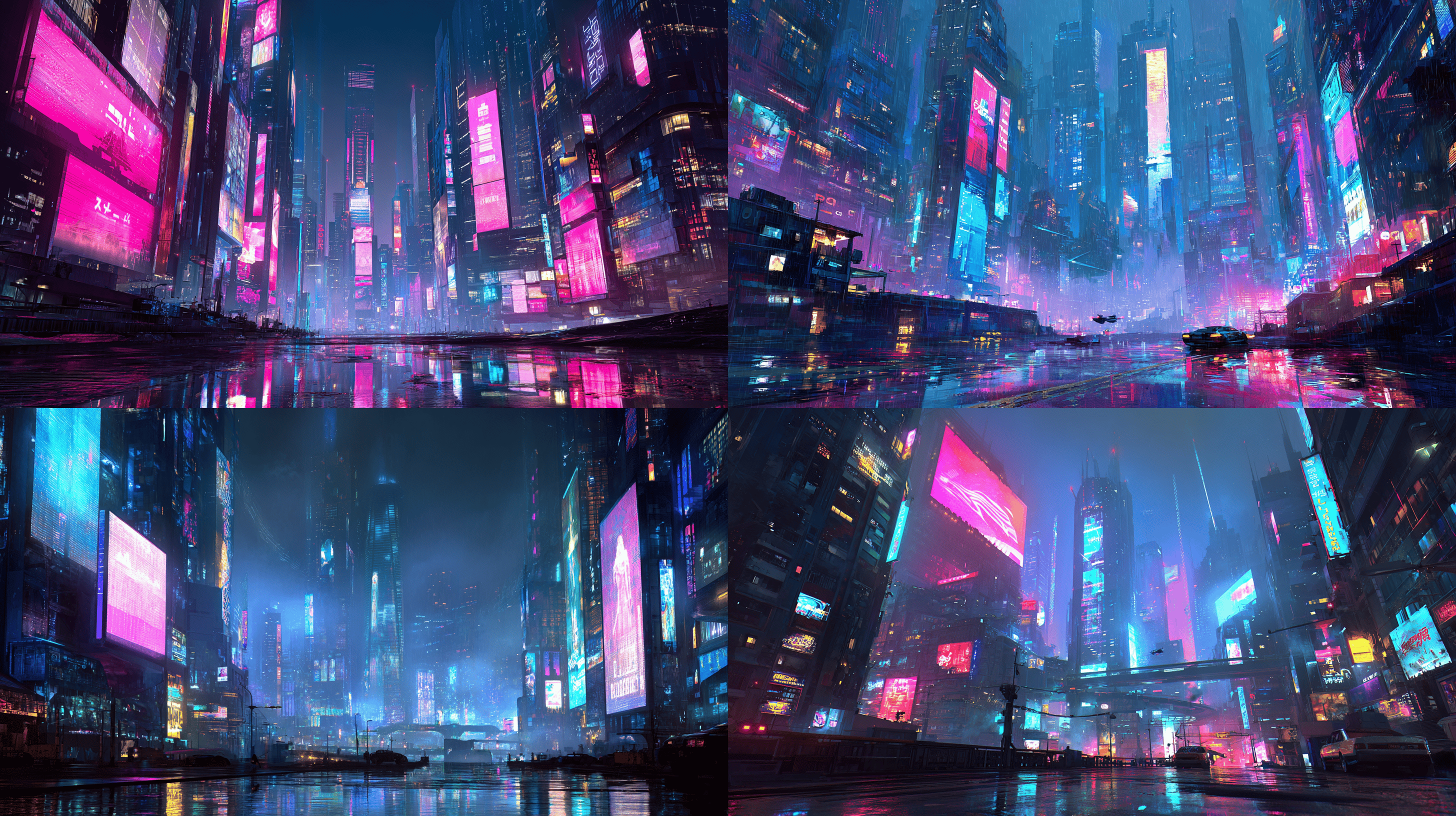
get_midjourney_task - After about 1 minute, receives the 2×2 grid image (4 candidate images), resolution 2912×1632
- Posts the image links + a text summary back to the chat box, along with the follow-up prompt "Which one to upscale? Do you want variations?"
Here is the final result screenshot from the chat:
The actual generated 2×2 grid image (directly hosted on platform.cdn.acedata.cloud, available long-term):
💡 Image links are stable: AceData Cloud directly moves the images generated by Midjourney to its own CDN (
platform.cdn.acedata.cloud/midjourney/<id>.png), unlike direct connections to Discord CDN which may expire. The links returned by Claude can be directly pasted into blogs, PPTs, or design drafts.
¶ More Uses (Same Connector)
Change the prompt to the following, and Claude will automatically select the appropriate tools:
Upscale one of the images to HD
Upscale the top-left panel.
→ Claude calls the upscale tool, pulling the first image to about 5824×3264.
Generate Variations
Generate variations of the bottom-right one.
→ Claude calls the variation tool, producing 4 more candidate images on the same theme.
Modify a Part / Redraw a Section
Take the upscaled image and replace the sky with a giant orange moon.
→ Claude calls the Vary Region / inpaint series of tools.
Expand Image / Horizontally Extend
Zoom out 2x to show more of the city below.
→ Claude calls Zoom Out.
Translate Pure English Prompt
Translate this Chinese MJ prompt to English first, then generate it:
"赛博朋克风格的雨夜上海外滩"
→ Claude first calls translate_midjourney_prompt to convert the Chinese into Midjourney-friendly English, then imagines.
¶ Frequently Asked Questions
Q: Why do I still need to confirm new tools even after clicking Always allow? A: Always allow remembers on a per-tool basis. Imagine, Upscale, Variation, Get Task are 4 different tools, and you only need to confirm each once.
Q: What if my balance is insufficient?
A: The error message will include insufficient balance. Go to https://platform.acedata.cloud/console/coin to recharge, supporting Alipay / WeChat / Stripe / USDC. Generating a grid image usually consumes several credits, and the free credits for new accounts are enough for several tests.
Q: Can it be used with other MCPs?
A: Yes. Claude.ai supports multiple connectors simultaneously. A sentence like "Use Midjourney to create a cyberpunk city image, then use Suno to write a song that matches the atmosphere of this image" allows Claude to arrange the image + music pipeline by itself. For the complete list, see Claude × 11 MCP Overview.
Q: Can Claude Desktop and Claude Code be used this way too?
A: Yes. For details, see Claude Desktop + Midjourney MCP and Claude Code + Midjourney MCP.