
Midjourney Imagine API Application and Usage
Midjourney is a very powerful AI drawing tool that can generate exquisite images in just one or two minutes by simply inputting keywords. Midjourney stands out in the industry with its outstanding drawing capabilities, and it has been widely applied across various industries and fields, with its influence becoming increasingly significant.
This document mainly introduces the usage process of the Imagine operation in the Midjourney API, allowing us to easily generate the required images through text.
¶ Application Process
To use the Midjourney Imagine API, first go to the Ace Data Cloud Console to obtain your API Token for backup.
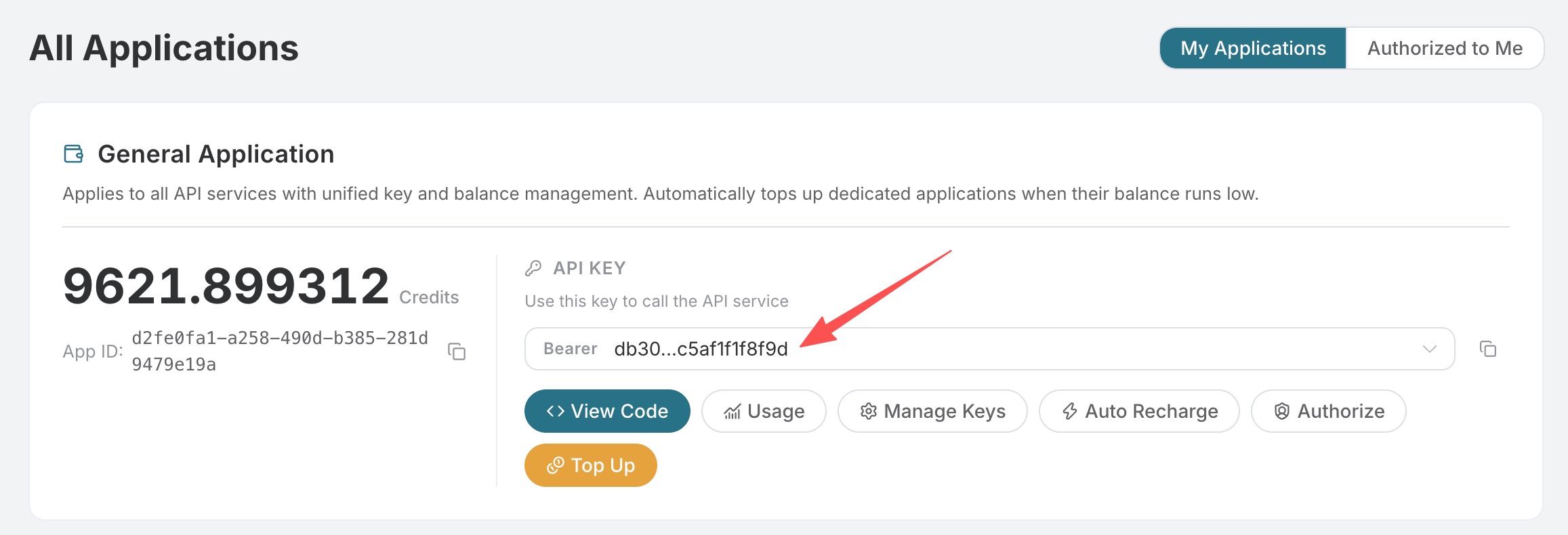
If you are not logged in or registered, you will be automatically redirected to the login page to invite you to register and log in. After completing this, you will be automatically returned to the current page.
One API Token can call all services on the platform without needing to apply separately for each service. The first application will grant a free quota for a trial experience; when the quota is insufficient, you can recharge the general balance in the console.
📘 Complete documentation: Midjourney Imagine API →
¶ Basic Usage
Next, you can fill in the corresponding content on the interface, as shown in the figure:
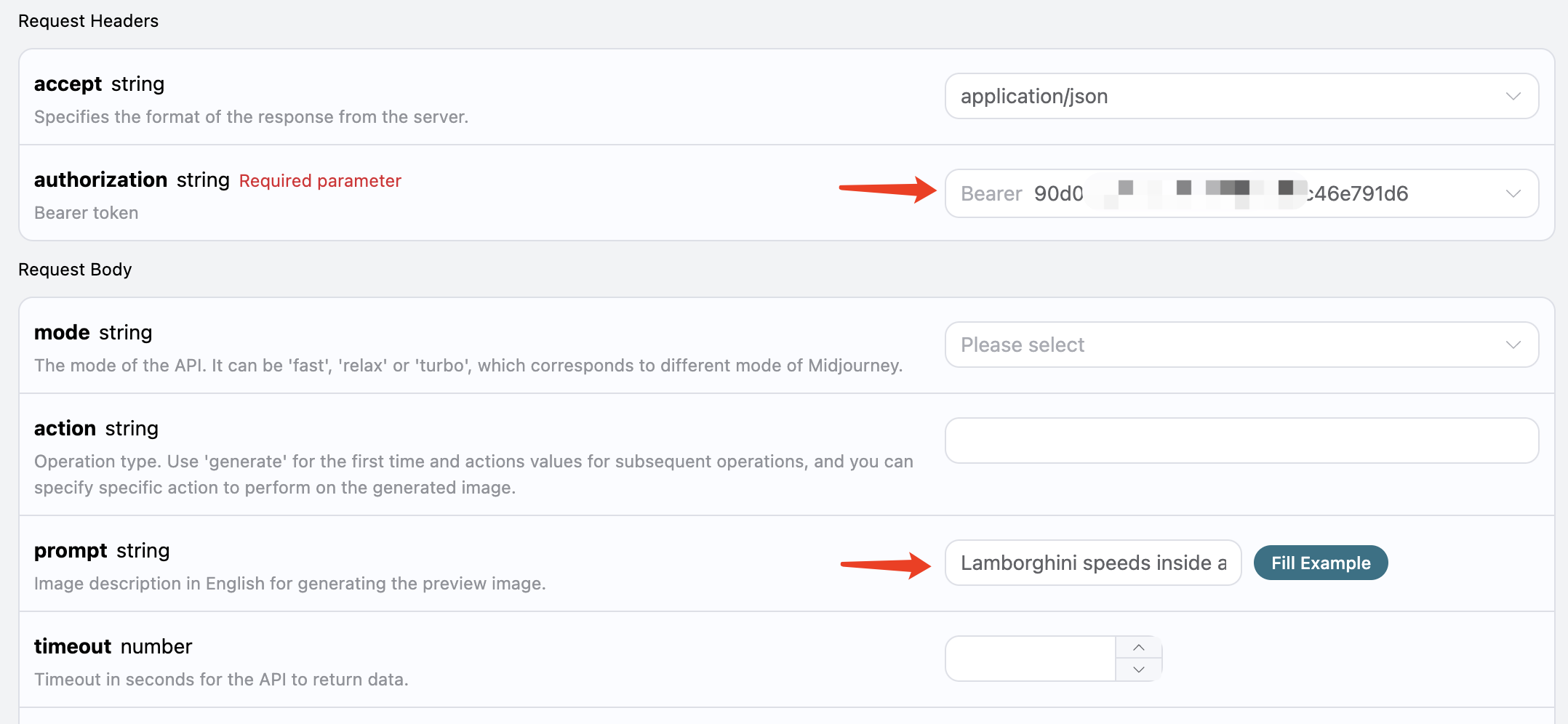
When using this interface for the first time, we need to fill in at least two pieces of information: one is authorization, which can be selected directly from the dropdown list. The other parameter is prompt, which is the description of the image we want to generate. It is recommended to describe it in English for more accurate results. Here we used the example content Lamborghini speeds inside a volcano, which represents drawing a Lamborghini speeding inside a volcano.
You can also notice that there is corresponding code generation on the right side; you can copy the code to run directly or click the "Try" button for testing.
Main request parameters:
prompt: Image description (supports automatic translation).mode: Generation mode, optionalfast/relax/turbo, default is fast. V8.1 only supportsfastandrelax.version: Model version. V8.1 uses SD/HD resolution tiers and does not support thequalityparameter; SD consumes about 0.8 GPU minutes, HD consumes about 1.3 GPU minutes.timeout: Timeout duration (seconds), will return directly on timeout.translation: Whether to automatically translate non-English prompts.split_images: Whether to split 2x2 results and return single images.action/image_id: Must be specified when continuing operations on historical images.callback_url: Asynchronous callback address.async: Optional, when set totrue, the interface immediately returnstask_id, no need to providecallback_url, and then poll the corresponding task query interface to get results.

After the call, we find the returned result as follows:
{
  "image_url": "https://midjourney.cdn.acedata.cloud/attachments/1233387694839697411/1234197197067915365/36rgqit64j90qptsxnyq_Lamborghini_speeds_inside_a_volcano_id0494_f47263b6-ff92-44a3-88ee-51cf0e706aae.png?ex=662fdb36&is=662e89b6&hm=ca9be54907726937ed02517a13466bef2afb2825b7cda4b313de56a3c3310d0d&width=1024&height=1024",
  "image_width": 1024,
  "image_height": 1024,
  "image_id": "1234197197067915365",
  "raw_image_url": "https://midjourney.cdn.acedata.cloud/attachments/1233387694839697411/1234197197067915365/36rgqit64j90qptsxnyq_Lamborghini_speeds_inside_a_volcano_id0494_f47263b6-ff92-44a3-88ee-51cf0e706aae.png?ex=662fdb36&is=662e89b6&hm=ca9be54907726937ed02517a13466bef2afb2825b7cda4b313de56a3c3310d0d&",
  "raw_image_width": 2048,
  "raw_image_height": 2048,
  "progress": 100,
  "actions": [
    "upscale1",
    "upscale2",
    "upscale3",
    "upscale4",
    "reroll",
    "variation1",
    "variation2",
    "variation3",
    "variation4"
  ],
  "task_id": "1bae3bec-3ac4-4180-a148-74ee6cb68b98",
  "success": true
}
The returned result contains multiple fields, described as follows:
task_id, the ID of the task that generated this image, used to uniquely identify this image generation task.image_id, the unique identifier of the image, which needs to be passed when performing transformation operations on the image next time.image_url, the URL of the thumbnail, which can be opened directly to view the generated effect.image_width: The pixel width of the thumbnail.image_height: The pixel height of the thumbnail.raw_image_url: The URL of the original image, which is the same as the thumbnail content but in higher definition, loading speed may be slower.raw_image_width: The pixel width of the original image.raw_image_height: The pixel height of the original image.actions, a list of further operations that can be performed on the generated image. Here, a total of 8 are listed, whereupscalerepresents enlargement, andvariationrepresents transformation. Soupscale1represents the enlargement operation on the first image in the top left corner, andvariation3represents the transformation operation based on the third image in the bottom left corner.
Opening the link corresponding to image_url or raw_image_url, you can find as shown in the figure.

It can be seen that a 2x2 preview image has been generated here. So far, the first API call has been completed.
¶ Image Upscaling and Transformation
Next, we will attempt further operations on the currently generated photo. For example, if we think the second image in the top right corner is quite good, but we want to make some transformation adjustments, we can further fill in action as variation2 and pass the image_id:
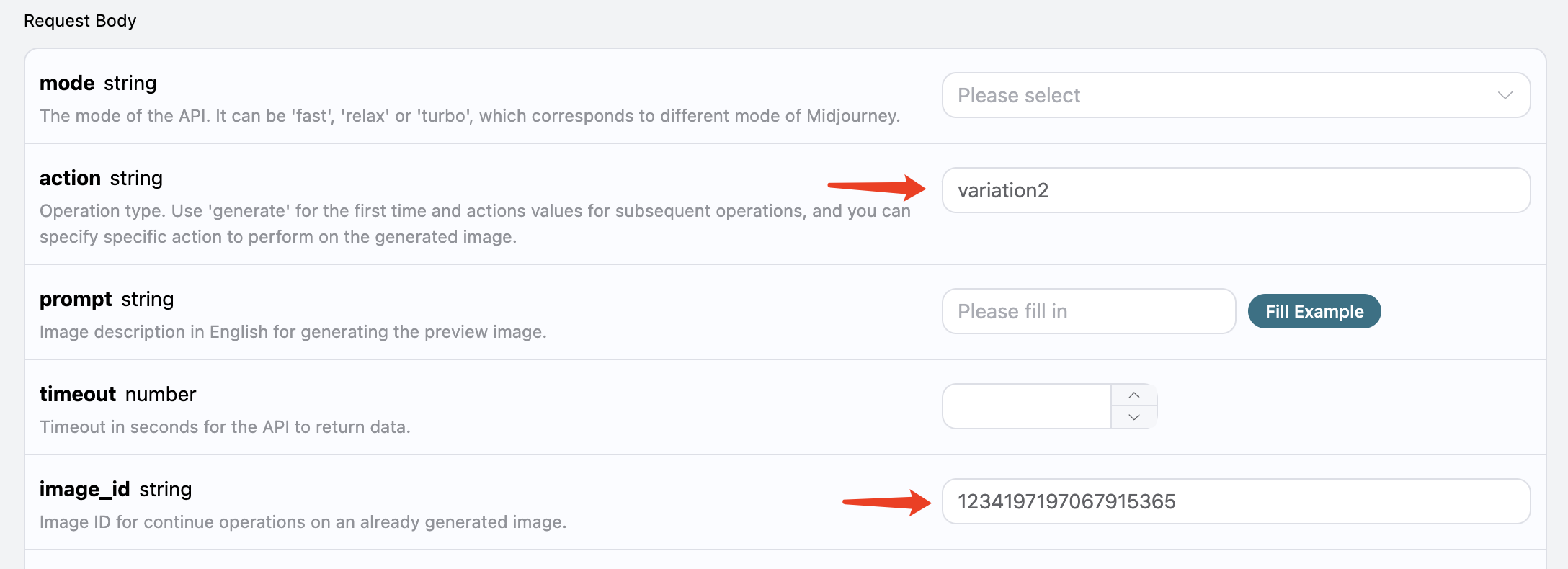
The result obtained this time is as follows:
{
  "image_url": "https://midjourney.cdn.acedata.cloud/attachments/1233387694839697411/1234201336543969401/36rgqit64j90qptsxnyq_Lamborghini_speeds_inside_a_volcano_id0494_10dc56a7-ec16-4bac-878e-2338f2ae5f5d.png?ex=662fdf10&is=662e8d90&hm=9aec96bca35ae20b6f9ab536101b9c4ea255eb6216cbf7000ac554937da071f3&width=1024&height=1024",
  "image_width": 1024,
  "image_height": 1024,
  "image_id": "1234201336543969401",
  "raw_image_url": "https://midjourney.cdn.acedata.cloud/attachments/1233387694839697411/1234201336543969401/36rgqit64j90qptsxnyq_Lamborghini_speeds_inside_a_volcano_id0494_10dc56a7-ec16-4bac-878e-2338f2ae5f5d.png?ex=662fdf10&is=662e8d90&hm=9aec96bca35ae20b6f9ab536101b9c4ea255eb6216cbf7000ac554937da071f3&",
  "raw_image_width": 2048,
  "raw_image_height": 2048,
  "progress": 100,
  "actions": [
    "upscale1",
    "upscale2",
    "upscale3",
    "upscale4",
    "reroll",
    "variation1",
    "variation2",
    "variation3",
    "variation4"
  ],
  "task_id": "f4961620-1104-409f-9dc1-ba3ed15c2f4d",
  "success": true
}
Open image_url, the newly generated image is as follows:
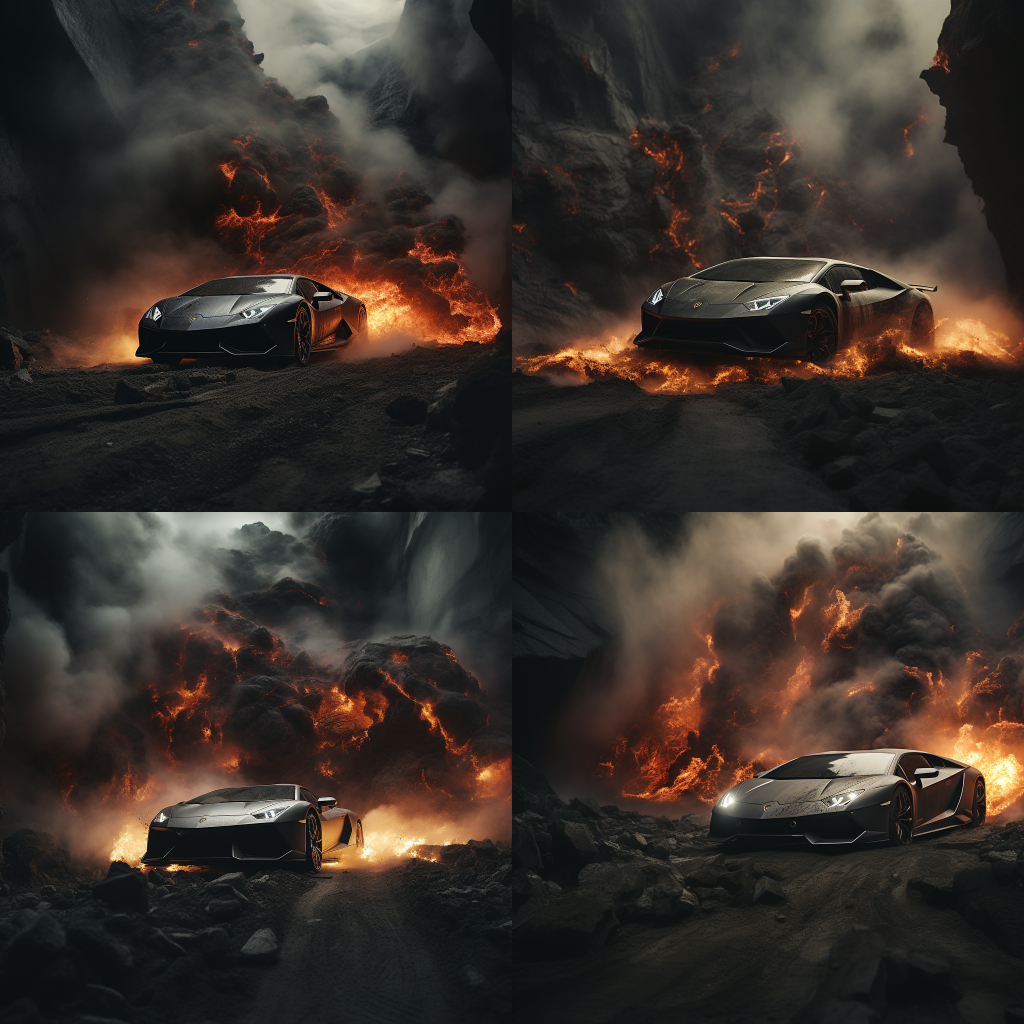
As can be seen, for the previous image in the upper right corner, we have again obtained four similar photos.
At this point, we can select one of them for a refined enlargement operation. For example, if we choose the fourth one, we can pass action as upscale4 and use image_id to pass the current image's ID again.

Note: The
upscaleoperation takes less time compared tovariationin Midjourney.
The returned result is as follows:
{
  "image_url": "https://midjourney.cdn.acedata.cloud/attachments/1233387694839697411/1234202545208033400/36rgqit64j90qptsxnyq_Lamborghini_speeds_inside_a_volcano_id0494_34edc3f5-2bd0-4f5b-a372-03270b02289b.png?ex=662fe031&is=662e8eb1&hm=f8006c4d33a03dfd027dffe4eb46ab0d113a4910aef07497f0b335c8998b7858&width=512&height=512",
  "image_width": 512,
  "image_height": 512,
  "image_id": "1234202545208033400",
  "raw_image_url": "https://midjourney.cdn.acedata.cloud/attachments/1233387694839697411/1234202545208033400/36rgqit64j90qptsxnyq_Lamborghini_speeds_inside_a_volcano_id0494_34edc3f5-2bd0-4f5b-a372-03270b02289b.png?ex=662fe031&is=662e8eb1&hm=f8006c4d33a03dfd027dffe4eb46ab0d113a4910aef07497f0b335c8998b7858&",
  "raw_image_width": 1024,
  "raw_image_height": 1024,
  "progress": 100,
  "actions": [
    "upscale_2x",
    "upscale_4x",
    "variation_subtle",
    "variation_strong",
    "zoom_out_2x",
    "zoom_out_1_5x",
    "pan_left",
    "pan_right",
    "pan_up",
    "pan_down"
  ],
  "task_id": "03f62b17-a6f1-4c8e-9b4d-1fc7bd5b1180",
  "success": true
}
Among them, image_url is shown as follows:

Thus, we have successfully obtained a photo of a Lamborghini.
At the same time, note that the actions contain several operations that can be performed, described as follows:
upscale_2x: Enlarges the image by 2 times, resulting in a 2x high-definition image.upscale_4x: Enlarges the image by 4 times, resulting in a 4x high-definition image.zoom_out_2x: Reduces the image by 2 times (filling surrounding areas).zoom_out_1_5x: Reduces the image by 1.5 times (filling surrounding areas).pan_left: Performs a left shift operation on the image.pan_right: Performs a right shift operation on the image.pan_up: Performs an upward shift operation on the image.pan_down: Performs a downward shift operation on the image.
You can continue to pass the corresponding transformation commands for continuous image generation operations according to the above process.
¶ Image Rewrite (Base Image)
This API also supports image rewriting, commonly known as base image, where we can input an image URL and the description text to be rewritten, and the API will return the rewritten image.
Note: The input image URL must be a pure image, not a webpage displaying an image; otherwise, image rewriting cannot be performed. It is recommended to use an image hosting service to upload and obtain the image URL.
For example, we have an image of a sunset on a highway, with some trees and buildings beside the road, as shown:
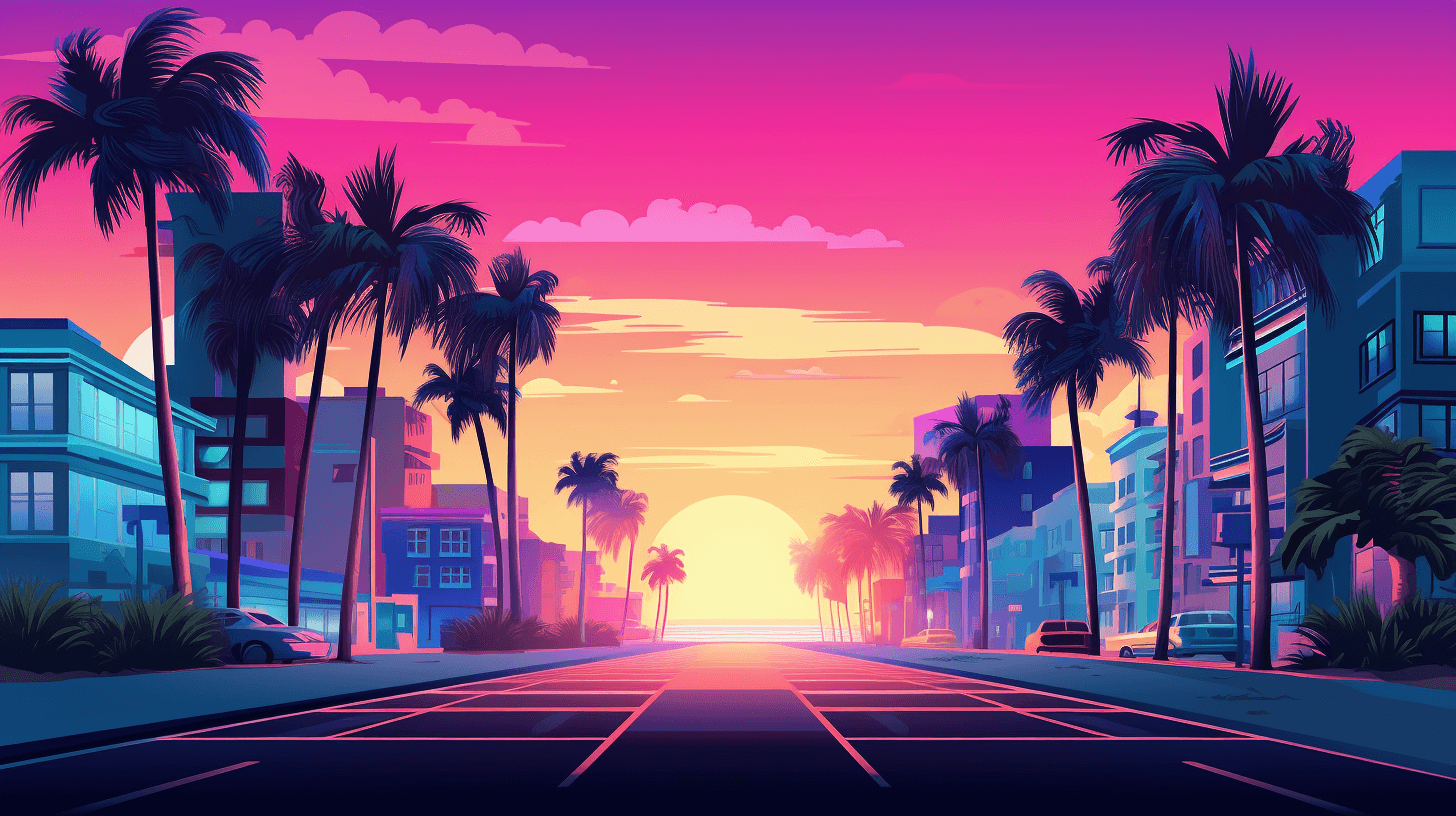
Now we want to rewrite it to be next to a beach, with a car parked by the roadside. We can construct the following prompt:
https://cdn.acedata.cloud/v014oc.png an illustration of a car parked on the beach --iw 2
As can be seen, the beginning of our prompt is an HTTPS image link, followed by a space, and then the content of the prompt text. Here we also used some additional advanced parameters, such as —iw 2 to adjust the weight of the image.
We can pass the above content as a whole to the prompt field, as shown:

The output result is as follows:
{
  "image_url": "https://midjourney.cdn.acedata.cloud/attachments/1234427310434947145/1234539663515975690/atmateosa5693_An_illustration_of_a_car_parked_on_the_beach_id26_cc8650ec-7e4b-4685-8911-78172430d8a7.png?ex=66311a28&is=662fc8a8&hm=c39707a1f22bc7f12874060ea6ed58ba37c188139ccc9a13c61ed9f37e66ea74&width=1456&height=816",
  "image_width": 1456,
  "image_height": 816,
  "image_id": "1234539663515975690",
  "raw_image_url": "https://midjourney.cdn.acedata.cloud/attachments/1234427310434947145/1234539663515975690/atmateosa5693_An_illustration_of_a_car_parked_on_the_beach_id26_cc8650ec-7e4b-4685-8911-78172430d8a7.png?ex=66311a28&is=662fc8a8&hm=c39707a1f22bc7f12874060ea6ed58ba37c188139ccc9a13c61ed9f37e66ea74&",
  "raw_image_width": 2912,
  "raw_image_height": 1632,
  "progress": 100,
  "actions": [
    "upscale1",
    "upscale2",
    "upscale3",
    "upscale4",
    "reroll",
    "variation1",
    "variation2",
    "variation3",
    "variation4"
  ],
  "task_id": "24a79e8b-a79d-471a-aef7-089dc0627ee8",
  "success": true
}
At this point, we have obtained the following generated image:

As we can see, while maintaining the overall style and composition of the original image, the entire scene has changed to be next to the beach, and a car has appeared on the road. This is Prompt with Image.
¶ Image Fusion
This API also supports image fusion, allowing us to input multiple images to achieve different image fusion effects.
For example, here we have two images, one of a teddy bear and the other of a chainsaw, as shown below:
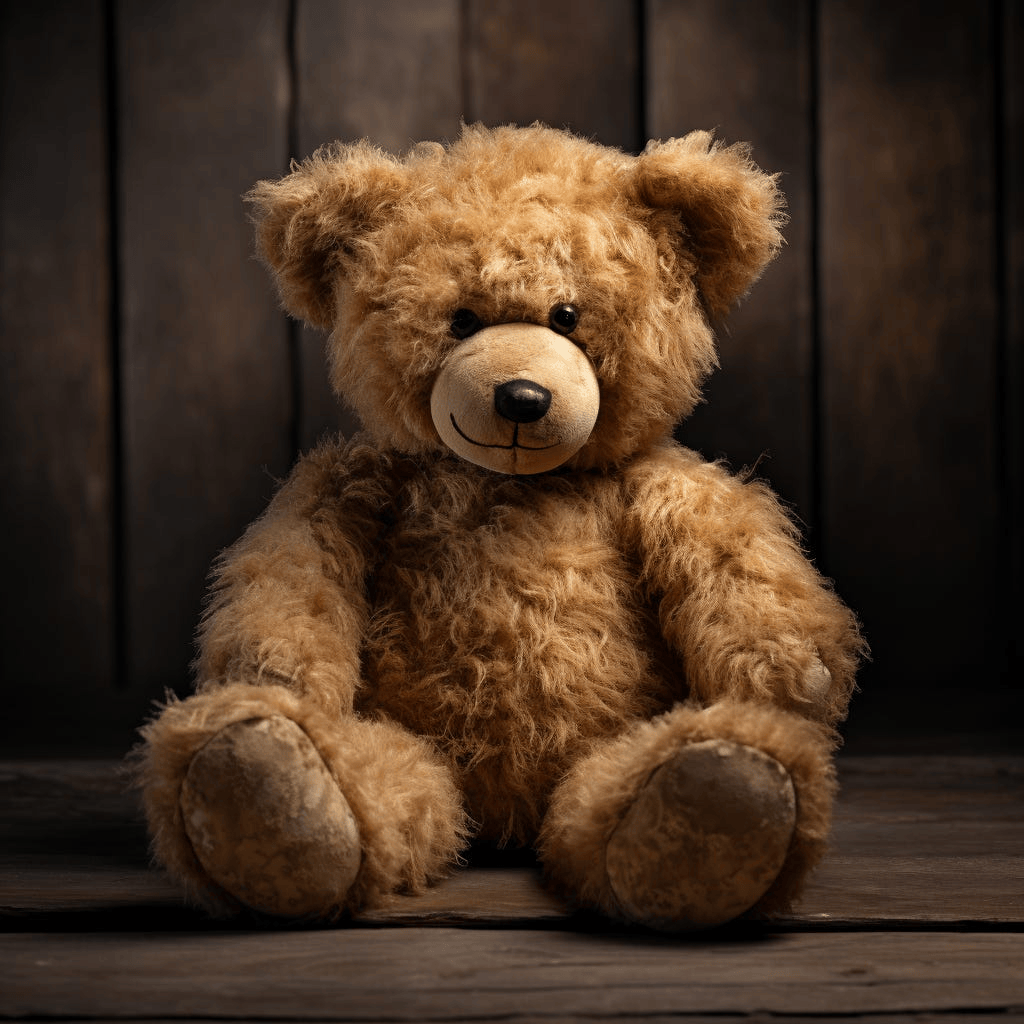
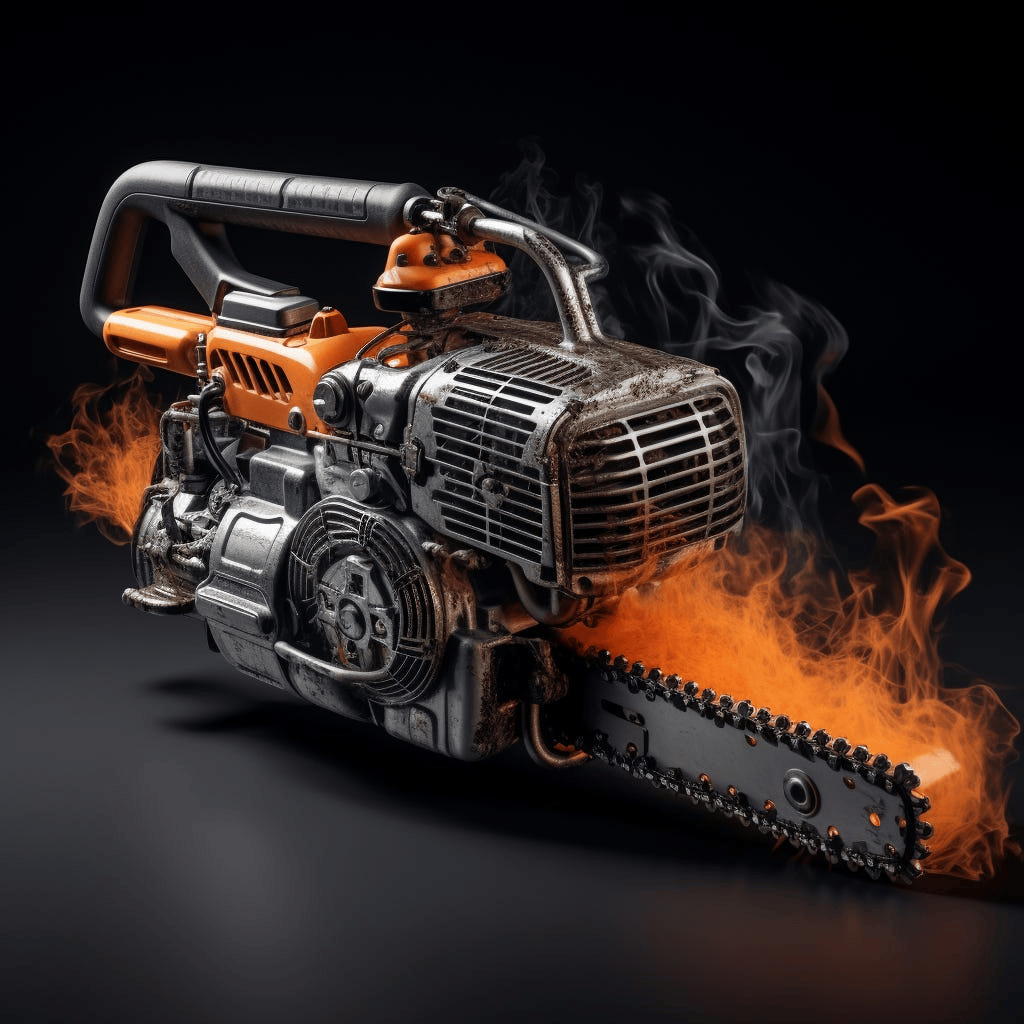
Now we want to fuse the two together, making the bear hold the chainsaw. How do we do that?
We can construct the following prompt:
https://cdn.acedata.cloud/8fapzl.png https://cdn.acedata.cloud/c1igbw.png The bear is holding the chainsaw --iw 2
As we can see, similar to Image with Prompt, we place multiple image URLs at the beginning of the prompt, separated by spaces, and then add the text prompt, passing the above content as a whole to the prompt parameter. The running effect is as follows:
{
  "image_url": "https://midjourney.cdn.acedata.cloud/attachments/1234291876639674388/1234547236830973972/kcisok_The_bear_is_holding_the_chainsaw_id8873344_ad605bc4-ba19-4807-b94f-367dab672f7a.png?ex=66312136&is=662fcfb6&hm=0fb1e2261c9a30b04de9da9b23b7562eb73677f1bbda1fae52c7243b12d25aac&width=1024&height=1024",
  "image_width": 1024,
  "image_height": 1024,
  "image_id": "1234547236830973972",
  "raw_image_url": "https://midjourney.cdn.acedata.cloud/attachments/1234291876639674388/1234547236830973972/kcisok_The_bear_is_holding_the_chainsaw_id8873344_ad605bc4-ba19-4807-b94f-367dab672f7a.png?ex=66312136&is=662fcfb6&hm=0fb1e2261c9a30b04de9da9b23b7562eb73677f1bbda1fae52c7243b12d25aac&",
  "raw_image_width": 2048,
  "raw_image_height": 2048,
  "progress": 100,
  "actions": [
    "upscale1",
    "upscale2",
    "upscale3",
    "upscale4",
    "reroll",
    "variation1",
    "variation2",
    "variation3",
    "variation4"
  ],
  "task_id": "891f2645-ee15-4c7b-ac24-d98163c8e57e",
  "success": true
}
We have obtained the following result:
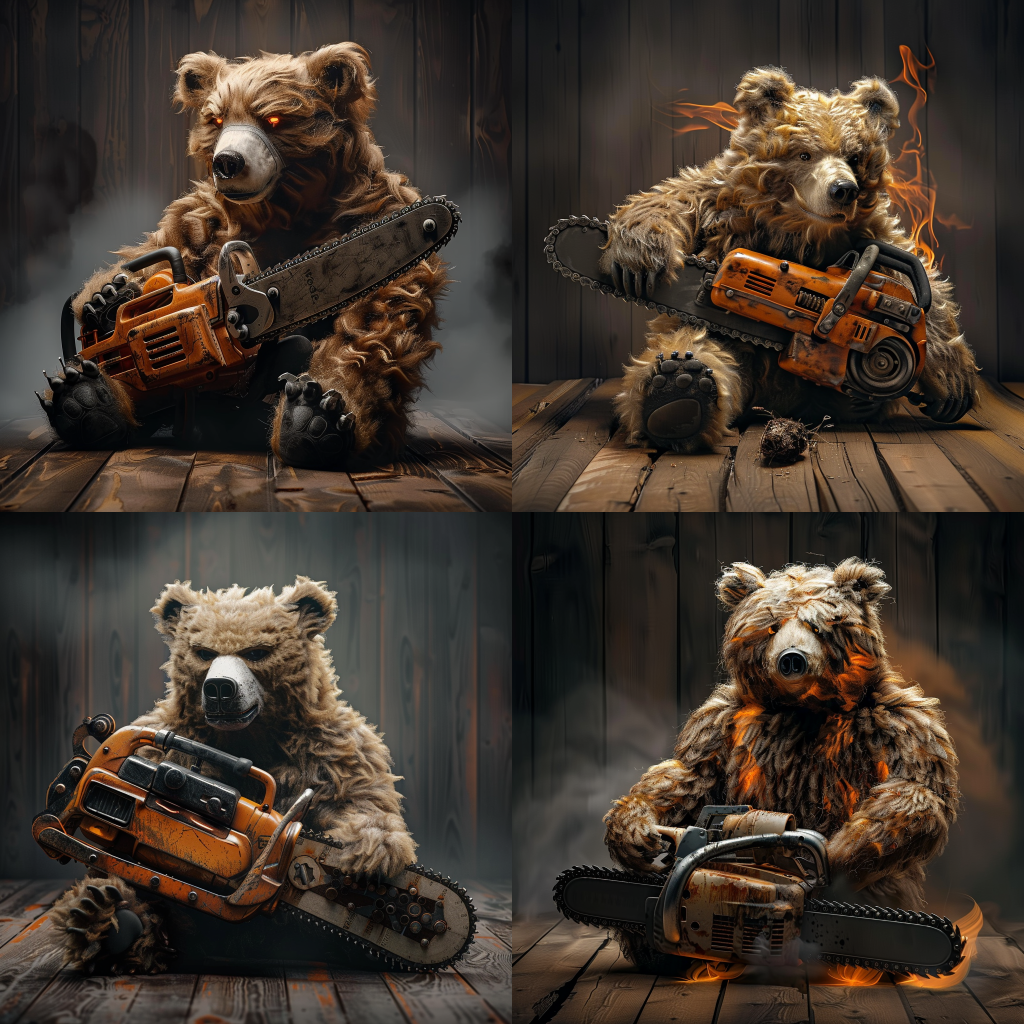
As we can see, we have successfully achieved image fusion.
Note: The image fusion can support a maximum of 5 image URLs as input, meaning it can support the fusion of up to 5 images, with the input format as above.
¶ Local Transformation
This API also supports local drawing functionality for images, but it only supports generating images based on the content above. We can input a unique ID of a generated image, the action parameter for local repainting, and a mask for the area to be repainted, to achieve repainting in the masked area.
For example, here we have a generated image of a cat:
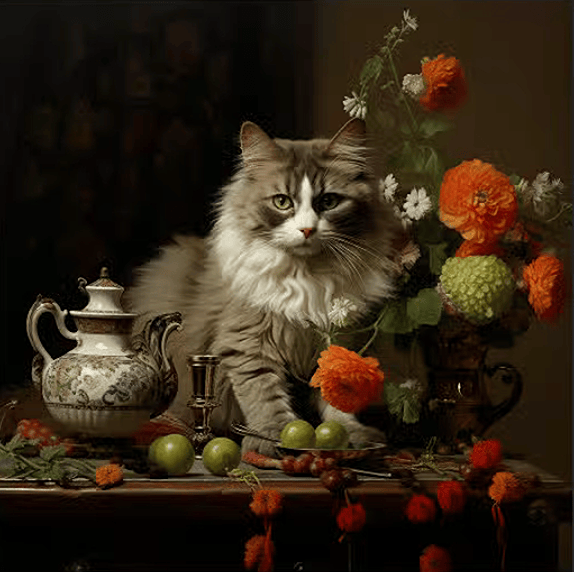
Now we want to repaint the cat's face. How do we do that?
First, we need to obtain the mask for that area. This mask is derived from a grayscale image encoded in Base64. Below are some tools and code examples for obtaining the mask:
Example code for obtaining the mask in Python:
```python
import sys
import os
from PySide6.QtWidgets import *
from PySide6.QtGui import QPainter, QMouseEvent, QPen, QColor, QImage
from PySide6.QtCore import Qt, QPoint

class DrawingWidget(QWidget):
    def __init__(self, imagePath):
        super().__init__()
        self.setAttribute(Qt.WA_StaticContents)
        self.background_image = QImage(imagePath)
        imageSize = self.background_image.size()*0.8
        self.setFixedSize(imageSize)
        self.foreground_image = QImage(self.size(), QImage.Format_ARGB32)
        self.foreground_image.fill(Qt.transparent)
        self.drawing = False
        self.lastPoint = QPoint()
        self.pen_color = QColor(255, 255, 255, 255)
        self.pen_size = 50

    def set_pen_size(self, size):
        self.pen_size = size

    def mousePressEvent(self, event: QMouseEvent):
        if event.button() == Qt.LeftButton:
            self.drawing = True
            self.lastPoint = event.pos()

    def mouseMoveEvent(self, event: QMouseEvent):
        if event.buttons() & Qt.LeftButton and self.drawing:
            painter = QPainter(self.foreground_image)
            painter.setRenderHint(QPainter.Antialiasing, True)
            pen = QPen(self.pen_color, self.pen_size,
                       Qt.SolidLine, Qt.RoundCap, Qt.RoundJoin)
            painter.setPen(pen)
            painter.drawLine(self.lastPoint, event.pos())
            self.lastPoint = event.pos()
            self.update()

    def mouseReleaseEvent(self, event: QMouseEvent):
        if event.button() == Qt.LeftButton and self.drawing:
            self.drawing = False

    def paintEvent(self, event):
        canvasPainter = QPainter(self)
        canvasPainter.drawImage(
            self.rect(), self.background_image, self.background_image.rect())
        canvasPainter.drawImage(
            self.rect(), self.foreground_image, self.foreground_image.rect())

    def save_image(self, path):
        self.foreground_image.save(path)

class MainWindow(QDialog):
    def __init__(self, imagePath):
        super().__init__()
        self.setWindowTitle("mask tool")
        self.drawing_widget = DrawingWidget(imagePath)
        self.currentPath = os.getcwd().replace("\\", "/")
        self.tempPath = self.currentPath + "/temp.jpg"
        self.projectPath = ""
        self.setDone = False

    def init_ui(self):
        layout = QVBoxLayout()
        layout.addWidget(self.drawing_widget)
        controls_layout = QHBoxLayout()
        size_label = QLabel("pen size:")
        controls_layout.addWidget(size_label)
        self.size_slider = QSlider(Qt.Horizontal)
        self.size_slider.setMinimum(100)
        self.size_slider.setMaximum(400)
        self.size_slider.setValue(400)
        self.size_slider.valueChanged.connect(self.update_pen_size)
        controls_layout.addWidget(self.size_slider)
        self.lineEdit_addPromp = QLineEdit()
        layout.addWidget(self.lineEdit_addPromp)
        save_button = QPushButton("   Start partial redrawing   ")
        save_button.clicked.connect(self.save_image)
        controls_layout.addWidget(save_button)
        dont_button = QPushButton("   Cancel partial redraw   ")
        dont_button.clicked.connect(self.dont_image)
        controls_layout.addWidget(dont_button)
        layout.addLayout(controls_layout)
        self.setLayout(layout)

    def update_pen_size(self):
        size = self.size_slider.value()
        self.drawing_widget.set_pen_size(size)

    def save_image(self):
        tempImage = self.currentPath + "/temp.jpg"
        self.drawing_widget.save_image(self.tempPath)
        self.prompt = self.lineEdit_addPromp.text()
        self.setDone = True
        self.close()

    def dont_image(self):
        self.setDone = False
        self.close()

    def closeEvent(self, event):
        if self.setDone:
            pass
        else:
            self.setDone = False
        event.accept()

if __name__ == '__main__':
    imagePath = "test.png"
    app = QApplication(sys.argv)
    mainWindow = MainWindow(imagePath)
    mainWindow.init_ui()
    mainWindow.exec()
Through the above code, we can obtain the mask image. In this process, we need to pay attention to the fact that the mask image must be the same size as the original image, and the white areas in the mask image are the areas that need to be redrawn. Below is a comparison of the mask image that needs to be redrawn for the cat image and the original image:
Original image:
Mask image:
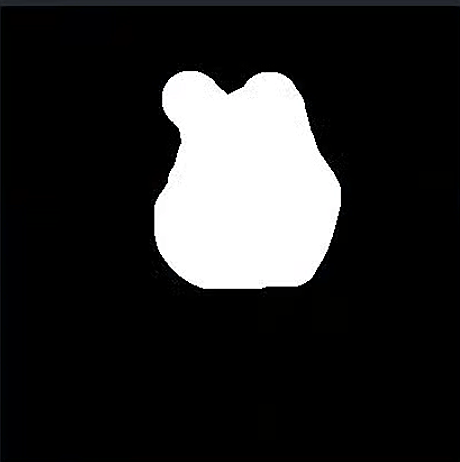
Finally, we also need to convert the mask image to a Base64 encoded format. Below is the code for converting to Base64 encoding:
Python Base64 conversion example code:
import cv2
import base64

image_path = 'temp.jpg'
gray_image = cv2.imread(image_path)
_, buffer = cv2.imencode('.jpg', gray_image)
base64_encoded = base64.b64encode(buffer).decode('utf-8')
with open('grayscale_image_base64.txt', 'w') as f:
    f.write(base64_encoded)

print("success!")
Note: The above Python code describes the process of generating the mask. If you want to integrate it into your product, please write the corresponding code in your language based on its principles.
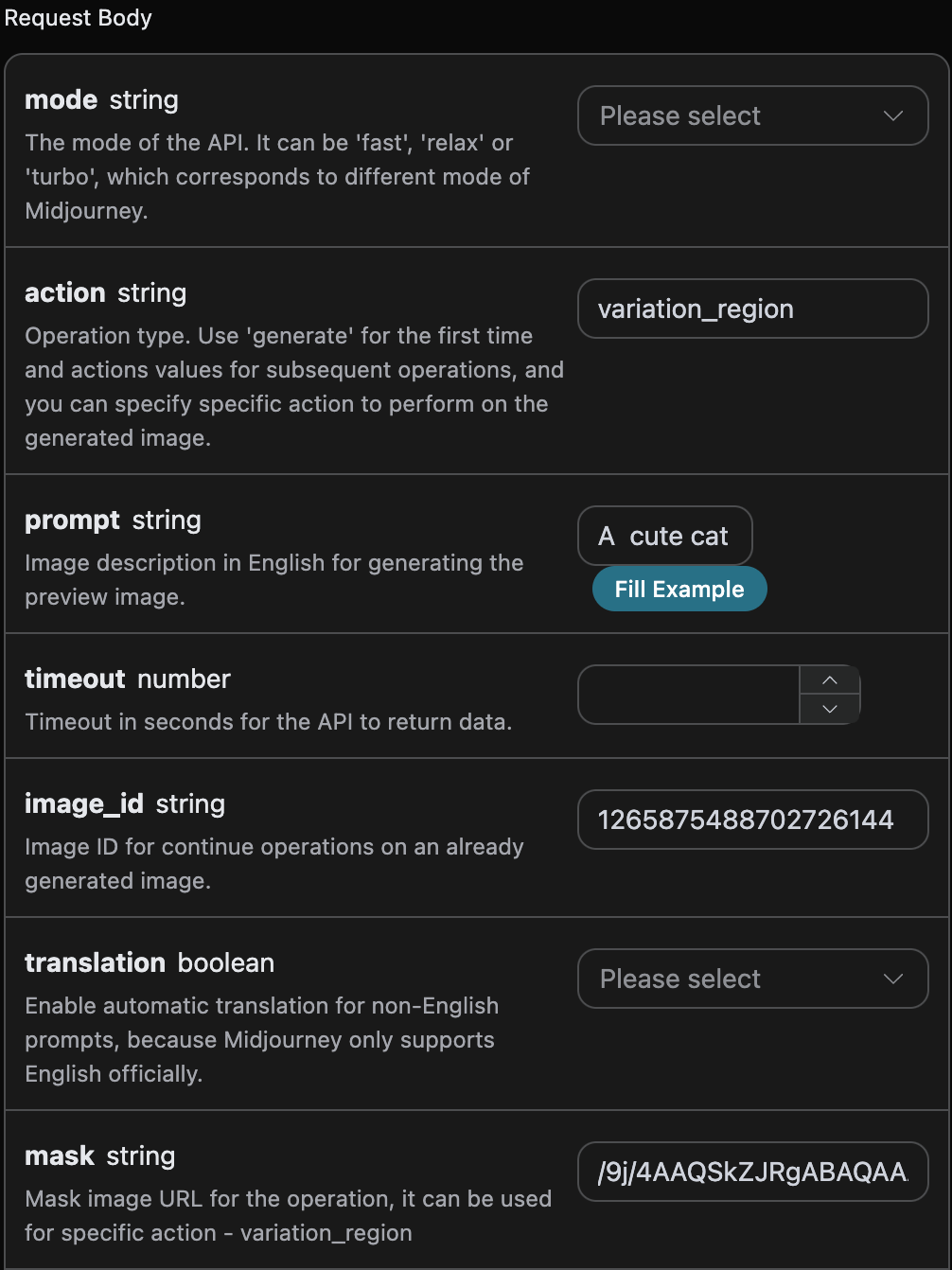
Through the above code, we obtained the mask mask that needs to be redrawn. Next, we also need to set the parameter action to variation_region, generate the image ID image_id (refer to the content above for obtaining this parameter), and pass in the corresponding mask mask. Other parameter information is as follows:
action: The behavior of operating on the image, here it isvariation_region, indicating that a partial redrawing of the image is performed.prompt: A description of the partial redrawing of the image (optional parameter).image_id: The unique identifier of the image, convenient for partial redrawing of the image.mask: The base64 encoding of the mask area corresponding to the image (the image is specified by the above image_id).
Therefore, according to the above rules, we need to set the correct parameters. The parameter prompt is a non-mandatory parameter. Here, for the sake of comparison, the prompt for the mask area is set to A cute cat. The specific parameter settings are shown in the figure below:
¶ Code Example
It can be seen that various language codes have been automatically generated on the right side of the page, as shown in the figure:
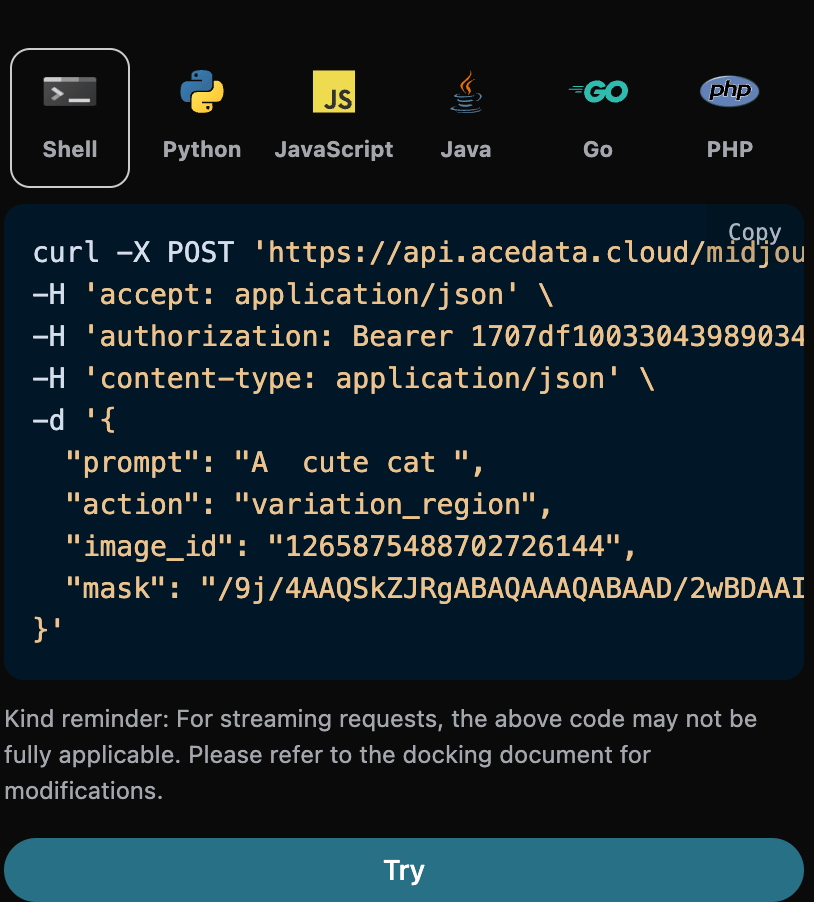
Some code examples are as follows:
¶ Response Example
After a successful request, the API will return the image result information after the face swap. For example:
{
  "image_url": "https://platform.cdn.acedata.cloud/midjourney/6c9450d8-1c22-4f85-a527-e7a7bfb4a61b.png?imageMogr2/thumbnail/!50p",
  "image_width": 1024,
  "image_height": 1024,
  "actions": [
    "upscale1",
    "upscale2",
    "upscale3",
    "upscale4",
    "reroll",
    "variation1",
    "variation2",
    "variation3",
    "variation4"
  ],
  "raw_image_url": "https://platform.cdn.acedata.cloud/midjourney/6c9450d8-1c22-4f85-a527-e7a7bfb4a61b.png",
  "raw_image_width": 2048,
  "raw_image_height": 2048,
  "progress": 100,
  "image_id": "1265876571323891712",
  "task_id": "6c9450d8-1c22-4f85-a527-e7a7bfb4a61b",
  "success": true
}
It can be seen that the image in the mask area has been redrawn, and the returned result is consistent with the content above, as shown in the figure below:
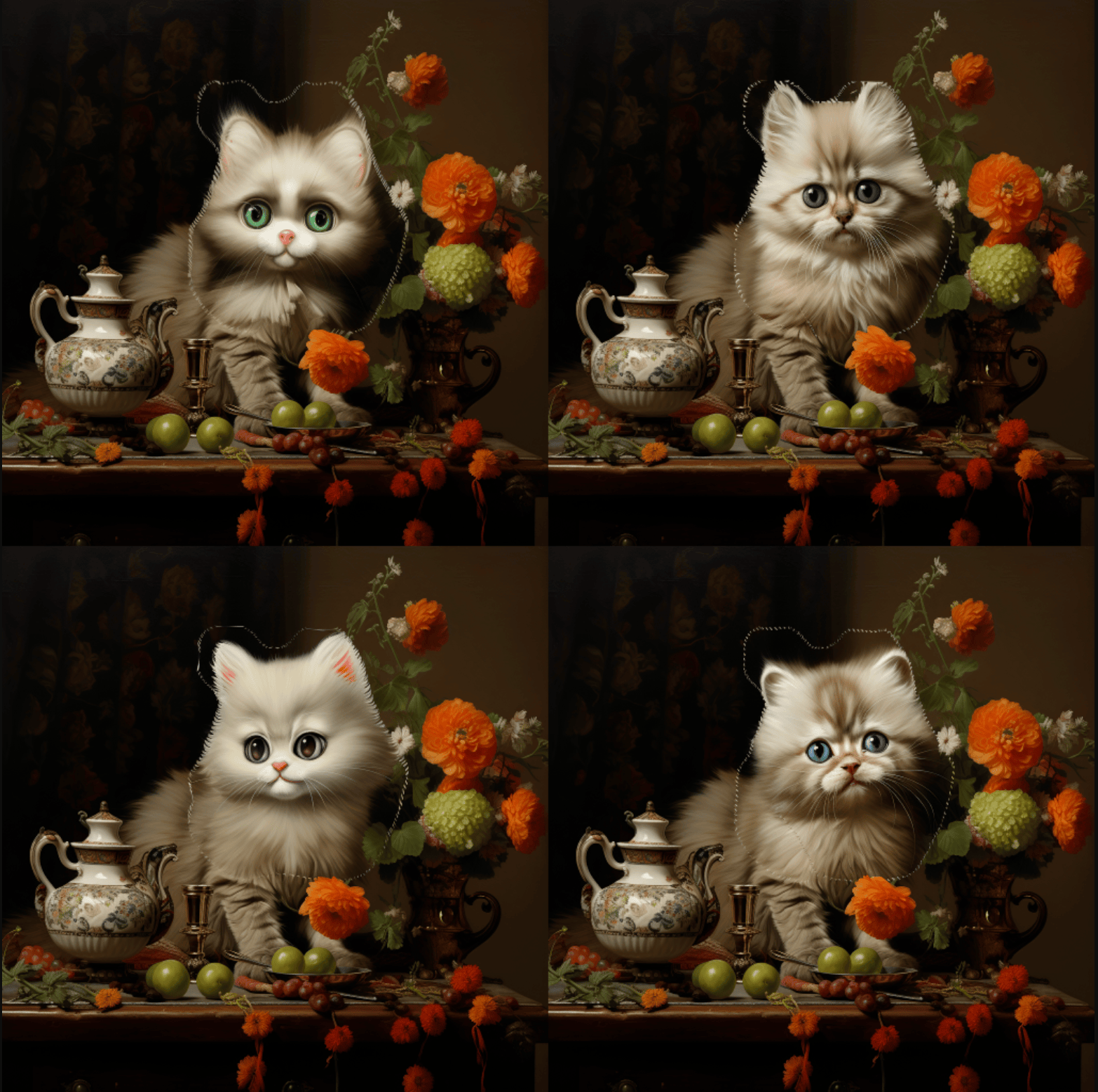
We can see that we have successfully achieved partial redrawing of the custom area of the generated image.
¶ CURL
curl -X POST 'https://api.acedata.cloud/midjourney/imagine' \
-H 'accept: application/json' \
-H 'authorization: Bearer {token}' \
-H 'content-type: application/json' \
-d '{
  "prompt": "A cute cat ",
  "action": "variation_region",
  "image_id": "1265875488702726144",
  "mask": "/9j/4AAQSkZJRgABAQAAAQABAAD/2wBDAAIBAQEBAQIBAQECAgICAgQDAgICAgUEBAMEBgUGBgYFBgYGBwkIBgcJBwYGCAsICQoKCgoKBggLDAsKDAkKCgr/2wBDAQICAgICAgUDAwUKBwYHCgoKCgoKCgoKCgoKCgoKCgoKCgoKCgoKCgoKCgoKCgoKCgoKCgoKCgoKCgoKCgoKCgr/wAARCAGaAZoDASIAAhEBAxEB/8QAHwAAAQUBAQEBAQEAAAAAAAAAAAECAwQFBgcICQoL/8QAtRAAAgEDAwIEAwUFBAQAAAF9AQIDAAQRBRIhMUEGE1FhByJxFDKBkaEII0KxwRVS0fAkM2JyggkKFhcYGRolJicoKSo0NTY3ODk6Q0RFRkdISUpTVFVWV1hZWmNkZWZnaGlqc3R1dnd4eXqDhIWGh4iJipKTlJWWl5iZmqKjpKWmp6ipqrKztLW2t7i5usLDxMXGx8jJytLT1NXW19jZ2uHi4+Tl5ufo6erx8vP09fb3+Pn6/8QAHwEAAwEBAQEBAQEBAQAAAAAAAAECAwQFBgcICQoL/8QAtREAAgECBAQDBAcFBAQAAQJ3AAECAxEEBSExBhJBUQdhcRMiMoEIFEKRobHBCSMzUvAVYnLRChYkNOEl8RcYGRomJygpKjU2Nzg5OkNERUZHSElKU1RVVldYWVpjZGVmZ2hpanN0dXZ3eHl6goOEhYaHiImKkpOUlZaXmJmaoqOkpaanqKmqsrO0tba3uLm6wsPExcbHyMnK0tPU1dbX2Nna4uPk5ebn6Onq8vP09fb3+Pn6/9oADAMBAAIRAxEAPwD+f+iiigAooooAKKKKACiiigAooooAKKKKACiiigAooooAKKKKACiiigAooooAKKKKACiiigAooooAKKKKACiiigAooooAKKKKACiiigAooooAKKKKACiiigAooooAKKKKACiiigAooooAKKKKACiiigAooooAKKKKACiiigAooooAKKKKACiiigAooooAKKKKACiiigAooooAKKKKACiiigAooooAKKKKACiiigAooooAKKKKACiiigAooooAKKKKACiiigAooooAKKKKACiiigAooooAKKKKACiiigAooooAKKKKACiiigAooooAKKKKACiiv12/4Jcf8GoX7XX7X+nab8af2y9Tvfgt4GmvZYZPDOpaHIni7VIYbmGOTFncxxx6dHLH9pEdzceZKJIY5PsssUschAPyJor+tT4X/wDBqr/wRb8B+AbLwf4i/Z51/wAb6naCaOfxP4n8f6ol9fb5ZHAmj0+5tbVfLB8oeVDHxHk5kzIen/4hdP8Aghd/0Y1/5kzxP/8ALSgD+QSiv3u/b4/4Myb/AMOeFZPF/wDwTc+POoa9d6fYO9z4F+KU9rHdajLFHcyZtdStYoohLL/osMVtNDFECZJZbuMYjr8Ufj/8Bfi3+yx8YvEPwD/aD+H1/wCF/GPhfUjaa1oN9jzbV8Eg5GY5Y5I/LkjljJjlikjkjLxuDQB5/RRRQAUUUUAFFfrt+wH/AMGi37dP7U3hGL4hftS+MdP+BGj32nCbSdP1fSTq+u3JeO2liaSxjnhjtIjHLKCJrhLqKW2MclqAfMH6Ef8AEFh/wSy/6L78ff8AwqdC/wDlNQB/MDRX9Mviz/gy0/4JzXfhvUtO8D/tFfG3TtafT5o9Kv8AVdX0e9tbe5MZEM0tvHp8LzRiTJMQliLhcCSMkGvzQ/4Kdf8ABsN+3V/wT18M618bfh3e6b8YfhdoWny3us+JvD9l9i1LSbaOK3Es15pksskgiEksh320t0I4rWWaX7MOAAfmTRRRQAUUUUAFFFFABRRRQAUUUUAFFFFABRRRQAUUUUAFFFFABRRRQAUUUUAFFFFABRRRQAUUUUAFFFFABRRRQAUUUUAFFFFABRRRQB+5/wDwaS/8EgIPij4sb/gqR+0F4N0288OeHtUm0/4VaDrej3LGbWIpI/N16JpCsMkdsfMtoT++H2rzpP3MtjEZP6La8i/Yj/Zf8PfsafsmfD39lPwm+nyWngTwtY6VPe6dpEenR6hcxwr9pvvs8RIikubnzbqUb5CZZ5CZJDkn12gAooooAK+RP+Cvv/BLP4P/APBU79krV/g34w8N2K+OtHsbu8+FHiy4mMEuh6y0f7rzJkhlk+wzSpHHdReXKHixIB5sUMsX13RQB/CH8f8A4C/Fv9lj4xeIfgH+0H8Pr/wv4x8L6kbTWtBvsebavgkHIzHLHJH5ckcsZMcsUkckZeNwa8/r+yL/AIK2f8EQP2Vv+CuXhew1H4pvqXhX4g+HNPubTwt8QvDyRfaYYpI5fKtb2OQf6fYx3MnneSTFKCJBFND50xl/CD9n3/g09/4Kk/Fn9onW/hL8TfDeg+AvCvhfWzp+r/ErWL8zWWpQg2shm0m2ixc3++2uTLF5kdvCTDLbSzW1xHJFGAfl5X9NH/BrF/wRq8Lfs3fAjRv+CiH7RHgPTLn4m+P9L+2/Dq4fUo7z/hHfDF1bxGGaOMR+XDe3Uck3mSeZJJHayQw/uTLdxH6N/wCCbP8Awbkf8E5f+Cdn9k+Po/AX/Cz/AImae0M7ePvHlnHcfYbyL7LIZdOsv+Paw8u6tvOilxLdw+bJH9qkFfoPQAUUUUAFFFFAH8+v/B2R/wAEZvDHgPS5/wDgqd+y/wCAtN0m0mv8fHOxtdQjt0e6urmKOy1mK28sZkluZjDdGOTMksttN5OftU1fgbX953xe+FPgf41fCnxN8GPiZoDaj4b8X6FfaN4g04XkkX2uxuonhuIvMiIkTzI5HH7sgjsRX8fP/BaP/glR48/4JR/tj6r8G/J8Qah8OtaIv/hh431u0iQazYeXEZYTJD+7NzayyC2lGIj/AKqbyoormIUAfG9FFFABRRRQAUUUUAFFFFABRRRQAUUUUAFFFFABRRRQAUUUUAFFFFABRRRQAUUUUAFFFFABRRRQAUUUUAFFFFABRRRQAUUUUAfpP/AMG73/BaG3/4Jd/tCXnw4+PHiPXpvgh47UJ4isbJ/Pg8Pap+5EWvJbeWZJPLjjMU0duY5JYmEmLmS1toT/VR8I/i58MPjn4Asfij8G/iVoPi/wAN6o039n+IfDOrxahYXRimkil8m5hJilEcsckeQTzGc81/BhX64/8ABs//AMFu/jD+yJ8efB//AAT1+KKaj4t+FnxK8XWmi+FrFLnNz4P1m/ulijktfMbH2Ka4lH2m2zwZDcxfvfOiugD+ouiiigAooooAKKKKACiiigAooooAKKKKACiiigAooooAKKKKACiiigAooooAKKKKACiiigAooooAKKKKACiiigAooooAKKKKACiiigAooooAKKKKACiiigAooooAKKKKACiiigAooooAKKKKACiiigAooooAKKKKACiiigAooooAKKKKACiiigAooooAKKKKACiiigAooooAKKKKACiiigAooooAKKKKACiiigAooooAKKKKACiiigAooooAKKKKACiiigAooooAKKKKACiiigAooooAKKKKACiiigAooooAKKKKACiiigAooooAKKKKACiiigAooooAKKKKACiiigAooooAKKKKACiiigAooooAKKKKACiiigAooooAKKKKACiiigAooooAKKKKACiiigAooooAKKKKACiiigAooooAKKKKACiiigAooooAKKKKACiiigAooooAKKKKACiiigAooooAKKKKACiiigAooooAKKKKACiiigAooooAKKKKACiiigAooooAKKKKACiiigAooooAKKKKACiiigAooooAKKKKACiiigAooooAKKKKACiiigAooooAKKKKACiiigAooooAKKKKACiiigAooooAKKKKACiiigAooooAKKKKACiiigAooooAKKKKACiiigAooooAKKKKACiiigAooooAKKKKACiiigAooooAKKKKACiiigAooooAKKKKACiiigAooooAKKKKACiiigAooooAKKKKACiiigAooooAKKKKACiiigAooooAKKKKACiiigAooooAKKKKACiiigAooooAKKKKACiiigAooooAKKKKACiiigAooooAKKKKACiiigAooooAKKKKACiiigAooooAKKKKACiiigAooooAKKKKACiiigAooooAKKKKACiiigAooooAKKKKACiiigAooooAKKKKACiiigAooooAKKKKACiiigAooooAKKKKACiiigAooooAKKKKACiiigAooooAKKKKACiiigAooooAKKKKACiiigAooooAKKKKACiiigAooooAKKKKACiiigAooooAKKKKACiiigAooooAKKKKACiiigAooooAKKKKACiiigAooooAKKKKACiiigAooooAKKKKACiiigAooooAKKKKACiiigAooooAKKKKACiiigAooooAKKKKACiiigAooooAKKKKACiiigAooooAKKKKACiiigAooooAKKKKACiiigAooooAKKKKACiiigAooooAKKKKACiiigAooooAKKKKACiiigAooooAKKKKACiiigAooooAKKKKACiiigAooooAKKKKACiiigAooooAKKKKACiiigAooooAKKKKACiiigAooooAKKKKACiiigAooooAKKKKACiiigAooooAKKKKACiiigAooooAKKKKACiiigAooooAKKKKACiiigAooooAKKKKACiiigAooooAKKKKACiiigAooooAKKKKACiiigAooooAKKKKACiiigAooooAKKKKACiiigAooooAKKKKACiiigAooooAKKKKACiiigAooooAKKKKACiiigAooooAKKKKACiiigAooooAKKKKACiiigAooooAKKKKACiiigAooooAKKKKACiiigAooooAKKKKACiiigAooooAKKKKACiiigAooooAKKKKACiiigAooooAKKKKACiiigAooooAKKKKACiiigAooooAKKKKACiiigAooooAKKKKACiiigAooooAKKKKACiiigAooooAKKKKACiiigAooooAKKKKACiiigAooooAKKKKACiiigAooooAKKKKACiiigAooooAKKKKACiiigAooooAKKKKACiiigAooooAKKKKACiiigAooooAKKKKACiiigAooooAKKKKACiiigAooooAKKKKACiiigAooooAKKKKACiiigAooooAKKKKACiiigAooooAKKKKACiiigAooooAKKKKACiiigAooooAKKKKACiiigAooooAKKKKACiiigAooooAKKKKACiiigAooooAKKKKACiiigAooooAKKKKACiiigAooooAKKKKACiiigAooooAKKKKACiiigAooooAKKKKACiiigAooooAKKKKACiiigAooooAKKKKACiiigAooooAKKKKACiiigAooooAKKKKACiiigAooooAKKKKACiiigAooooAKKKKACiiigAooooAKKKKACiiigAooooAKKKKACiiigAooooAKKKKACiiigAooooAKKKKACiiigAooooAKKKKACiiigAooooAKKKKACiiigAooooAKKKKACiiigAooooAKKKKACiiigAooooAKKKKACiiigAooooAKKKKACiiigAooooAKKKKACiiigAooooAKKKKACiiigAooooAKKKKACiiigAooooAKKKKACiiigAooooAKKKKACiiigAooooAKKKKACiiigAooooAKKKKACiiigAooooAKKKKACiiigAooooAKKKKACiiigAooooAKKKKACiiigAooooAKKKKACiiigAooooAKKKKACiiigAooooAKKKKACiiigAooooAKKKKACiiigAooooAKKKKACiiigAooooAKKKKACiiigAooooAKKKKACiiigAooooAKKKKACiiigAooooAKKKKACiiigAooooAKKKKACiiigAooooAKKKKACiiigAooooAKKKKACiiigAooooAKKKKACiiigAooooAKKKKACiiigAooooAKKKKACiiigAooooAKKKKACiiigAooooAKKKKACiiigAooooAKKKKACiiigAooooAKKKKACiiigAooooAKKKKACiiigAooooAKKKKACiiigAooooAKKKKACiiigAooooAKKKKACiiigAooooAKKKKACiiigAooooAKKKKACiiigAooooAKKKKACiiigAooooAKKKKACiiigAooooAKKKKACiiigAooooAKKKKACiiigAooooAKKKKACiiigAooooAKKKKACiiigAooooAKKKKACiiigAooooAKKKKACiiigAooooAKKKKACiiigAooooAKKKKACiiigAooooAKKKKACiiigAooooAKKKKACiiigAooooAKKKKACiiigAooooAKKKKACiiigAooooAKKKKACiiigAooooAKKKKACiiigAooooAKKKKACiiigAooooAKKKKACiiigAooooAKKKKACiiigAooooAKKKKACiiigAooooAKKKKACiiigAooooAKKKKACiiigAooooAKKKKACiiigAooooAKKKKACiiigAooooAKKKKACiiigAooooAKKKKACiiigAooooAKKKKACiiigAooooAKKKKACiiigAooooAKKKKACiiigAooooAKKKKACiiigAooooAKKKKACiiigAooooAKKKKACiiigAooooAKKKKACiiigAooooAKKKKACiiigAooooAKKKKACiiigAooooAKKKKACiiigAooooAKKKKACiiigAooooAKKKKACiiigAooooAKKKKACiiigAooooAKKKKACiiigAooooAKKKKACiiigAooooAKKKKACiiigAooooAKKKKACiiigAooooAKKKKACiiigAooooAKKKKACiiigAooooAKKKKACiiigAoooo
#### Python

```python
import requests

url = "https://api.acedata.cloud/midjourney/imagine"

headers = {
    "accept": "application/json",
    "authorization": "Bearer {token}",
    "content-type": "application/json"
}

payload =
{
    "prompt": "A cute cat ",
    "action": "variation_region",
    "image_id": "1265875488702726144",
    "mask": "/9j/4AAQSkZJRgABAQAAAQABAAD/2wBDAAIBAQEBAQIBAQECAgICAgQDAgICAgUEBAMEBgUGBgYFBgYGBwkIBgcJBwYGCAsICQoKCgoKBggLDAsKDAkKCgr/2wBDAQICAgICAgUDAwUKBwYHCgoKCgoKCgoKCgoKCgoKCgoKCgoKCgoKCgoKCgoKCgoKCgoKCgoKCgoKCgoKCgoKCgr/wAARCAGaAZoDASIAAhEBAxEB/8QAHwAAAQUBAQEBAQEAAAAAAAAAAAECAwQFBgcICQoL/8QAtRAAAgEDAwIEAwUFBAQAAAF9AQIDAAQRBRIhMUEGE1FhByJxFDKBkaEII0KxwRVS0fAkM2JyggkKFhcYGRolJicoKSo0NTY3ODk6Q0RFRkdISUpTVFVWV1hZWmNkZWZnaGlqc3R1dnd4eXqDhIWGh4iJipKTlJWWl5iZmqKjpKWmp6ipqrKztLW2t7i5usLDxMXGx8jJytLT1NXW19jZ2uHi4+Tl5ufo6erx8vP09fb3+Pn6/8QAHwEAAwEBAQEBAQEBAQAAAAAAAAECAwQFBgcICQoL/8QAtREAAgECBAQDBAcFBAQAAQJ3AAECAxEEBSExBhJBUQdhcRMiMoEIFEKRobHBCSMzUvAVYnLRChYkNOEl8RcYGRomJygpKjU2Nzg5OkNERUZHSElKU1RVVldYWVpjZGVmZ2hpanN0dXZ3eHl6goOEhYaHiImKkpOUlZaXmJmaoqOkpaanqKmqsrO0tba3uLm6wsPExcbHyMnK0tPU1dbX2Nna4uPk5ebn6Onq8vP09fb3+Pn6/9oADAMBAAIRAxEAPwD+f+iiigAooooAKKKKACiiigAooooAKKKKACiiigAooooAKKKKACiiigAooooAKKKKACiiigAooooAKKKKACiiigAooooAKKKKACiiigAooooAKKKKACiiigAooooAKKKKACiiigAooooAKKKKACiiigAooooAKKKKACiiigAooooAKKKKACiiigAooooAKKKKACiiigAooooAKKKKACiiigAooooAKKKKACiiigAooooAKKKKACiiigAooooAKKKKACiiigAooooAKKKKACiiigAooooAKKKKACiiigAooooAKKKKACiiigAooooAKKKKACiiigAooooAKKKKACiiigAooooAKKKKACiiigAooooAKKKKACiiigAooooAKKKKACiiigAooooAKKKKACiiigAooooAKKKKACiiigAooooAKKKKACiiigAooooAKKKKACiiigAooooAKKKKACiiigAooooAKKKKACiiigAooooAKKKKACiiigAooooAKKKKACiiigAooooAKKKKACiiigAooooAKKKKACiiigAooooAKKKKACiiigAooooAKKKKACiiigAooooAKKKKACiiigAooooAKKKKACiiigAooooAKKKKACiiigAooooAKKKKACiiigAooooAKKKKACiiigAooooAKKKKACiiigAooooAKKKKACiiigAooooAKKKKACiiigAooooAKKKKACiiigAooooAKKKKACiiigAooooAKKKKACiiigAooooAKKKKACiiigAooooAKKKKACiiigAooooAKKKKACiiigAooooAKKKKACiiigAooooAKKKKACiiigAooooAKKKKACiiigAooooAKKKKACiiigAooooAKKKKACiiigAooooAKKKKACiiigAooooAKKKKACiiigAooooAKKKKACiiigAooooAKKKKACiiigAooooAKKKKACiiigAooooAKKKKACiiigAooooAKKKKACiiigAooooAKKKKACiiigAooooAKKKKACiiigAooooAKKKKACiiigAooooAKKKKACiiigAooooAKKKKACiiigAooooAKKKKACiiigAooooAKKKKACiiigAooooAKKKKACiiigAooooAKKKKACiiigAooooAKKKKACiiigAooooAKKKKACiiigAooooAKKKKACiiigAooooAKKKKACiiigAooooAKKKKACiiigAooooAKKKKACiiigAooooAKKKKACiiigAooooAKKKKACiiigAooooAKKKKACiiigAooooAKKKKACiiigAooooAKKKKACiiigAooooAKKKKACiiigAooooAKKKKACiiigAooooAKKKKACiiigAooooAKKKKACiiigAooooAKKKKACiiigAooooAKKKKACiiigAooooAKKKKACiiigAooooAKKKKACiiigAooooAKKKKACiiigAooooAKKKKACiiigAooooAKKKKACiiigAooooAKKKKACiiigAooooAKKKKACiiigAooooAKKKKACiiigAooooAKKKKACiiigAooooAKKKKACiiigAooooAKKKKACiiigAooooAKKKKACiiigAooooAKKKKACiiigAooooAKKKKACiiigAooooAKKKKACiiigAooooAKKKKACiiigAooooAKKKKACiiigAooooAKKKKACiiigAooooAKKKKACiiigAooooAKKKKACiiigAooooAKKKKACiiigAooooAKKKKACiiigAooooAKKKKACiiigAooooAKKKKACiiigAooooAKKKKACiiigAooooAKKKKACiiigAooooAKKKKACiiigAooooAKKKKACiiigAooooAKKKKACiiigAooooAKKKKACiiigAooooAKKKKACiiigAooooAKKKKACiiigAooooAKKKKACiiigAooooAKKKKACiiigAooooAKKKKACiiigAooooAKKKKACiiigAooooAKKKKACiiigAooooAKKKKACiiigAooooAKKKKACiiigAooooAKKKKACiiigAooooAKKKKACiiigAooooAKKKKACiiigAooooAKKKKACiiigAooooAKKKKACiiigAooooAKKKKACiiigAooooAKKKKACiiigAooooAKKKKACiiigAooooAKKKKACiiigAooooAKKKKACiiigAooooAKKKKACiiigAooooAKKKKACiiigAooooAKKKKACiiigAooooAKKKKACiiigAooooAKKKKACiiigAooooAKKKKACiiigAooooAKKKKACiiigAooooAKKKKACiiigAooooAKKKKACiiigAooooAKKKKACiiigAooooAKKKKACiiigAooooAKKKKACiiigAooooAKKKKACiiigAooooAKKKKACiiigAooooAKKKKACiiigAooooAKKKKACiiigAooooAKKKKACiiigAooooAKKKKACiiigAooooAKKKKACiiigAooooAKKKKACiiigAooooAKKKKACiiigAooooAKKKKACiiigAooooAKKKKACiiigAooooAKKKKACiiigAooooAKKKKACiiigAooooAKKKKACiiigAooooAKKKKACiiigAooooAKKKKACiiigAooooAKKKKACiiigAooooAKKKKACiiigAooooAKKKKACiiigAooooAKKKKACiiigAooooAKKKKACiiigAooooAKKKKACiiigAooooAKKKKACiiigAooooAKKKKACiiigAooooAKKKKACiiigAooooAKKKKACiiigAooooAKKKKACiiigAooooAKKKKACiiigAooooAKKKKACiiigAooooAKKKKACiiigAooooAKKKKACiiigAooooAKKKKACiiigAooooAKKKKACiiigAooooAKKKKACiiigAooooAKKKKACiiigAooooAKKKKACiiigAooooAKKKKACiiigAooooAKKKKACiiigAooooAKKKKACiiigAooooAKKKKACiiigAooooAKKKKACiiigAooooAKKKKACiiigAooooAKKKKACiiigAooooAKKKKACiiigAooooAKKKKACiiigAooooAKKKKACiiigAooooAKKKKACiiigAooooAKKKKACiiigAooooAKKKKACiiigAooooAKKKKACiiigAooooAKKKKACiiigAooooAKKKKACiiigAooooAKKKKACiiigAooooAKKKKACiiigAooooAKKKKACiiigAooooAKKKKACiiigAooooAKKKKACiiigAooooAKKKKACiiigAooooAKKKKACiiigAooooAKKKKACiiigAooooAKKKKACiiigAooooAKKKKACiiigAooooAKKKKACiiigAooooAKKKKACiiigAooooAKKKKACiiigAooooAKKKKACiiigAooooAKKKKACiiigAooooAKKKKACiiigAooooAKKKKACiiigAooooAKKKKACiiigAooooAKKKKACiiigAooooAKKKKACiiigAooooAKKKKACiiigAooooAKKKKACiiigAooooAKKKKACiiigAooooAKKKKACiiigAooooAKKKKACiiigAooooAKKKKACiiigAooooAKKKKACiiigAooooAKKKKACiiigAooooAKKKKACiiigAooooAKKKKACiiigAooooAKKKKACiiigAooooAKKKKACiiigAooooAKKKKACiiigAooooAKKKKACiiigAooooAKKKKACiiigAooooAKKKKACiiigAooooAKKKKACiiigAooooAKKKKACiiigAooooAKKKKACiiigAooooAKKKKACiiigAooooAKKKKACiiigAooooAKKKKACiiigAooooAKKKKACiiigAooooAKKKKACiiigAooooAKKKKACiiigAooooAKKKKACiiigAooooAKKKKACiiigAooooAKKKKACiiigAooooAKKKKACiiigAooooAKKKKACiiigAooooAKKKKACiiigAooooAKKKKACiiigAooooAKKKKACiiigAooooAKKKKACiiigAooooAKKKKACiiigAooooAKKKKACiiigAooooAKKKKACiiigAooooAKKKKACiiigAooooAKKKKACiiigAooooAKKKKACiiigAooooAKKKKACiiigAooooAKKKKACiiigAooooAKKKKACiiigAooooAKKKKACiiigAooooAKKKKACiiigAooooAKKKKACiiigAooooAKKKKACiiigAooooAKKKKACiiigAooooAKKKKACiiigAooooAKKKKACiiigAooooAKKKKACiiigAooooAKKKKACiiigAooooAKKKKACiiigAooooAKKKKACiiigAooooAKKKKACiiigAooooAKKKKACiiigAooooAKKKKACiiigAooooAKKKKACiiigAooooAKKKKACiiigAooooAKKKKACiiigAooooAKKKKACiiigAooooAKKKKACiiigAooooAKKKKACiiigAooooAKKKKACiiigAooooAKKKKACiiigAooooAKKKKACiiigAooooAKKKKACiiigAooooAKKKKACiiigAooooAKKKKACiiigAooooAKKKKACiiigAooooAKKKKACiiigAooooAKKKKACiiigAooooAKKKKACiiigAooooAKKKKACiiigAooooAKKKKACiiigAooooAKKKKACiiigAooooAKKKKACiiigAooooAKKKKACiiigAooooAKKKKACiiigAooooAKKKKACiiigAooooAKKKKACiiigAooooAKKKKACiiigAooooAKKKKACiiigAooooAKKKKACiiigAooooAKKKKACiiigAooooAKKKKACiiigAooooAKKKKACiiigAooooAKKKKACiiigAooooAKKKKACiiigAooooAKKKKACiiigAooooAKKKKACiiigAooooAKKKKACiiigAooooAKKKKACiiigAooooAKKKKACiiigAooooAKKKKACiiigAooooAKKKKACiiigAooooAKKKKACiiigAooooAKKKKACiiigAooooAKKKKACiiigAooooAKKKKACiiigAooooAKKKKACiiigAooooAKKKKACiiigAooooAKKKKACiiigAooooAKKKKACiiigAooooAKKKKACiiigAooooAKKKKACiiigAooooAKKKKACiiigAooooAKKKKACiiigAooooAKKKKACiiigAooooAKKKKACiiigAooooAKKKKACiiigAooooAKKKKACiiigAooooAKKKKACiiigAooooAKKKKACiiigAooooAKKKKACiiigAooooAKKKKACiiigAooooAKKKKACiiigAooooAKKKKACiiigAooooAKKKKACiiigAooooAKKKKACiiigAooooAKKKKACiiigAooooAKKKKACiiigAooooAKKKKACiiigAooooAKKKKACiiigAooooAKKKKACiiigAooooAKKKKACiiigAooooAKKKKACiiigAooooAKKKKACiiigAooooAKKKKACiiigAooooAKKKKACiiigAooooAKKKKACiiigAooooAKKKKACiiigAooooAKKKKACiiigAooooAKKKKACiiigAooooAKKKKACiiigAooooAKKKKACiiigAooooAKKKKACiiigAooooAKKKKACiiigAooooAKKKKACiiigAooooAKKKKACiiigAooooAKKKKACiiigAooooAKKKKACiiigAooooAKKKKACiiigAooooAKKKKACiiigAooooAKKKKACiiigAooooAKKKKACiiigAooooAKKKKACiiigAooooAKKKKACiiigAooooAKKKKACiiigAooooAKKKKACiiigAooooAKKKKACiiigAooooAKKKKACiiigAooooAKKKKACiiigAooooAKKKKACiiigAooooAKKKKACiiigAooooAKKKKACiiigAooooAKKKKACiiigAooooAKKKKACiiigAooooAKKKKACiiigAooooAKKKKACiiigAooooAKKKKACiiigAooooAKKKKACiiigAooooAKKKKACiiigAooooAKKKKACiiigAooooAKKKKACiiigAooooAKKKKACiiigAooooAKKKKACiiigAooooAKKKKACiiigAooooAKKKKACiiigAooooAKKKKACiiigAooooAKKKKACiiigAooooAKKKKACiiigAooooAKKKKACiiigAooooAKKKKACiiigAooooAKKKKACiiigAooooAKKKKACiiigAooooAKKKKACiiigAooooAKKKKACiiigAooooAKKKKACiiigAooooAKKKKACiiigAooooAKKKKACiiigAooooAKKKKACiiigAooooAKKKKACiiigAooooAKKKKACiiigAooooAKKKKACiiigAooooAKKKKACiiigAooooAKKKKACiiigAooooAKKKKACiiigAooooAKKKKACiiigAooooAKKKKACiiigAooooAKKKKACiiigAooooAKKKKACiiigAooooAKKKKACiiigAooooAKKKKACiiigAooooAKKKKACiiigAooooAKKKKACiiigAooooAKKKKACiiigAooooAKKKKACiiigAooooAKKKKACiiigAooooAKKKKACiiigAooooAKKKKACiiigAooooAKKKKACiiigAooooAKKKKACiiigAooooAKKKKACiiigAooooAKKKKACiiigAooooAKKKKACiiigAooooAKKKKACiiigAooooAKKKKACiiigAooooAKKKKACiiigAooooAKKKKAC
```python
response = requests.post(url, json=payload, headers=headers)
print(response.text)
¶ Asynchronous Callback
Since generating images with Midjourney requires some waiting time, this API is also designed for long-wait mode by default. However, in some scenarios, long waiting may incur additional resource overhead, so this API also provides an asynchronous Webhook callback method. When the image generation is successful or fails, the result will be sent to the specified Webhook callback URL via an HTTP request. After the callback URL receives the result, it can perform further processing.
The following demonstrates the specific calling process.
First, the Webhook callback is a service that can receive HTTP requests, and developers should replace it with the URL of their own HTTP server. For demonstration purposes, a public Webhook sample site https://webhook.site/ is used here. By opening this site, you can obtain a Webhook URL, as shown in the image:

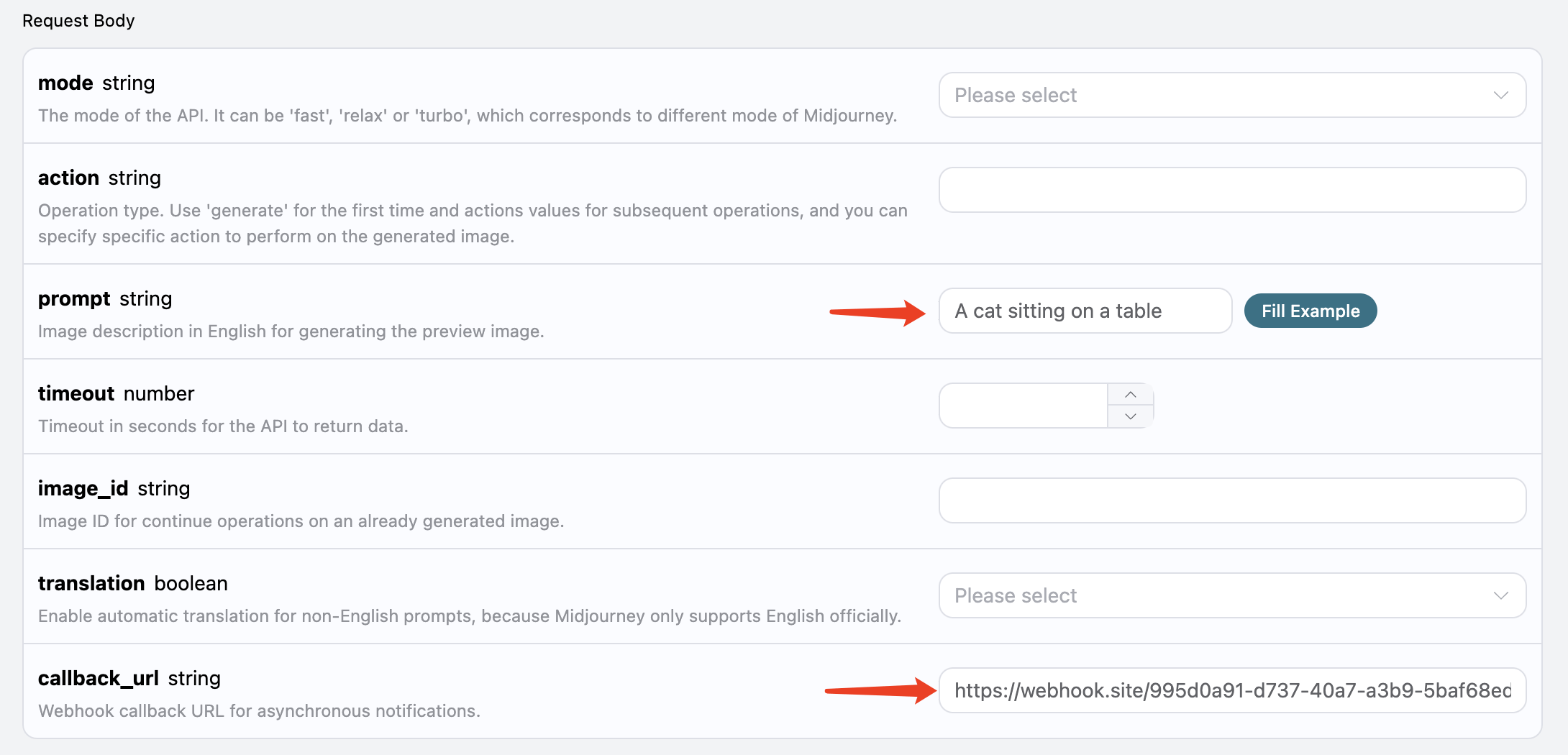
Copy this URL, and it can be used as a Webhook. The sample here is https://webhook.site/995d0a91-d737-40a7-a3b9-5baf68ed924c.
Next, we can set the field callback_url to the above Webhook URL and fill in prompt, as shown in the image:
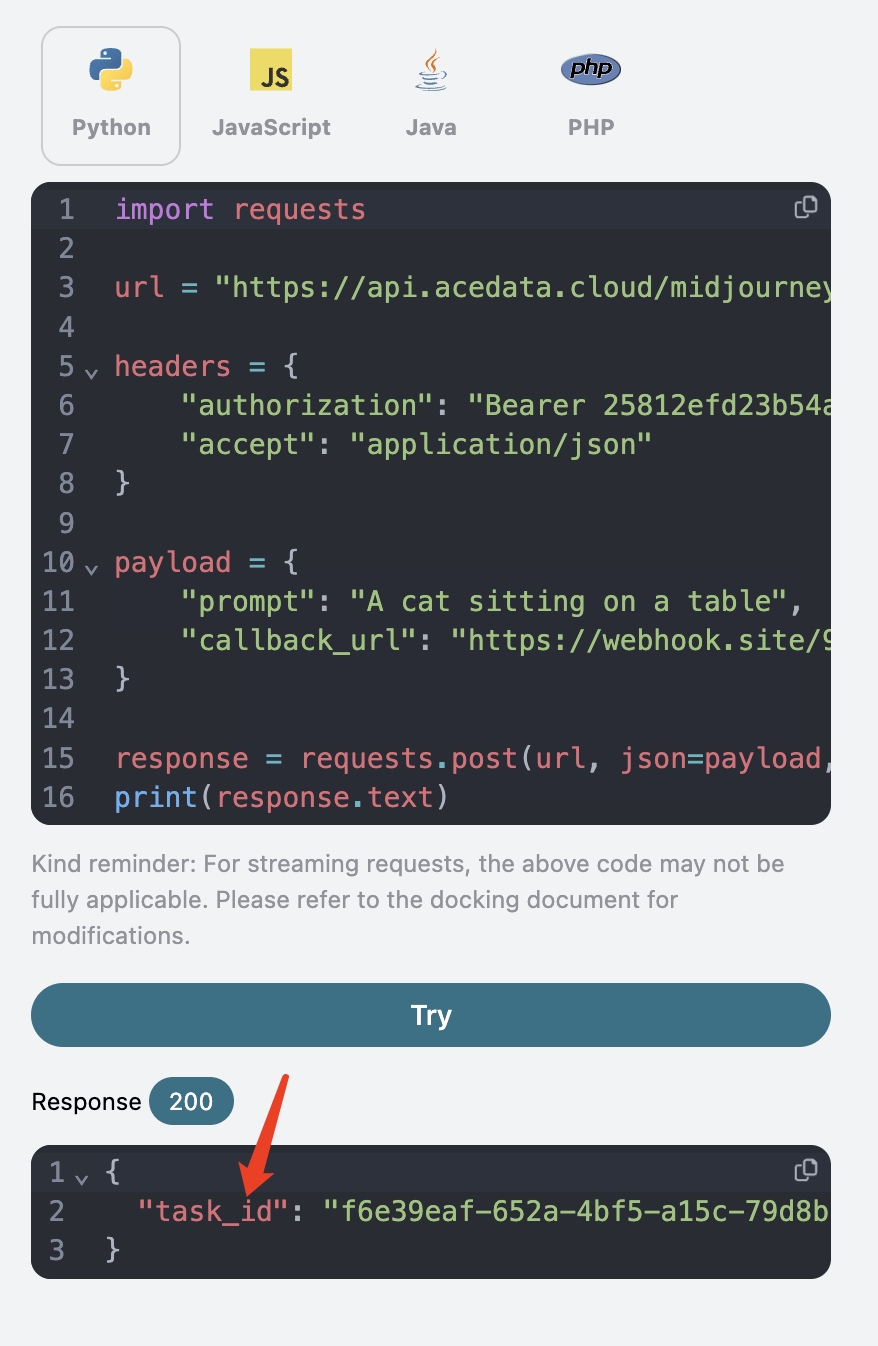
After clicking test, you will immediately receive a response with a task_id, which is used to identify the current generation task's ID, as shown in the image:
After a moment, when the image generation is complete, you will find that the Webhook URL has received an HTTP request, as shown in the image:
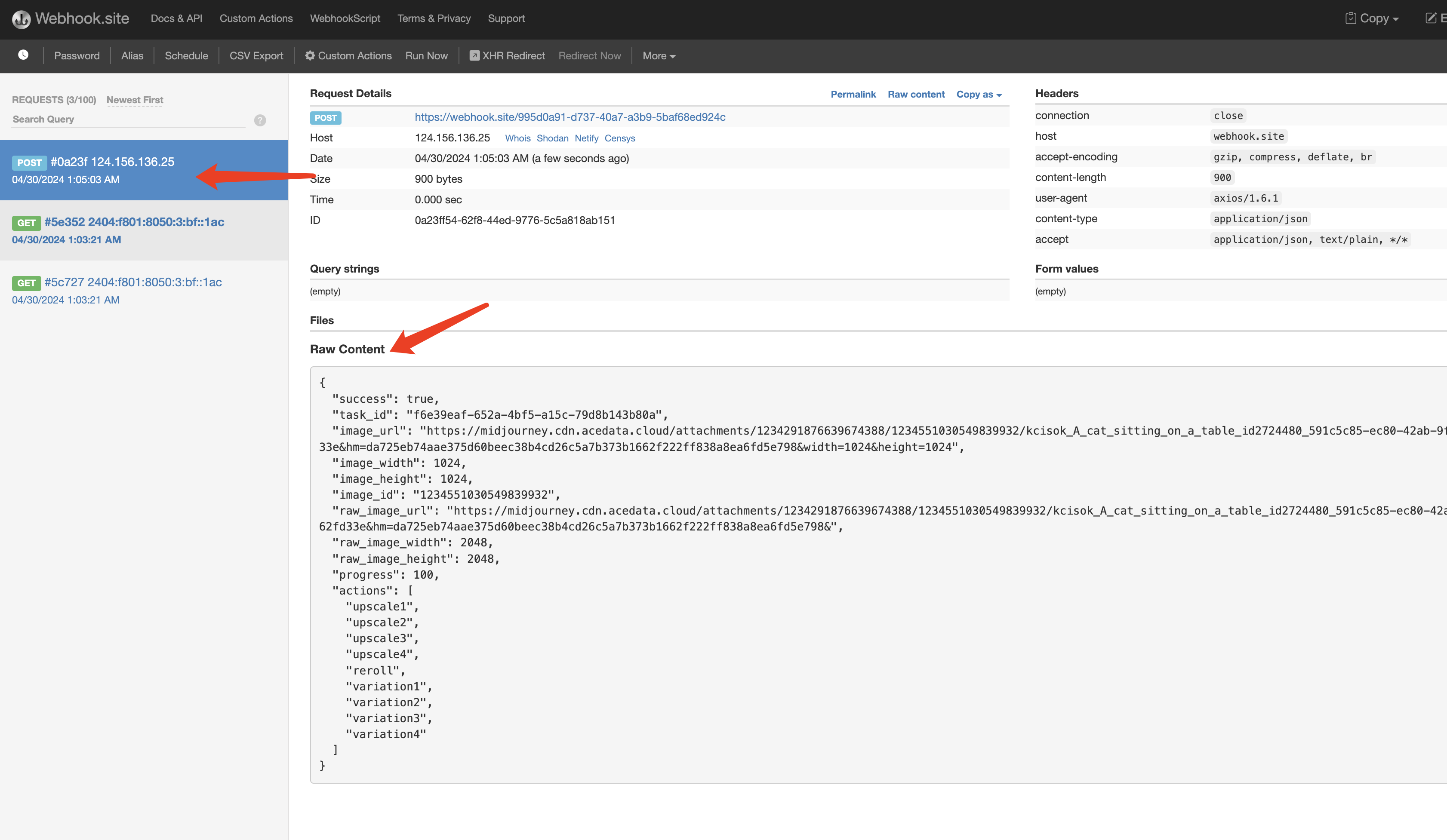
The result is the current task's result, as follows:
{
  "success": true,
  "task_id": "f6e39eaf-652a-4bf5-a15c-79d8b143b80a",
  "image_url": "https://midjourney.cdn.acedata.cloud/attachments/1234291876639674388/1234551030549839932/kcisok_A_cat_sitting_on_a_table_id2724480_591c5c85-ec80-42ab-9fe5-9adfbed192e4.png?ex=663124be&is=662fd33e&hm=da725eb74aae375d60beec38b4cd26c5a7b373b1662f222ff838a8ea6fd5e798&width=1024&height=1024",
  "image_width": 1024,
  "image_height": 1024,
  "image_id": "1234551030549839932",
  "raw_image_url": "https://midjourney.cdn.acedata.cloud/attachments/1234291876639674388/1234551030549839932/kcisok_A_cat_sitting_on_a_table_id2724480_591c5c85-ec80-42ab-9fe5-9adfbed192e4.png?ex=663124be&is=662fd33e&hm=da725eb74aae375d60beec38b4cd26c5a7b373b1662f222ff838a8ea6fd5e798&",
  "raw_image_width": 2048,
  "raw_image_height": 2048,
  "progress": 100,
  "actions": [
    "upscale1",
    "upscale2",
    "upscale3",
    "upscale4",
    "reroll",
    "variation1",
    "variation2",
    "variation3",
    "variation4"
  ]
}
The success field indicates whether the task was executed successfully. If successful, there will also be the same actions, image_id, and image_url fields, which are the same as the return results mentioned above. Additionally, there is a task_id to identify the task, allowing for the association of the Webhook result with the initial API request.
If the image generation fails, the Webhook URL will receive content similar to the following:
{
  "success": false,
  "task_id": "7ba0feaf-d20b-4c22-a35a-31ec30fc7715",
  "error": {
    "code": "bad_request",
    "message": "Unrecognized argument(s): `-c`, `x`"
  }
}
Here, the success field will be false, and there will also be error.code and error.message fields describing the details of the task error. The Webhook server can process according to the corresponding result.
¶ Streaming Output
Midjourney officially has progress when generating images. Initially, it is a blurry photo, and after several iterations, the image gradually becomes clear, ultimately resulting in a complete image.
Therefore, the process of generating an image can be roughly divided into the stages of "sending command" -> "starting image generation (multiple iterations gradually becoming clear)" -> "image generation complete."
Without enabling streaming output, this API, from initiating the request to returning the result, actually encompasses the entire process from "sending command" to "image generation complete," with the image generation process included. Since Midjourney itself generates images relatively slowly, the entire process may take about a minute or longer.
To improve user experience, this API supports streaming output, meaning that when "starting image generation," it begins to return results. Whenever there is a change in drawing progress, the results will be streamed until the image generation is complete.
If you want to return responses in a streaming manner, you can change the accept parameter in the request header to application/x-ndjson. However, the calling code needs to be modified accordingly to support streaming responses.
Python sample code:
import requests

url = 'https://api.acedata.cloud/midjourney/imagine'
headers = {
    'content-type': 'application/json',
    'accept': 'application/x-ndjson',
    'authorization': 'Bearer {token}'
}
body = {
    "prompt": "a beautiful cat --v 6"
}
r = requests.post(url, headers=headers, json=body, stream=True)
for line in r.iter_lines():
    print(line.decode())
Running result:
```json
{"image_url":"https://midjourney.cdn.acedata.cloud/attachments/1234291876639674388/1234558451443699803/eae94f0f-0ba5-4b3c-9bad-59fb33ac2cbc_grid_0.webp?ex=66312ba7&is=662fda27&hm=4625d5f12158bffc07c4faaf6ce75af6f1396122f148b33b91f3e20b48fecc8b&width=256&height=256","image_width":256,"image_height":256,"image_id":"1234558451443699803","raw_image_url":"https://midjourney.cdn.acedata.cloud/attachments/1234291876639674388/1234558451443699803/eae94f0f-0ba5-4b3c-9bad-59fb33ac2cbc_grid_0.webp?ex=66312ba7&is=662fda27&hm=4625d5f12158bffc07c4faaf6ce75af6f1396122f148b33b91f3e20b48fecc8b&","raw_image_width":512,"raw_image_height":512,"progress":35,"actions":[],"task_id":"49589d2c-b6b3-4fbf-9f82-93068509c76f","success":true}
{"image_url":"https://midjourney.cdn.acedata.cloud/attachments/1234291876639674388/1234558458595115149/eae94f0f-0ba5-4b3c-9bad-59fb33ac2cbc_grid_0.webp?ex=66312ba9&is=662fda29&hm=9af53fa645127131a88dfbb3930add7abda710c12a3d6c30c457d6a067b36bab&width=256&height=256","image_width":256,"image_height":256,"image_id":"1234558458595115149","raw_image_url":"https://midjourney.cdn.acedata.cloud/attachments/1234291876639674388/1234558458595115149/eae94f0f-0ba5-4b3c-9bad-59fb33ac2cbc_grid_0.webp?ex=66312ba9&is=662fda29&hm=9af53fa645127131a88dfbb3930add7abda710c12a3d6c30c457d6a067b36bab&","raw_image_width":512,"raw_image_height":512,"progress":75,"actions":[],"task_id":"49589d2c-b6b3-4fbf-9f82-93068509c76f","success":true}
{"image_url":"https://midjourney.cdn.acedata.cloud/attachments/1234291876639674388/1234558483408490566/kcisok_A_landscape_painting_of_a_beautiful_sunset_id5963392_eae94f0f-0ba5-4b3c-9bad-59fb33ac2cbc.png?ex=66312baf&is=662fda2f&hm=185ea8f130806bf8bd96911bd251808455fd65596edcdb459f9b3cfd7860387c&width=1024&height=1024","image_width":1024,"image_height":1024,"image_id":"1234558483408490566","raw_image_url":"https://midjourney.cdn.acedata.cloud/attachments/1234291876639674388/1234558483408490566/kcisok_A_landscape_painting_of_a_beautiful_sunset_id5963392_eae94f0f-0ba5-4b3c-9bad-59fb33ac2cbc.png?ex=66312baf&is=662fda2f&hm=185ea8f130806bf8bd96911bd251808455fd65596edcdb459f9b3cfd7860387c&","raw_image_width":2048,"raw_image_height":2048,"progress":100,"actions":["upscale1","upscale2","upscale3","upscale4","reroll","variation1","variation2","variation3","variation4"],"task_id":"49589d2c-b6b3-4fbf-9f82-93068509c76f","success":true}
You can see that after enabling streaming output, the returned result is JSON line by line.
In a Node.js environment, the implementation code can be written as follows:
const axios = require("axios");

const url = "https://api.acedata.cloud/midjourney/imagine";
const headers = {
  "content-type": "application/json",
  accept: "application/x-ndjson",
  authorization: "Bearer {token}",
};
const body = {
  prompt: "a beautiful cat --v 6",
  action: "generate",
};

axios
  .post(url, body, { headers: headers, responseType: "stream" })
  .then((response) => {
    console.log(response.status);
    response.data.on("data", (chunk) => {
      console.log(chunk.toString());
    });
  })
  .catch((error) => {
    console.error(error);
  });
The results of these examples are all similar.
Please note that there is a field called progress in the streaming output result, which indicates the generation progress, ranging from 0 to 100. If needed, you can display this information on the page.
Note: When the generation is not fully completed, the actions field is empty, indicating that further processing operations cannot be performed on the intermediate image. After the generation is complete, the image_url generated during the process will be destroyed.
Additionally, you can combine the streaming results with asynchronous callbacks by specifying the request header accept=application/x-ndjson and the request body callback_url, then the callback_url can receive multiple POST requests of streaming results.