
Midjourney Describe API Integration and Usage
The main function of the Midjourney Describe API is to obtain descriptions of images by uploading them. To use this API, you only need to provide the image file URL, and the API will return a detailed description of the image. No complicated parameter configuration is required to obtain high-quality image descriptions.
Supports multiple image formats: Whether JPEG, PNG, GIF, or other mainstream image formats, they can all be easily recognized and processed.
This document will provide a detailed introduction to the integration instructions for the Midjourney Describe API, helping you easily integrate and fully utilize the powerful capabilities of this API. With the Midjourney Describe API, you can easily automate image descriptions and improve business efficiency.
¶ Application Process
To use the Midjourney Describe API, first go to the Ace Data Cloud Console to obtain your API Token and keep it for later use.

If you have not yet logged in or registered, you will be automatically redirected to the login page to register and log in, and you will automatically return to the current page after completion.
One API Token can call all services on the platform; there is no need to apply separately for each service. Your first application comes with free credits for a free trial; when credits are insufficient, you can top up your general balance in the console.
📘 Full documentation: Midjourney Describe API →
¶ Request Example
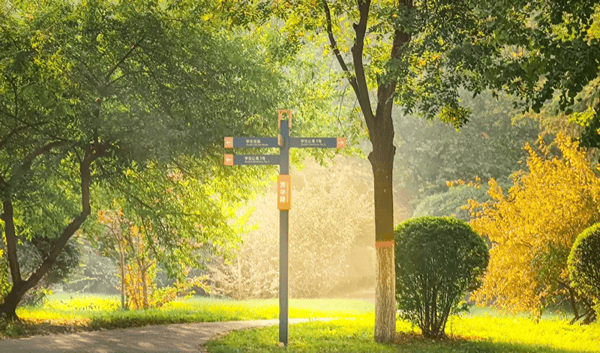
We will use an image as an example to demonstrate how to use this API. Suppose we have a landscape image; next, we will demonstrate how to upload this image and obtain its description.
¶ Request Example Image
¶ Set Request Headers and Request Body
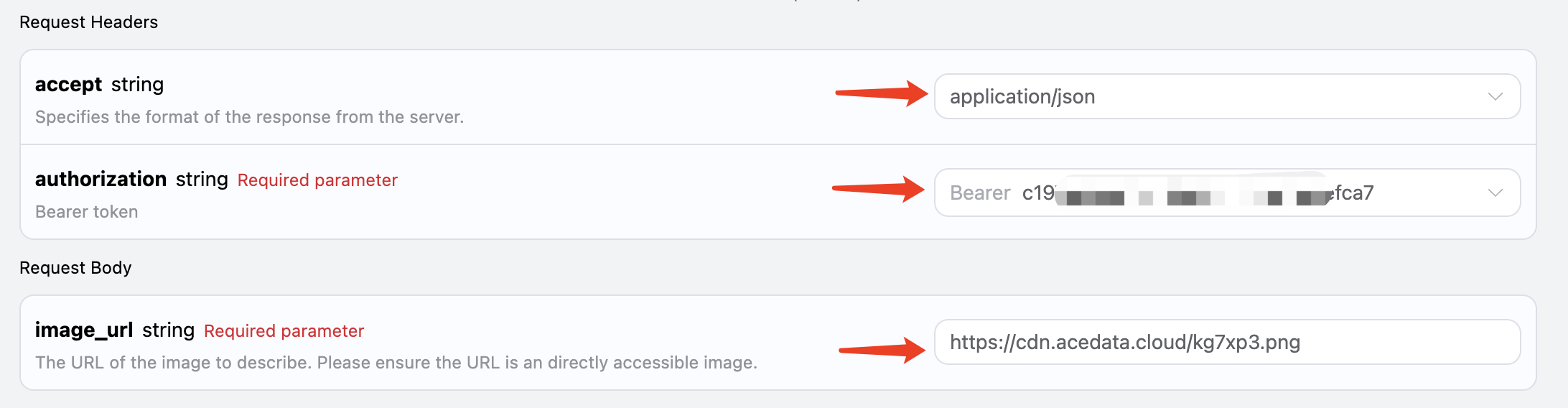
Request Headers include:
accept: Specifies that the response result should be received in JSON format; enterapplication/jsonhere.authorization: The key for calling the API, which can be directly selected from the dropdown after applying.
Request Body includes:
image_url: The URL of the uploaded image file.
Set it as shown in the following image:
¶ Code Example
You can see that code in various languages has already been automatically generated on the right side of the page, as shown in the image:
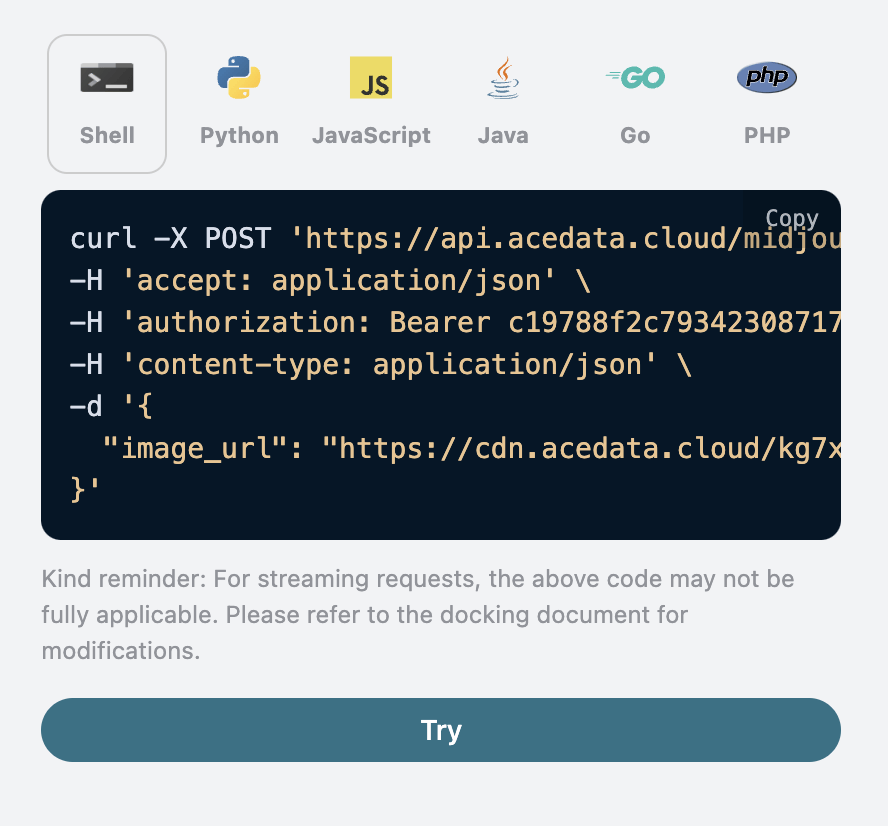
Some code examples are as follows:
¶ CURL
curl -X POST 'https://api.acedata.cloud/midjourney/describe' \
-H 'accept: application/json' \
-H 'authorization: Bearer {token}' \
-H 'content-type: application/json' \
-d '{
  "image_url": "https://cdn.acedata.cloud/kg7xp3.png"
}'
¶ Python
import requests

url = "https://api.acedata.cloud/midjourney/describe"

headers = {
    "accept": "application/json",
    "authorization": "Bearer {token}",
    "content-type": "application/json"
}

payload = {
    "image_url": "https://cdn.acedata.cloud/kg7xp3.png"
}

response = requests.post(url, json=payload, headers=headers)
print(response.json())
¶ Response Example
After the request succeeds, the API will return 4 description entries for the image. For example:
{
  "descriptions": [
    "A cross-shaped road sign stands in the middle of an outdoor park, surrounded by trees and grasslands. The background is sunny with warm colors. There is sunlight shining through the leaves onto part of it. On one side of that street post there was also another sign with the lettering \"Kunming Park\", which looked very beautiful. This photo shows how wonderful nature can be. It gives people feelings like relaxation or tranquility in the style of nature. --ar 75:44",
    "A photo of a \"K鬥\" road sign in the park, with trees and grass on both sides. In front is a light yellow metal pole with two signs attached to it. The background features sunlight shining through green leaves onto one side of the street, creating a warm atmosphere. There is also water mist floating around. It was taken in the style of Sony A7R IV camera using Leica M lens. This scene conveys tranquility and harmony between nature and human creation. --ar 75:44",
    "A cross-shaped street sign stands in the middle of an open park, surrounded by trees and grassland. The sun shines through the leaves on part of it, creating a warm light effect. In front is a road leading to another green space. There's also some information about \"Inside Shilin Park\" on one side of that post. This scene gives people feelings of tranquility and harmony with nature. Natural lighting, 3D rendering in the style of Unreal Engine, Realistic photography style. --ar 75:44",
    "A cross-shaped signpost stands in the park, surrounded by lush trees and vibrant green grass under sunlight. Signs say \"VIDEO ANNattacks\" in an unknown language, creating an atmosphere of mystery and intrigue. The scene is captured with high-definition photography using Canon EOS R5 cameras, presenting a stunning visual effect that showcases intricate details in the style of modern photography. --ar 75:44"
  ]
}
As you can see, there is a descriptions field in the result, which contains four results, and each result is a candidate description.
¶ Error Handling
When calling the API, if an error occurs, the API will return the corresponding error code and information. For example:
400 token_mismatched: Bad request, possibly due to missing or invalid parameters.400 api_not_implemented: Bad request, possibly due to missing or invalid parameters.401 invalid_token: Unauthorized, invalid or missing authorization token.429 too_many_requests: Too many requests, you have exceeded the rate limit.500 api_error: Internal server error, something went wrong on the server.
¶ Error Response Example
{
  "success": false,
  "error": {
    "code": "api_error",
    "message": "fetch failed"
  },
  "trace_id": "2cf86e86-22a4-46e1-ac2f-032c0f2a4e89"
}
¶ Conclusion
Through this document, you have learned how to use the Midjourney Describe API for image descriptions. We hope this document helps you better integrate and use this API. If you have any questions, please feel free to contact our technical support team.