
Cline for VS Code Configuration Guide
¶ 1. Obtain an API Key
Open the Ace Data Cloud application list, enter an available application, and copy the API Key.

¶ 2. Configure Cline
Install and open Cline in VS Code, then enter the Provider configuration through the settings button in the Cline panel, and fill in:
| Field | Value |
|---|---|
| API Provider | OpenAI Compatible |
| Base URL | https://api.acedata.cloud/v1 |
| API Key | The API Key just copied |
| Model ID | The model ID currently provided by the Coding Plan |
| Custom Headers | Leave blank |
| Set Azure API version | Leave blank |
| Use Azure Identity Authentication | Disabled |
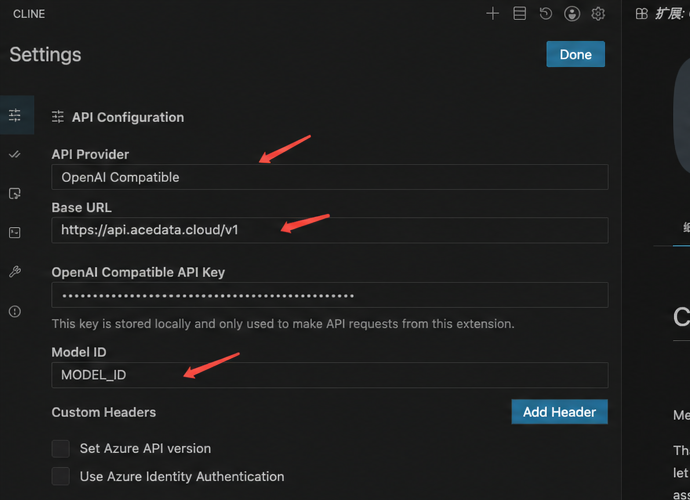
Keep the remaining model capability configurations as default for now; when images or a larger context are needed, adjust them according to the actual capabilities of the selected model.
¶ 3. Verify
After saving, create a new task and send Reply only OK. Then have Cline read a test file to confirm that the model supports tool calling; call records can be viewed in Usage History.
A 401 usually indicates an incorrect Key; a 404 usually indicates an incorrect Base URL or model ID. If the model can chat but cannot operate on files, check the tool calling capability of that model.