
Claude Desktop Third-Party Inference Gateway Configuration Guide
This guide configures the Third-Party Inference Gateway for Claude Desktop, not Claude Code, nor the MCP Connector of Claude Desktop.
¶ 1. Obtain an API Key
Open the Ace Data Cloud application list, enter an available application, and copy the API Key.

¶ 2. Open Third-Party Inference Configuration
On the Claude Desktop login page, open Help → Troubleshooting → Enable Developer Mode in sequence, then select Developer → Configure Third-Party Inference….
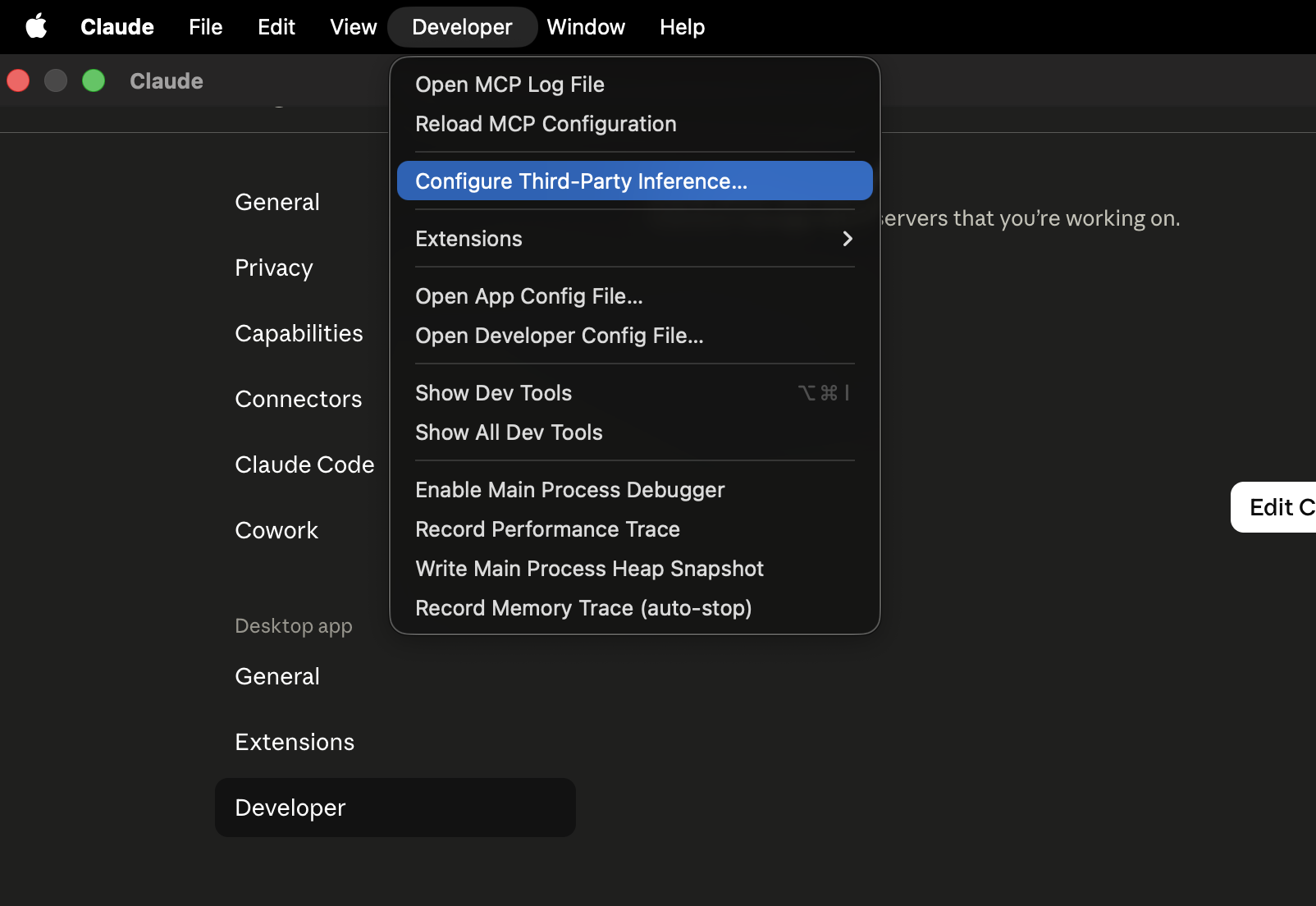
The image is from the Bifrost Apache-2.0 repository and is only used to locate the Claude Desktop menu; the interface may vary slightly between versions.
¶ 3. Configure the Gateway
Select Gateway, then fill in:
| Field | Value |
|---|---|
| Gateway base URL | https://api.acedata.cloud |
| Gateway API key | The API Key just copied |
| Gateway auth scheme | bearer |
| Credential kind | Static API key |
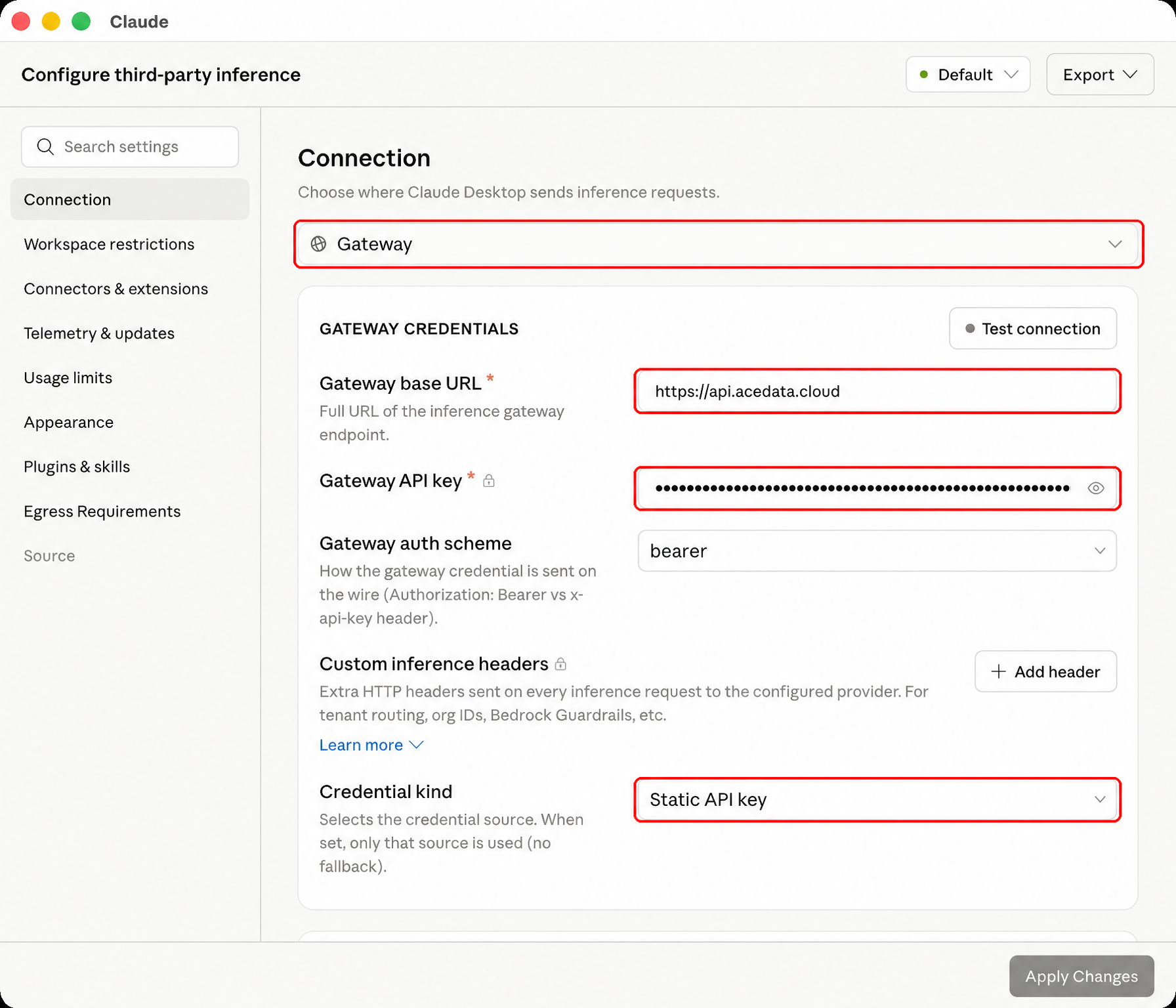
Click Apply Changes, then click Save & Restart.
¶ 4. Verify
After restarting, select an available model, create a new conversation, and send Reply only OK, then perform a simple tool task. Invocation records can be viewed in Usage History.
Ace Data Cloud Gateway supports /v1/models, Bearer-authenticated streaming /v1/messages, tool calling, and tool_result continuation used by Claude Desktop. Prompt caching fields are retained; cache write and read values both being 0 does not mean that a cache hit occurred.
A 401 usually means that the Key is incorrect; when a model cannot be found, recheck the configuration and fully restart Claude Desktop. When reporting an issue, provide the trace ID in the invocation records, and do not provide the API Key.
¶ Official References
- Claude Desktop Third-Party Inference Installation and Single-Machine Configuration
- Claude Desktop Third-Party Inference Configuration Reference
Return to the Claude App Integration Guide.