
Digital English Captcha Recognition API Integration Instructions
This document will introduce a Digital English Captcha Recognition API integration guide, which is based on deep learning technology and can be used to recognize variable-length English numeric captchas. It takes the content of the captcha image as input and outputs the captcha result.
¶ Application Process
To use the Digital English Captcha Recognition API, first go to the Ace Data Cloud Console to obtain your API Token for future use.

If you are not logged in or registered, you will be automatically redirected to the login page to invite you to register and log in. After completing this, you will be automatically returned to the current page.
One API Token can call all services on the platform without needing to apply separately for each service. The first application will grant a free quota for a trial experience; when the quota is insufficient, you can recharge the general balance in the console.
📘 Complete documentation: Digital English Captcha Recognition API →
¶ Basic Usage
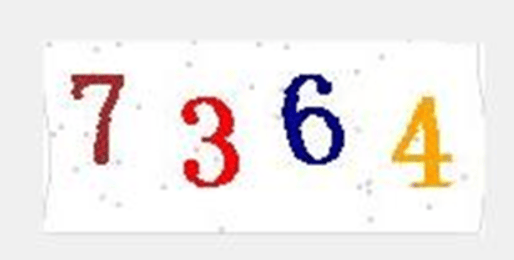
First, understand the basic usage, which is to input the variable-length English numeric captcha image that needs to be processed to obtain the processed result. You need to simply pass a field called image, which is the specific English numeric captcha image, as shown in the figure:
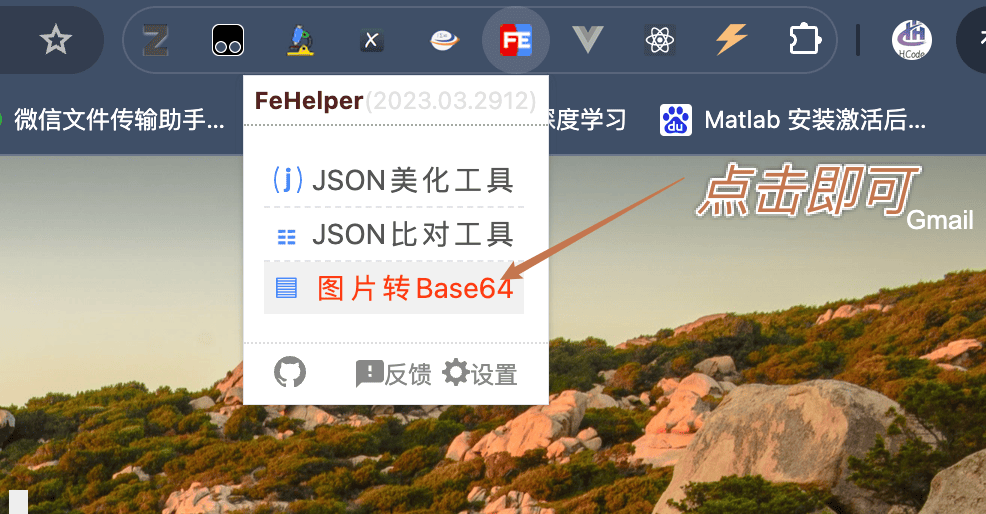
Then we need to convert the captcha image to a Base64 encoded captcha image. It is recommended to use the Google Chrome extension FeHelper for the conversion. The specific usage method can refer to the following images:

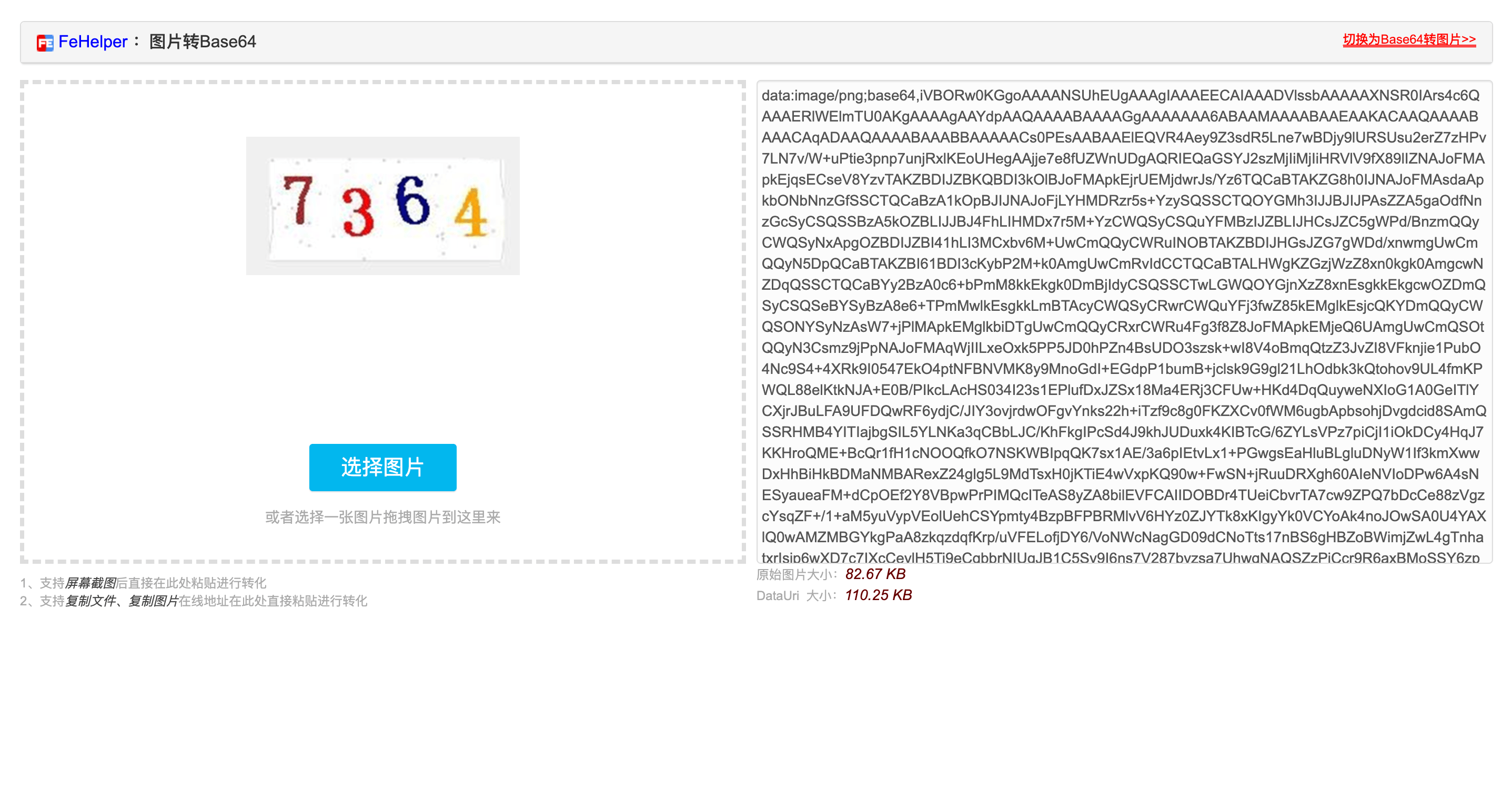
After that, you can copy the Base64 encoding obtained from the Google Chrome extension FeHelper, remembering that it does not include the prefix data:image/png;base64. The specific content is as follows:
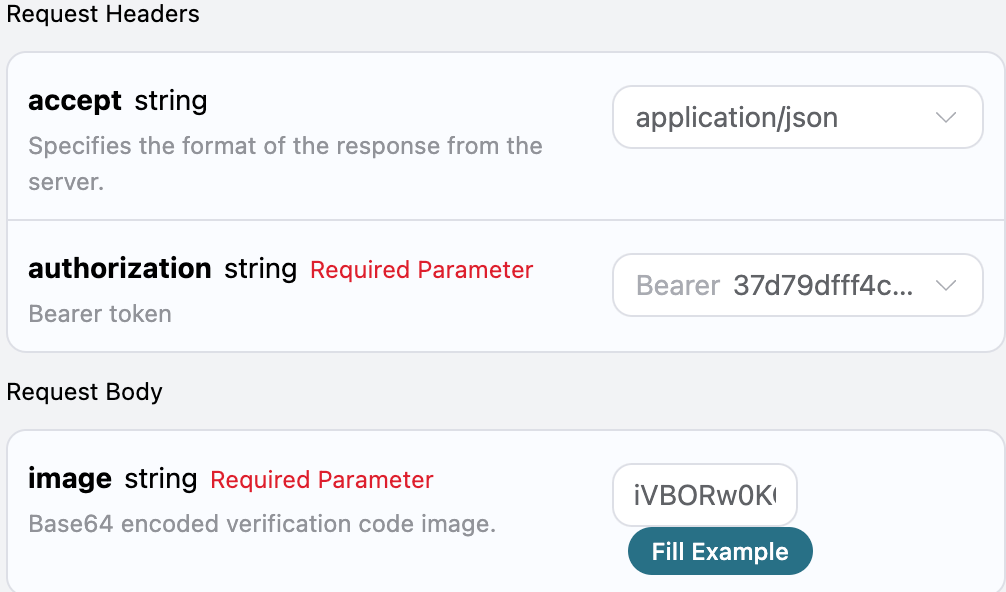
Here we can see that we have set the Request Headers, including:
accept: the format of the response result you want to receive, here filled in asapplication/json, which means JSON format.authorization: the key to call the API, which can be directly selected after application.
Additionally, we set the Request Body, including:
image: the Base64 encoded captcha image (without the prefix data:image/png;base64).
After selection, you can find that the corresponding code is also generated on the right side, as shown in the figure:
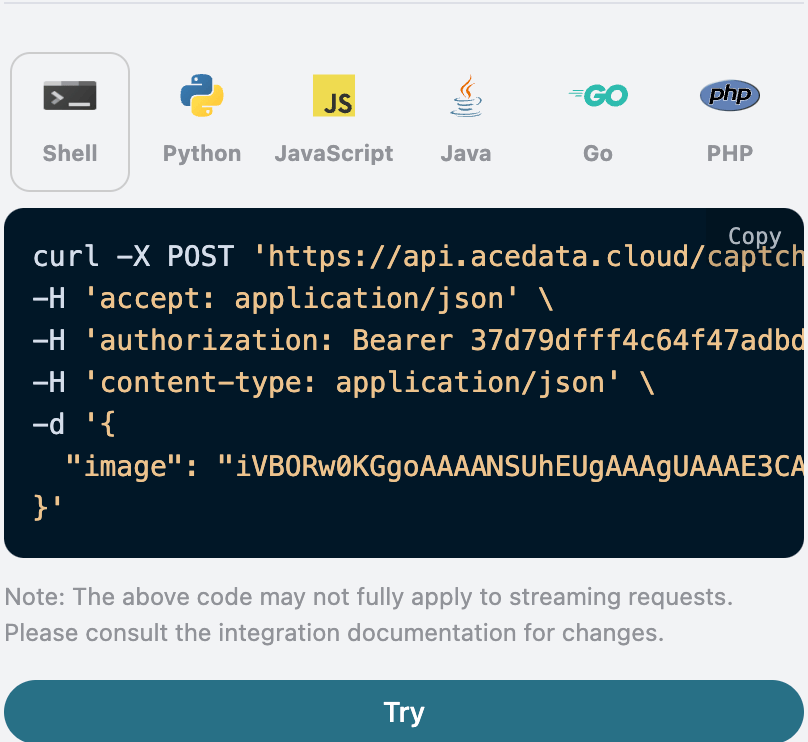
Click the "Try" button to test, as shown in the above figure, we obtained the following result:
{
  "text": "7364",
  "elapsed": 31.6
}
The returned result contains multiple fields, described as follows:
text: the text content after processing the variable-length English numeric captcha image task.started_at,finished_at: the time when this request started processing and produced results, in Unix timestamp (seconds, floating point).elapsed: the total time taken for this processing (seconds).
We can see that we obtained the verification result for processing the variable-length English numeric captcha image, and we only need to verify based on the text content in the text result.
Additionally, if you want to generate the corresponding integration code, you can directly copy the generated code, for example, the CURL code is as follows:
curl -X POST 'https://api.acedata.cloud/captcha/recognition/image2text' \
-H 'accept: application/json' \
-H 'authorization: Bearer {token}' \
-H 'content-type: application/json' \
-d '{
  "image": "iVBORw0KGgoAAAANSUhEUgAAAgUAAAE3CAYAAAA6xjI2AAAAAX..."
}'
The Python integration code is as follows:
import requests

url = "https://api.acedata.cloud/captcha/recognition/image2text"

headers = {
    "accept": "application/json",
    "authorization": "Bearer {token}",
    "content-type": "application/json"
}

payload = {
    "image": "iVBORw0KGgoAAAANSUhEUgAAAgUAAAE3CAYAAAA6xjI2AAAAAX..."
}

response = requests.post(url, json=payload, headers=headers)
print(response.text)
¶ Asynchronous Mode (async)
By default, the API is synchronous and blocking: a request will wait until the recognition result is processed before returning. If you are doing multi-solver rotation and want to "submit the task and immediately get the task_id, then schedule other solvers and come back later to read the result," you can pass async: true in the request body.
After passing async: true, the interface will immediately return a task_id without blocking:
curl -X POST 'https://api.acedata.cloud/captcha/recognition/image2text' \
-H 'accept: application/json' \
-H 'authorization: Bearer {token}' \
-H 'content-type: application/json' \
-d '{
  "image": "iVBORw0KGgoAAAANSUhEUgAAAgUAAAE3CAYAAAA6xjI2AAAAAX...",
  "async": true
}'
{
  "task_id": "61138bb6-19aa-11ec-a9c8-0242ac110002",
  "trace_id": "2efa9340-b21b-4e26-9e14-4aac95f343ab"
}
If you need to actively check the progress, you can use the task_id to query POST /captcha/tasks (recommended every 3-5 seconds). This interface will not trigger or advance task processing; even if you do not query, lose network connection, or exit the client, the server will continue processing:
curl -X POST 'https://api.acedata.cloud/captcha/tasks' \
-H 'accept: application/json' \
-H 'authorization: Bearer {token}' \
-H 'content-type: application/json' \
-d '{
  "task_id": "61138bb6-19aa-11ec-a9c8-0242ac110002"
}'
During processing, it will return status: processing:
{ "success": true, "task_id": "61138bb6-19aa-11ec-a9c8-0242ac110002", "status": "processing" }
When processing is complete, it will return status: ready and the recognition result text (the field structure is completely consistent with the synchronous mode):
{
  "success": true,
  "task_id": "61138bb6-19aa-11ec-a9c8-0242ac110002",
  "status": "ready",
  "text": "7364"
}
Billing explanation: In asynchronous mode, creating a task and reading the "processing" status are not charged; the client is charged once when it first reads the successful result (consistent with existing behavior and synchronous mode pricing). The server will autonomously advance the task, but will not charge in advance just because the background completes first. If the task is not successful within 120 seconds, it will terminate with HTTP 504 timeout, and no charge will be incurred. /captcha/tasks is not responsible for advancing tasks.
¶ Error Handling
When calling the API, if an error occurs, the API will return the corresponding error code and message. For example:
400 token_mismatched: Bad request, possibly due to missing or invalid parameters.400 api_not_implemented: Bad request, possibly due to missing or invalid parameters.401 invalid_token: Unauthorized, invalid or missing authorization token.429 too_many_requests: Too many requests, you have exceeded the rate limit.500 api_error: Internal server error, something went wrong on the server.
¶ Error Response Example
{
  "success": false,
  "error": {
    "code": "api_error",
    "message": "fetch failed"
  },
  "trace_id": "2cf86e86-22a4-46e1-ac2f-032c0f2a4e89"
}
¶ Conclusion
Through this document, you have learned how to use the digital English verification code recognition API, which can be used to recognize variable-length English numeric verification codes. Input the content of the verification code image, and output the verification code result. We hope this document can help you better integrate and use this API. If you have any questions, please feel free to contact our technical support team.