
Midjourney Imagine API Application and Usage
Midjourney is a very powerful AI image generation tool. As long as you enter keywords, it can generate highly exquisite images in just one or two minutes. Midjourney stands out in the industry with its outstanding image generation capabilities. Today, Midjourney has already been widely used across various industries and fields, and its influence is becoming increasingly significant.
This document mainly introduces the usage process of the Imagine operation in the Midjourney API. With it, we can easily generate the images we need through text.
¶ Application Process
To use the Midjourney Imagine API, first go to the Ace Data Cloud Console to obtain your API Token and keep it for later use.

If you have not logged in or registered yet, you will be automatically redirected to the login page to register and log in. After completion, you will automatically return to the current page.
One API Token can call all platform services, without needing to apply separately for each service. Your first application will include free credits for a free trial; when credits are insufficient, you can top up your general balance in the Console.
📘 Full documentation: Midjourney Imagine API →
¶ Basic Usage
¶ Billing Details
Successful generations or transformations deduct Credits per request. The fast / relax / turbo tiers for standard generation are 0.401 / 0.168 / 0.801 Credits, respectively; standard transformations (such as variation and reroll) use the same tiers. The extraction upscale prices for upscale1–upscale4 are 0.12 / 0.078 / 0.24 Credits, respectively. Please refer to the API pricing table for other upscale operations.
fast generation must also be differentiated by version and specification:
| Specification | Credits / Successful Request |
|---|---|
| V8.1 SD | 0.401 |
| V8.1 HD | 0.801 |
| V8 HD, quality=4, style reference, or moodboard | 1.602 |
| V8 using both HD and quality=4 | 6.408 |
| V8.2 HD (quality omitted, 1, or 2) | 0.801 |
| HD generation without specifying version | 0.801 |
V8.2 HD images also cost 0.801 Credits when performing variation_subtle in fast mode; upscale1–upscale4 still use the extraction upscale pricing. When continuing operations on historical images, the mode and image specifications are subject to the actual execution result and may inherit from the original image; passing mode=relax this time will not change the original image's fast operation to relax pricing.
Please keep request fields such as version, hd, and quality consistent with the corresponding parameters in the prompt. V8.2 HD generation is billed at the HD tier and does not require setting quality=2 at the same time; setting only quality=2 without enabling HD still costs 0.401 Credits.
Next, you can fill in the corresponding content on the interface, as shown in the image:
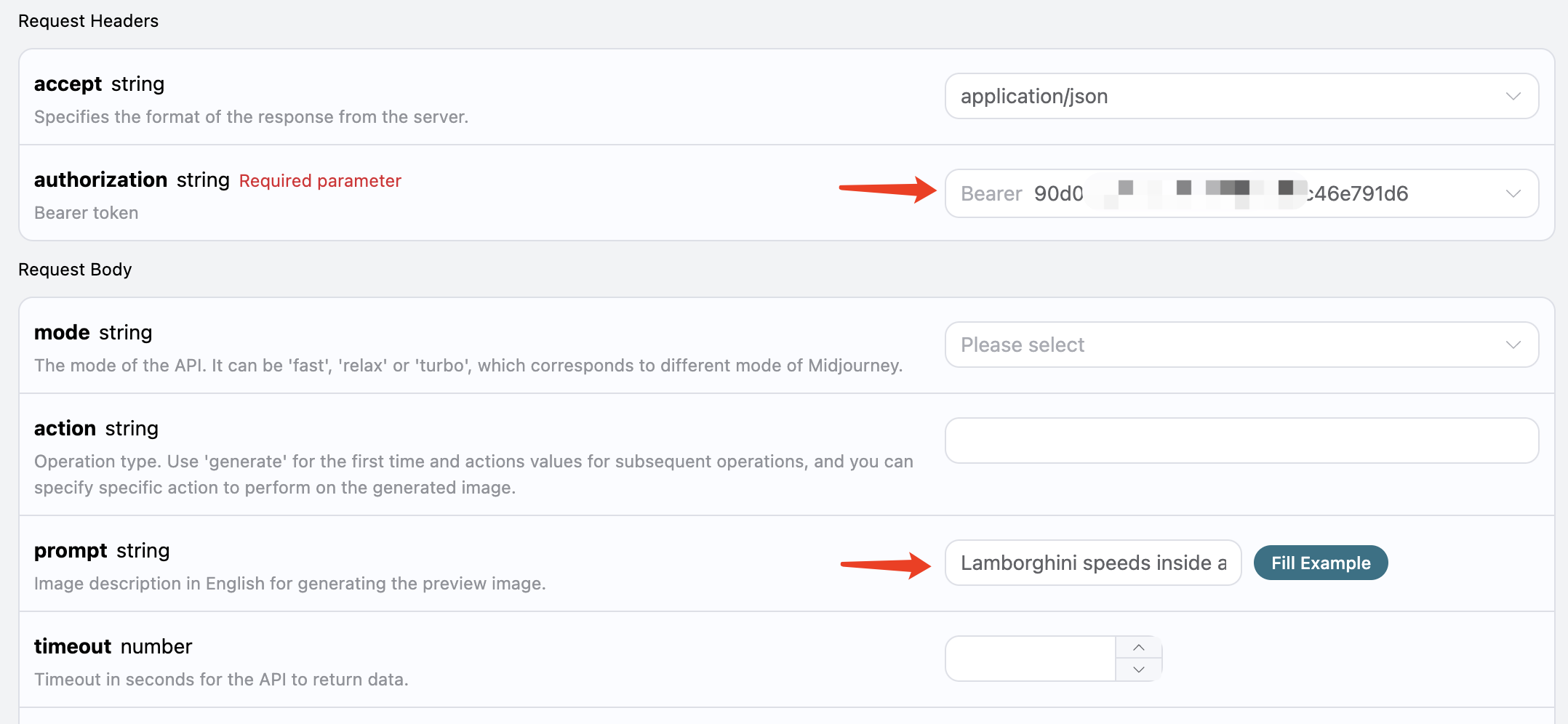
When using this API for the first time, we need to fill in at least two items. One is authorization, which can be directly selected from the dropdown list. The other parameter is prompt; prompt is the image description content we want to generate. It is recommended to describe it in English, as the generated image will be more accurate and have better results. Here we use the example content Lamborghini speeds inside a volcano, representing drawing a Lamborghini speeding inside a volcano.
At the same time, you can notice that there is corresponding call code generated on the right. You can copy the code and run it directly, or click the “Try” button directly for testing.
Main request parameters:
prompt: Image description words (supports automatic translation).mode: Generation mode, options includefast/relax/turbo, with fast as the default. V8.2 supports all three modes; V8.1 only supportsfastandrelax.version: Model version; the latest V8.2 is recommended. V8.2 supportsqualityand HD; V8.1 does not supportqualityand uses SD/HD resolution tiers.timeout: Timeout period (seconds); it returns directly after a timeout.translation: Whether to automatically translate non-English prompts.split_images: Whether to split the 2x2 result and return individual images.action/image_id: Must be specified when continuing operations on historical images.callback_url: Asynchronous callback address.async: Optional. When set totrue, the API immediately returns atask_id; there is no need to providecallback_url, and results can then be obtained by polling through the corresponding task query API.

After the call, we find that the returned result is as follows:
{
  "image_url": "https://cdn.acedata.cloud/e724d7f13d.png",
  "image_width": 1024,
  "image_height": 1024,
  "image_id": "1234197197067915365",
  "raw_image_url": "https://cdn.acedata.cloud/e724d7f13d.png",
  "raw_image_width": 2048,
  "raw_image_height": 2048,
  "progress": 100,
  "actions": [
    "upscale1",
    "upscale2",
    "upscale3",
    "upscale4",
    "reroll",
    "variation1",
    "variation2",
    "variation3",
    "variation4"
  ],
  "task_id": "1bae3bec-3ac4-4180-a148-74ee6cb68b98",
  "success": true
}
The returned result contains multiple fields, described as follows:
task_id: The ID of the task that generated this image, used to uniquely identify this image generation task.image_id: The unique identifier of the image. This parameter needs to be passed when performing transformation operations on the image next time.image_url: The URL of the thumbnail. Open it directly to view the generated result.image_width: The pixel width of the thumbnail.image_height: The pixel height of the thumbnail.raw_image_url: The URL of the original image. Its content is the same as the thumbnail, but it is higher definition than the thumbnail and loads more slowly.raw_image_width: The pixel width of the original image.raw_image_height: The pixel height of the original image.actions: A list of further operations that can be performed on the generated image. A total of 8 are listed here, whereupscalerepresents enlargement andvariationrepresents transformation. Therefore,upscale1represents enlarging the first image in the upper left corner, whilevariation3represents performing a transformation based on the third image in the lower left corner.
Open the link corresponding to image_url or raw_image_url, and you can see as shown in the image.

As you can see, a 2x2 preview image has been generated here. At this point, the first API call is complete.
¶ Image Upscaling and Transformation
Next, we try to perform further operations on the currently generated photos. For example, we think the second image in the upper-right corner is pretty good, but we want to make some transformation adjustments. Then we can further set action to variation2, while passing image_id:
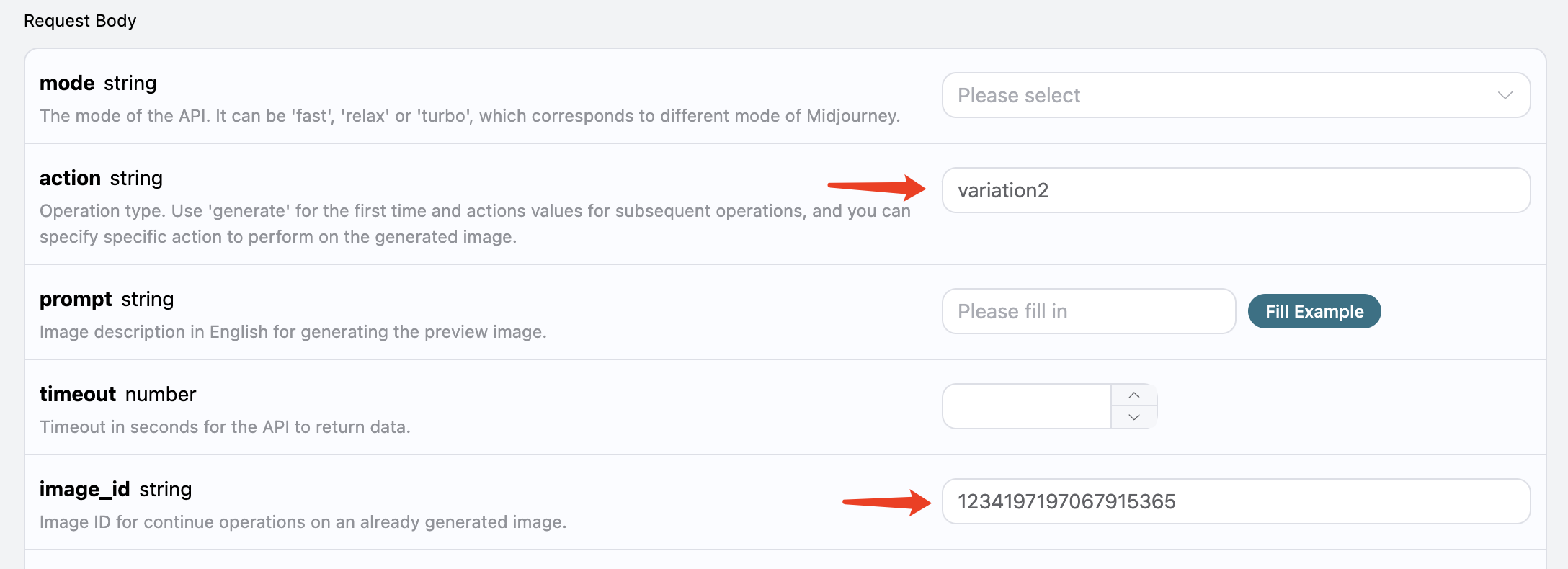
The result obtained at this time is as follows:
{
  "image_url": "https://cdn.acedata.cloud/e724d7f13d.png",
  "image_width": 1024,
  "image_height": 1024,
  "image_id": "1234201336543969401",
  "raw_image_url": "https://cdn.acedata.cloud/e724d7f13d.png",
  "raw_image_width": 2048,
  "raw_image_height": 2048,
  "progress": 100,
  "actions": [
    "upscale1",
    "upscale2",
    "upscale3",
    "upscale4",
    "reroll",
    "variation1",
    "variation2",
    "variation3",
    "variation4"
  ],
  "task_id": "f4961620-1104-409f-9dc1-ba3ed15c2f4d",
  "success": true
}
Open image_url, and the newly generated images are shown below:
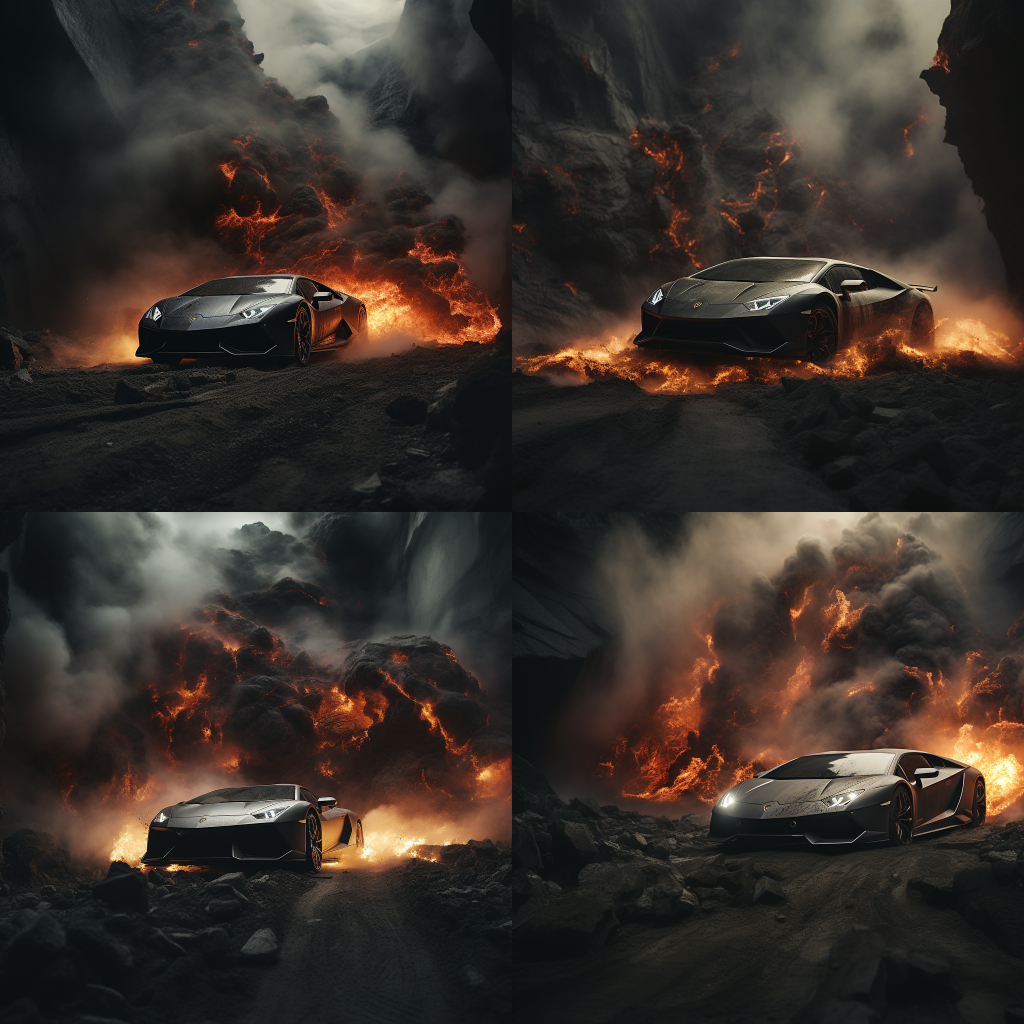
It can be seen that, based on the previous image in the upper-right corner, we once again obtained four similar photos.
At this time, we can select one of them for a refined upscaling operation. For example, if we select the fourth one, then we can pass upscale4 into action, and pass the ID of the current image again through image_id.

Note: Compared with the
variationoperation, Midjourney takes less time for theupscaleoperation.
The returned result is as follows:
{
  "image_url": "https://cdn.acedata.cloud/e724d7f13d.png",
  "image_width": 512,
  "image_height": 512,
  "image_id": "1234202545208033400",
  "raw_image_url": "https://cdn.acedata.cloud/e724d7f13d.png",
  "raw_image_width": 1024,
  "raw_image_height": 1024,
  "progress": 100,
  "actions": [
    "upscale_2x",
    "upscale_4x",
    "variation_subtle",
    "variation_strong",
    "zoom_out_2x",
    "zoom_out_1_5x",
    "pan_left",
    "pan_right",
    "pan_up",
    "pan_down"
  ],
  "task_id": "03f62b17-a6f1-4c8e-9b4d-1fc7bd5b1180",
  "success": true
}
The image_url is shown in the image below:

In this way, we successfully obtained an image of a Lamborghini.
At the same time, notice that actions contains several more available operations, introduced as follows:
upscale_2x: Enlarge the image by 2 times to obtain a 2x high-definition image.upscale_4x: Enlarge the image by 4 times to obtain a 4x high-definition image.zoom_out_2x: Reduce the image by two times (surrounding areas are filled).zoom_out_1_5x: Reduce the image by 1.5 times (surrounding areas are filled).pan_left: Shift the image to the left.pan_right: Shift the image to the right.pan_up: Shift the image upward.pan_down: Shift the image downward.
You can continue to pass the corresponding transformation instructions according to the above process to perform continuous image generation operations.
¶ Image Rewriting (Image Prompting)
This API also supports image rewriting, commonly known as image prompting. We can input an image URL and the descriptive text to be rewritten, and the API can return the rewritten image.
Note: The input image URL needs to be a direct image file. It cannot be a web page displaying an image; otherwise, image rewriting cannot be performed. It is recommended to use an image hosting service to upload and obtain the image URL.
For example, here we have an image of a sunset on a highway, with some trees and buildings beside the road, as shown below:
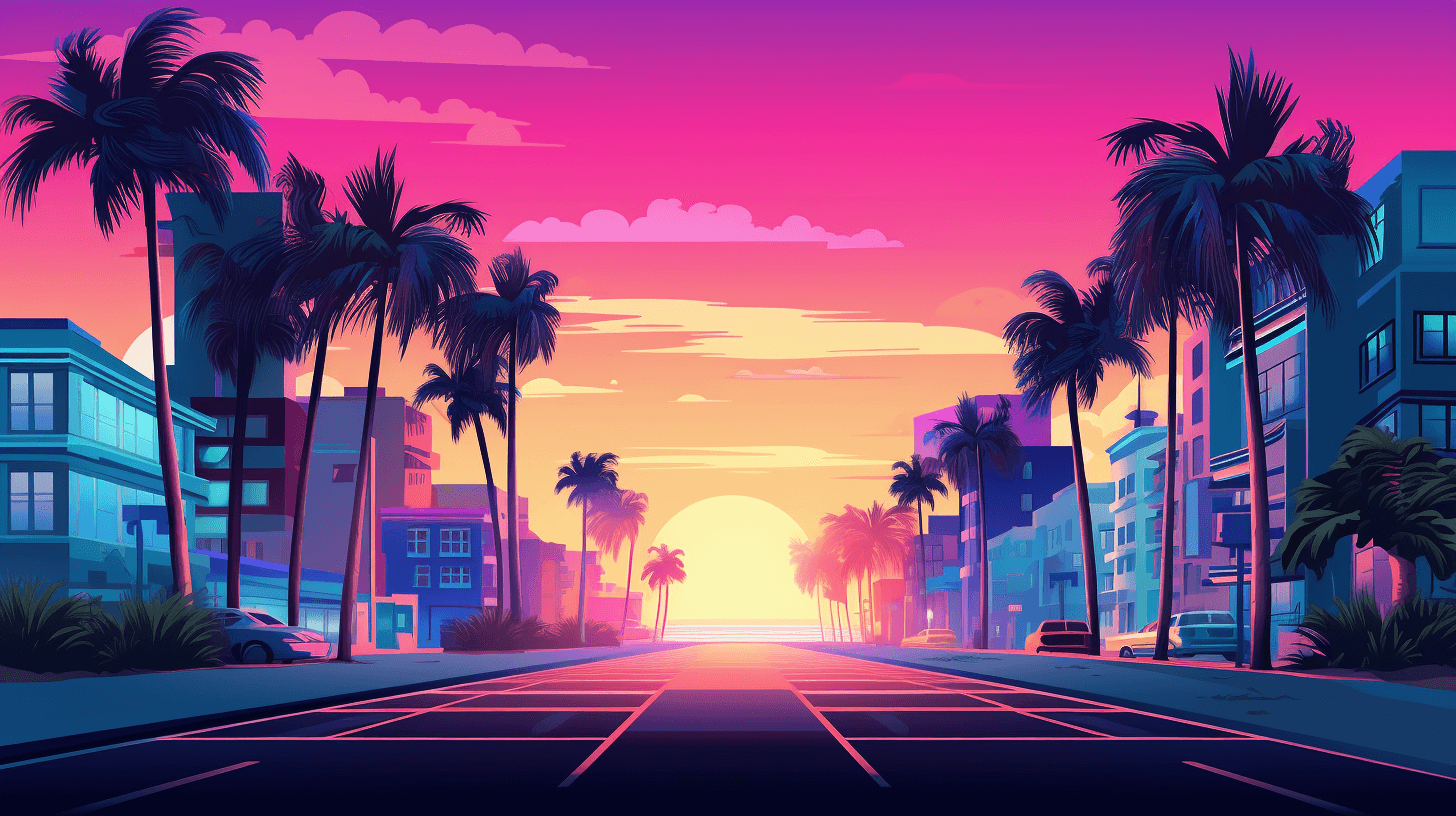
Now we want to rewrite it based on this image into a scene beside a beach, while placing a car parked by the roadside. We can construct the following prompt:
https://cdn.acedata.cloud/v014oc.png an illustration of a car parked on the beach --iw 2
It can be seen that the very beginning of our prompt is an image link starting with HTTPS, followed by a space, and then the text content of the prompt. Here we also used some additional advanced parameters, such as —iw 2, to adjust the image weight.
We can pass the above content as a whole to the prompt field, as shown below:

The output result is as follows:
{
  "image_url": "https://cdn.acedata.cloud/e724d7f13d.png",
  "image_width": 1456,
  "image_height": 816,
  "image_id": "1234539663515975690",
  "raw_image_url": "https://cdn.acedata.cloud/e724d7f13d.png",
  "raw_image_width": 2912,
  "raw_image_height": 1632,
  "progress": 100,
  "actions": [
    "upscale1",
    "upscale2",
    "upscale3",
    "upscale4",
    "reroll",
    "variation1",
    "variation2",
    "variation3",
    "variation4"
  ],
  "task_id": "24a79e8b-a79d-471a-aef7-089dc0627ee8",
  "success": true
}
At this time, we obtain the following generated images:

It can be seen that, while maintaining the overall style and composition of the original image, the entire scene has changed to beside a beach, and cars have also appeared on the road. This is Prompt with Image.
¶ Image Blending
This API also supports image blending. We can pass multiple images to achieve different image blending effects.
For example, here we have two images in total: one is a teddy bear, and the other is a chainsaw, respectively shown below:
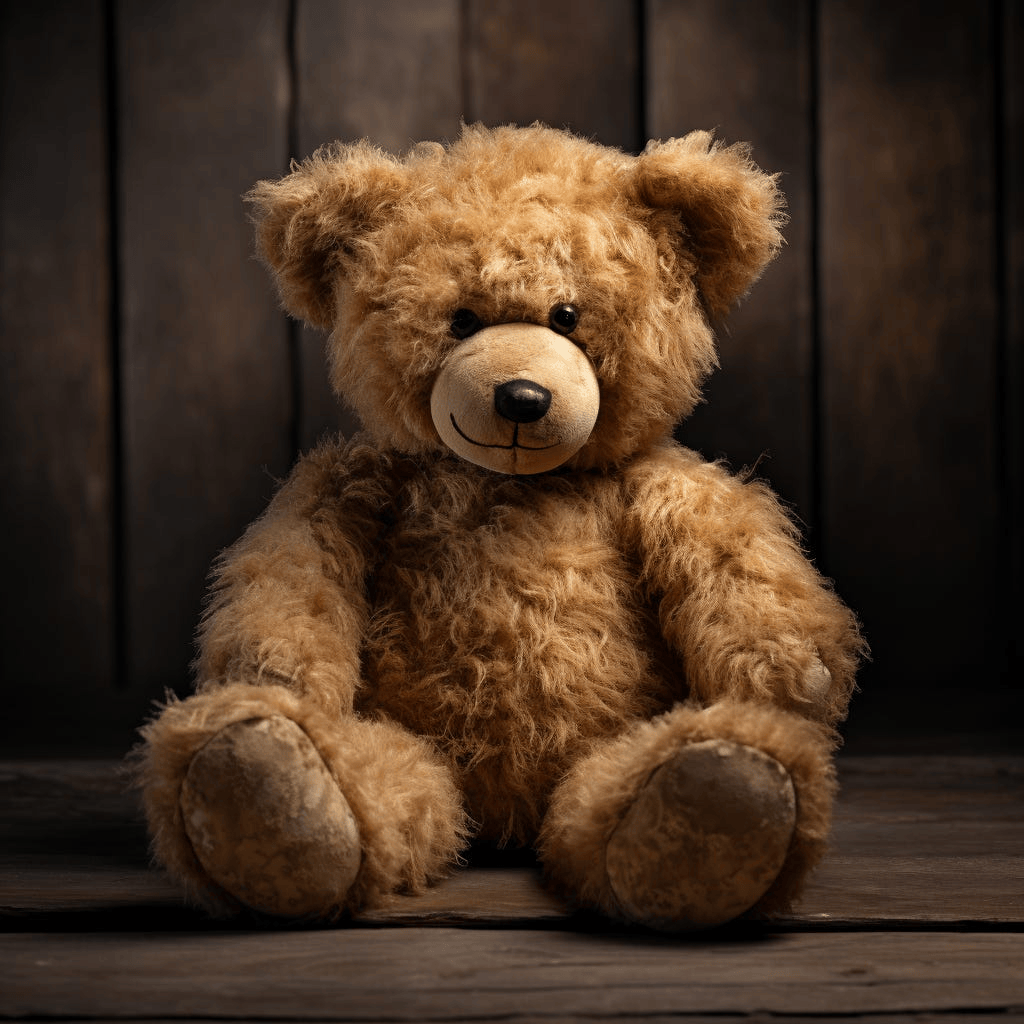
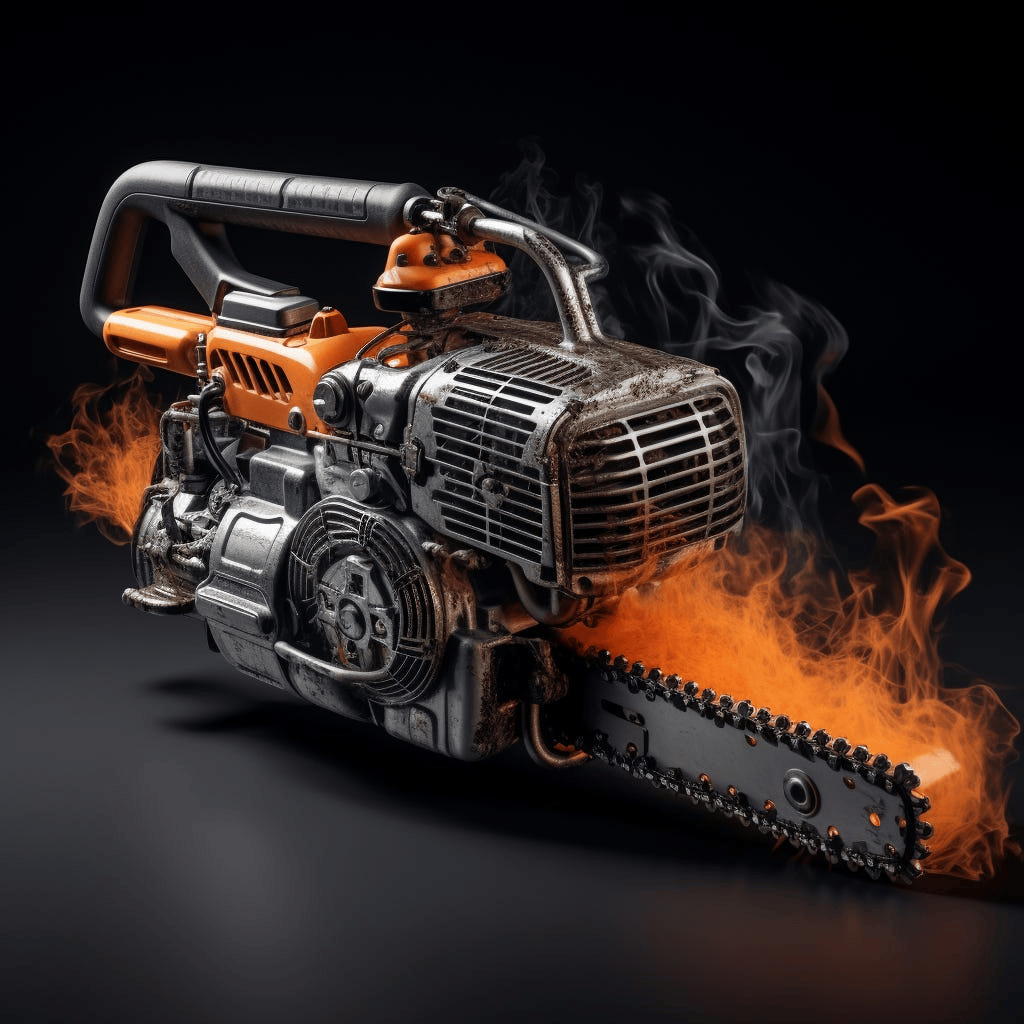
Now we want to blend the two together and have this bear hold this chainsaw. How do we do that?
We can construct the following prompt:
https://cdn.acedata.cloud/8fapzl.png https://cdn.acedata.cloud/c1igbw.png The bear is holding the chainsaw --iw 2
It can be found that, similar to Image with Prompt, here we place multiple image URLs at the beginning of the prompt, separated by spaces, and finally add the text prompt. Pass the above content as a whole to the prompt parameter, and the running effect is as follows:
{
  "image_url": "https://cdn.acedata.cloud/e724d7f13d.png",
  "image_width": 1024,
  "image_height": 1024,
  "image_id": "1234547236830973972",
  "raw_image_url": "https://cdn.acedata.cloud/e724d7f13d.png",
  "raw_image_width": 2048,
  "raw_image_height": 2048,
  "progress": 100,
  "actions": [
    "upscale1",
    "upscale2",
    "upscale3",
    "upscale4",
    "reroll",
    "variation1",
    "variation2",
    "variation3",
    "variation4"
  ],
  "task_id": "891f2645-ee15-4c7b-ac24-d98163c8e57e",
  "success": true
}
Then we get the following result:
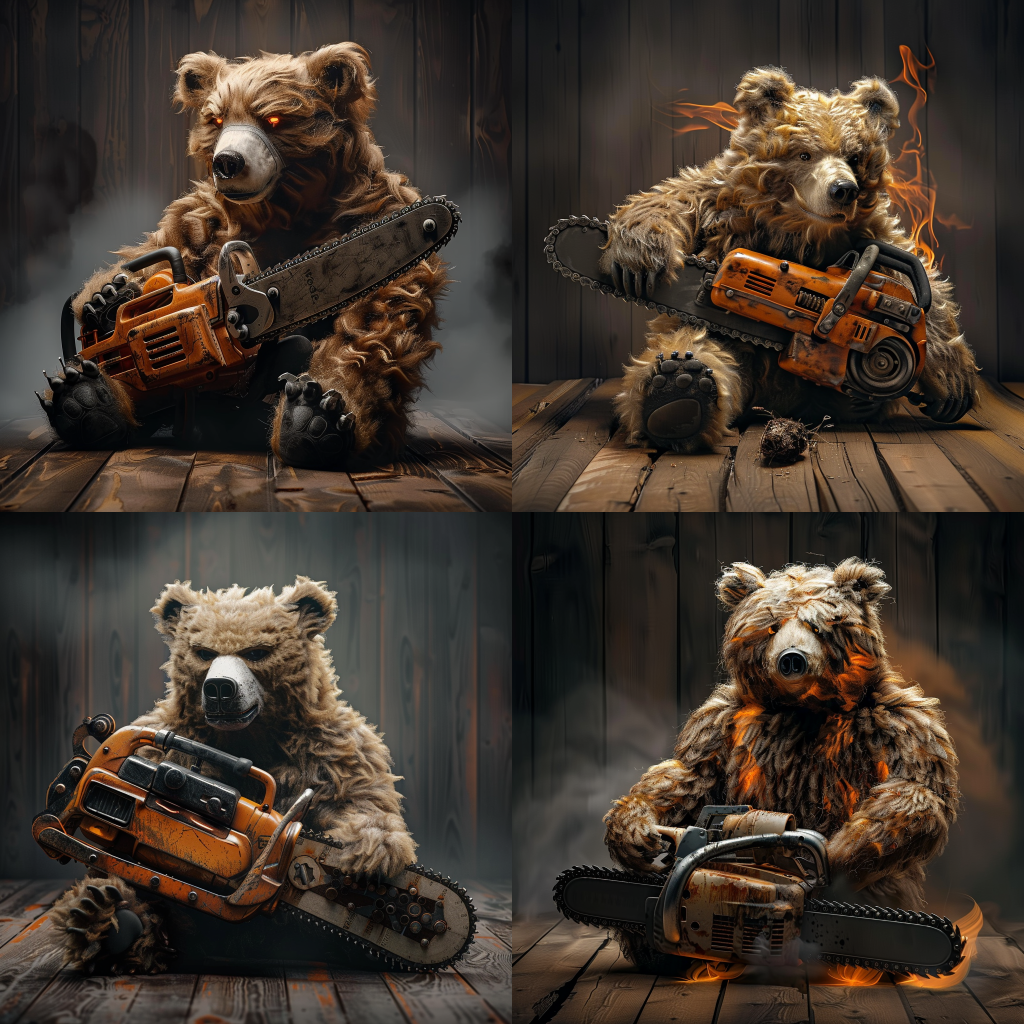
As you can see, we have successfully implemented image blending.
Note: Image blending supports up to 5 image URLs as input, that is, it supports blending up to 5 images. The input format is the same as above.
¶ Local Transformation
This API also supports the local drawing function of images, but it only supports images generated under the above content. We can pass in the unique ID of a generated image, the local redrawing behavior parameter action, and the mask of the area that needs to be redrawn, in order to redraw in the mask area.
For example, here we have an image generated about a cat:
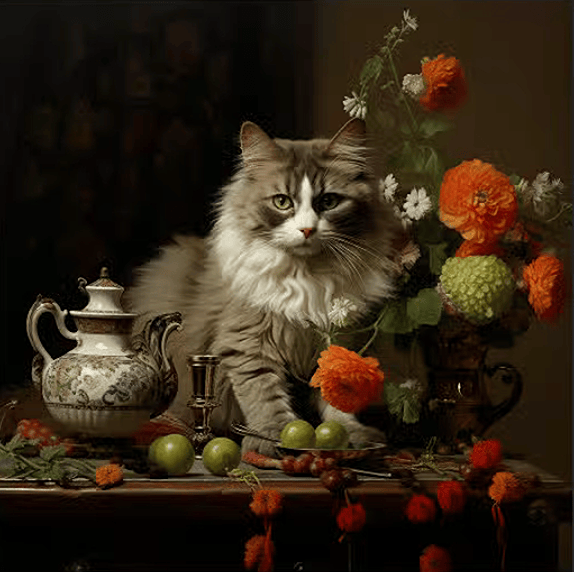
Now we want to redraw this cat face. How do we do it?
First, we need to obtain the mask of this area. This mask is obtained by Base64 encoding a grayscale image. Some tool code for obtaining the mask is provided below:
Python example code for obtaining a mask:
import sys
import os
from PySide6.QtWidgets import *
from PySide6.QtGui import QPainter, QMouseEvent, QPen, QColor, QImage
from PySide6.QtCore import Qt, QPoint

class DrawingWidget(QWidget):
    def __init__(self, imagePath):
        super().__init__()
        self.setAttribute(Qt.WA_StaticContents)
        self.background_image = QImage(imagePath)
        imageSize = self.background_image.size()*0.8
        self.setFixedSize(imageSize)
        self.foreground_image = QImage(self.size(), QImage.Format_ARGB32)
        self.foreground_image.fill(Qt.transparent)
        self.drawing = False
        self.lastPoint = QPoint()
        self.pen_color = QColor(255, 255, 255, 255)
        self.pen_size = 50

    def set_pen_size(self, size):
        self.pen_size = size

    def mousePressEvent(self, event: QMouseEvent):
        if event.button() == Qt.LeftButton:
            self.drawing = True
            self.lastPoint = event.pos()

    def mouseMoveEvent(self, event: QMouseEvent):
        if event.buttons() & Qt.LeftButton and self.drawing:
            painter = QPainter(self.foreground_image)
            painter.setRenderHint(QPainter.Antialiasing, True)
            pen = QPen(self.pen_color, self.pen_size,
                       Qt.SolidLine, Qt.RoundCap, Qt.RoundJoin)
            painter.setPen(pen)
            painter.drawLine(self.lastPoint, event.pos())
            self.lastPoint = event.pos()
            self.update()

    def mouseReleaseEvent(self, event: QMouseEvent):
        if event.button() == Qt.LeftButton and self.drawing:
            self.drawing = False

    def paintEvent(self, event):
        canvasPainter = QPainter(self)
        canvasPainter.drawImage(
            self.rect(), self.background_image, self.background_image.rect())
        canvasPainter.drawImage(
            self.rect(), self.foreground_image, self.foreground_image.rect())

    def save_image(self, path):
        self.foreground_image.save(path)

class MainWindow(QDialog):
    def __init__(self, imagePath):
        super().__init__()
        self.setWindowTitle("mask tool")
        self.drawing_widget = DrawingWidget(imagePath)
        self.currentPath = os.getcwd().replace("\\", "/")
        self.tempPath = self.currentPath + "/temp.jpg"
        self.projectPath = ""
        self.setDone = False

    def init_ui(self):
        layout = QVBoxLayout()
        layout.addWidget(self.drawing_widget)
        controls_layout = QHBoxLayout()
        size_label = QLabel("pen size:")
        controls_layout.addWidget(size_label)
        self.size_slider = QSlider(Qt.Horizontal)
        self.size_slider.setMinimum(100)
        self.size_slider.setMaximum(400)
        self.size_slider.setValue(400)
        self.size_slider.valueChanged.connect(self.update_pen_size)
        controls_layout.addWidget(self.size_slider)
        self.lineEdit_addPromp = QLineEdit()
        layout.addWidget(self.lineEdit_addPromp)
        save_button = QPushButton("   Start partial redrawing   ")
        save_button.clicked.connect(self.save_image)
        controls_layout.addWidget(save_button)
        dont_button = QPushButton("   Cancel partial redraw   ")
        dont_button.clicked.connect(self.dont_image)
        controls_layout.addWidget(dont_button)
        layout.addLayout(controls_layout)
        self.setLayout(layout)

    def update_pen_size(self):
        size = self.size_slider.value()
        self.drawing_widget.set_pen_size(size)

    def save_image(self):
        tempImage = self.currentPath + "/temp.jpg"
        self.drawing_widget.save_image(self.tempPath)
        self.prompt = self.lineEdit_addPromp.text()
        self.setDone = True
        self.close()

    def dont_image(self):
        self.setDone = False
        self.close()

    def closeEvent(self, event):
        if self.setDone:
            pass
        else:
            self.setDone = False
        event.accept()

if __name__ == '__main__':
    imagePath = "test.png"
    app = QApplication(sys.argv)
    mainWindow = MainWindow(imagePath)
    mainWindow.init_ui()
    mainWindow.exec()
The mask image can be obtained through the above code. During this process, we need to note that the mask image must have the same dimensions as the original image, and the white area in the mask image is the area that needs to be redrawn. Below is a comparison between the mask image that needs to redraw the cat image and the original image:
Original image:
Mask image:
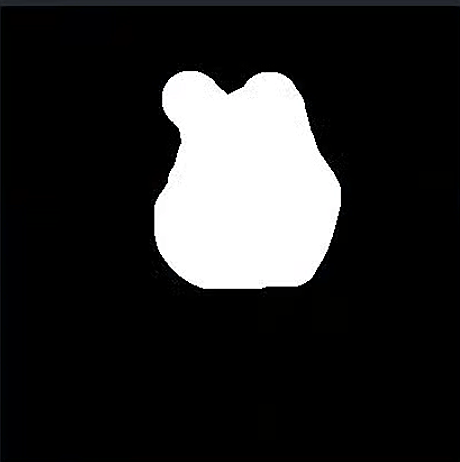
Finally, we also need to convert the mask image into Base64-based encoding. Next, code for converting Base64 encoding is provided:
Python example code for converting to Base64:
import cv2
import base64

image_path = 'temp.jpg'
gray_image = cv2.imread(image_path)
_, buffer = cv2.imencode('.jpg', gray_image)
base64_encoded = base64.b64encode(buffer).decode('utf-8')
with open('grayscale_image_base64.txt', 'w') as f:
    f.write(base64_encoded)

print("success!")
Note: The above Python code describes the mask generation process. If you want to integrate it into your product, please write code in the corresponding language according to its principle.
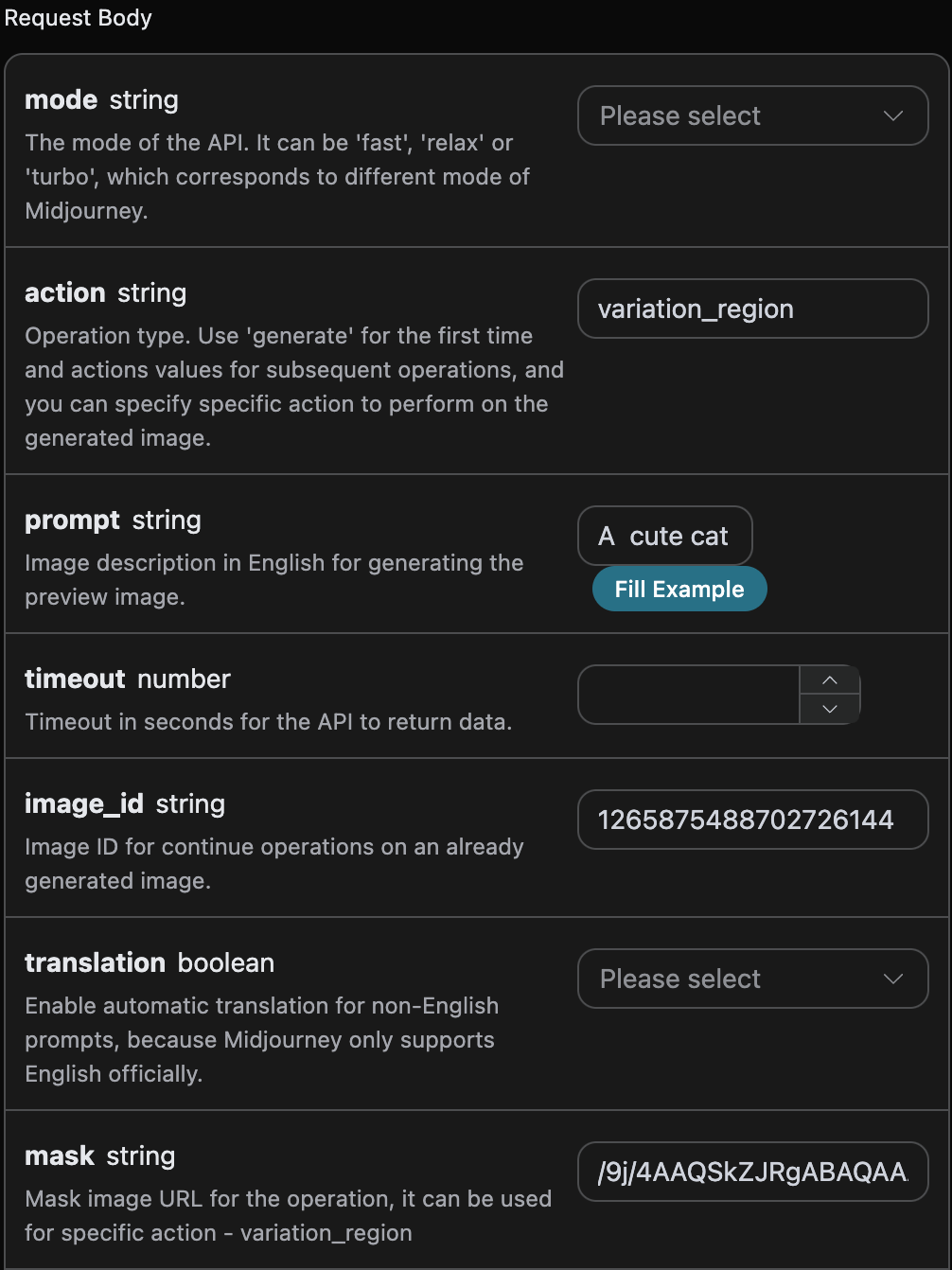
Through the above code, we obtain the mask mask that needs to be redrawn. Next, we also need to set the parameter action to variation_region, the ID image_id of the generated image (refer to the above content to obtain this parameter), and pass in the corresponding mask mask. The other parameter information is as follows:
action: The behavior for operating on the image. Here it isvariation_region, indicating local redrawing of the image.prompt: The descriptive words for locally redrawing the image (optional parameter).image_id: The unique identifier of the image, facilitating local redrawing of the image.mask: The base64 encoding of the mask area corresponding to the image (the image is specified by theimage_idabove).
Therefore, according to the above rules, we need to set the correct parameters. The parameter prompt is optional. Here, for the convenience of comparison, the prompt of the mask area is set to A cute cat. The specific parameter settings are shown in the figure below:
¶ Code Example
It can be seen that code in various languages has been automatically generated on the right side of the page, as shown in the figure:
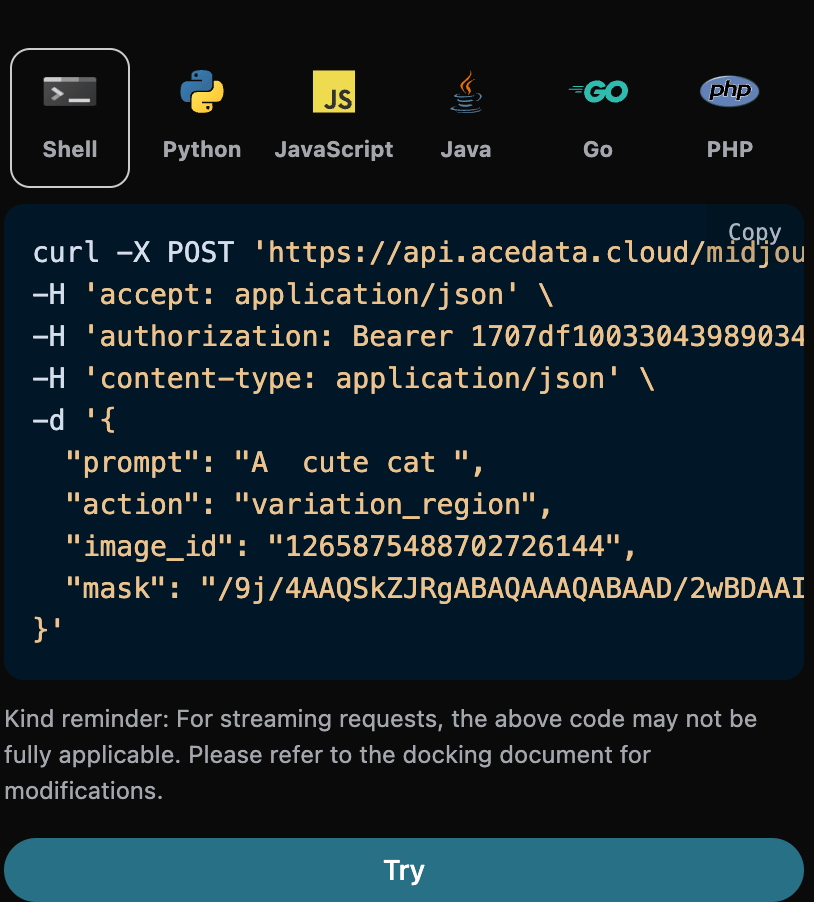
Some code examples are as follows:
¶ Response Example
After the request succeeds, the API will return the result information of the face-swapped backend image. For example:
{
  "image_url": "https://platform.cdn.acedata.cloud/midjourney/6c9450d8-1c22-4f85-a527-e7a7bfb4a61b.png?imageMogr2/thumbnail/!50p",
  "image_width": 1024,
  "image_height": 1024,
  "actions": [
    "upscale1",
    "upscale2",
    "upscale3",
    "upscale4",
    "reroll",
    "variation1",
    "variation2",
    "variation3",
    "variation4"
  ],
  "raw_image_url": "https://platform.cdn.acedata.cloud/midjourney/6c9450d8-1c22-4f85-a527-e7a7bfb4a61b.png",
  "raw_image_width": 2048,
  "raw_image_height": 2048,
  "progress": 100,
  "image_id": "1265876571323891712",
  "task_id": "6c9450d8-1c22-4f85-a527-e7a7bfb4a61b",
  "success": true
}
It can be seen that an image redraw operation has been performed on the masked area, and the returned result is consistent with the one above, as shown in the figure below:
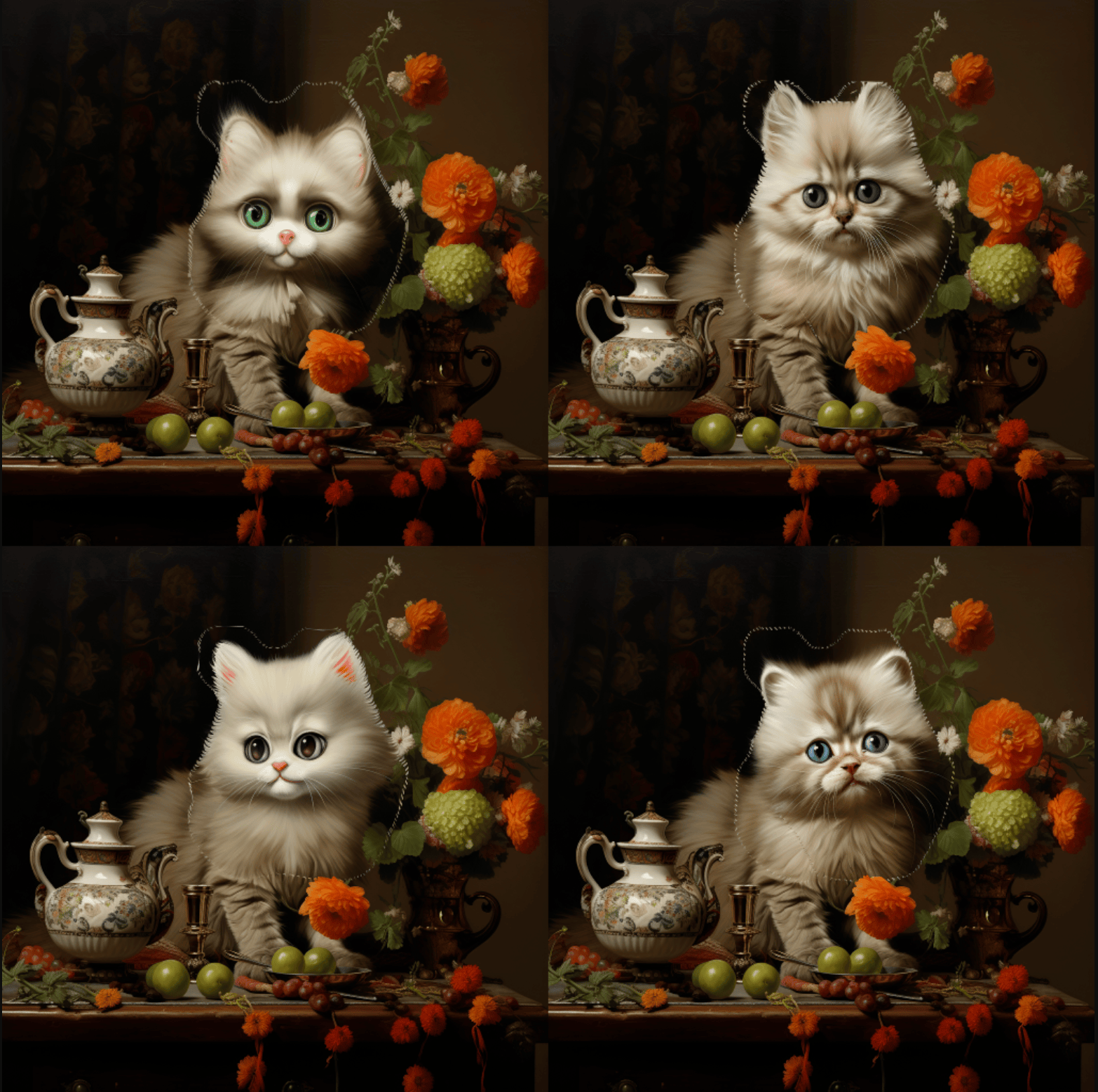
It can be seen that we have successfully achieved local redrawing of custom areas in the generated image.
¶ CURL
curl -X POST 'https://api.acedata.cloud/midjourney/imagine' \
-H 'accept: application/json' \
-H 'authorization: Bearer {token}' \
-H 'content-type: application/json' \
-d '{
  "prompt": "A  cute cat ",
  "action": "variation_region",
  "image_id": "1265875488702726144",
  "mask": "/9j/4AAQSkZJRgABAQAAAQABAAD/2wBDAAIBAQEBAQIBAQECAgICAgQDAgICAgUEBAMEBgUGBgYFBgYGBwkIBgcJBwYGCAsICQoKCgoKBggLDAsKDAkKCgr/2wBDAQICAgICAgUDAwUKBwYHCgoKCgoKCgoKCgoKCgoKCgoKCgoKCgoKCgoKCgoKCgoKCgoKCgoKCgoKCgoKCgoKCgr/wAARCAGaAZoDASIAAhEBAxEB/8QAHwAAAQUBAQEBAQEAAAAAAAAAAAECAwQFBgcICQoL/8QAtRAAAgEDAwIEAwUFBAQAAAF9AQIDAAQRBRIhMUEGE1FhByJxFDKBkaEII0KxwRVS0fAkM2JyggkKFhcYGRolJicoKSo0NTY3ODk6Q0RFRkdISUpTVFVWV1hZWmNkZWZnaGlqc3R1dnd4eXqDhIWGh4iJipKTlJWWl5iZmqKjpKWmp6ipqrKztLW2t7i5usLDxMXGx8jJytLT1NXW19jZ2uHi4+Tl5ufo6erx8vP09fb3+Pn6/8QAHwEAAwEBAQEBAQEBAQAAAAAAAAECAwQFBgcICQoL/8QAtREAAgECBAQDBAcFBAQAAQJ3AAECAxEEBSExBhJBUQdhcRMiMoEIFEKRobHBCSMzUvAVYnLRChYkNOEl8RcYGRomJygpKjU2Nzg5OkNERUZHSElKU1RVVldYWVpjZGVmZ2hpanN0dXZ3eHl6goOEhYaHiImKkpOUlZaXmJmaoqOkpaanqKmqsrO0tba3uLm6wsPExcbHyMnK0tPU1dbX2Nna4uPk5ebn6Onq8vP09fb3+Pn6/9oADAMBAAIRAxEAPwD+f+iiigAooooAKKKKACiiigAooooAKKKKACiiigAooooAKKKKACiiigAooooAKKKKACiiigAooooAKKKKACiiigAooooAKKKKACiiigAooooAKKKKACiiigAooooAKKKKACiiigAooooAKKKKACiiigAooooAKKKKACiiigAooooAKKKKACiiigAooooAKKKKACiiigAooooAKKKKACiiigAooooAKKKKACiiigAooooAKKKKACiiigAooooAKKKKACiiigAooooAKKKKACiiigAooooAKKKKACiiigAooooAKKKKACiiigAooooAKKKKACiiigAooooAKKKKACiiigAooooAKKKKACiiigAooooAKKKKACiiigAooooAKKKKACiiigAooooAKKKKACiiv12/4Jcf8GoX7XX7X+nab8af2y9Tvfgt4GmvZYZPDOpaHIni7VIYbmGOTFncxxx6dHLH9pEdzceZKJIY5PsssUschAPyJor+tT4X/wDBqr/wRb8B+AbLwf4i/Z51/wAb6naCaOfxP4n8f6ol9fb5ZHAmj0+5tbVfLB8oeVDHxHk5kzIen/4hdP8Aghd/0Y1/5kzxP/8ALSgD+QSiv3u/b4/4Myb/AMOeFZPF/wDwTc+POoa9d6fYO9z4F+KU9rHdajLFHcyZtdStYoohLL/osMVtNDFECZJZbuMYjr8Ufj/8Bfi3+yx8YvEPwD/aD+H1/wCF/GPhfUjaa1oN9jzbV8Eg5GY5Y5I/LkjljJjlikjkjLxuDQB5/RRRQAUUUUAFFfrt+wH/AMGi37dP7U3hGL4hftS+MdP+BGj32nCbSdP1fSTq+u3JeO2liaSxjnhjtIjHLKCJrhLqKW2MclqAfMH6Ef8AEFh/wSy/6L78ff8AwqdC/wDlNQB/MDRX9Mviz/gy0/4JzXfhvUtO8D/tFfG3TtafT5o9Kv8AVdX0e9tbe5MZEM0tvHp8LzRiTJMQliLhcCSMkGvzQ/4Kdf8ABsN+3V/wT18M618bfh3e6b8YfhdoWny3us+JvD9l9i1LSbaOK3Es15pksskgiEksh320t0I4rWWaX7MOAAfmTRRRQAUUUUAFFFFABRRRQAUUUUAFFFFABRRRQAUUUUAFFFFABRRRQAUUUUAFFFFABRRRQAUUUUAFFFFABRRRQAUUUUAFFFFABRRRQB+5/wDwaS/8EgIPij4sb/gqR+0F4N0288OeHtUm0/4VaDrej3LGbWIpI/N16JpCsMkdsfMtoT++H2rzpP3MtjEZP6La8i/Yj/Zf8PfsafsmfD39lPwm+nyWngTwtY6VPe6dpEenR6hcxwr9pvvs8RIikubnzbqUb5CZZ5CZJDkn12gAooooAK+RP+Cvv/BLP4P/APBU79krV/g34w8N2K+OtHsbu8+FHiy4mMEuh6y0f7rzJkhlk+wzSpHHdReXKHixIB5sUMsX13RQB/CH8f8A4C/Fv9lj4xeIfgH+0H8Pr/wv4x8L6kbTWtBvsebavgkHIzHLHJH5ckcsZMcsUkckZeNwa8/r+yL/AIK2f8EQP2Vv+CuXhew1H4pvqXhX4g+HNPubTwt8QvDyRfaYYpI5fKtb2OQf6fYx3MnneSTFKCJBFND50xl/CD9n3/g09/4Kk/Fn9onW/hL8TfDeg+AvCvhfWzp+r/ErWL8zWWpQg2shm0m2ixc3++2uTLF5kdvCTDLbSzW1xHJFGAfl5X9NH/BrF/wRq8Lfs3fAjRv+CiH7RHgPTLn4m+P9L+2/Dq4fUo7z/hHfDF1bxGGaOMR+XDe3Uck3mSeZJJHayQw/uTLdxH6N/wCCbP8Awbkf8E5f+Cdn9k+Po/AX/Cz/AImae0M7ePvHlnHcfYbyL7LIZdOsv+Paw8u6tvOilxLdw+bJH9qkFfoPQAUUUUAFFFFAH8+v/B2R/wAEZvDHgPS5/wDgqd+y/wCAtN0m0mv8fHOxtdQjt0e6urmKOy1mK28sZkluZjDdGOTMksttN5OftU1fgbX953xe+FPgf41fCnxN8GPiZoDaj4b8X6FfaN4g04XkkX2uxuonhuIvMiIkTzI5HH7sgjsRX8fP/BaP/glR48/4JR/tj6r8G/J8Qah8OtaIv/hh431u0iQazYeXEZYTJD+7NzayyC2lGIj/AKqbyoormIUAfG9FFFABRRRQAUUUUAFFFFABRRRQAUUUUAFFFFABRRRQAUUUUAFFFFABRRRQAUUUUAFFFFABRRRQAUUUUAFFFFABRRRQAUUUUAf3+UV8rf8ABHD9uLTv+ChP/BOv4bftGDxo2ueJZdAg0r4iy3H2WK5i8R2kQhvvMt7Q+XbedKPtUUX7s/Zrq3k8uPzQB9U0AFFFFABRRRQAUUUUAFFFFABRRRQAUUUUAFfm5/wdB/sO6V+1x/wSz8VfEzSvBP8AaPjb4N/8Vb4au4jaRSwWMeBq8Ukswz9m+w+bdSRRSRmWWwtv9YYhFJ+kdeZ/tZfBB/2nf2XviV+zUnio6IfiJ4B1fwy2ttZfafsAv7KW1+0+T5kfmmMSmTy/MjzjGRnNAH8J9Fb3i7wj4q8C+KtU8DeM/DWoaNrmiX8llq+k6nYyW9zYXMUhjkhljkxJFLG/7sxkZBBzjFYNABRRRQAUUUUAFFFFABRRRQAUUUUAFFFFABRRRQAUUUUAFFFFABRRRQAUUUUAFFFFABRRRQAUUUUAFFFFABRRRQAUUUUAfpP/AMG73/BaG3/4Jd/tCXnw4+PHiPXpvgh47UJ4isbJ/Pg8Pap+5EWvJbeWZJPLjjMU0duY5JYmEmLmS1toT/VR8I/i58MPjn4Asfij8G/iVoPi/wAN6o039n+IfDOrxahYXRimkil8m5hJilEcsckeQTzGc81/BhX64/8ABs//AMFu/jD+yJ8efB//AAT1+KKaj4t+FnxK8XWmi+FrFLnNz4P1m/ulijktfMbH2Ka4lH2m2zwZDcxfvfOiugD+ouiiigAooooAKKKKACiiigAooooAKKKKACiiigAooooAKKKKACiiigD+O3/g4m/Zl/4Zm/4LBfGbRrLTNfi0jxZryeMdJvtfiAN8NWhivruW2k8uMTW0d9LfW0ZHQ2piMkkkclfCtfvB/wAHsf7NI034n/BT9sHTdJ16c6xoN/4N8QX3l+Zpdl9imN/YRCTyv3V1N9t1I4kk/eR2uY4/3UpP4P0AFFFFABRRRQAUUUUAFFFFABRRRQAUUUUAFFFFABRRRQAUUUUAFFFFABRRRQAUUUUAFFFFABRRRQAUUUUAFFFFABRRRQAUUV3n7PHwT8R/tJfHvwT+z14Lv9Os9Y8feLdN8PaPeaxJKlrFd3tzHbxSSmKOSQRebIoJEbkDPBPFAH9yXwh+K3gf41fCnwz8Z/hnr7aj4b8X6FY6z4f1E2ckX2uxuokmt5fLlAkTzI5EP7wAjuBXXVwf7PHwT8Ofs2/ATwT+z14Lv9RvNH8A+EtN8PaPeaxJE91LaWVtHbxSSmKOOMy+VGoJEaAnPAHFd5QAUUUUAFFFFABRRRQAUUUUAFFFFABRRRQB8rf8Fj/2HdO/4KE/8E6/iT+zmfBba54ll0CfVfh1Fb/ZYrmLxHaRGax8u4ux5dt50o+yyy/uz9muriPzI/NJH8Vlf3+V/GZ/wXa/Yyh/Yf8A+CqnxZ+DuieHl03w1quvN4l8Fx2/h3+yLAaZqf8ApUdtYxcxm1tZJJbASRHyybCQARkGKMA+NqKKKACiiigAooooAKKKKACiiigAooooAKKKKACiiigAooooAKKKKACiiigAooooAKKKKACiiigAooooAKKKKACiiigAr9Y/+DQf9ms/F3/gqnN8cLnSddfTfhN4B1LVbPVdOgH2BNTvSNNitruXyjjzbW51KWKLMcshtMjMcUgP5OV/TX/wZsfsk6l8If2FPGn7WWu2GpWl98YPFsVtpayXttLbXOj6OJbaK6iji/eRSm+utVik805ItoiIwP3koB+yNFFFABRRRQAUUUUAFFFFABRRRQAUUUUAFFFFABX5N/8AB0p/wSK8c/t7fs86H+0r+zP8Ojr/AMVPhcbiO60jS7eJb7xD4clBlmtY/wB0Zbu5tphHNbW3mLkT3wijlmmjjP6yUUAfwB0V+rP/AAc9f8EhdL/4J8/tP2v7THwG8Dafp3wg+LGoyDTdD8P6NcQ2vhPWIo4mubEnmGOK5Pm3VtFHJHwLqKKGOK1Bk/KagAooooAKKKKACiiigAooooAKKKKACiiigAooooAKKKKACiiigAooooAKKKKACiiigAooooAKKKKACiiigAooooA+iv8Aglt+xdF/wUI/b7+GH7IV1r6afp3jHXiNdvI7jyZ49MtYZb2++zyeTN/pX2W2uPJ8yMx+d5XmfuyTX9qnhHwj4V8C+FdL8DeDPDWn6NoeiWEdlpGk6ZYx29tYW0UYjjhijjxHFFGn7sRgYAAxjFfzqf8ABlp8BPi7d/tmfEf9qC38A6gPAFj8M7vwtceKJAqWv9sXGoaVdRWMRzmaUW1vJLJ5YPlDyvN8vzovN/pJoAKKKKACiiigAooooAKKKKACiiigAooooAKKKKACiiigDyH9tH9kb4R/t0/syeMP2Ufj3ZanN4S8ZWMVvqI0y+NvcW0kc0VxbXMUgBAlhuIYpQJBJETGBLHJGTGf4z/28v2OvHH7AX7XnxD/AGQfiLcfatQ8C689nBqgSKI6nYSR+dY33lRSzeV9ptZrabyvMJi83y5P3gNf3HV+H/8AweQf8E8h8QfgZ4T/AOCkPgfTxJrHw5EXhf4gb5f9doVzcH7Bc/vLnA+zX9yY/LiieWX+1PMkIjtaAP5w6KKKACiiigAooooAKKKKACiiigAooooAKKKKACiiigAooooAKKKKACiiigAooooAKKKKACiiigAooooAK9A+AHwF+Lf7U/xi8PfAP9nz4fX/AIo8Y+KNSFpoug2OPNunwCTk4jijjj8ySSWQiOKKOSSQpGhNef1/R5/wZv8A/BPIfD74GeLP+CkPjjTxHrHxGEvhf4f7Jf8AU6FbXA+33P7u5wftN/bCPy5Ykli/svzIyY7qgD9Nv+CZn/BPr4W/8EzP2QPDH7Jfwp1RtU/sYzXfiPxPJpkNnca9qlxJ5lzdTRRf9s4ovMMkkVrDbxGWTy/Mr6KoooAKKKKACiiigAooooAKKKKACiiigAooooAKKKKACiiigAr5
#### Python

```python
import requests

url = "https://api.acedata.cloud/midjourney/imagine"

headers = {
    "accept": "application/json",
    "authorization": "Bearer {token}",
    "content-type": "application/json"
}

payload =
{
    "prompt": "A cute cat",
    "action": "variation_region",
    "image_id": "1265875488702726144"
}
response = requests.post(url, json=payload, headers=headers)
print(response.text)
¶ Asynchronous Callback
Since Midjourney takes some time to generate images, this API is also designed with a long-wait mode by default. However, in some scenarios, long waiting may bring additional resource overhead, so this API also provides asynchronous Webhook callbacks. When image generation succeeds or fails, the result will be sent to the specified Webhook callback URL through an HTTP request. After the callback URL receives the result, further processing can be performed.
The specific calling process is demonstrated below.
First, a Webhook callback is a service that can receive HTTP requests. Developers should replace it with the URL of their own HTTP server. For convenience of demonstration, a public Webhook example website https://webhook.site/ is used here. Open this website to obtain a Webhook URL, as shown in the figure:

Copy this URL, and it can be used as a Webhook. The example here is https://webhook.site/995d0a91-d737-40a7-a3b9-5baf68ed924c.
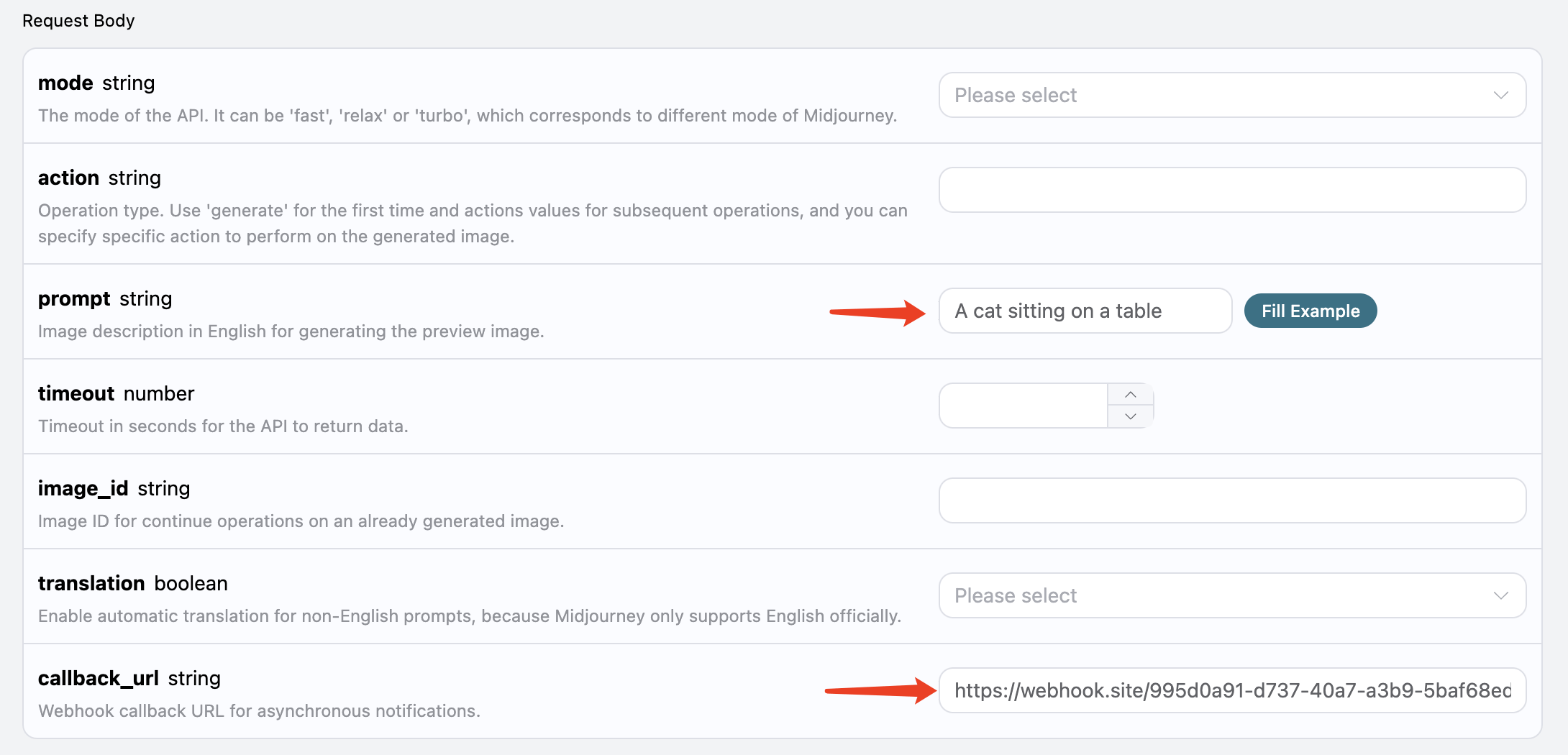
Next, we can set the callback_url field to the Webhook URL above, while filling in prompt, as shown in the figure:
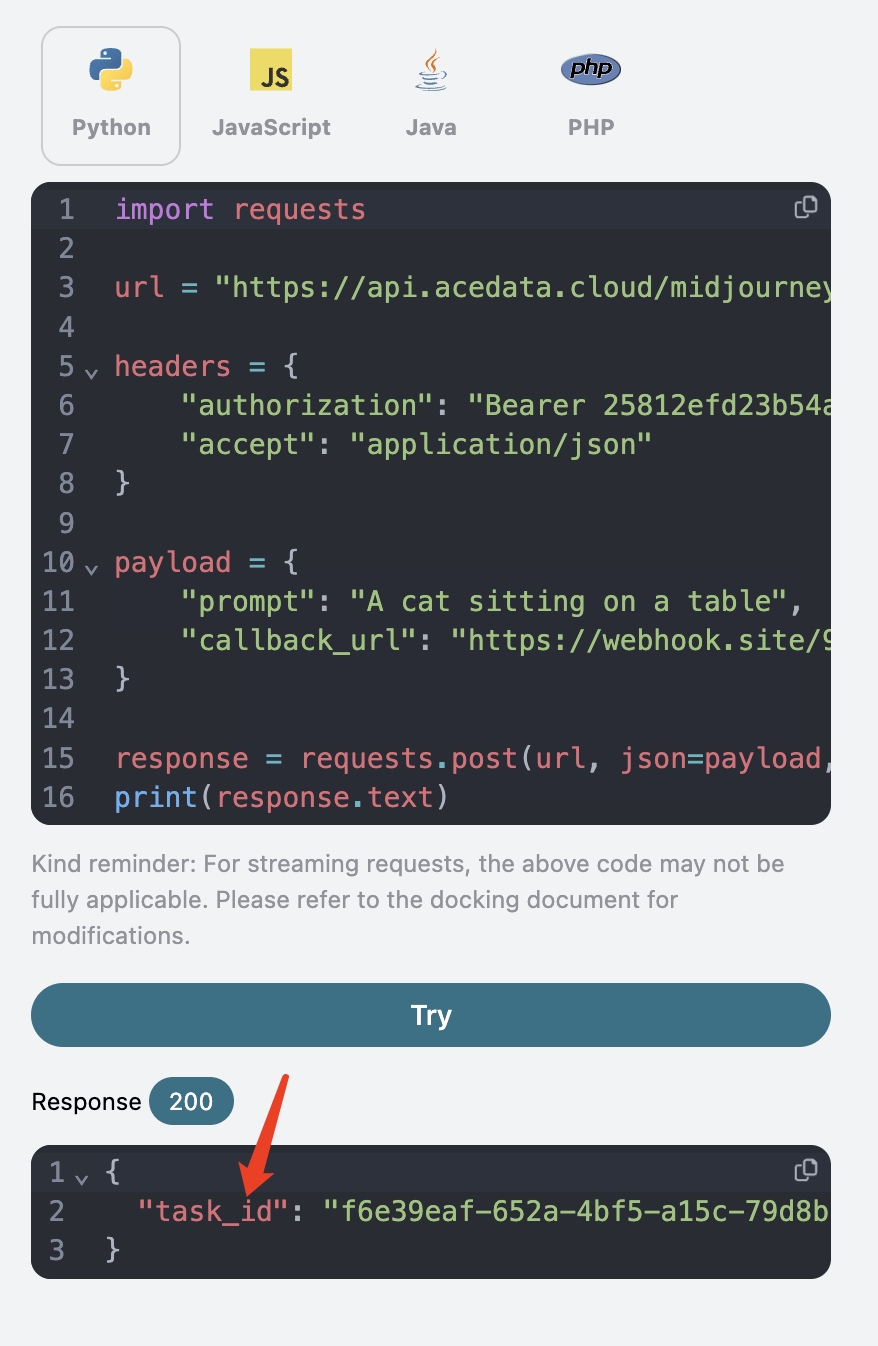
After clicking test, a response with a task_id will be returned immediately, which is used to identify the ID of the current generation task, as shown in the figure:
Wait for a moment until image generation is complete, and you can find that the Webhook URL has received an HTTP request, as shown in the figure:
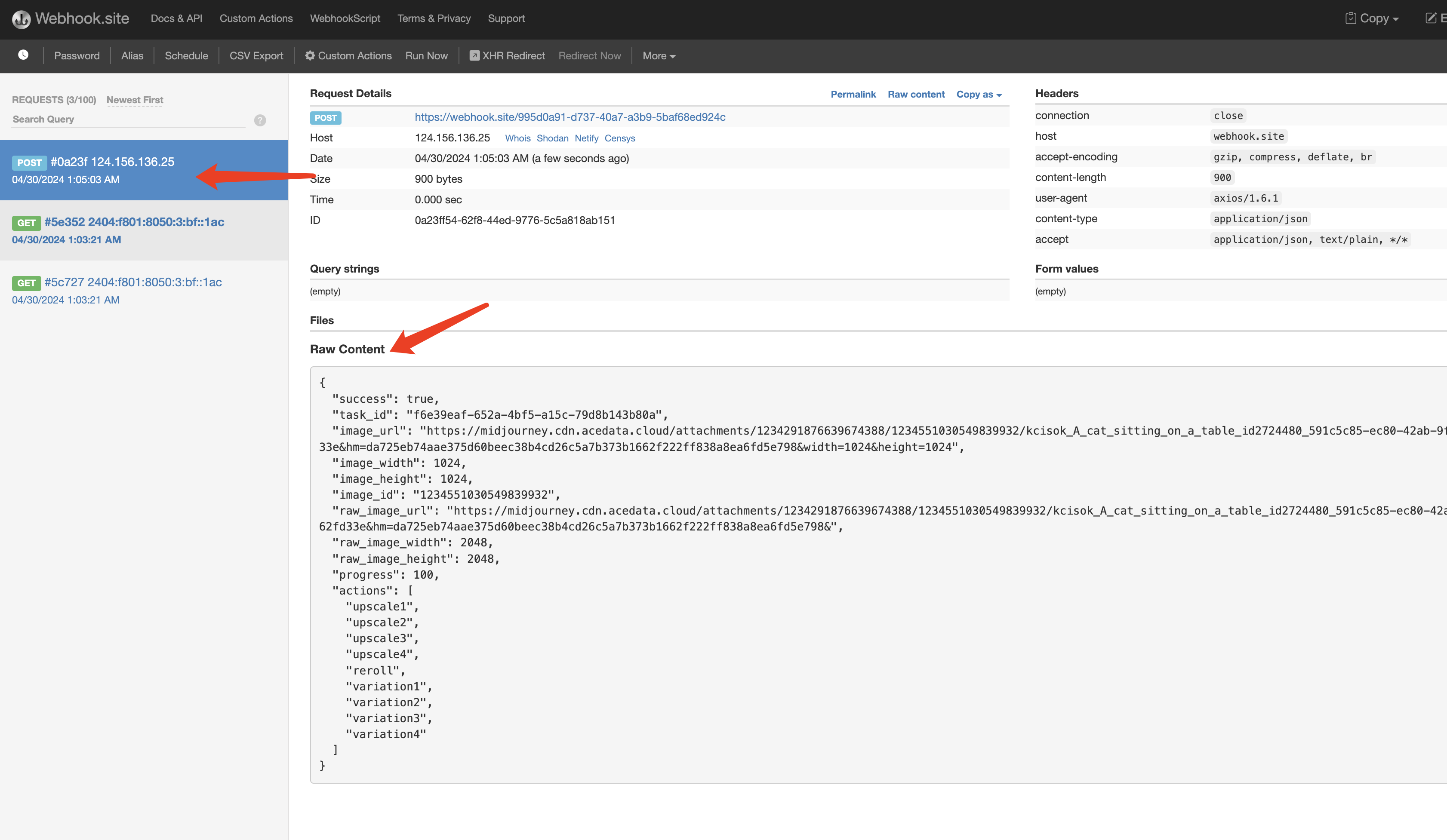
The result is the result of the current task, with the following content:
{
  "success": true,
  "task_id": "f6e39eaf-652a-4bf5-a15c-79d8b143b80a",
  "image_url": "https://cdn.acedata.cloud/e724d7f13d.png",
  "image_width": 1024,
  "image_height": 1024,
  "image_id": "1234551030549839932",
  "raw_image_url": "https://cdn.acedata.cloud/e724d7f13d.png",
  "raw_image_width": 2048,
  "raw_image_height": 2048,
  "progress": 100,
  "actions": [
    "upscale1",
    "upscale2",
    "upscale3",
    "upscale4",
    "reroll",
    "variation1",
    "variation2",
    "variation3",
    "variation4"
  ]
}
The success field indicates whether the task was executed successfully. If the execution is successful, there will also be the same actions, image_id, and image_url fields, which are the same as the return result introduced above. In addition, there is task_id used to identify the task, in order to associate the Webhook result with the initial API request.
If image generation fails, the Webhook URL will receive content similar to the following:
{
  "success": false,
  "task_id": "7ba0feaf-d20b-4c22-a35a-31ec30fc7715",
  "error": {
    "code": "bad_request",
    "message": "Unrecognized argument(s): `-c`, `x`"
  }
}
Here, the success field will be false, and there will also be the error.code and error.message fields describing detailed information about the task error. The Webhook server only needs to process it according to the corresponding result.
¶ Streaming Output
Midjourney has progress when generating images. At the beginning, it is a blurry image, and after several iterations, the image gradually becomes clear, eventually producing the complete image.
Therefore, the generation process of an image can be roughly divided into the stages of "sending command" -> "starting image generation (gradually becoming clear through multiple iterations)" -> "image generation complete".
When streaming output is not enabled, the process from initiating a request to returning the result in this API is actually the entire process from the above "sending command" -> "image generation complete". The image generation process in between is also included. Since Midjourney itself generates images relatively slowly, the entire process takes about one minute or longer to wait.
Therefore, for a better user experience, this API supports streaming output. That is, it starts returning results when "image generation starts". Whenever the drawing progress changes, the result will be output in a stream until image generation ends.
If you want to return responses in a stream, you can change the accept parameter in the request header to application/x-ndjson, but the calling code needs corresponding changes to support streaming responses.
Python example code:
import requests

url = 'https://api.acedata.cloud/midjourney/imagine'
headers = {
    'content-type': 'application/json',
    'accept': 'application/x-ndjson',
    'authorization': 'Bearer {token}'
}
body = {
    "prompt": "a beautiful cat --v 6"
}
r = requests.post(url, headers=headers, json=body, stream=True)
for line in r.iter_lines():
    print(line.decode())
Execution result:
{"image_url":"https://cdn.acedata.cloud/assets/examples/fish/64adc04b-c196-4a0f-9070-222ba101ce6c-fc50de38c165.wav","image_width":256,"image_height":256,"image_id":"1234558451443699803","raw_image_url":"https://cdn.acedata.cloud/assets/examples/fish/64adc04b-c196-4a0f-9070-222ba101ce6c-fc50de38c165.wav","raw_image_width":512,"raw_image_height":512,"progress":35,"actions":[],"task_id":"49589d2c-b6b3-4fbf-9f82-93068509c76f","success":true}
{"image_url":"https://cdn.acedata.cloud/assets/examples/fish/64adc04b-c196-4a0f-9070-222ba101ce6c-fc50de38c165.wav","image_width":256,"image_height":256,"image_id":"1234558458595115149","raw_image_url":"https://cdn.acedata.cloud/assets/examples/fish/64adc04b-c196-4a0f-9070-222ba101ce6c-fc50de38c165.wav","raw_image_width":512,"raw_image_height":512,"progress":75,"actions":[],"task_id":"49589d2c-b6b3-4fbf-9f82-93068509c76f","success":true}
{"image_url":"https://cdn.acedata.cloud/e724d7f13d.png","image_width":1024,"image_height":1024,"image_id":"1234558483408490566","raw_image_url":"https://cdn.acedata.cloud/e724d7f13d.png","raw_image_width":2048,"raw_image_height":2048,"progress":100,"actions":["upscale1","upscale2","upscale3","upscale4","reroll","variation1","variation2","variation3","variation4"],"task_id":"49589d2c-b6b3-4fbf-9f82-93068509c76f","success":true}
It can be seen that after enabling streaming output, the returned result consists of line-by-line JSON.
In the Node.js environment, the implementation code can be written as follows:
const axios = require("axios");

const url = "https://api.acedata.cloud/midjourney/imagine";
const headers = {
  "content-type": "application/json",
  accept: "application/x-ndjson",
  authorization: "Bearer {token}",
};
const body = {
  prompt: "a beautiful cat --v 6",
  action: "generate",
};

axios
  .post(url, body, { headers: headers, responseType: "stream" })
  .then((response) => {
    console.log(response.status);
    response.data.on("data", (chunk) => {
      console.log(chunk.toString());
    });
  })
  .catch((error) => {
    console.error(error);
  });
The results of running these examples are similar.
Please note that there is a field called progress in the streaming output results, which indicates the generation progress, ranging from 0 to 100. If needed, you can display this information on the page.
Note: When generation is not fully completed, the
actionsfield is empty, indicating that further processing operations cannot be performed on intermediate images. After generation is completed, the image_url generated during the generation process will be destroyed.
In addition, you can combine streaming results with asynchronous callbacks by specifying the request header accept=application/x-ndjson and the request body callback_url, then callback_url can receive POST requests for multiple streaming results.