
Ace Data Cloud Browser Plugin Configuration
The Ace Data Cloud platform provides a browser plugin. With this browser plugin, you can easily authorize your social media accounts to the Ace Data Cloud platform, facilitating the distribution process of self-media such as articles, videos, etc.
This article will introduce the installation method of the Ace Data Cloud browser plugin.
¶ Download
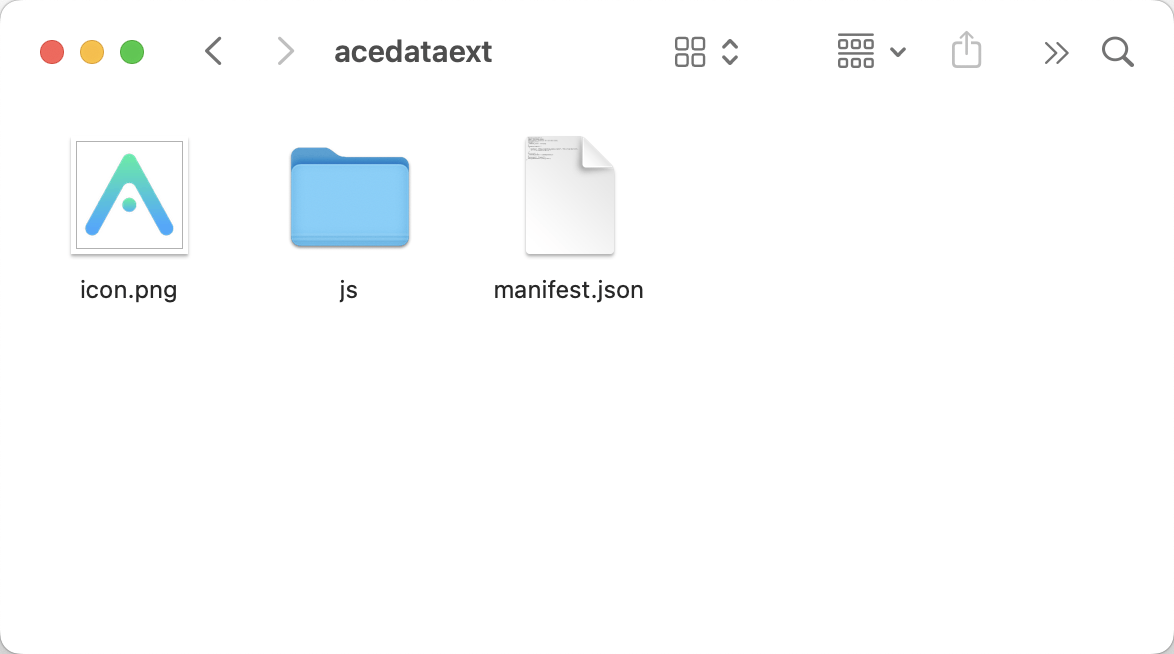
First, you need to download the Ace Data Cloud platform's browser plugin from here. This browser plugin is a compressed file, and after downloading, you can unzip it to obtain a folder, as shown in the image:
¶ Installation
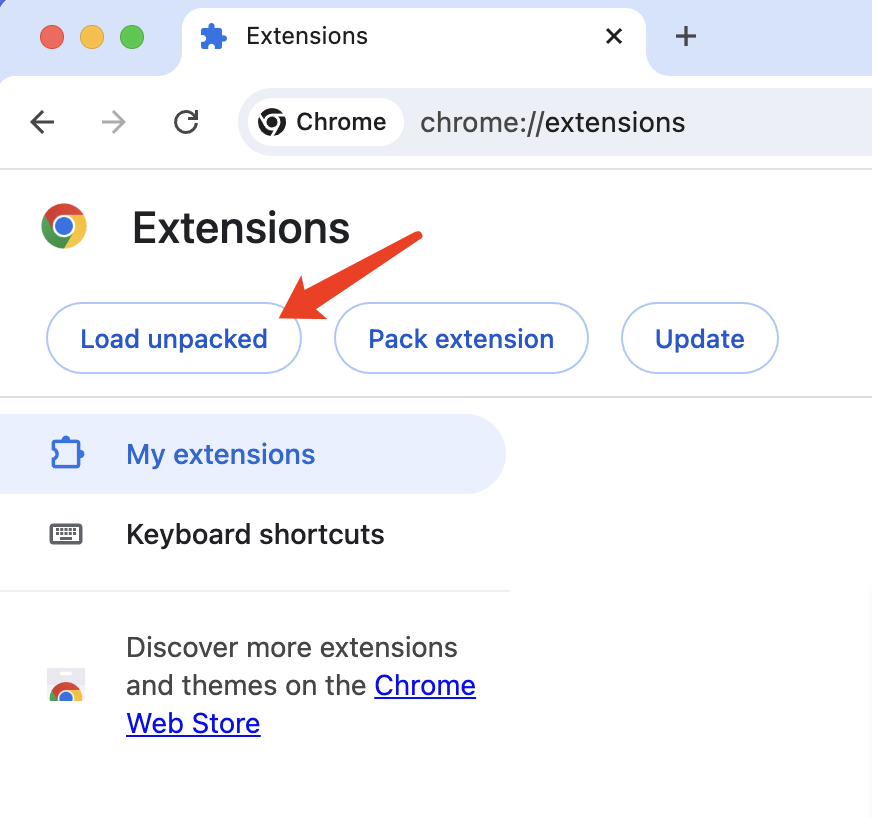
Open the Chrome browser's extension management page by directly entering the URL chrome://extensions, then click the Load unpacked button to load the already unzipped browser plugin, as shown in the image:
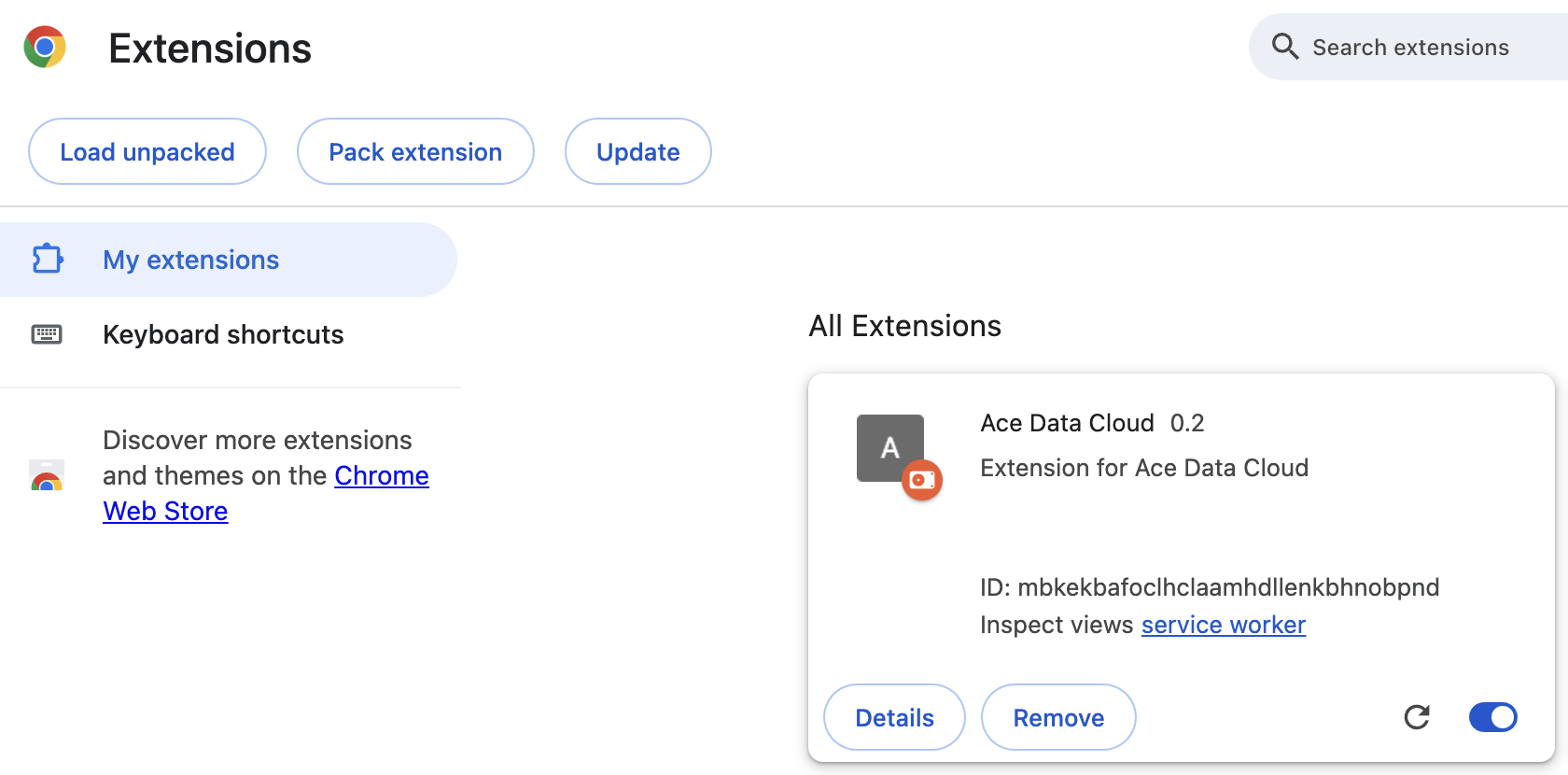
Then select the folder you just downloaded to successfully install it, as shown in the image:
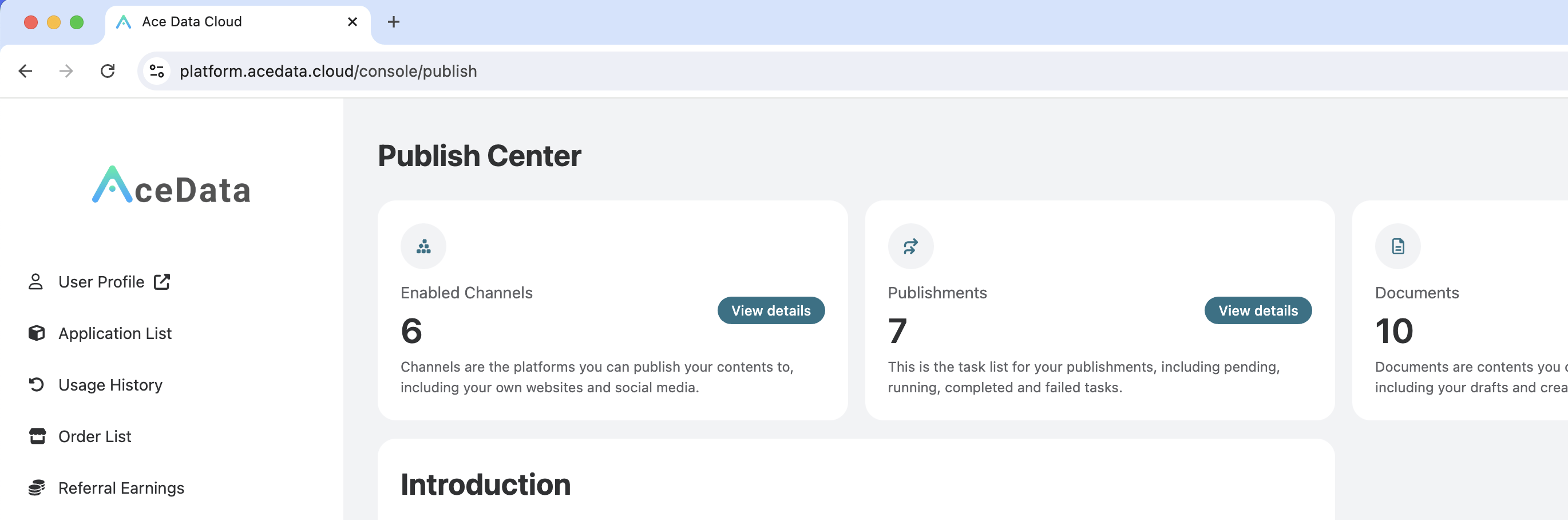
Next, return to the Ace Data Cloud Connector Page, refresh the webpage, and if the prompt "Browser plugin not installed" no longer appears, it indicates that the installation was successful.
¶ Usage
You can then go to the Ace Data Cloud Connector Page, select the platform you want to connect to (Zhihu, Juejin, CSDN, etc.), and follow the prompts to complete the authorization.
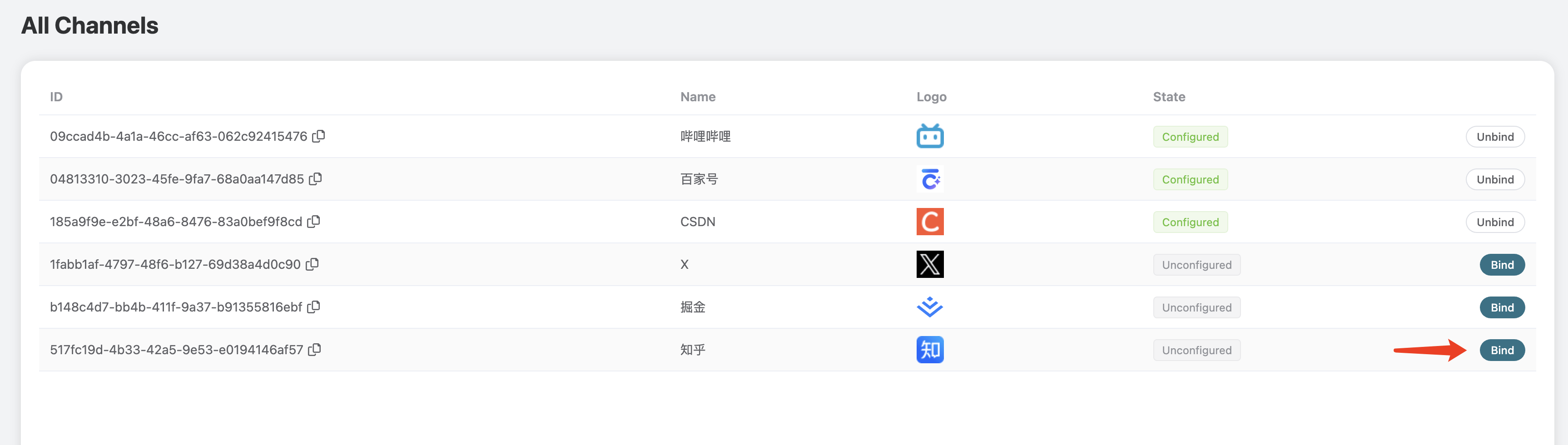
After completing this, your social media accounts will be authorized for use by the Ace Data Cloud platform, and you can then let the AI help you publish content directly in the conversation.