OpenAI Images Edits API Application and Usage

OpenAI image editing service allows you to input any number of images and instructions, and outputs the edited images. Currently, the API supports dall-e-2, gpt-image-1, the latest gpt-image-2, as well as the nano-banana / nano-banana-2 / nano-banana-pro series models accessed through the same interface.

This document mainly introduces the usage process of the OpenAI Images Edits API, enabling you to easily utilize the official OpenAI image editing capabilities.

Application Process

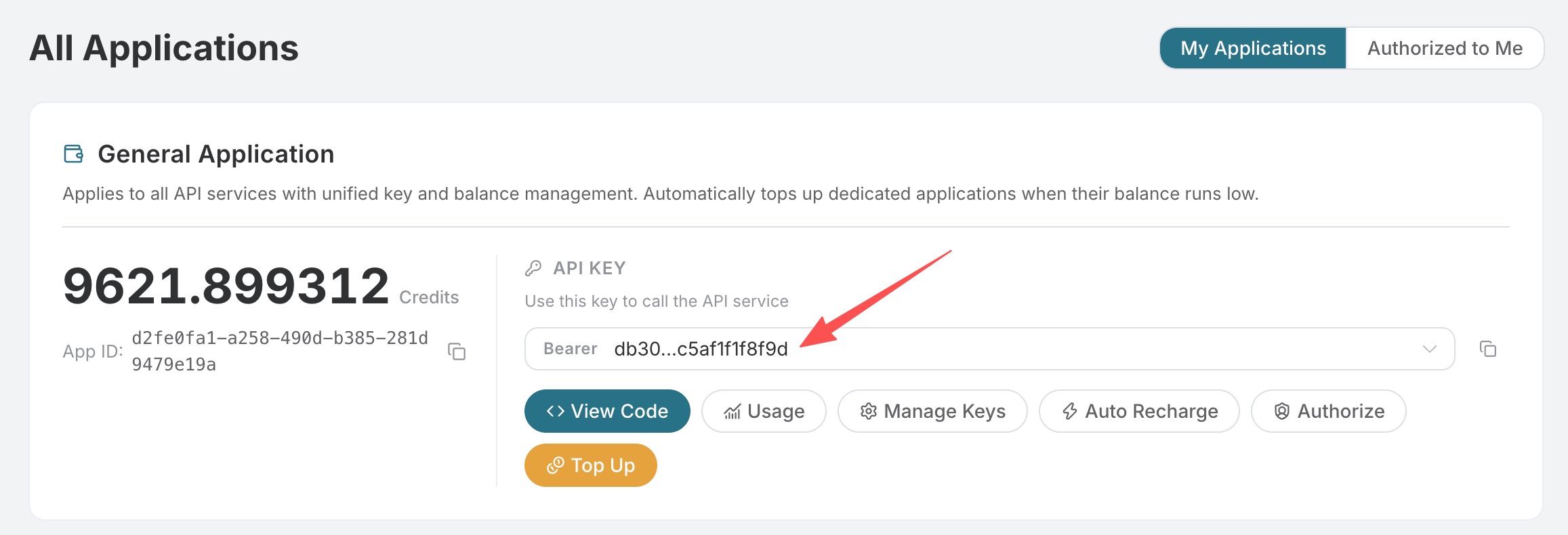
To use OpenAI Images Edits API, first open the Ace Data Cloud Console and copy your API Token.

If you are not logged in, you will be redirected to sign in and brought back to this page automatically.

A single API Token works across every service on the platform — no need to subscribe per service. New accounts receive free starter credit; when it runs low you can top up your shared balance in the console.

📘 Full documentation: OpenAI Images Edits API →

GPT-Image-2 Model

Compared to gpt-image-1, gpt-image-2 offers significant improvements in image editing scenarios:

  • More stable structure retention: Changing skins, colors, or backgrounds almost never disrupts the original layout and composition.
  • More accurate text preservation: Text in infographics, posters, menus, etc., remains clear and readable after editing.
  • Supports direct URL input: Besides traditional multipart/form-data file uploads, gpt-image-2 additionally supports passing image URLs via JSON, eliminating the need to download images locally first, which is ideal for server-side pipeline integration.
  • Supports high-resolution redraws: You can input a 1K original image and request 2K / 4K output via the size parameter; the model will perform upscaling during editing.

Supported size Values

The size constraint for the editing interface is identical to the generation interface — gpt-image-2 accepts size as auto, empty, or in the WIDTHxHEIGHT format; any other format will return a 400 error. All sizes (1K / 2K / 4K / custom) are charged per single image uniformly, regardless of the original image resolution or the requested size.

The same upstream hard constraints on custom sizes apply: width and height must be multiples of 16, the longer side ≤ 3840, and total pixels ≤ 8,294,400.

Aspect Ratio 1K Recommended 2K Recommended 4K Recommended
1:1 1024x1024 2048x2048 2880x2880
4:3 1536x1024 2048x1536 3264x2448
3:4 1024x1536 1536x2048 2448x3264
16:9 1792x1024 2048x1152 3840x2160
9:16 1024x1792 1152x2048 2160x3840

For example: If the original image is 1024x1024, passing size as 2048x2048 will cause the model to redraw and output a 2K image according to the editing instructions; passing 3840x2160 outputs a 4K landscape image; passing auto or omitting the parameter lets the model decide. All three are charged equally.

About the n parameter

The gpt-image-2 editing interface currently does not support n > 1: this parameter will be silently ignored. Whether you pass n=1 or n=10, only one image will be returned per request and charged as one image. If you need multiple candidate edited images at once, please make multiple concurrent requests yourself. This limitation also applies to gpt-image-1 / gpt-image-1.5 and the nano-banana / nano-banana-2 / nano-banana-pro series. dall-e-2 is currently the only editing model that natively supports n > 1.

Below are two real examples from different perspectives to showcase the editing capabilities of gpt-image-2.

Method 1: JSON + Image URL (Recommended)

Send the request with application/json content type, filling the image field with an image URL. The model will fetch the image and edit it according to the prompt.

For example, the original image below is a science infographic generated by gpt-image-2:

We want to convert it to a "dark mode" color scheme. The call can be made as follows:

curl -X POST "https://api.acedata.cloud/openai/images/edits" \
  -H "Authorization: Bearer {token}" \
  -H "Content-Type: application/json" \
  -d '{
    "model": "gpt-image-2",
    "image": "https://platform.cdn.acedata.cloud/gpt-image/5c9fa635-8794-4c6d-88f8-584d7f4716c6_0.png",
    "prompt": "Convert this infographic to dark mode: dark navy background, light cream text, deep gray rounded module cards with soft shadows. Keep all layout, structure, and module arrangement identical — only invert the color scheme.",
    "size": "1024x1536"
  }'

Or using Python:

import requests

url = "https://api.acedata.cloud/openai/images/edits"

headers = {
    "accept": "application/json",
    "authorization": "Bearer {token}",
    "content-type": "application/json"
}

payload = {
    "model": "gpt-image-2",
    "image": "https://platform.cdn.acedata.cloud/gpt-image/5c9fa635-8794-4c6d-88f8-584d7f4716c6_0.png",
    "prompt": "Convert this infographic to dark mode: dark navy background, light cream text, deep gray rounded module cards with soft shadows. Keep all layout, structure, and module arrangement identical — only invert the color scheme.",
    "size": "1024x1536"
}

response = requests.post(url, json=payload, headers=headers)
print(response.text)

The response is as follows:

{
  "success": true,
  "task_id": "cb104e35-af1f-45be-9fac-b62e2b256753",
  "trace_id": "3e5c77c6-6c2e-4bba-a42d-98ea049b58a8",
  "created": 1777048863,
  "data": [
    {
      "revised_prompt": "Convert this infographic to dark mode: dark navy background, light cream text, deep gray rounded module cards with soft shadows. Keep all layout, structure, and module arrangement identical — only invert the color scheme.",
      "url": "https://platform.cdn.acedata.cloud/gpt-image/cb104e35-af1f-45be-9fac-b62e2b256753_0.png"
    }
  ],
  "elapsed": 83.859
}

The edited image is shown below:

You can see that the module structure, information partition, and typography are strictly preserved, with only the color scheme inverted to a dark theme.

Tip: The image field also supports passing an array, e.g., "image": ["url1", "url2", "url3"], allowing up to 16 reference images simultaneously for the model to consider comprehensively during editing.

Method 2: JSON + Multiple Reference Images

gpt-image-2 supports referencing multiple images simultaneously to generate the final result, for example, combining multiple product photos into a single gift basket:

payload = {
    "model": "gpt-image-2",
    "image": [
        "https://example.com/item1.png",
        "https://example.com/item2.png",
        "https://example.com/item3.png"
    ],
    "prompt": "Combine all the items above into a single 'Relax & Unwind' gift basket on a clean white background, photorealistic, soft natural lighting.",
    "size": "1024x1024"
}

Scenario Example: Style Change + Structure Preservation

Here is another example where a wooden bookshelf is replaced with a modern floating shelf, but the exact number and arrangement of books on each shelf are strictly preserved.

Original image (wooden bookshelf generated by gpt-image-2):

Call:

payload = {
    "model": "gpt-image-2",
    "image": "https://platform.cdn.acedata.cloud/gpt-image/141970f0-65fb-4ec8-ab7d-9be173641350_0.png",
    "prompt": "Replace the wooden bookshelf with a sleek modern white floating shelf mounted on a pastel blue wall. Keep the exact same arrangement of books (1 book on top, 3 in middle, 7 on bottom). Add a small potted succulent on the top shelf next to the book. Bright airy daylight from the left.",
    "size": "1024x1024"
}

Edited result (task_id: e9544dba-727e-44a2-81e1-223d49869380):

You can see that the style and environment have been fully replaced according to the prompt, but the number of books on each shelf (1 / 3 / 7) is strictly preserved, and a small succulent plant has been added as requested.

Method 3: multipart/form-data (Compatible with OpenAI SDK)

If you are already using the official OpenAI Python SDK, the original multipart/form-data upload method is also applicable; just change the model to gpt-image-2:

import base64
from openai import OpenAI
client = OpenAI()

result = client.images.edit(
    model="gpt-image-2",
    image=[open("test.png", "rb")],
    prompt="Convert this image to dark mode while keeping the layout intact."
)

image_base64 = result.data[0].b64_json
image_bytes = base64.b64decode(image_base64)
with open("edited.png", "wb") as f:
    f.write(image_bytes)

When using the SDK, you need to set two environment variables first: OPENAI_BASE_URL to https://api.acedata.cloud/openai, and OPENAI_API_KEY to the acquired token:

export OPENAI_BASE_URL=https://api.acedata.cloud/openai
export OPENAI_API_KEY={token}

Nano Banana Series Models

The nano-banana series is also integrated with /openai/images/edits for editing scenarios; just change the model to any one in the table below.

Model Cost (Credits / request) Suitable Scenario
nano-banana 0.14 General image editing, fastest and lowest cost
nano-banana-2 0.28 Noticeable improvement in quality and detail
nano-banana-pro 0.35 Flagship of the series, best retention of structure, text, and style

Important: Supported Parameters

Nano Banana accesses the OpenAI protocol via an adaptation layer and only supports the following parameters: model, prompt, image.

  • image can be uploaded via multipart/form-data (internally converted to data:<mime>;base64,... for upstream) or passed as a URL string in the form field.
  • Parameters like mask, n, size, response_format are not supported and will be ignored if provided.
  • The response structure follows the OpenAI format (data[].url), but created is fixed at 0, no b64_json is returned, and revised_prompt always equals the original prompt.

Calling via Form + Image URL

curl -X POST "https://api.acedata.cloud/openai/images/edits" \
  -H "Authorization: Bearer {token}" \
  -F "model=nano-banana" \
  -F "prompt=add a green leaf on top of the apple" \
  -F "image=https://platform.cdn.acedata.cloud/nanobanana/6870b330-65c4-436c-bb80-819fdae7a7a4.png"

Response:

{
  "created": 0,
  "data": [
    {
      "url": "https://platform.cdn.acedata.cloud/nanobanana/311e95b6-5eb1-4c4a-8ee6-0cb03ee44f61.jpeg",
      "revised_prompt": "add a green leaf on top of the apple"
    }
  ]
}

Edited image:

Calling via Form + Local File

import requests

url = "https://api.acedata.cloud/openai/images/edits"

headers = {
    "authorization": "Bearer {token}"
}

files = {
    "image": open("apple.png", "rb"),
}
data = {
    "model": "nano-banana-pro",
    "prompt": "add a green leaf on top of the apple"
}

response = requests.post(url, headers=headers, files=files, data=data)
print(response.text)

Asynchronous Callback

The callback_url asynchronous callback mechanism also applies to nano-banana; the calling process is exactly the same as for other models, see the Asynchronous Callback section below.

Basic Usage

You can now use code to call the API. Below is a CURL example:

curl -s -D >(grep -i x-request-id >&2) \
  -o >(jq -r '.data[0].b64_json' | base64 --decode > gift-basket.png) \
  -X POST "https://api.acedata.cloud/v1/images/edits" \
  -H "Authorization: Bearer {token}" \
  -F "model=gpt-image-1" \
  -F "image[]=@test.png" \
  -F 'prompt=Create a lovely gift basket with these this items in it'

When using this interface for the first time, you need to fill in at least four items: one is authorization, which you can select directly from the dropdown list. Another parameter is model, which specifies the OpenAI official model category; here we mainly have one model, details of which can be found in the provided model list. Another parameter is prompt, which is the text prompt for generating the image. The last parameter is image, which is the path to the image to be edited. The image to be edited is shown below:

Equivalent Python sample code:

import base64
from openai import OpenAI
client = OpenAI()

prompt = """
Generate a photorealistic image of a gift basket on a white background 
labeled 'Relax & Unwind' with a ribbon and handwriting-like font, 
containing all the items in the reference pictures.
"""

result = client.images.edit(
    model="gpt-image-1",
    image=[
        open("test.png", "rb")
    ],
    prompt=prompt
)

image_base64 = result.data[0].b64_json
image_bytes = base64.b64decode(image_base64)

# Save the image to a file
with open("gift-basket.png", "wb") as f:
    f.write(image_bytes)

When using Python, you need to set two environment variables first: OPENAI_BASE_URL can be set to https://api.acedata.cloud/openai, and the credential variable OPENAI_API_KEY is the token obtained from authorization. On macOS, you can set environment variables with:

export OPENAI_BASE_URL=https://api.acedata.cloud/openai
export OPENAI_API_KEY={token} 

After calling, you will find an image named gift-basket.png generated in the current directory, as shown below:

Thus, we have completed the image editing operation. Currently, the Edits interface supports three models: dall-e-2, gpt-image-1, and gpt-image-2, with gpt-image-2 being the recommended model, see the GPT-Image-2 Model section above.

Asynchronous Callback

Because the OpenAI Images Edits API may take relatively long to edit images, if the API does not respond for a long time, the HTTP request will keep the connection open, causing additional system resource consumption. Therefore, this API also provides asynchronous callback support.

The overall process is: when the client initiates a request, it additionally specifies a callback_url field. After the client sends the API request, the API immediately returns a result containing a task_id field representing the current task ID. When the task is completed, the edited image result will be sent via POST JSON to the client’s specified callback_url, including the task_id field, so the task result can be correlated by ID.

Below is an example to understand how to operate.

First, the webhook callback is a service that can receive HTTP requests. Developers should replace it with their own HTTP server URL. For demonstration, we use a public webhook sample site https://webhook.site/. Open the site to get a webhook URL, as shown:

Copy this URL to use as the webhook. The example URL here is https://webhook.site/3d32690d-6780-4187-a65c-870061e8c8ab.

Next, set the callback_url field to the above webhook URL and fill in the other parameters as in the following code:

curl -X POST "https://api.acedata.cloud/v1/images/edits" \
  -H "Authorization: Bearer {token}" \
  -F "model=gpt-image-1" \
  -F "image[]=@test.png" \
  -F "prompt=Create a lovely gift basket with these items in it" \
  -F "callback_url=https://webhook.site/3d32690d-6780-4187-a65c-870061e8c8ab"

After calling, you will immediately receive a result like:

{
  "task_id": "6a97bf49-df50-4129-9e46-119aa9fca73c"
}

After a short wait, you can observe the edited image result on the webhook URL, content as follows:

{
  "success": true,
  "task_id": "6a97bf49-df50-4129-9e46-119aa9fca73c",
  "trace_id": "9b4b1ff3-90f2-470f-b082-1061ec2948cc",
  "data": {
    "created": 1721626477,
    "data": [
      {
        "b64_json": "iVBORw0KGgo..."
      }
    ]
  }
}

You can see the result includes a task_id field, and the data field contains the same image editing result as synchronous calls. The task_id field allows task correlation.

Error Handling

When calling the API, if an error occurs, the API will return corresponding error codes and messages. For example:

  • 400 token_mismatched: Bad request, possibly due to missing or invalid parameters.
  • 400 api_not_implemented: Bad request, possibly due to missing or invalid parameters.
  • 401 invalid_token: Unauthorized, invalid or missing authorization token.
  • 429 too_many_requests: Too many requests, you have exceeded the rate limit.
  • 500 api_error: Internal server error, something went wrong on the server.

Error Response Example

{
  "success": false,
  "error": {
    "code": "api_error",
    "message": "fetch failed"
  },
  "trace_id": "2cf86e86-22a4-46e1-ac2f-032c0f2a4e89"
}

Conclusion

Through this document, you have learned how to easily use the official OpenAI image editing features via the OpenAI Images Edits API. We hope this document helps you better integrate and use the API. If you have any questions, please feel free to contact our technical support team.