
Want to generate images in WorkBuddy through Ace Data Cloud's OpenAI MCP? Prepare your API Token and MCP service URL, then follow the three parts below.
This article uses WorkBuddy 5.7.6 for Windows as an example. After completing the integration, test it with a colorful cat image, then verify the call records on the platform.
Note: What is configured here is an MCP connector, not a WorkBuddy custom model.
¶ Part One. Start the installation through a conversation
Open WorkBuddy and send the following in the task chat box:
https://openai.mcp.acedata.cloud/mcp
Install this mcp
Wait for WorkBuddy to return the configuration instructions. It will prompt you to provide an API Token, then proceed to complete the authentication configuration.
During this process, there was also a confirmation asking whether to allow the model to access sensitive credentials. The interface provided “Allow encrypted access (recommended)”. First confirm the service URL and the purpose of the credentials, then authorize as needed; for standard configurations, you may refer to the recommended option, but do not directly allow every permission prompt.
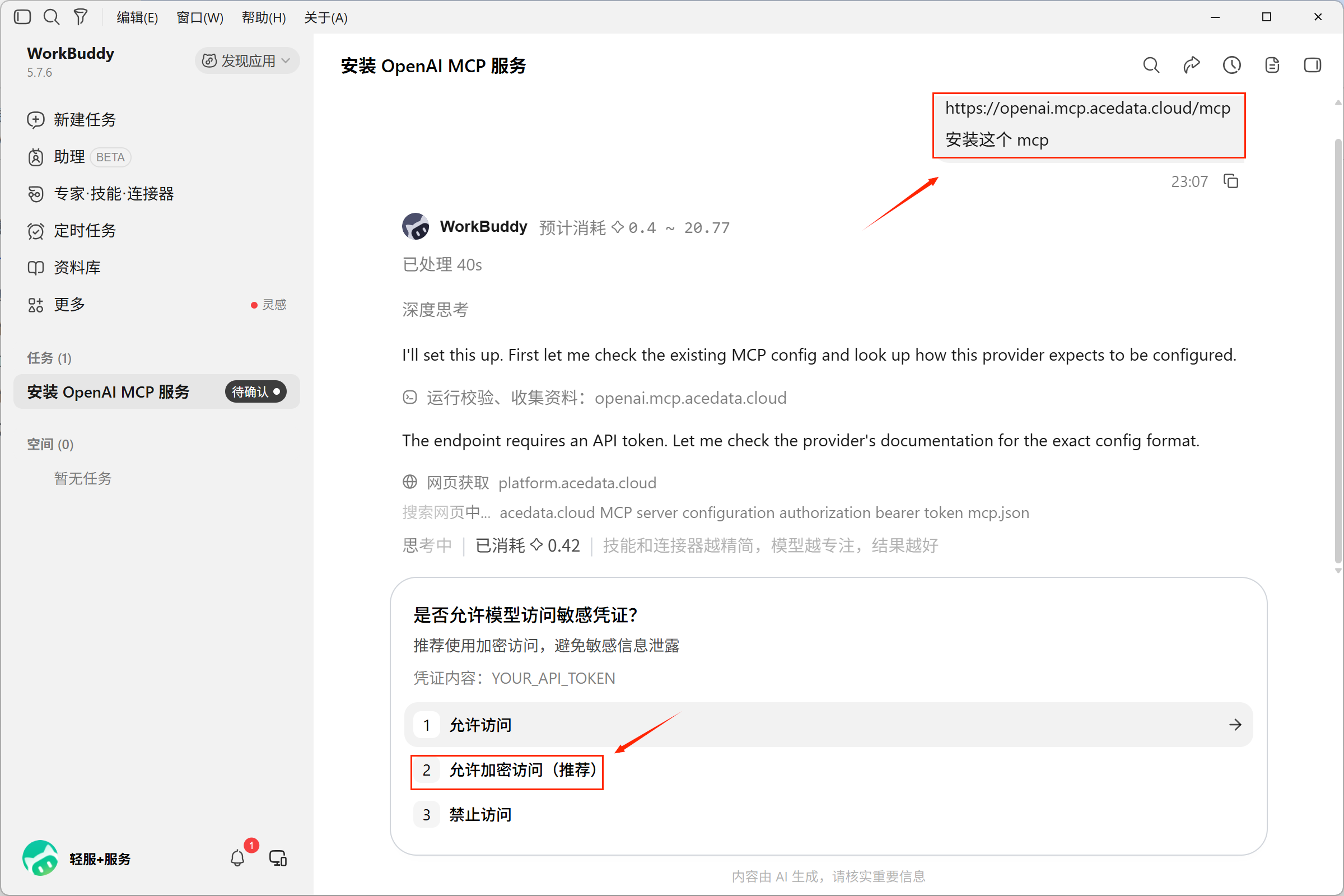
Start the installation through a conversation; credential access requires separate confirmation.
This step only starts the integration. The end of the chat task does not mean that the MCP is already available. You still need to enter the token and enable the service.
¶ Part Two. Enter the API Token and enable the connector
¶ 1. Obtain the API Token
Log in to Ace Data Cloud and open the “Credentials” page:
https://platform.acedata.cloud/console/credentials
Copy the API Token you intend to use for this call. It is recommended to use an easily identifiable credential name, which will make it more convenient to verify the call records later.
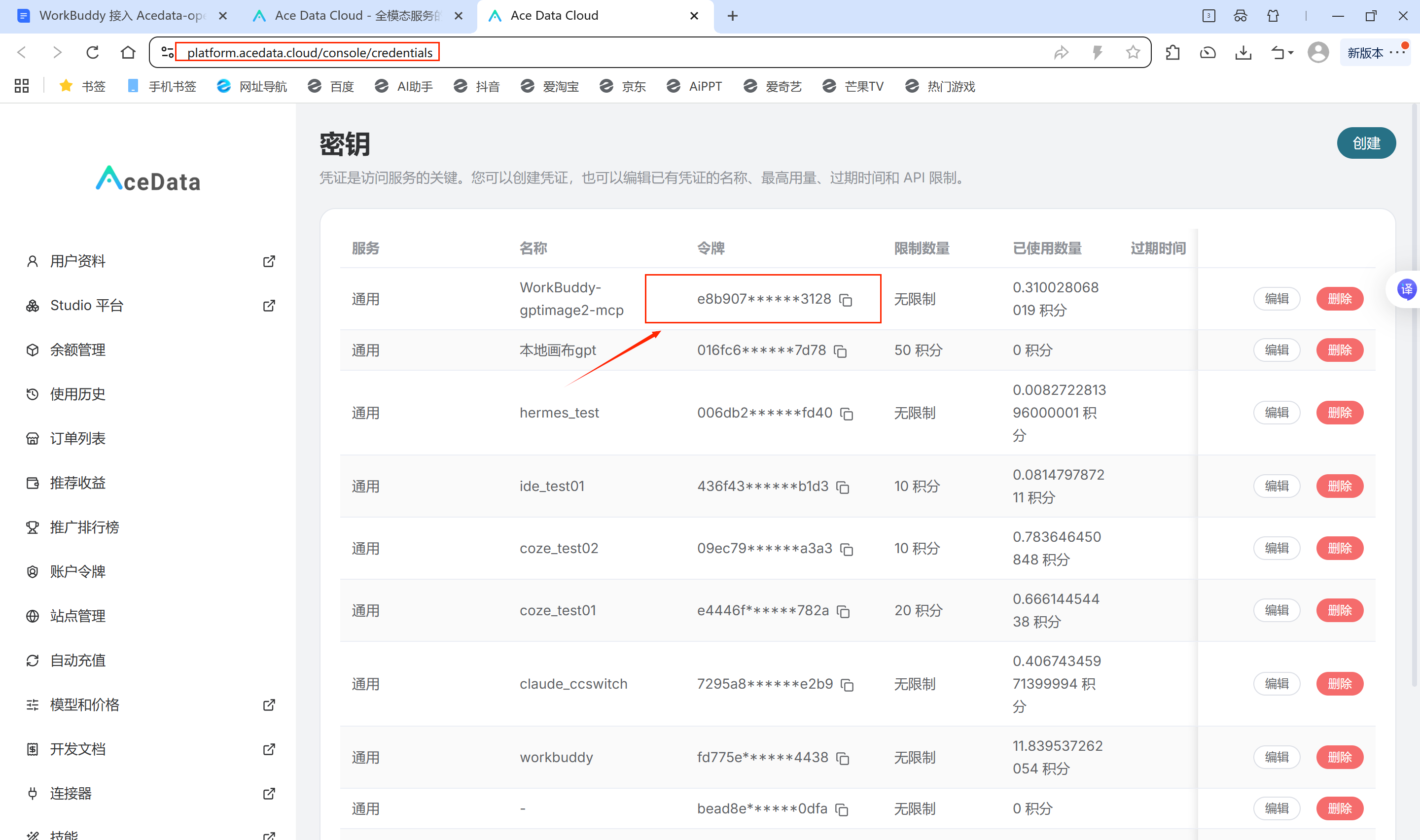
Copy your own API Token; do not use the content in the screenshot.
¶ 2. Open Custom Connectors
This time, use the manual entry method. The path is as follows:
Expert · Skills · Connectors → Connectors → Custom Connectors
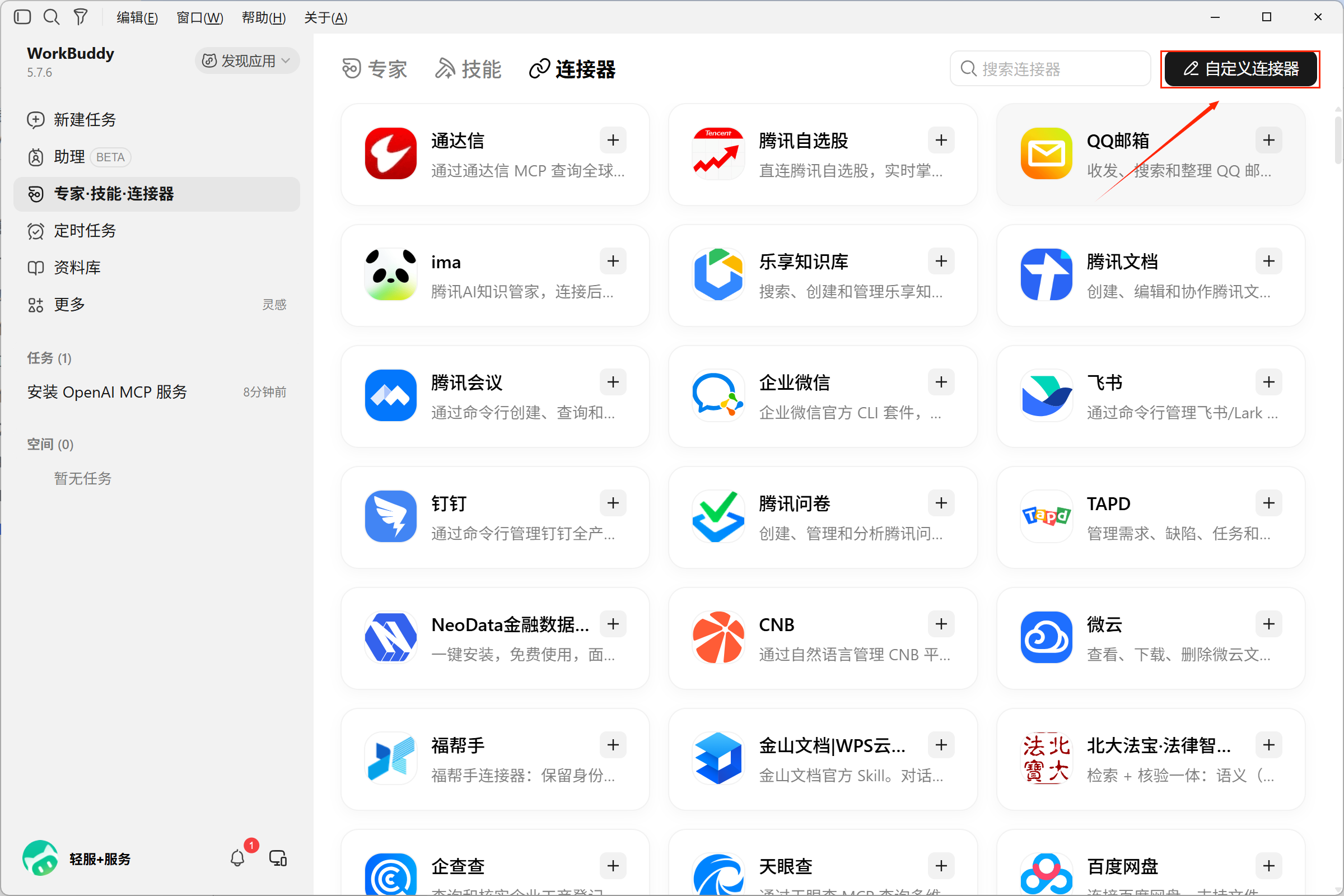
Enter “Connectors” and click “Custom Connectors” in the upper-right corner.
If openai is not yet in the list, click “Add MCP”; if it already exists, modify the corresponding configuration.
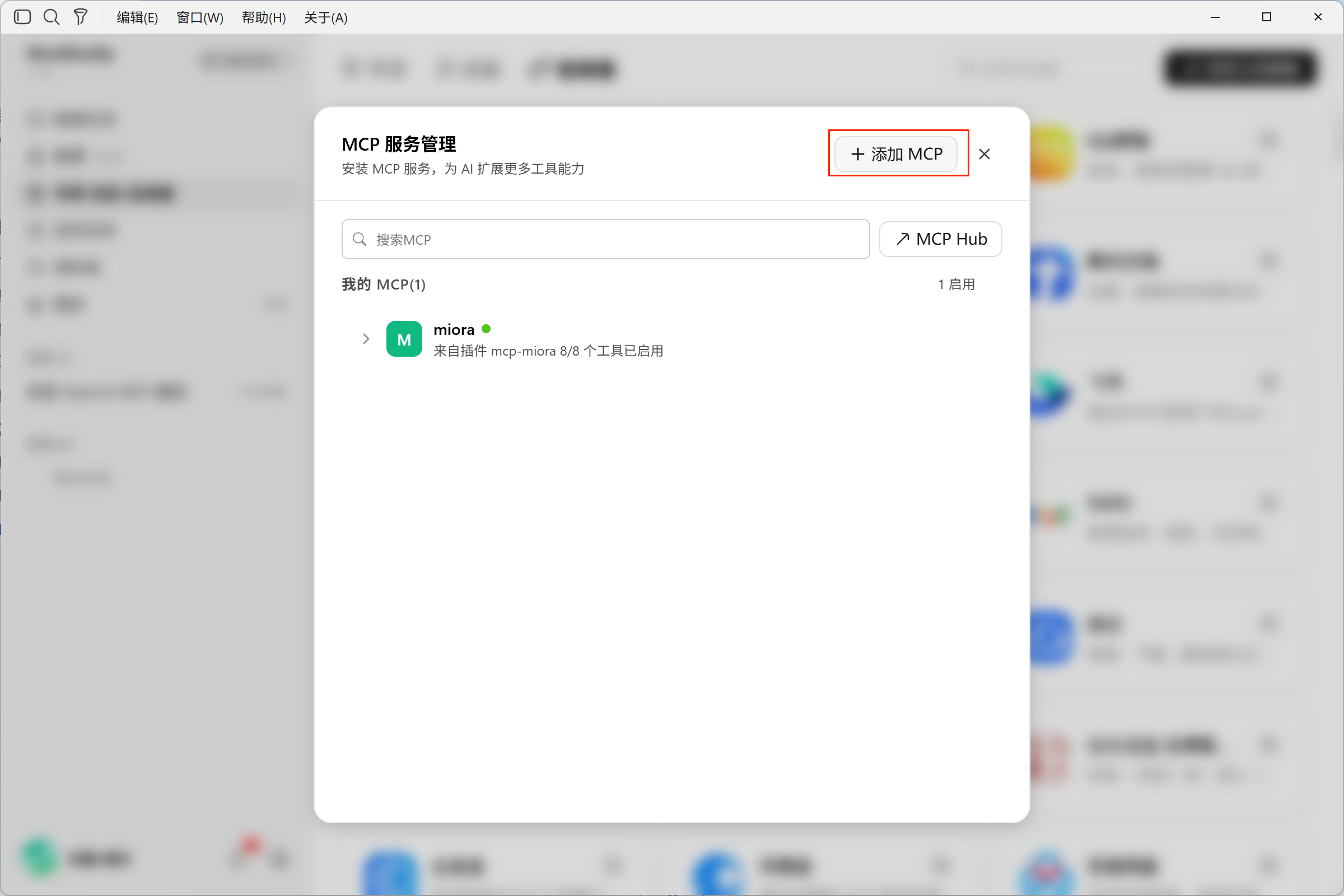
If there is no corresponding connection item, click “Add MCP”.
¶ 3. Enter the authentication configuration
The key parameters for this configuration are as follows:
| Parameter | Content to enter |
|---|---|
| Connection name | openai |
| Connection method | streamable-http |
| Service URL | https://openai.mcp.acedata.cloud/mcp |
| Request header | Authorization: Bearer YOUR_API_TOKEN |
Configuration example:
{
  "mcpServers": {
    "openai": {
      "type": "streamable-http",
      "url": "https://openai.mcp.acedata.cloud/mcp",
      "headers": {
        "Authorization": "Bearer YOUR_API_TOKEN"
      }
    }
  }
}
Replace YOUR_API_TOKEN with the token you just copied, keep the preceding Bearer and retain one space between it and the token, then click “Save”.
If you already have other MCP configurations, keep the original connection items and only add or modify this openai configuration. Do not use the example to overwrite the entire file.
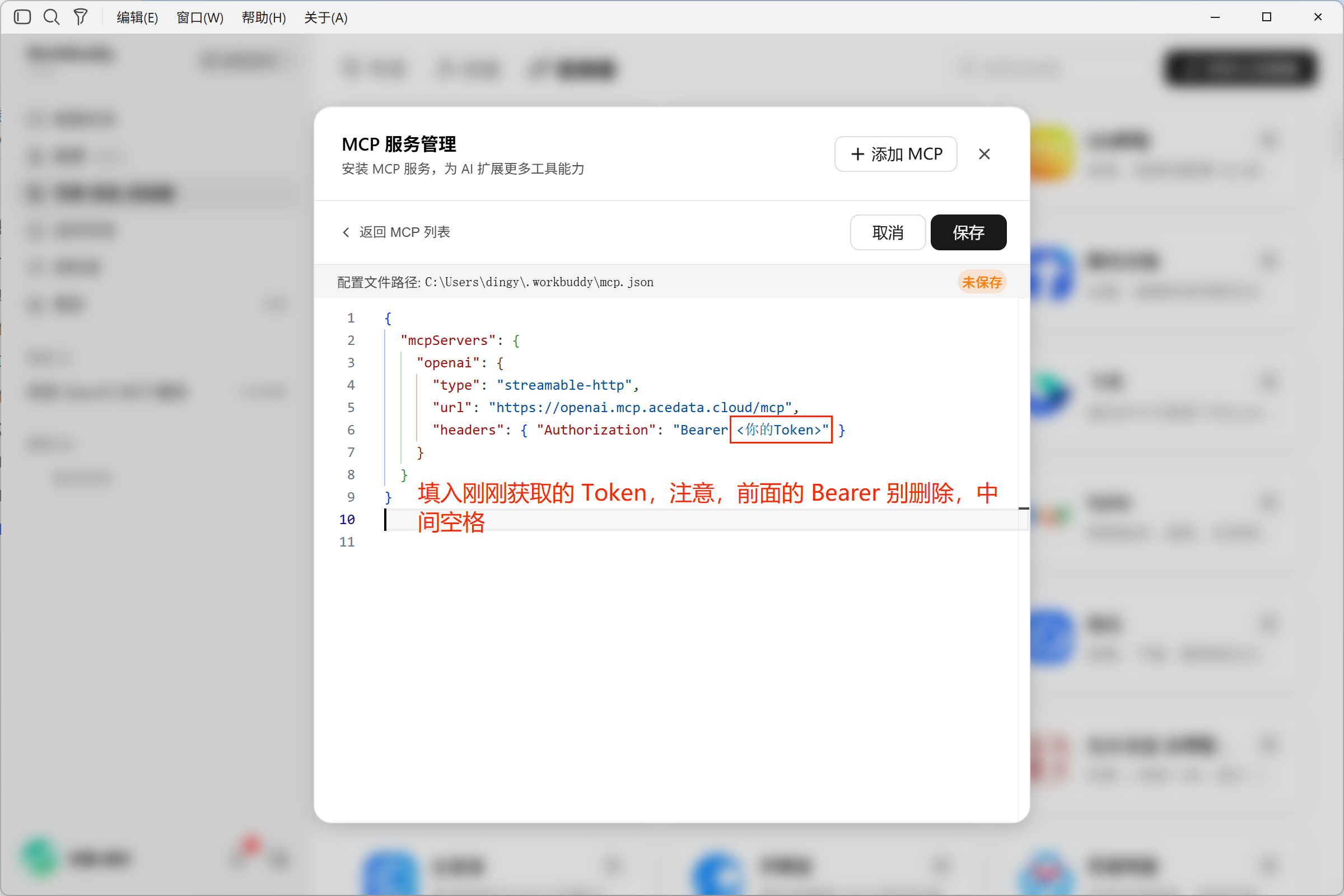
The red text is only used to indicate where to enter the content and is not part of the JSON configuration.
¶ 4. Trust and enable the service
After saving, return to the MCP list. When connecting for the first time, this interface prompts for trust confirmation.
After confirming that this is the service you just added, click “Trust”, then check whether the service is enabled.
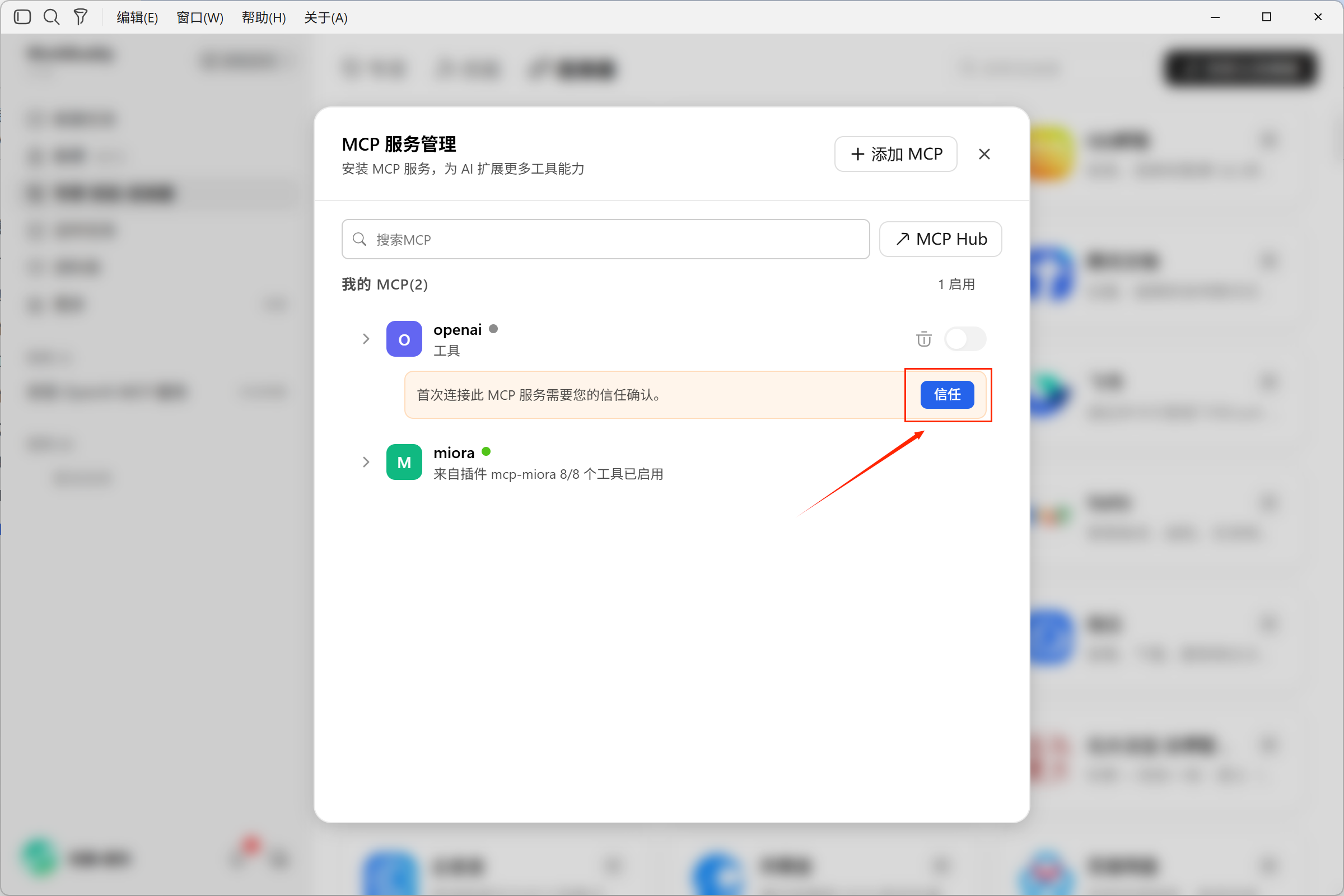
After confirming the service source, click “Trust”.
In this screenshot, openai displays a green status dot, an enable toggle, and 15/15 tools enabled; after expanding it, you can see tools such as openai_generate_image.
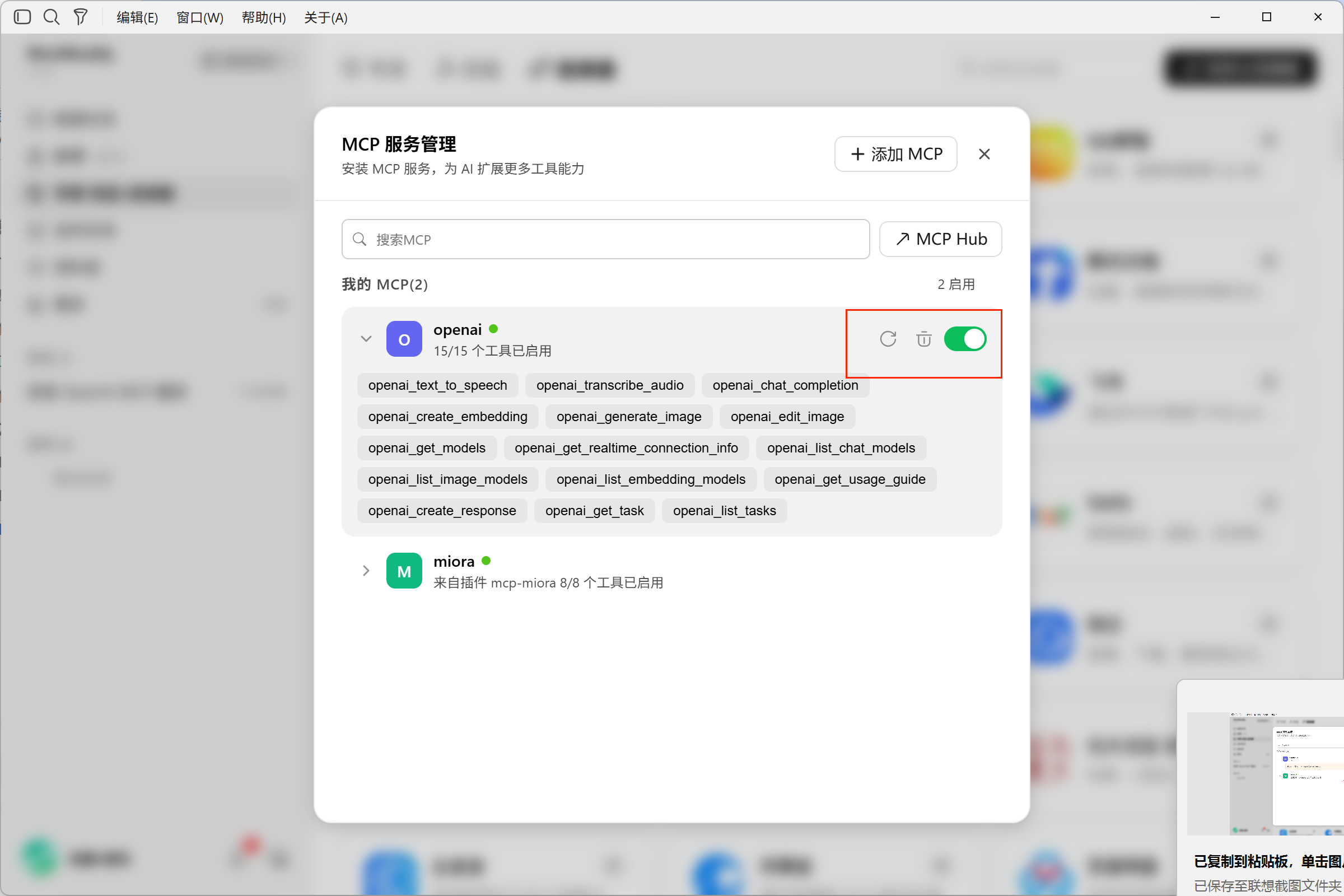
The service is enabled. Next, verify it through an actual task.
¶ Part Three. Generate an image and verify the platform call records
¶ 1. Test image generation in WorkBuddy
Return to the task chat. The test prompt used this time is:
I have completed the configuration. Please use ace mcp to draw a colorful cat, 16:9.
This explicitly requires the use of the MCP just configured, rather than simply asking WorkBuddy to generate an image freely.
Wait for the task to complete. In this example, WorkBuddy returned the following colorful cat image:
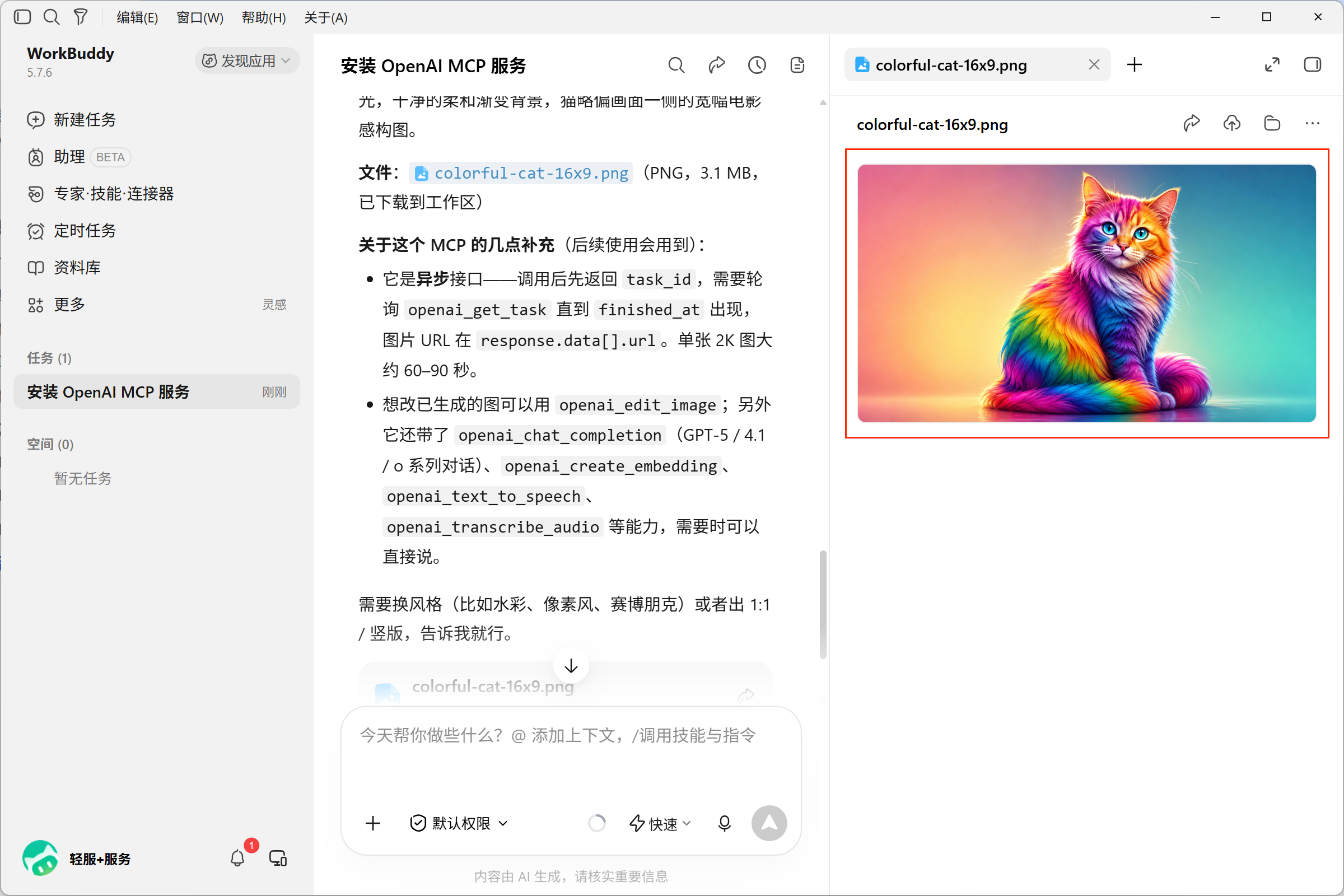
The image result returned by this test.
¶ 2. Confirm that the call went through Ace Data Cloud
After seeing the image, also verify the call records. Open the “Usage History” page of Ace Data Cloud:
https://platform.acedata.cloud/console/usages
Use the credential name corresponding to this token and the call time to verify the task you just ran.
In the example screenshot, you can see the call record corresponding to the WorkBuddy-gptimage2-mcp credential used this time. This name is customized in the example account; when verifying, use your own credential name as the reference.
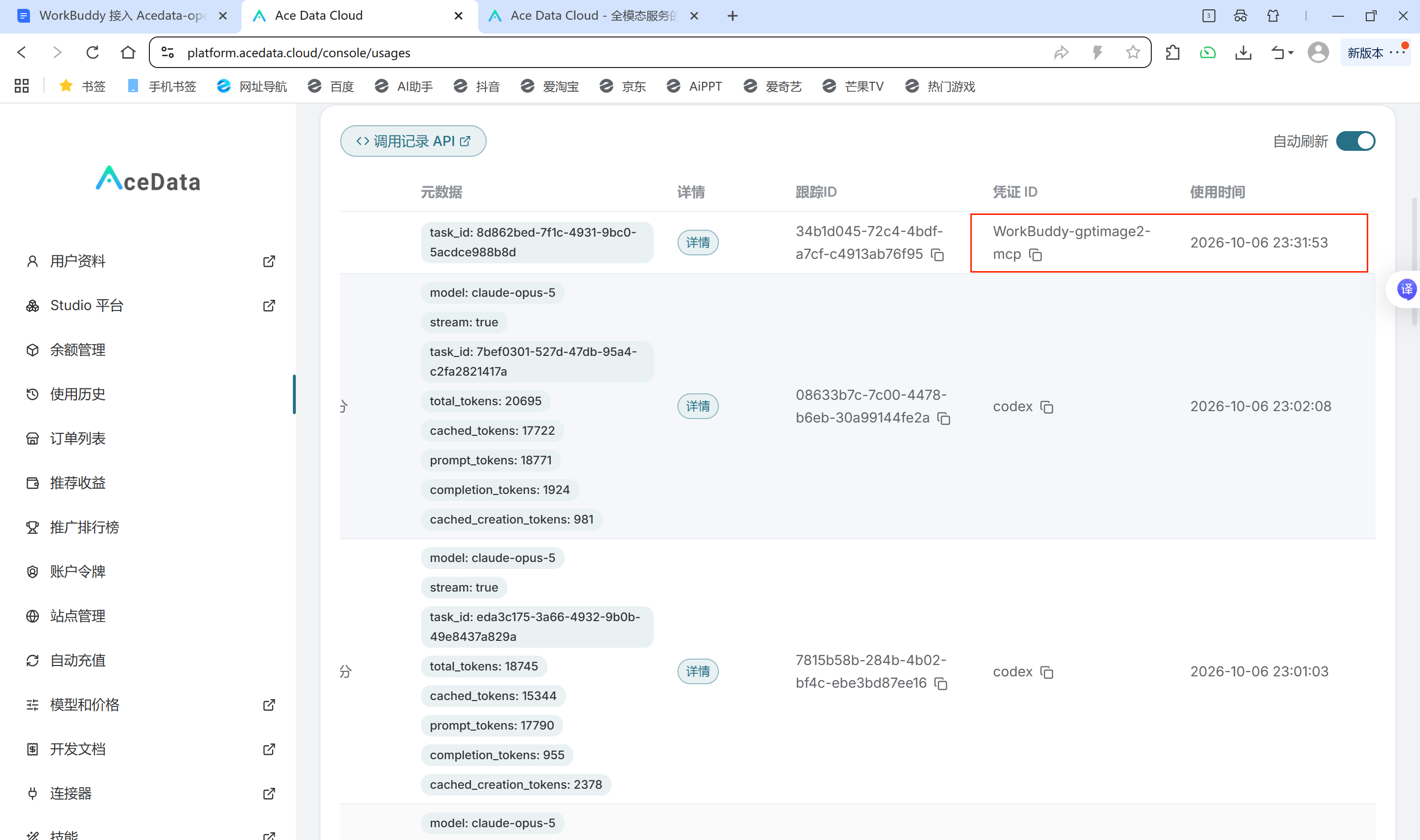
Verify the credential name and call time to confirm that there is a corresponding record on the platform side.
Check the connector enablement status, image result, and platform call records together to more completely verify this integration, rather than only looking at the “Completed” status in the chat.
¶ Final reminders
- Do not disclose your API Token or include it in screenshots that have not been sanitized.
- Before making calls, confirm the account quota and related billing. When testing, start with a simple task.
- If the call cannot be made, first check the token, the space after
Bearer, and whether the connector has been trusted and enabled. The entire process can be summarized in one sentence: Initiate installation through the conversation → Enter the token → Trust and enable → Test image generation → Verify the call records.