

If you want to use different large models in one tool, you actually do not need to start over every time.
Ace Data Cloud brings frontier models from multiple mainstream providers onto the same platform. Common model families such as GPT, Claude, Gemini, DeepSeek, Grok, and Kimi can all be found here. In addition to text conversation and code-related models, the platform also provides generation services for images, videos, music, and more. For the specific versions available, refer to the platform's current model list.
For people who frequently switch models, the convenient part is not only “having more choices,” but also not having to switch to a new set of tools and integration methods just to try a model.
You can think of Ace Data Cloud as a connection point: one side connects different models, while the other connects to the clients you are used to using. For tools that support the corresponding interface, simply fill in the address, Key, and model ID, and you can continue working in the original interface.

This time, let us use DeepSeek Harness as an example.
¶ First, let us talk about DeepSeek Harness
Although its name includes DeepSeek, DeepSeek Harness is not limited to using only DeepSeek models.
It is an open-source Agent tool from DeepSeek, currently in public beta. It can be used as a desktop application or launched through commands to open a web interface. Organizing documents, analyzing spreadsheets, understanding code repositories, modifying code, and running tests are all scenarios it is designed for. It also uses a plugin-based design, allowing tools, skills, and interfaces to be extended as needed.
To put it plainly, it is not just a chat window, but more like a workbench that can carry out work around files, code, and tools.
What we will use this time is its custom model API feature. DeepSeek Harness allows you to enter the API address, protocol, key, and model list yourself, so you do not have to be limited to the default model providers.
¶ Open the settings and connect the model
First, open DeepSeek Harness, click the settings entry in the lower-right corner, go to “Models,” then click “Add Model Provider,” and switch to “Custom Model API.”
The full path is:
Lower-right corner → Settings → Models → Add Model Provider → Custom Model API
Once there, you can fill in the connection information for Ace Data Cloud.
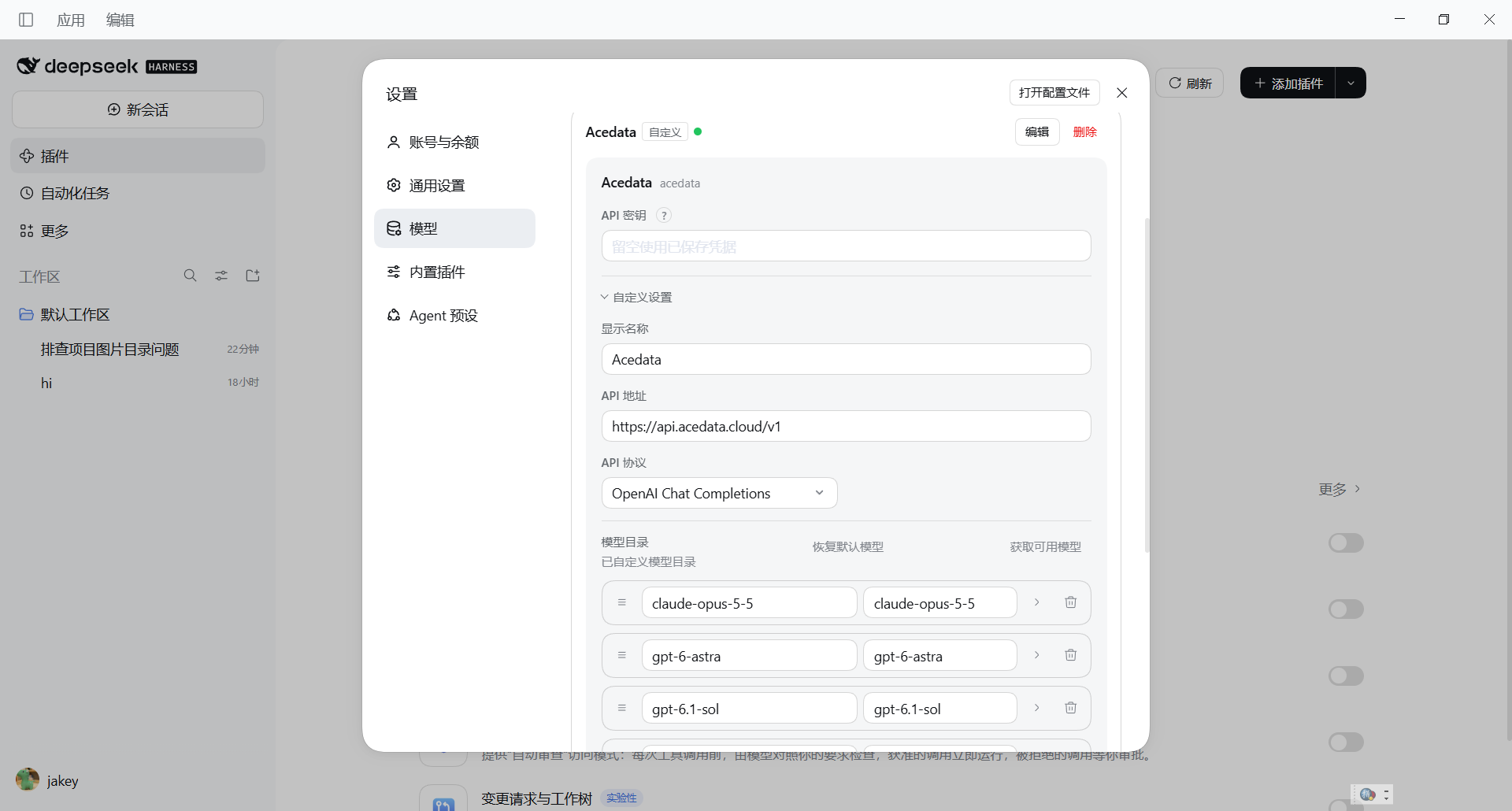
If the page requires a Provider ID, you can use acedatacloud, and set the display name to Ace Data Cloud, which will also make it easier to recognize when switching models later.
Fill in the main parameters as follows:
API Address: https://api.acedata.cloud/v1

API Protocol: openai-completions

API Key: Obtain it from the Ace Data Cloud platform

Model ID: gpt-6-astra
If the protocol option displays the full name, select OpenAI Chat Completions, and its corresponding configuration value is openai-completions.
For the model field, directly copy the model ID from the platform and paste it in. Here, gpt-6-astra is used as an example. Do not treat the display name as the model ID, and also check whether any extra spaces were copied. The actual availability of a model depends on the current account, region, and platform catalog.
Use the API Key obtained from your own platform account, not the password for your DeepSeek account. If you need to share configuration screenshots later, remember to hide the Key.
¶ After saving, send a message to test it
After filling in the information and saving it, return to the conversation page, select the provider and model you just added, and send a simple message to see whether it can return content normally.
According to the test results provided this time, the configuration has been successfully connected, and the model can respond normally.
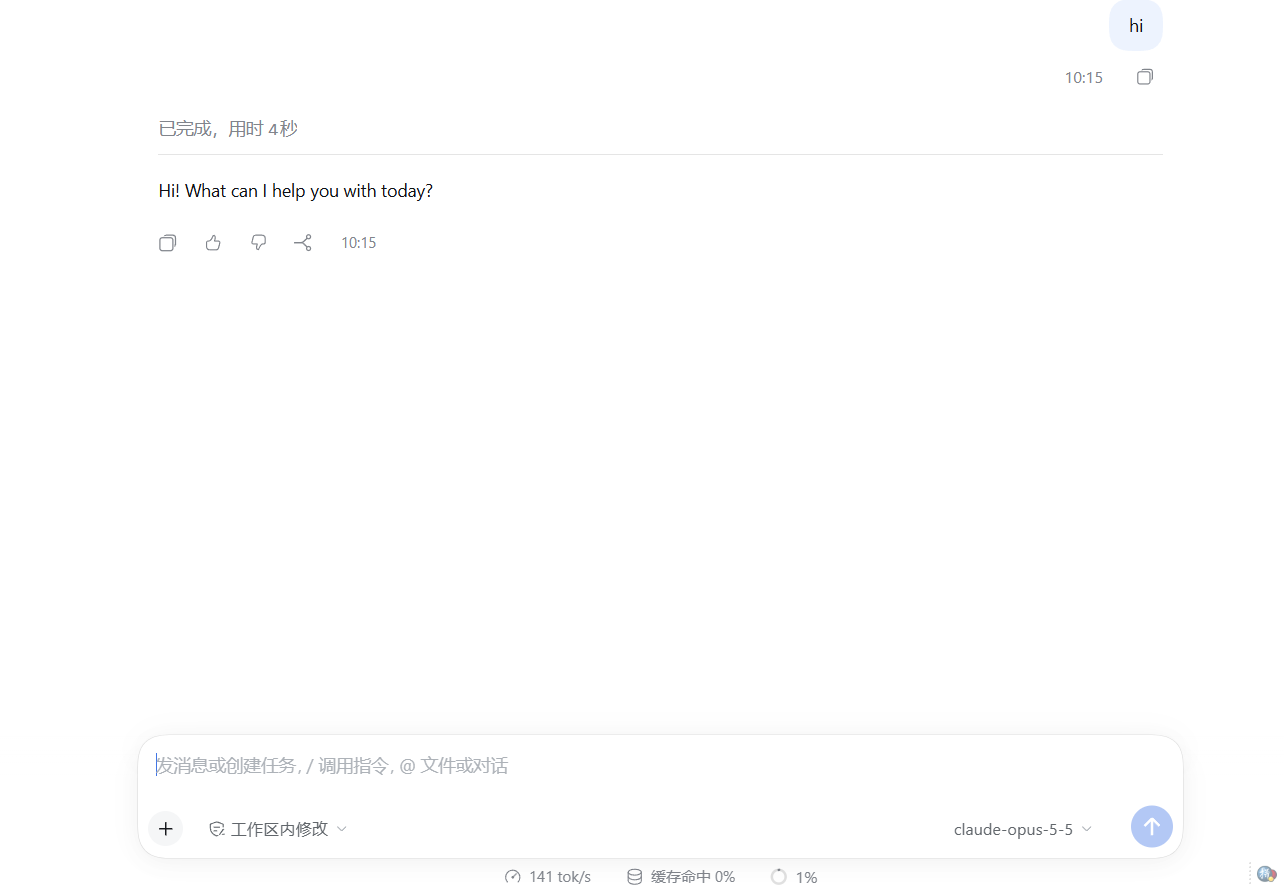
If you can receive a response, it means the basic conversation call has been connected successfully. Next, try it with your own actual tasks, such as asking it to explain a piece of code or organize a document.
If you plan to have it modify files or run tests later, it is also best to verify separately whether tool calls work properly. Being able to chat and being able to fully execute Agent tasks are not the same thing. You also need to consider model capabilities, interface compatibility, and local tool permissions.
If it does not work the first time, do not rush to configure everything again. Go back and check the API address, protocol, Key, and model ID, especially the spelling of the model ID and whether the current credentials are authorized to call that model.
¶ If you want to switch models, just add another one
Connecting DeepSeek Harness to Ace Data Cloud is that simple.
After configuring the provider and adding the models you want to use, you can continue trying them in the same workbench, without having to switch clients every time you switch models.
If you often use it to write code or modify projects, you can also take a look at our Code Plan (the platform page name is Coding Plan). It is designed for commonly used AI programming tools and provides unified model access and usage management; before purchasing, check the currently supported models, plan quotas, and integration instructions, and choose one that suits your usage frequency. Plans do not provide unlimited calls; specific rules are subject to the purchase page.
Recommended link: Code Plan Plans and Pricing
When using a plan, remember to obtain the corresponding credentials and integration parameters according to the instructions in the Code Plan Configuration Center. Do not assume they are exactly the same as regular API configurations.
Related resources: Ace Data Cloud, DeepSeek Harness Official Introduction, DeepSeek Harness Model Configuration Documentation.